# Embed components on another website
> Show records from your app on any website as a read-only table, list, kanban board or accordion. Create the embeddable component, then paste its code.
Source: https://tadabase.com/docs/developers/embeddable-components
Status: Verified Nov 17, 2026. Checked against the current product
An embeddable component shows records from one of your tables on a website outside Tadabase, such as listings, a price list, FAQs or testimonials. You keep the data in your app, and the website always shows the current records. Embeds are read-only: visitors can't add or change records through them.
## Component types
| Type | Shows records as | Extra setting |
| --- | --- | --- |
| Table | Rows and columns. | None. |
| List | Cards, in 1 to 4 columns. Good for records with a picture. | **List layout** and an optional **Card Cover Field** (an image, file or link field). |
| Kanban | One column (lane) per value of a field, with a card per record. | **Kanban Field**: the Radio or Select field whose values become the lanes. Optional **Card Cover Field**. |
| Accordion | A list of titles that open to show the record's other fields. Good for FAQs. | **Title Field**: the field shown as each record's title. **List layout** sets the number of columns. |
## Create an embeddable component
1. **Open Embeddable Components** In the builder's left menu, click **Automation**, then **Embeddable Components**.
2. **Add a component** Click **Add New Component**.
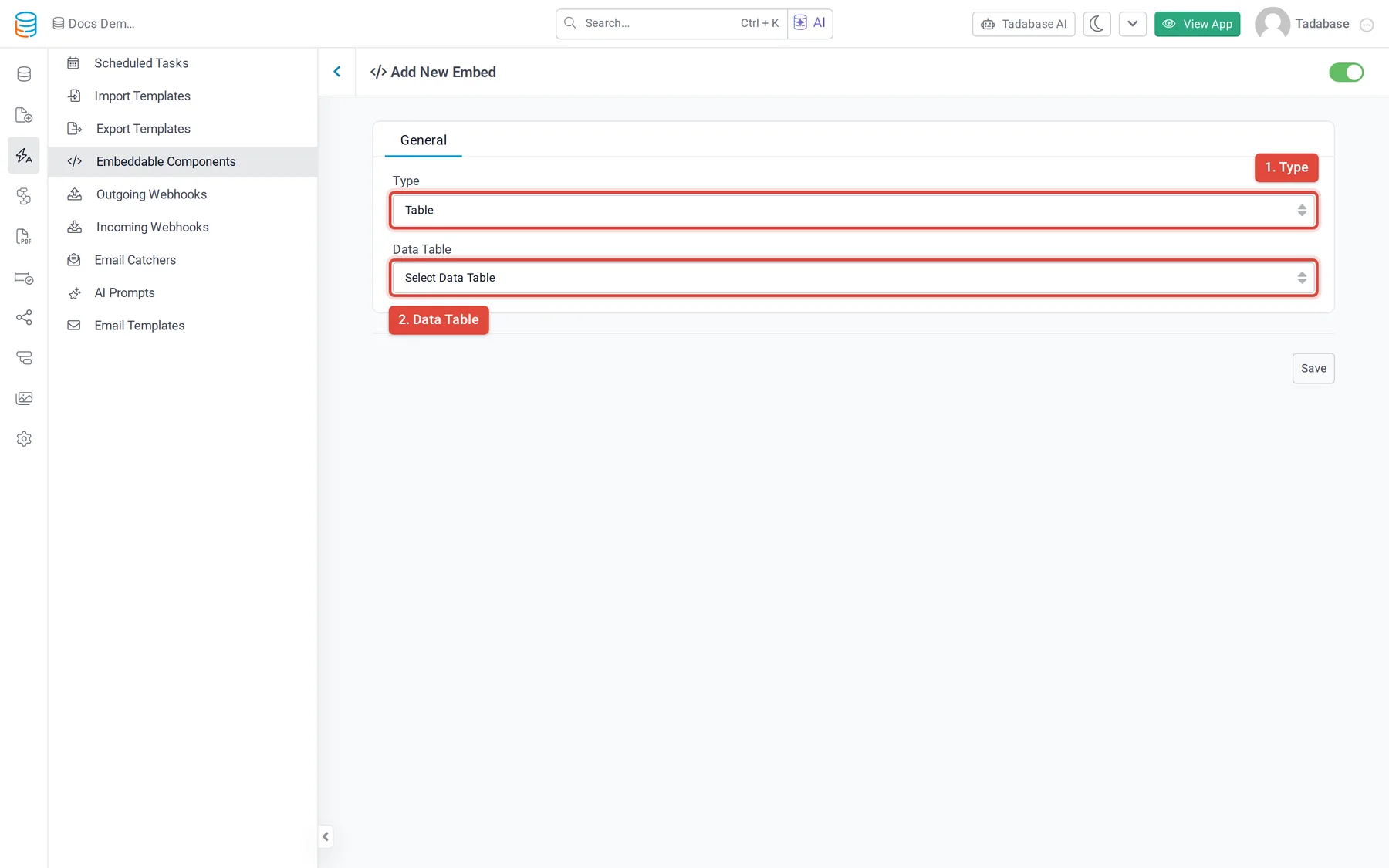
3. **Choose the type and table** On the **General** tab, choose the **Type** and the **Data Table** whose records it shows. You can't change the data table after you save.
4. **Set the look** Fill in the extra setting for the type (see the table above), and choose a **Design** (**Classic**, **Elegant** or **Modern**) and where the **Pagination** goes. **Description** is for your own reference in the builder.
5. **Choose the fields** On the **Fields** tab, click **Add All Fields**, or **Add New Field** for each field you want. For each field you can set a **Title**, **Width**, **Alignment**, **CSS Class** and **Custom CSS**. Drag the rows to change the order.
6. **Add a details popup (optional)** On the **Detail Page** tab, turn on **Enable Record Details**, enter a **Popup Title** and add the fields to show when a visitor clicks a record. Accordions don't have this tab.
7. **Filter and sort (optional)** On the **Conditions** tab, click **Add Condition** to show only records that match, and use **Sort By** to choose the sort field and **ASC** or **DESC**.
8. **Save** Click **Save**. New components are **Active**; use the switch at the top to make one **Inactive**, which stops the website showing its records.
| Pagination option | What visitors see |
| --- | --- |
| **Top and Bottom** (default) | Page links above and below the records. |
| **Top** or **Bottom** | Page links only above, or only below. |
| **Load More** | A button under the records that loads the next page. |
| **Hide** | No page links. |
Pagination applies to Table and List components.
## Add it to your website
1. **Get the code** In the **Embeddable Components** list, click **Get Embed Code** on the component's row, then click **Copy**.
2. **Paste it into your page** Paste the code into your website's HTML where the component should appear. In a website builder, use its HTML or custom code block.
3. **Check it** Open the web page. The component shows `Loading...` for a moment, then the records.
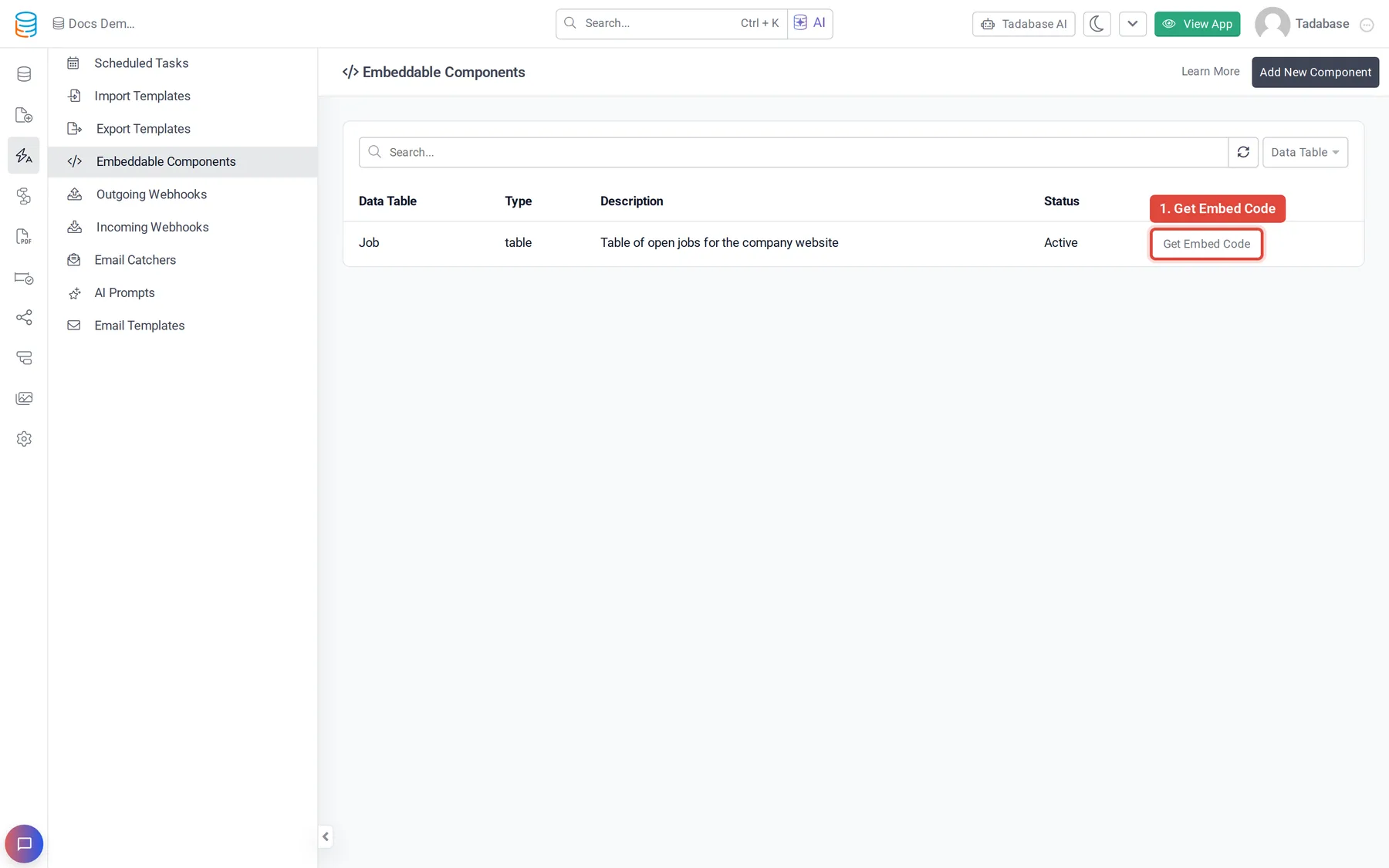
The code looks like this. Copy it from the builder rather than typing it: the two IDs in it are your app's and the component's.
```html
Loading...
```
## What visitors can see
- An embed needs no login. Anyone who can open the web page can see the records it shows.
- It shows only the records that match its conditions, and only the fields you added on the **Fields** and **Detail Page** tabs.
- Don't add fields with private data, and use conditions to leave out records that aren't meant for the public.
> **Note:** Your plan sets how many embeddable components an app can have. When you reach the limit, an upgrade button takes the place of **Add New Component**.
## If the component doesn't show
- Check that the component is **Active** in the **Status** column of the list. If it's **Inactive**, open it, switch it to **Active** and save.
- If nothing shows at all, check that the whole code was pasted, including both `script` tags, and that your website builder doesn't strip scripts.
- If records are missing, check the conditions on the **Conditions** tab.