# Set page titles, meta tags and clean URLs
> Remove the #! from your app's URLs, then set default and per-page titles and meta tags, including values from the record on a details page.
Source: https://tadabase.com/docs/settings/customizing-page-titles-and-meta-tags
Status: Verified Nov 17, 2026. Checked against the current product
The page title is the text in the browser tab and the headline in search results. Meta tags, such as `description` or `og:image`, tell search engines and social networks what a page is about and which picture to show when someone shares a link.
In Tadabase you set them in two places: defaults for the whole app in **Domain Settings**, and titles and tags for one page in that page's **Settings** tab.
## Turn on clean URLs first
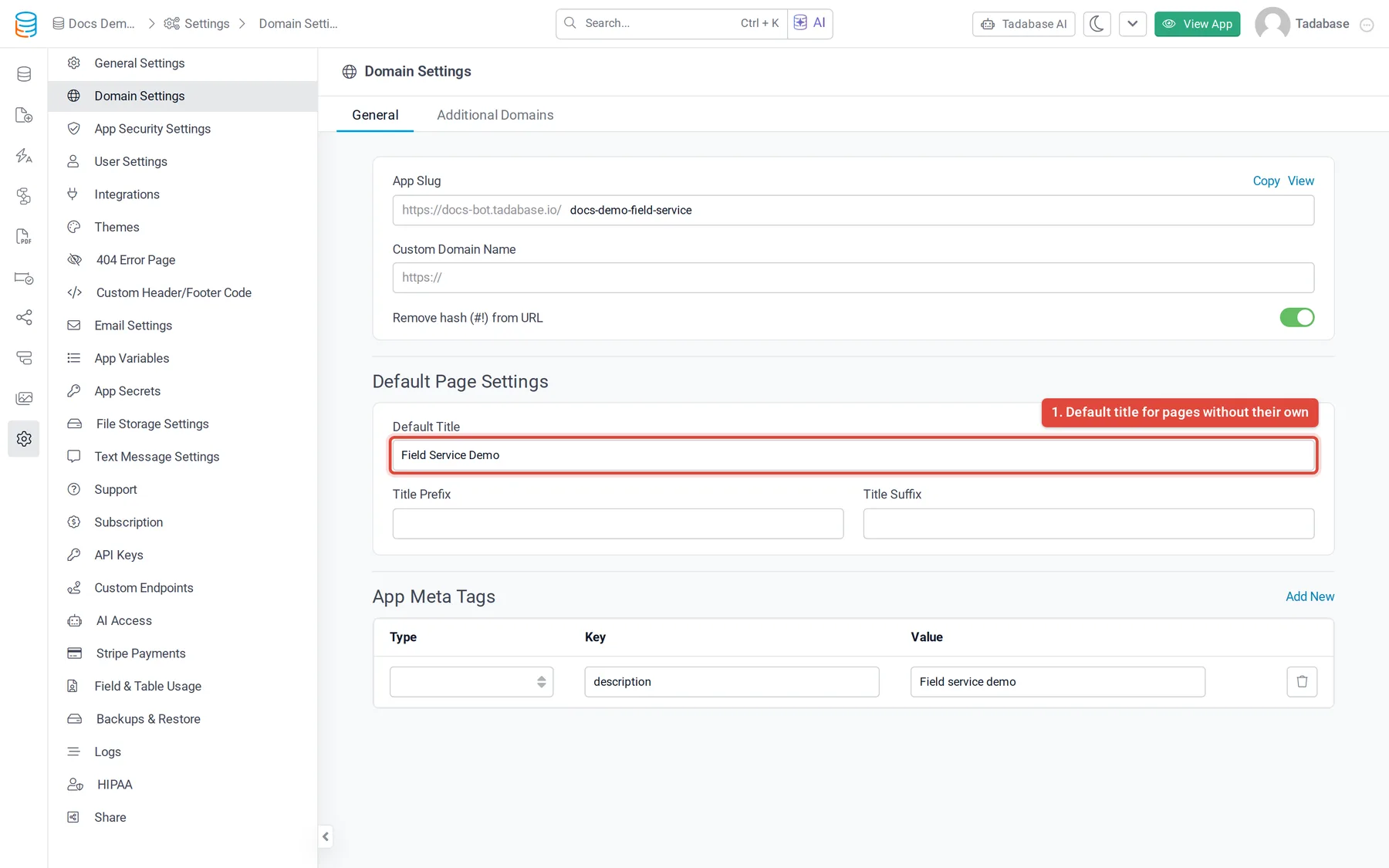
By default, app addresses contain `#!` (for example `/#!/jobs`). Titles and meta tags are written into the page that search engines and link previews read only when **Remove hash (#!) from URL** is on, and the **Default Page Settings** and **App Meta Tags** sections appear only then.
1. **Open Domain Settings** In the builder, open **Settings** and click **Domain Settings**.
2. **Remove the hash** On the **General** tab, turn on **Remove hash (#!) from URL**. If your plan does not include clean URLs, the switch is disabled and shows an upgrade icon.
3. **Save** Click **Save** on the **Unsaved Changes** bar. Your app's addresses no longer contain `#!`.
## Set defaults for every page
With clean URLs on, two sections appear under the switch in **Domain Settings**.
| Setting | What it does |
| --- | --- |
| **Default Title** | The title of any page that has no **Page Title** of its own. |
| **Title Prefix** | Added before every page title, followed by a space. For example `Acme \|` gives `Acme \| Jobs`. |
| **Title Suffix** | Added after every page title, after a space. For example `- Acme` gives `Jobs - Acme`. |
| **App Meta Tags** | Meta tags for every page that has no meta tags of its own. Click **Add New**, then fill in **Type**, **Key** and **Value** for each tag. |
In **App Meta Tags** and **Page Meta Tags**, **Type** decides how the tag is written: **Property** writes ``, used by Open Graph tags such as `og:title` and `og:image`; **Name** writes ``, used by tags such as `description` and `twitter:card`.
## Set a title and tags for one page
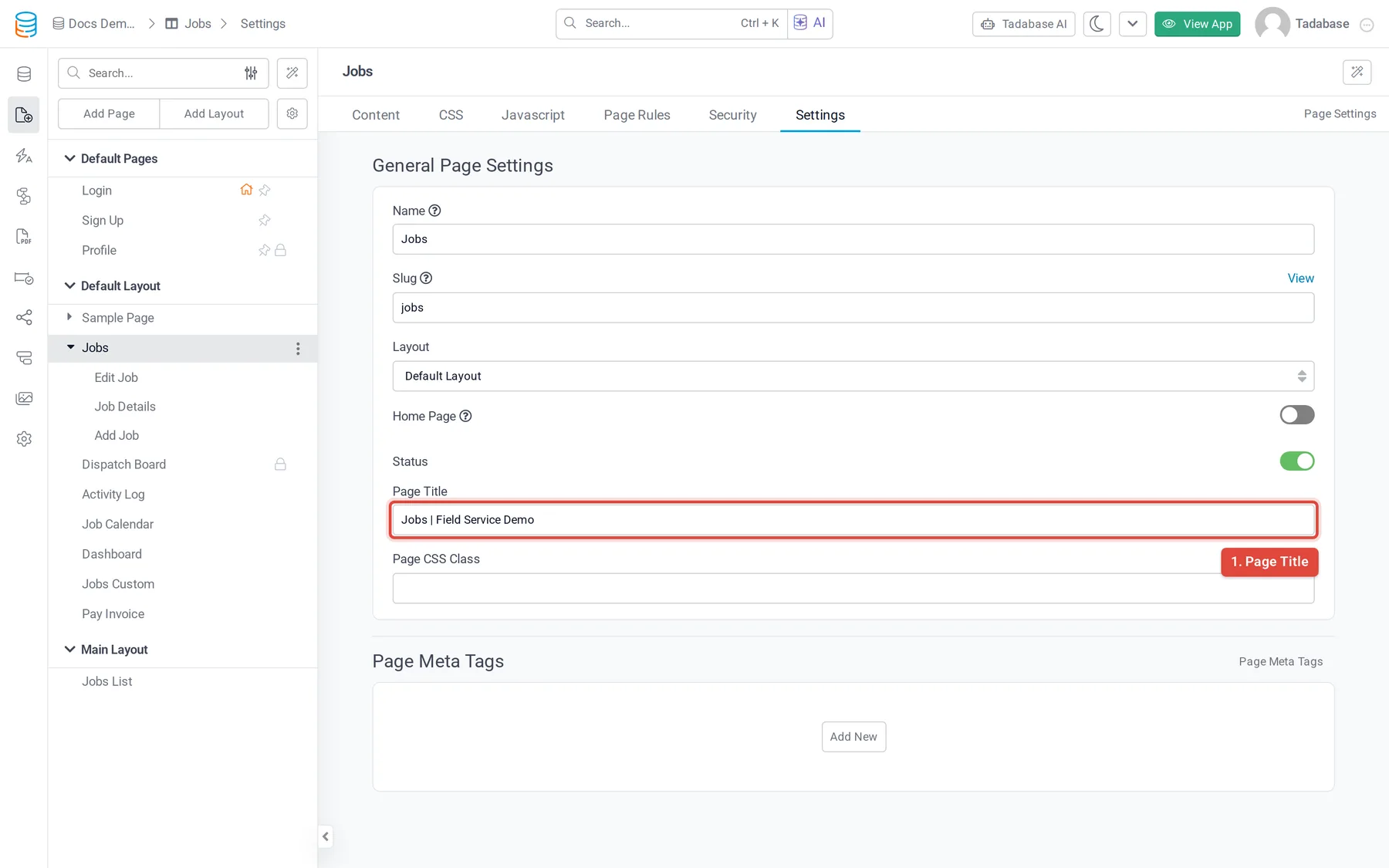
1. **Open the page's settings** In **Pages**, open the page and click its **Settings** tab.
2. **Enter a Page Title** Type the title in **Page Title**. The **Title Prefix** and **Title Suffix** from Domain Settings are still added around it.
3. **Add Page Meta Tags** Under **Page Meta Tags**, click **Add New** and fill in **Type**, **Key** and **Value**. If a page has any meta tags of its own, they replace the **App Meta Tags** on that page; the app tags are not added as well.
4. **Save** Click **Save** on the **Unsaved Changes** bar.
## Use record values on details pages
On a child page that shows one record (a details page), the **Page Title** and the meta tag values can include values from that record. Write the field name in braces after `pageField.`:
```text
{pageField.Customer Name} - Job {pageField.Record ID}
```
- Use the field's name exactly as it appears in the table, including spaces and capitals.
- `{pageField.Record ID}` gives the record's encoded ID and `{pageField.Auto Increment}` its number.
- Plain fields such as text, numbers and choices work best. Record values are filled in only on a child page that shows a record.
## Check your tags
- Open the live page and view its source (`Ctrl+U` on Windows, `Cmd+Option+U` on a Mac). Look for `` and the `<meta>` tags near the top.
- Paste the page's address into a link preview checker, such as the [Facebook Sharing Debugger](https://developers.facebook.com/tools/debug/), to see how it will look when shared. Social networks cache previews, so use the checker's re-scrape button after a change.
- If the tags are missing, check that **Remove hash (#!) from URL** is on and that you saved.