# How to Add Custom Themes to your Tadabase Charts

> This snippet will teach you how to add custom themes to your charts using CSS.

Source: https://tadabase.com/docs/snippets/how-to-add-custom-themes-to-your-tadabase-charts  
Status: Not yet re-checked. Moved from our previous help site and not yet re-checked against the current product. Last edited Sep 20, 2024.

This snippet will teach you how to add custom themes to your charts using CSS.

**Step 1**

Click on the Chart that you would like to create a custom theme for. Scroll down to the 'Theme' dropdown and select the 'custom' option. Enter a name for your custom chart theme, and press 'Save'.

![Screenshot for “How to Add Custom Themes to your Tadabase Charts”](https://tadabase-docs-assets.s3.amazonaws.com/uploads/images/gallery/2022-12/new.gif)

**Step 2**

Navigate to your app Settings, click on 'Custom Header/Footer Code', and paste the CSS below into the header of your app.
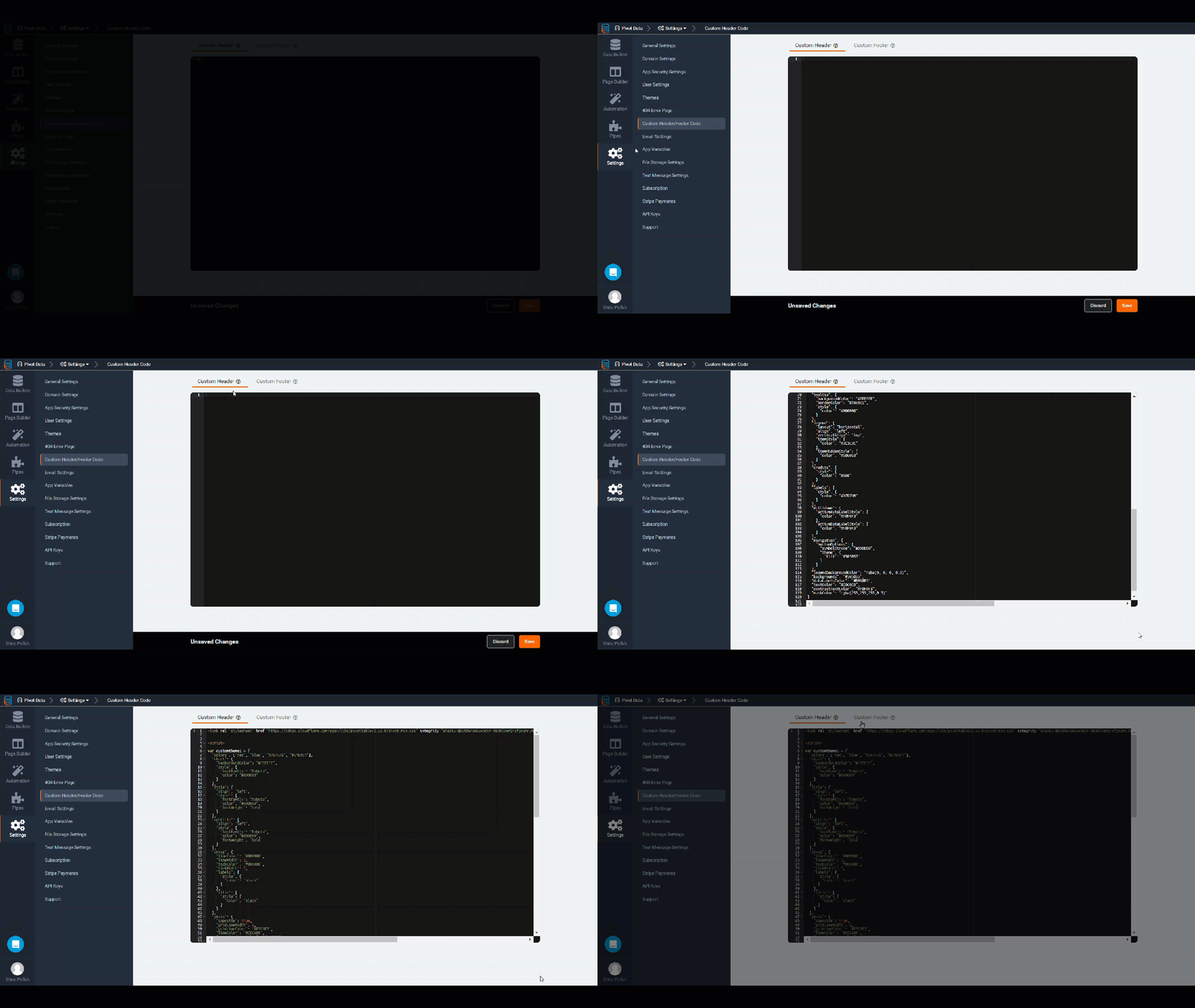
![Screenshot for “How to Add Custom Themes to your Tadabase Charts”](https://tadabase-docs-assets.s3.amazonaws.com/uploads/images/gallery/2022-12/2022-12-08-18-03-55.gif)

```css
<link rel="stylesheet" href="https://cdnjs.cloudflare.com/ajax/libs/pivottable/2.23.0/pivot.min.css" integrity="sha512-BDStKWno6Ga+5cOFT9BUnl9erQFzfj+Qmr5MDnuGqTQ/QYDO1LPdonnF6V6lBO6JI13wg29/XmPsufxmCJ8TvQ==" crossorigin="anonymous" referrerpolicy="no-referrer" />


<script>
    
var customTheme1 = {
  "colors": ["red", "blue", "#767676", "#E4E4E4"],
  "chart": {
    "backgroundColor": "#FFFFFF",
    "style": {
      "fontFamily": "Roboto",
      "color": "#000000"
    }
  },
  "title": {
    "align": "left",
    "style": {
      "fontFamily": "Roboto",
      "color": "#000000",
      "fontWeight": "bold"
    }
  },
  "subtitle": {
    "align": "left",
    "style": {
      "fontFamily": "Roboto",
      "color": "#000000",
      "fontWeight": "bold"
    }
  },
  "xAxis": {
    "lineColor": "#000000",
    "lineWidth": 2,
    "tickColor": "#000000",
    "tickWidth": 2,
    "labels": {
      "style": {
        "color": "black"
      }
    },
    "title": {
      "style": {
        "color": "black"
      }
    }
  },
  "yAxis": {
    "opposite": true,
    "gridLineWidth": 2,
    "gridLineColor": "#F3F3F3",
    "lineColor": "#CEC6B9",
    "minorGridLineColor": "#CEC6B9",
    "labels": {
      "align": "left",
      "style": {
        "color": "black"
      },
      "x": 0,
      "y": -2
    },
    "tickLength": 0,
    "tickColor": "#CEC6B9",
    "tickWidth": 1,
    "title": {
      "style": {
        "color": "black"
      }
    }
  },
  "tooltip": {
    "backgroundColor": "#FFFFFF",
    "borderColor": "#76c0c1",
    "style": {
      "color": "#000000"
    }
  },
  "legend": {
    "layout": "horizontal",
    "align": "left",
    "verticalAlign": "top",
    "itemStyle": {
      "color": "#3C3C3C"
    },
    "itemHiddenStyle": {
      "color": "#606063"
    }
  },
  "credits": {
    "style": {
      "color": "#666"
    }
  },
  "labels": {
    "style": {
      "color": "#D7D7D8"
    }
  },
  "drilldown": {
    "activeAxisLabelStyle": {
      "color": "#F0F0F3"
    },
    "activeDataLabelStyle": {
      "color": "#F0F0F3"
    }
  },
  "navigation": {
    "buttonOptions": {
      "symbolStroke": "#DDDDDD",
      "theme": {
        "fill": "#505053"
      }
    }
  },
  "legendBackgroundColor": "rgba(0, 0, 0, 0.5)",
  "background2": "#505053",
  "dataLabelsColor": "#B0B0B3",
  "textColor": "#C0C0C0",
  "contrastTextColor": "#F0F0F3",
  "maskColor": "rgba(255,255,255,0.3)"
}
    
</script>
```

> **Warning:** Be sure to insert the name of your custom theme that you entered in the Chart Component (see Step 1).

![Screenshot for “How to Add Custom Themes to your Tadabase Charts”](https://tadabase-docs-assets.s3.amazonaws.com/uploads/images/gallery/2022-12/scaled-1680-/image-1670543277328.png)

**Step 3**

Edit the code accordingly.

You can either enter the names of the colors you would like to use, or you can pick a color [here](https://g.co/kgs/4QeJ9Q) and enter the Hex Code (for example: #4287f5) into the header.

![Screenshot for “How to Add Custom Themes to your Tadabase Charts”](https://tadabase-docs-assets.s3.amazonaws.com/uploads/images/gallery/2022-12/2022-12-08-18-52-27.gif)

For example:

![Screenshot for “How to Add Custom Themes to your Tadabase Charts”](https://tadabase-docs-assets.s3.amazonaws.com/uploads/images/gallery/2022-12/scaled-1680-/image-1670556709304.png)
