
Row-level security: make sure only the right people see the right records
When to use this, how to set it up, and — the part everyone skips — how to prove it actually worked.
Verified: 31/31 checks passed
Docs-engine run 2026-08-26-rls
On this page
Row-level security decides which rows each signed-in person can see and change. Roles decide who someone is; RLS decides which records that person is allowed to touch.
Use it whenever two people with the same job title must not see each other's data: two case managers with separate caseloads, two franchisees in one app, a client portal where each client sees only their own file.
The thing to understand before anything else: RLS fails silently in both directions. Turn it on wrong and your app shows nothing at all. Write a policy wrong and it shows everything to everyone — while the screen still says "Enabled". Neither mistake produces an error. That is why the last section of this guide is about proving it, and why you should not skip it.
The example we'll build #
A case-management app for a small advocacy practice.
| Role | Should see |
|---|---|
| Admin | every case |
| Case Manager | only the cases assigned to them |
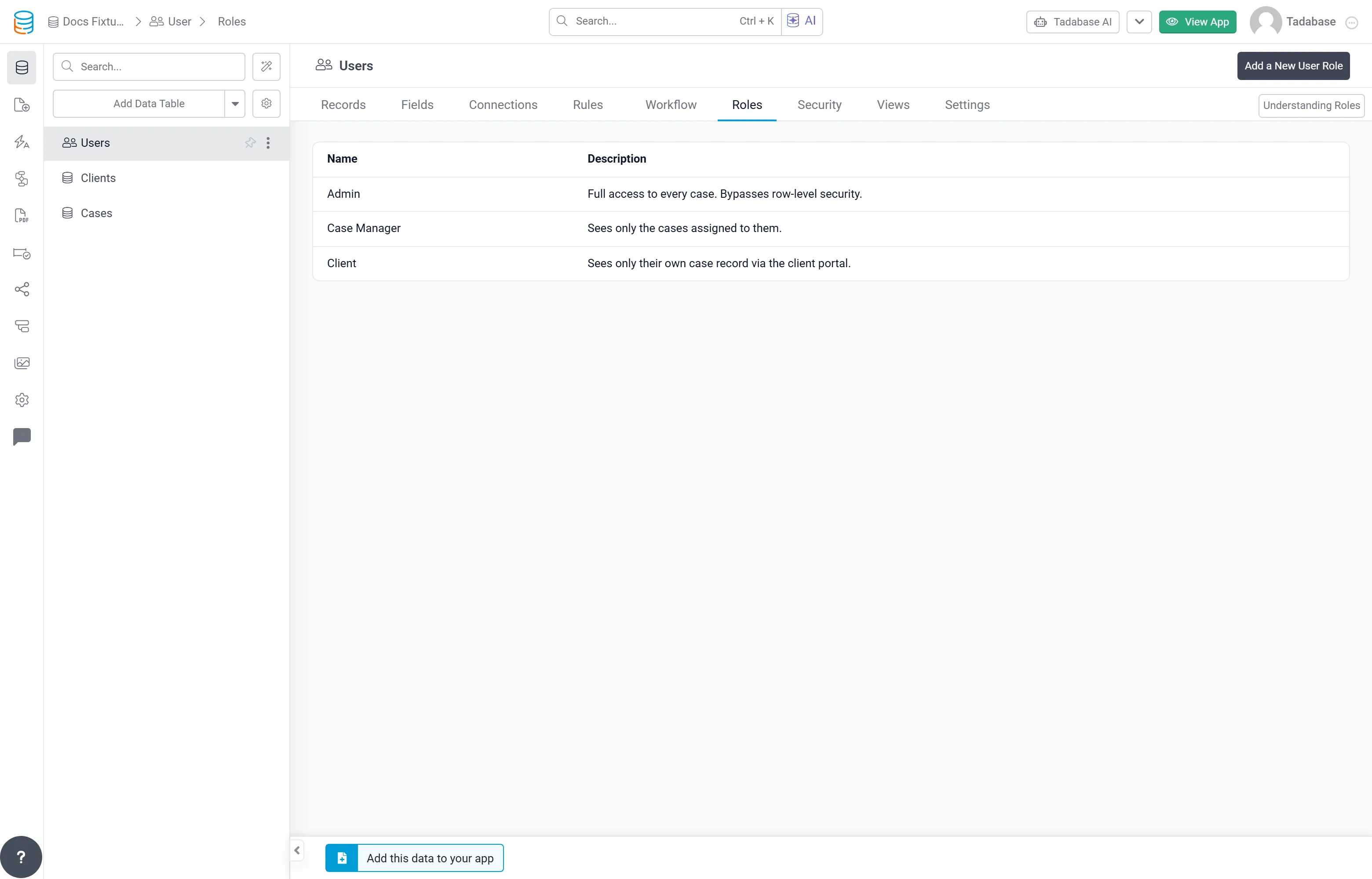
| Client | nothing in Cases — they use a separate portal view |
Two case managers, Marcus and Priya, split five cases between them. Marcus must never see Priya's, and Priya must never see Marcus's. That mutual check is the whole test.
Step 1 — Create your roles first #
Policies target roles, so the roles have to exist before you can write a policy. Go to your Users table → Roles.
Step 2 — Open the table's Security tab #
Row-level security is set per table, from that table's own Security tab — not in one global place. Open Cases → Security.

While security is off, every signed-in user can read every row in this table. That is the state you are moving away from.
Step 3 — Turn it on and choose where it applies #
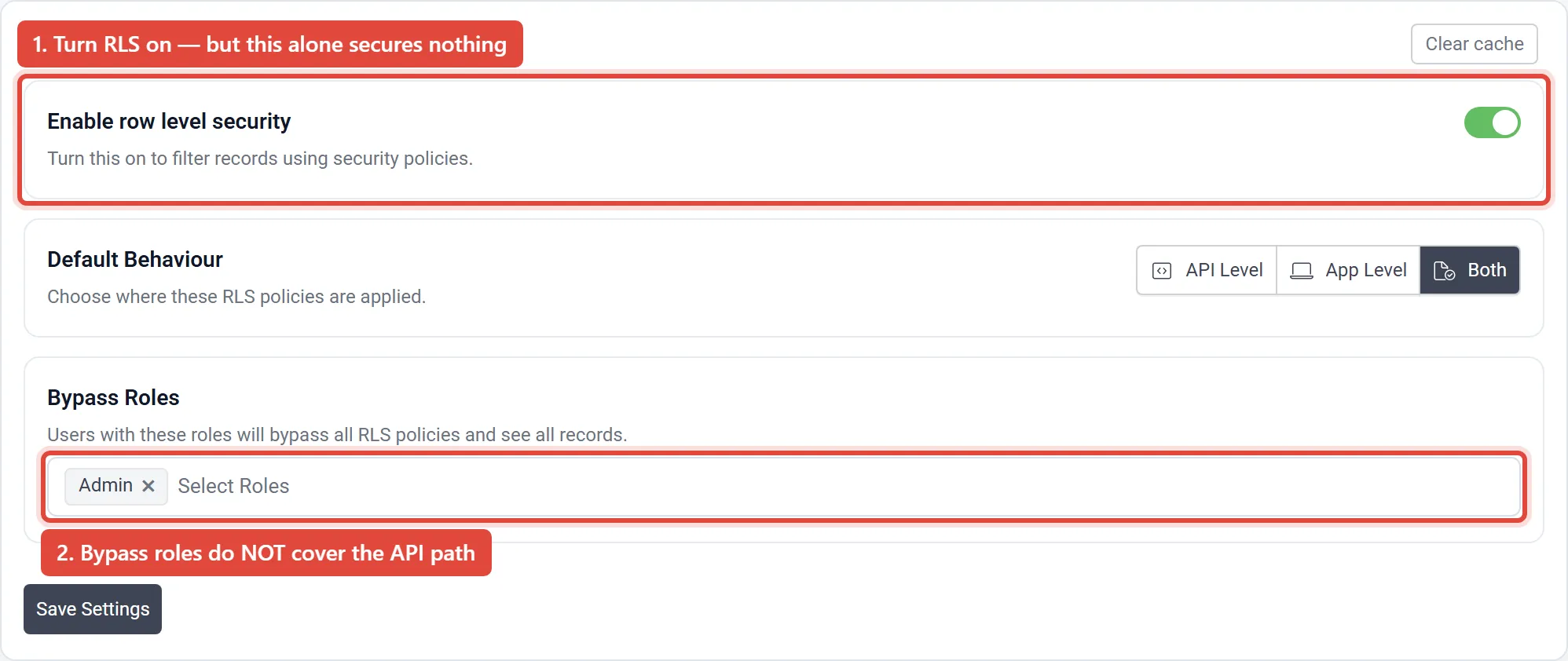
Three settings matter here:
Enable row level security. Turning this on does not secure anything by itself. It switches the table to deny-by-default — from this moment the table returns nothing to anyone until a policy grants access. If you turn this on and walk away, your app goes blank. That is expected, and it is why the next step is not optional.
Default Behaviour — where policies apply:
- App Level — the pages your users click through
- API Level — the Domain API, and anything built on it
- Both — recommended, and what this guide uses
Choose Both unless you have a specific reason not to. An app secured only at App Level still hands the data over through the API.
Bypass Roles. Users with these roles skip every policy. Put your Admin role here — but read the warning below, because bypass alone is not enough.
Step 4 — Write the policies #
Click Add Policy. Two policies for this table.
Policy 1 — Admins see every case. Role-Based, targeting Admin, all four operations, record scope All records.
Policy 2 — Case managers see only their own caseload. Role-Based, targeting Case Manager, operations Read, Create, Update (deliberately no Delete), and — the part that does the actual work — a record condition: Assigned To is logged in user.
That condition is the entire security boundary. Without it, policy 2 grants every case manager access to every case.
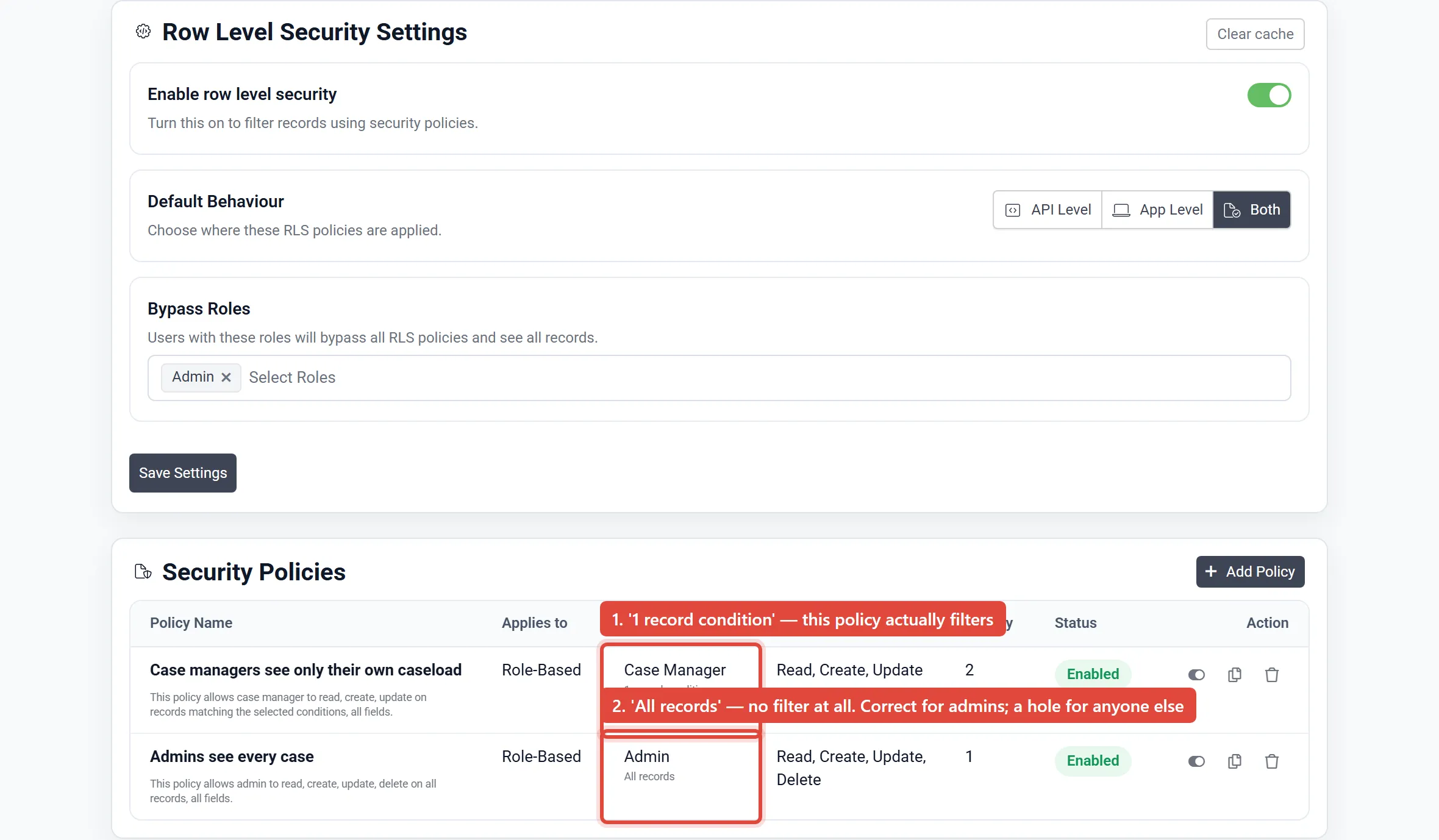
The Target Condition column is where you check your work. 1 record condition means the policy filters. All records means it does not. All records is correct for the admin policy and a hole in any other.

Step 5 — Prove it, from the outside #
Here is the honest part. Everything above can look completely correct and still be wrong. The screen showing "Enabled" tells you a policy was saved — not that it works.
There are only two things worth checking, and the second matters more:
1. Does the saved policy actually carry its condition? On this table the platform reports scope both and deny-by-default True. Each policy should show a record condition where you wrote one.
2. Does the app behave correctly when a real user signs in? This is the one that counts. Sign in as each role and check what you can reach. Do not test only as yourself — the account that wrote the policy is the account least likely to notice it is too permissive.
For every record, ask two questions, not one:
- Can the person who should see it, see it?
- Can the person who should not see it, reach it anyway — including by opening its URL directly?
That second question is the one that finds real leaks. A record hidden from a list can still be readable by anyone who knows its id.
Here is the full check for this app, run as each user in turn:
| As | Action | Target | Expected | Result |
|---|---|---|---|---|
admin | list | cases | ['case-m1', 'case-m2', 'case-p1', 'case-p2', 'case-p3'] | PASS |
admin | get | case-p1 | readable | PASS |
admin | update | case-p1 | writable | PASS |
admin | create | cases | allowed | PASS |
cm1 | list | cases | ['case-m1', 'case-m2'] | PASS |
cm1 | get | case-m1 | readable | PASS |
cm1 | get | case-m2 | readable | PASS |
cm1 | get | case-p1 | hidden | PASS |
cm1 | get | case-p2 | hidden | PASS |
cm1 | get | case-p3 | hidden | PASS |
cm1 | update | case-m1 | writable | PASS |
cm1 | update | case-p1 | blocked | PASS |
cm1 | delete | case-m1 | blocked | PASS |
cm1 | delete | case-p1 | blocked | PASS |
cm1 | create | cases | allowed | PASS |
cm1 | get | client-1 | readable | PASS |
cm1 | update | client-1 | blocked | PASS |
cm2 | list | cases | ['case-p1', 'case-p2', 'case-p3'] | PASS |
cm2 | get | case-p1 | readable | PASS |
cm2 | get | case-m1 | hidden | PASS |
cm2 | get | case-m2 | hidden | PASS |
cm2 | update | case-m1 | blocked | PASS |
cm2 | delete | case-p1 | blocked | PASS |
client | list | cases | [] | PASS |
client | get | case-m1 | hidden | PASS |
client | get | case-p1 | hidden | PASS |
client | update | case-m1 | blocked | PASS |
client | delete | case-m1 | blocked | PASS |
client | create | cases | blocked | PASS |
client | get | client-1 | readable | PASS |
client | update | client-1 | blocked | PASS |
Every negative case passed: Marcus cannot open Priya's cases even by direct id, neither can edit the other's, neither can delete anything, and the Client role reaches nothing in Cases at all.
Common mistakes #
Security on, no policies. The table returns zero rows to everyone, admins included. Your app looks broken rather than secure. Always pair enabling RLS with at least one allow policy.
An allow policy with no record condition. It reads as All records in the Target Condition column, looks perfectly normal, and grants the whole table to that role. This is the dangerous one, because nothing about it looks wrong.
Relying on bypass roles alone. See the warning in step 3. Bypass is a supplement to an admin allow policy, never a replacement.
Testing only as an admin. An admin — especially one in the bypass list — sees everything by design. Testing as an admin tells you nothing at all about whether your policies work.
Forgetting the API. If your scope is App Level only, the Domain API still serves the data. Use Both unless you have a reason not to.