
Advanced Scheduled Tasks with Granular Control
Product update · Oct 22, 2025
What's New
Scheduled tasks now support advanced scheduling with granular timing control, allowing you to configure complex schedules like "every 2 hours, Monday-Friday only."
Granular Timing Control #
The new advanced scheduler gives you precise control over when tasks run:
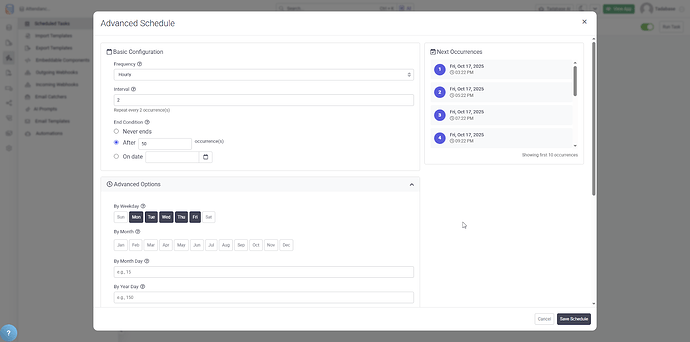
- Interval-Based Scheduling: Run tasks every X hours or minutes
- Day-of-Week Restrictions: Limit tasks to specific days (e.g., weekdays only)
- Time Windows: Run tasks only during specific hours
- Complex Patterns: Combine multiple scheduling rules
Scheduling Examples #
Every 2 Hours, Monday-Friday Only #
Perfect for business hour automations that shouldn't run on weekends.
Daily at 3 AM, Except Sundays #
Run maintenance tasks during off-peak hours while avoiding specific days.
Every 30 Minutes, 9 AM - 5 PM #
Frequent updates during business hours only.
List of Upcoming Occurrences #
View a list of when your task will run next:
- See the next several scheduled execution times
- Verify your schedule is configured correctly
- Confirm the schedule matches your expectations
- Preview timing before activating the schedule
Daylight Saving Time Support #
Scheduled tasks now track Daylight Saving Time changes:
- Tasks maintain correct execution times throughout the year
- Automatic adjustment when clocks change
- No manual schedule updates needed
Connected Values in Task Pipes #
Tasks now support connected values inside pipes:
- Pull in and reference related record data when running automated tasks
- Similar to forms capability, now extended to Scheduled Tasks
- Access join field data in task workflows
- Create more powerful automated workflows
Common Use Cases #
- Business Hours Automation: Run processes only during working hours
- Weekday-Only Tasks: Skip weekends for business-related automations
- Periodic Sync: Sync with external systems every few hours during the day
- Maintenance Windows: Run cleanup tasks at specific times, avoiding peak hours
- Report Generation: Generate reports daily at a specific time, weekdays only
Pro Tip
Always review the "Upcoming Occurrences" list after configuring a complex schedule. This helps catch configuration mistakes before the task runs incorrectly.