
Connect Tadabase to Claude, ChatGPT, Cursor or VS Code
One address connects Tadabase to any AI tool that speaks MCP. Step-by-step for Claude, ChatGPT, Claude Code, Cursor and VS Code, with screenshots.
On this page
- Start here
- What you are connecting
- How sign-in works
- Pick your platform
- Claude — web, desktop and Cowork
- ChatGPT
- Claude Code
- Cursor
- VS Code
- Windsurf, Zed, Cline and any other client
- From your own code
- Check it works
- Connect GitHub (recommended for code work)
- Publishing your app
- When something is not working
- Limits and fair use
- Staying in control
- Server reference
One address connects Tadabase to Claude, ChatGPT, Cursor, VS Code and anything else that speaks MCP. There is nothing to install and no key to copy — you sign in the same way you sign in to any other app. Once connected, your assistant can read your app schema, query records, build tables and workflows, edit your app’s code and publish it live, from inside the conversation you are already having.
Start here #
https://mcp.tadabase.io/mcpThat is the whole configuration. Do not add a token, a header or a password — paste the address, and your client walks you through signing in to Tadabase in the browser.
The same address, the steps for your tool and your list of connections are also on the AI tool access page at build.tadabase.com/mcp, under your profile menu.
What you are connecting #
Once connected, your assistant can do the things you would otherwise do by hand in the builder and the studio, from inside the conversation you are already having.
- Read your app: tables, fields, roles, workflows, views and PDF templates.
- Work with data: query, create, update and delete records, with your row-level security applied exactly as it is for any other caller.
- Build: create tables and fields, workflows, roles and pages.
- Edit app code: read, search and write files in a Vibe project.
- Ship: publish the app live, and sync the project to GitHub.
How sign-in works #
Worth thirty seconds, because it is what makes every guide below short. When you paste the address into a client, the client asks the server how to sign you in. The server answers, the client registers itself automatically, and a Tadabase page opens in your browser asking whether to allow it. You approve, the window closes, and you are connected. Your client stores the result and refreshes it on its own.
- There is no API key to create, paste, rotate or leak. Nothing sensitive ever sits in a config file.
- The Tadabase approval screen tells you which tool is asking. Read it. If you did not just start a connection, deny it.
- You can revoke any tool later from your Tadabase account without touching the others.
Every route in this guide ends at the same Tadabase screen. It names the tool asking, which account you are approving as, and how much it will reach. Allow grants it; Deny is always safe.
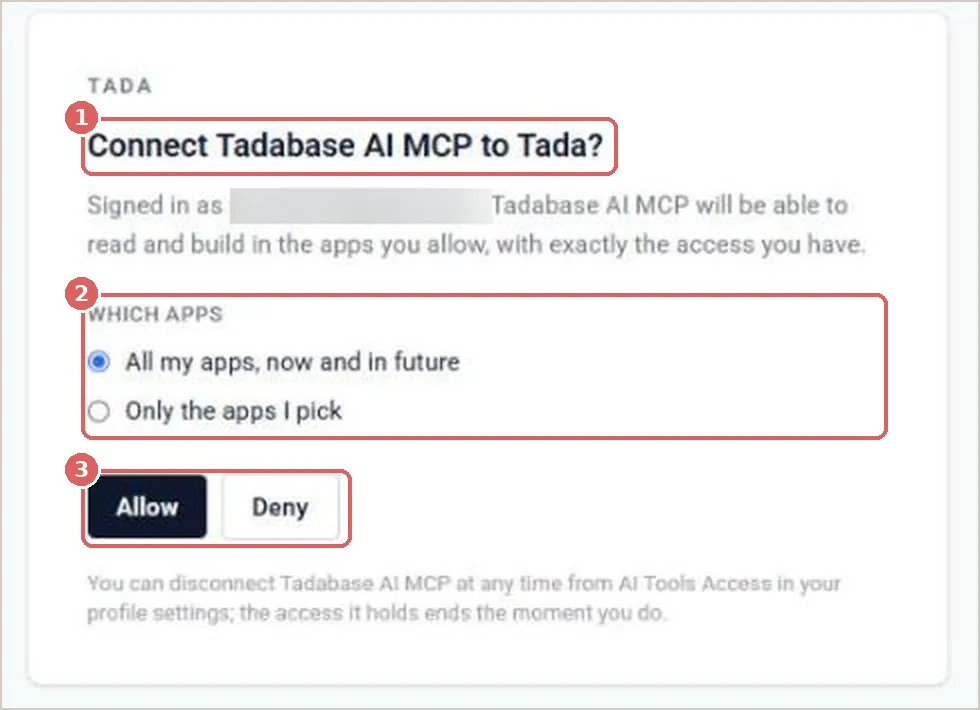
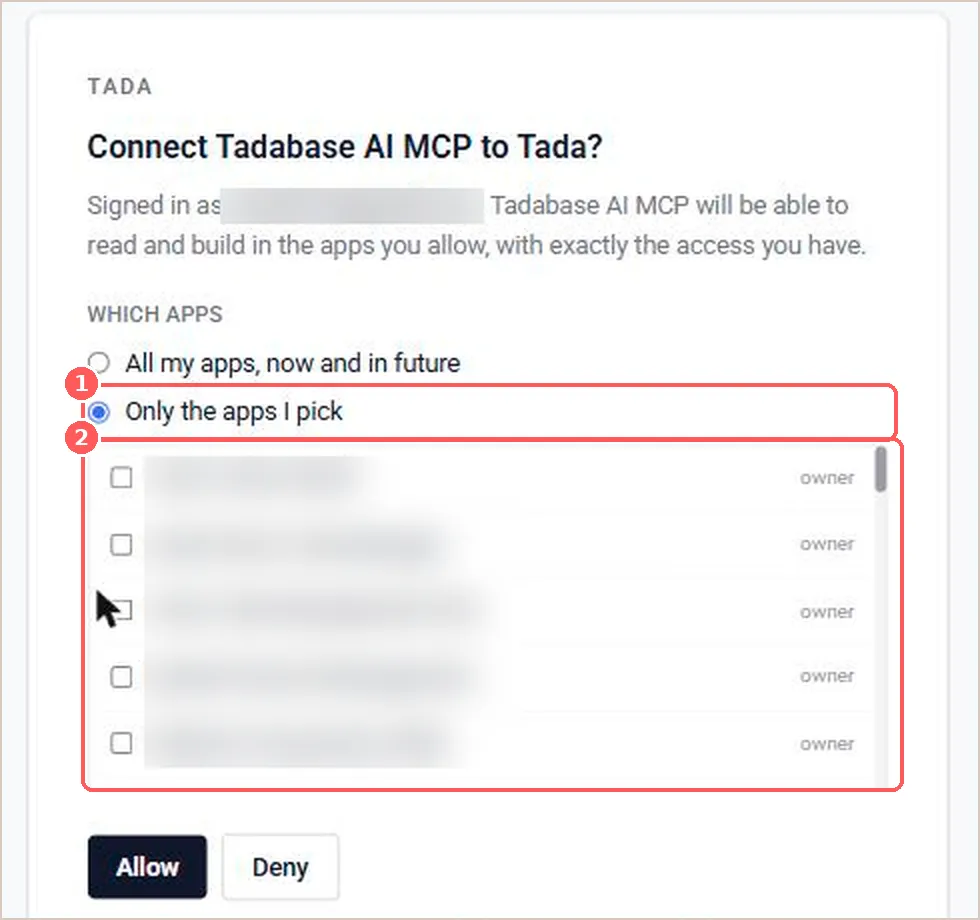
The default, All my apps, now and in future, is the convenient option and the broad one. Choosing Only the apps I pick opens a list and limits the tool to what you tick — including apps you create later.
Pick your platform #
Every route below ends at the same server with the same permissions. Jump to yours from the contents on the right.
| Client | What it takes |
|---|---|
| Claude (claude.ai, Desktop, Cowork) | Settings, one paste, done. |
| ChatGPT | Developer mode, then four fields. Not where the docs say. |
| Claude Code | One command in your terminal. |
| Cursor | One-click install link, or six lines of JSON. |
| VS Code | One click or one command. No file editing. |
| Windsurf, Zed, Cline, anything else | The config shape that works in any MCP client. |
Claude — web, desktop and Cowork #
The steps are identical in the browser at claude.ai, in the Claude desktop app and in Cowork, because they are the same settings screen. Custom connectors are not available on the free plan.
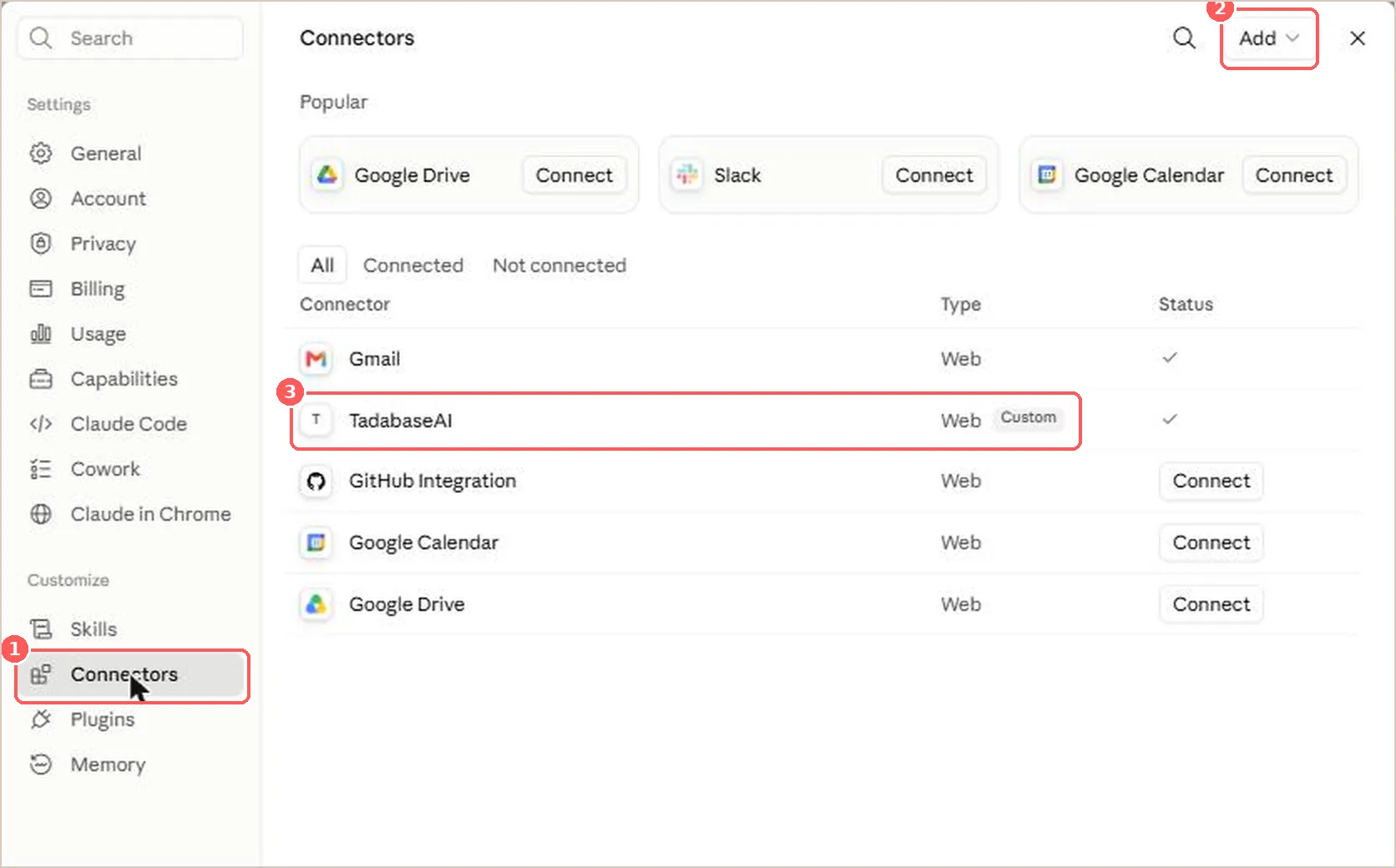
- Open Settings, then Customize, then Connectors Open Settings from the menu next to your name. In the settings sidebar, look under Customize — not under Settings. Connectors moved there recently.
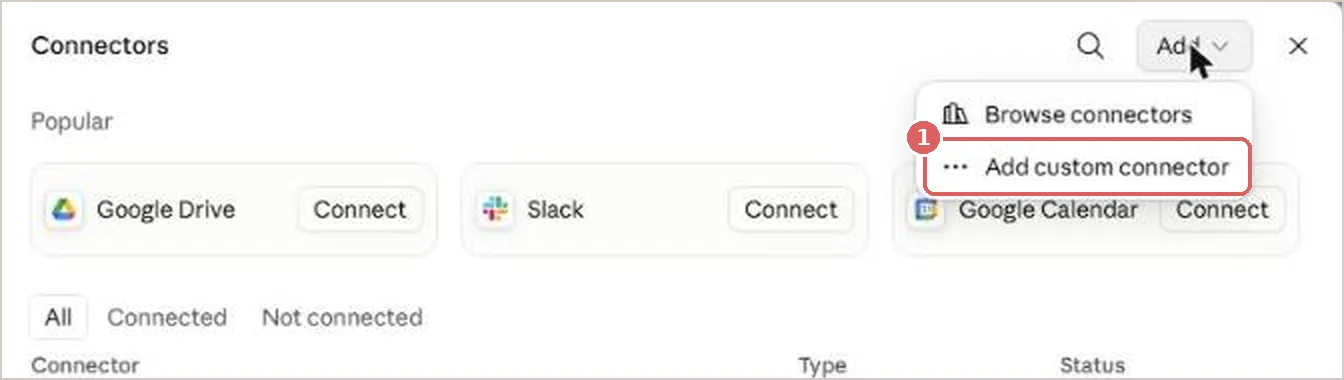
- Open the Add menu Add is in the top right of the Connectors panel. Choose Add custom connector. The other option, Browse connectors, is the directory of ready-made ones — Tadabase is not in it.
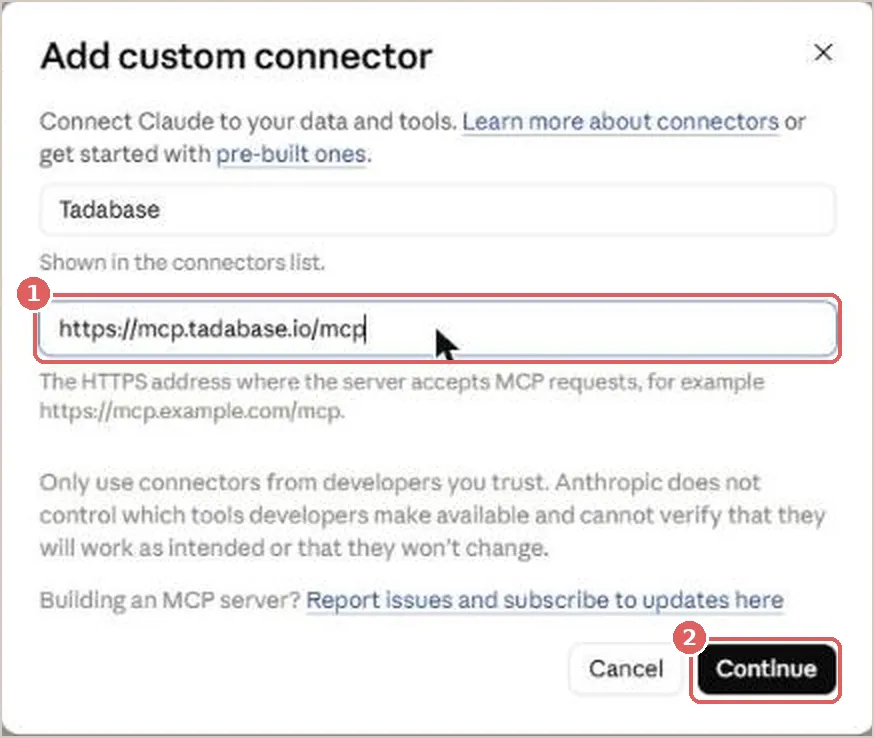
- Paste the address and nothing else Name it Tadabase so you can recognise it in a chat, and paste https://mcp.tadabase.io/mcp into the URL field. If your version of Claude also shows Advanced settings with an OAuth Client ID and Client Secret, leave both empty. Tadabase registers your client automatically, and filling those in is the most common reason a connection fails here.
- Press Continue Claude checks the address and opens a Tadabase window. If it does not open by itself, find Tadabase in the connector list — it is marked Custom — and press Connect.
- Approve the connection in Tadabase If you are not already signed in to Tadabase, a Sign in to Tadabase AI screen comes first — that is expected, and your place in the connection is kept. Then you get the approval screen shown above. Check that it names Claude and that you started this yourself, choose how many apps to allow, and press Allow. The window closes by itself.
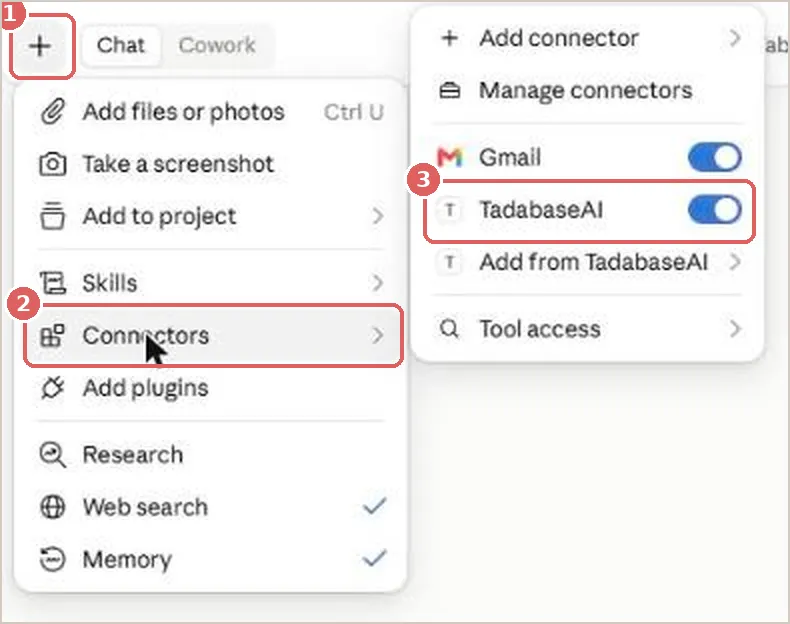
- Switch it on in a chat Connectors are off by default in a new conversation. Press the + button at the bottom left of the message box, choose Connectors, and toggle Tadabase on. The same menu has Tool access, where you can allow only some of its tools.
ChatGPT #
ChatGPT calls these apps and keeps custom MCP servers behind a setting called developer mode. Two things below are not where OpenAI’s own help pages say they are, so follow the screenshots rather than the article.
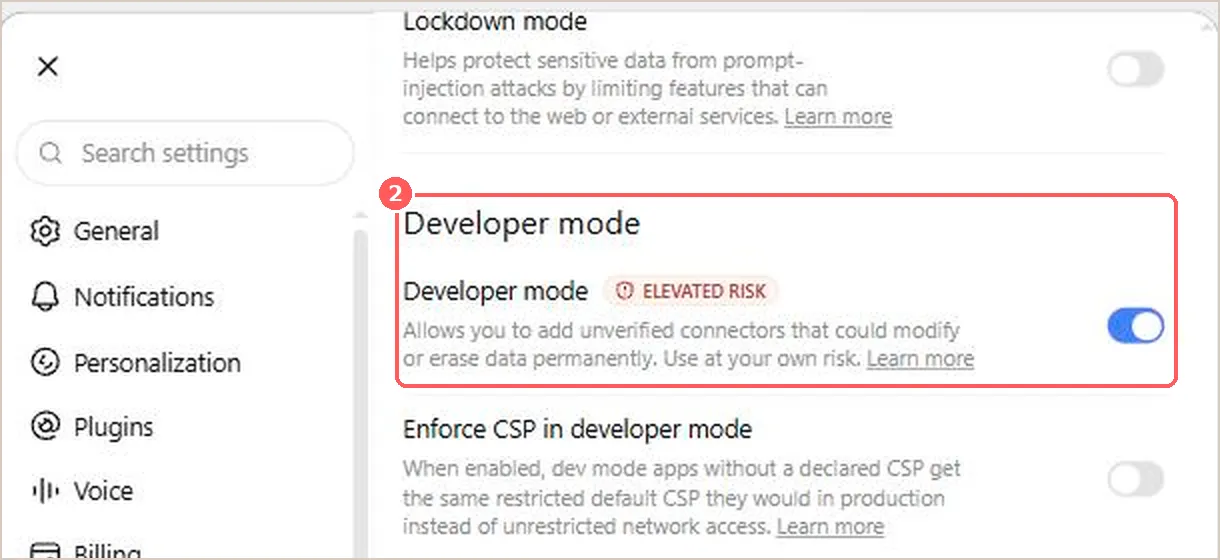
- Turn on developer mode Open Settings, then Security and login, and scroll to Developer mode. Not under Apps, and not under Plugins — both of those only link back here. Direct link: https://chatgpt.com/plugins#settings/Security?section=developer-mode
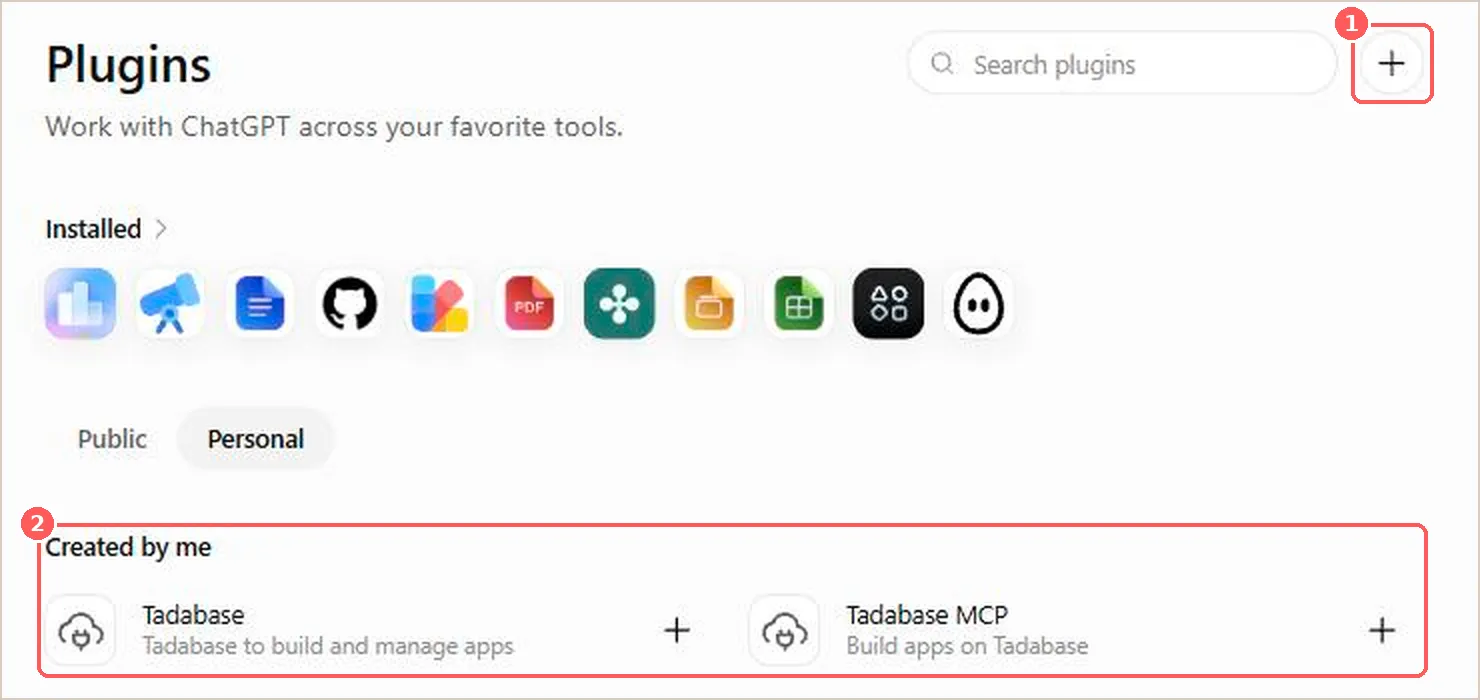
- Open the plugins page and choose Create app The + button is Create app. Anything you have already built shows under Created by me. Direct link: https://chatgpt.com/plugins?view=personal
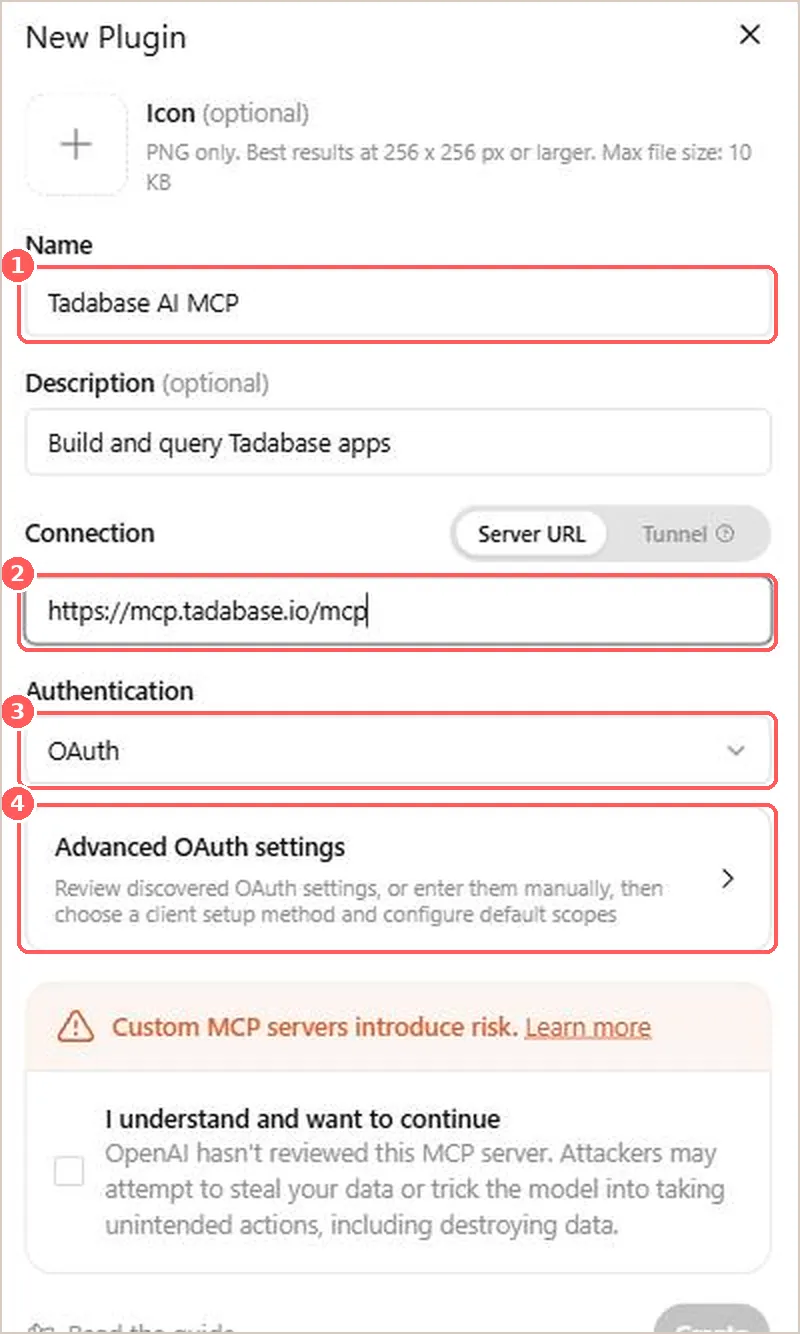
- Fill in four fields Name and server address are the only ones that matter. Paste https://mcp.tadabase.io/mcp as the Server URL. Leave Connection on Server URL, and leave Authentication on OAuth — it is already the default, so there is nothing to change.
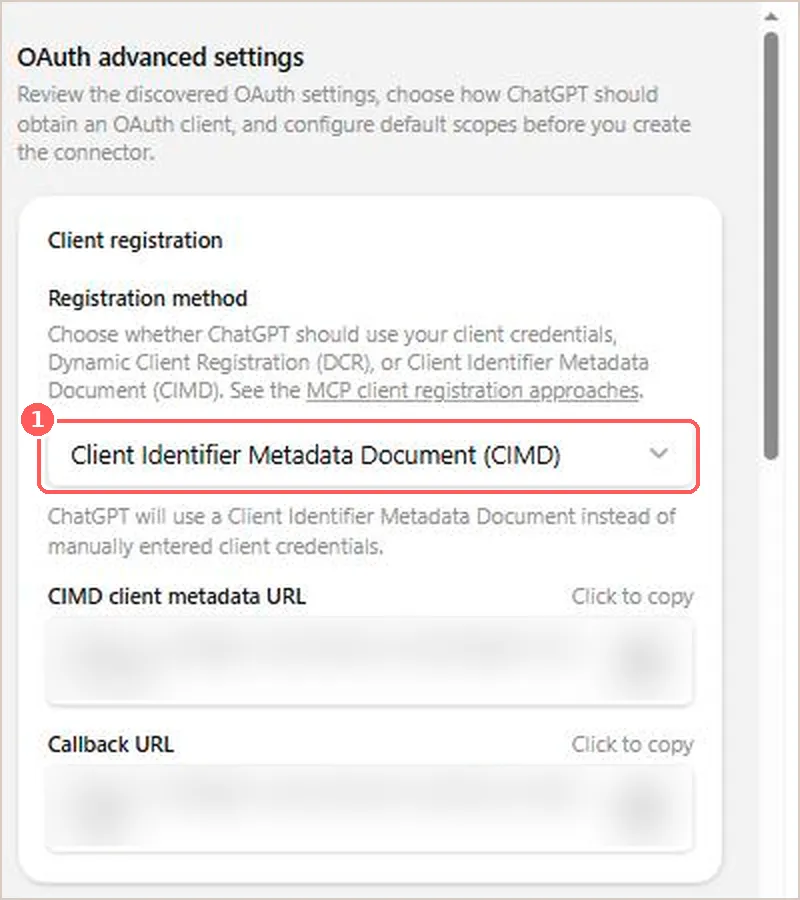
- Nothing to configure under Advanced OAuth settings Worth opening once so you can see why this is so short. ChatGPT reads Tadabase’s settings and picks Client Identifier Metadata Document (CIMD) by itself. You do not choose a registration method, and you never paste a client ID or secret.
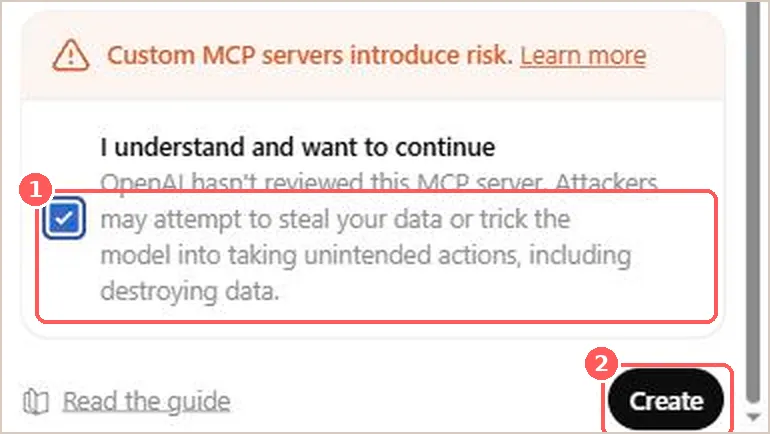
- Acknowledge the warning, then Create Create stays greyed out until the checkbox is ticked.
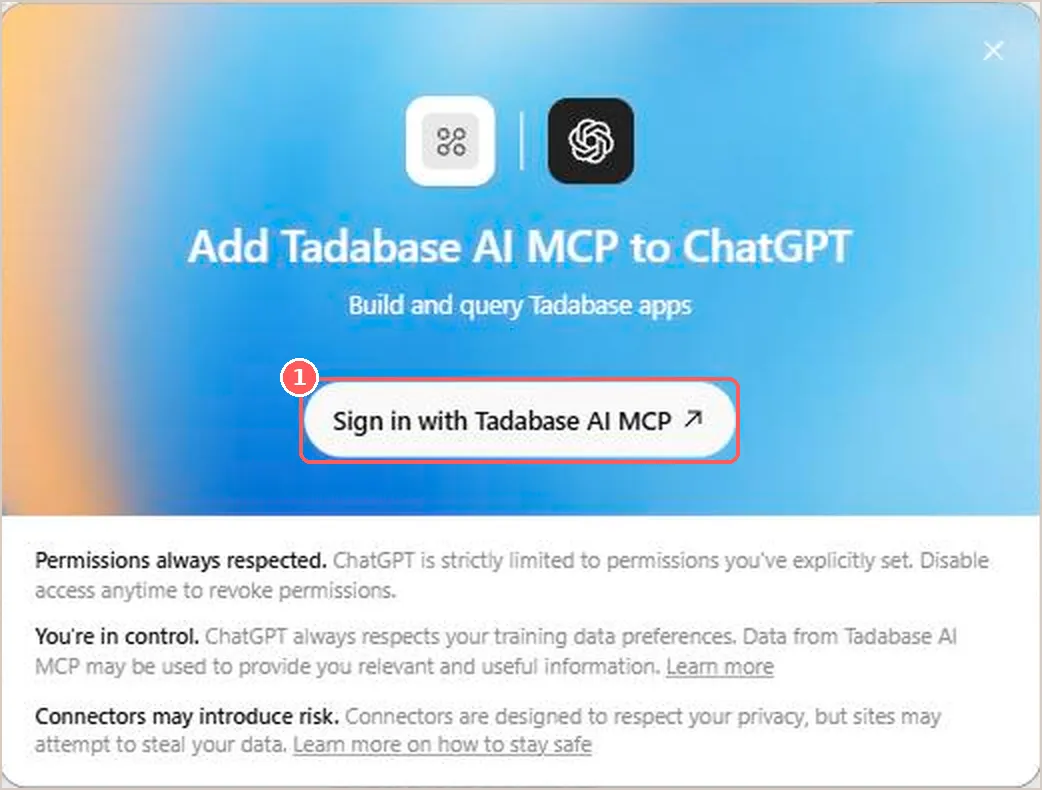
- Sign in to Tadabase ChatGPT then offers Sign in with Tadabase AI MCP, which opens Tadabase in a new window — the approval screen shown above. Sign in if you are not already, choose how many apps to allow, and press Allow.
- Use it in a chat Apps are chosen per message. Open the tools menu in the composer and pick your Tadabase app. More than one can be active at a time.
Claude Code #
One command, then sign in. No file editing.
claude mcp add --transport http tadabase https://mcp.tadabase.io/mcpAdd --scope user to make it available in every project on your machine, or --scope project to commit it to .mcp.json and share it with your team.
claude mcp add --transport http --scope user tadabase https://mcp.tadabase.io/mcpThen sign in. Start Claude Code and run /mcp, select tadabase, choose to authenticate, and approve in the browser window that opens. Or do it from the shell without starting a session:
claude mcp login tadabaseConfirm it is connected:
claude mcp list
tadabase: https://mcp.tadabase.io/mcp (HTTP) - connected
Project scope writes a .mcp.json at the repository root. Commit it and every teammate is prompted to approve the server the first time they open the project. Each of them still signs in as themselves.
{
  "mcpServers": {
    "tadabase": {
      "type": "http",
      "url": "https://mcp.tadabase.io/mcp"
    }
  }
}| Command | What it does |
|---|---|
| claude mcp list | Every server and whether it is connected |
| claude mcp get tadabase | The full configuration for this one server |
| claude mcp login tadabase | Sign in, or sign in again after revoking |
| claude mcp logout tadabase | Clear the stored credential on this machine |
| claude mcp remove tadabase | Remove the server entirely |
Cursor #
Either click the install link or write six lines of JSON. Both end in the same place.
The one-click way: open this link on the machine where Cursor is installed. Cursor opens, shows you the server, and asks you to confirm. The Add to Cursor button on the AI tool access page does the same.
cursor://anysphere.cursor-deeplink/mcp/install?name=tadabase&config=eyJ1cmwiOiJodHRwczovL21jcC50YWRhYmFzZS5pby9tY3AifQ==The config file way: create or edit ~/.cursor/mcp.json (everywhere) or .cursor/mcp.json (this project only). Cursor uses mcpServers, and a remote server is just a url.
{
  "mcpServers": {
    "tadabase": {
      "url": "https://mcp.tadabase.io/mcp"
    }
  }
}
Then open Settings, then MCP, find tadabase in the list and press Login or Needs login. Approve in the browser and the indicator turns green.
VS Code #
GitHub Copilot Chat, agent mode. The fastest route does not involve opening a file at all: click Add to VS Code on the AI tool access page, or run one command.
code --add-mcp '{"name":"tadabase","type":"http","url":"https://mcp.tadabase.io/mcp"}'On Windows PowerShell, swap the single quotes for double quotes and escape the inner ones, or use the config file below instead.
{
  "servers": {
    "tadabase": {
      "type": "http",
      "url": "https://mcp.tadabase.io/mcp"
    }
  }
}
For a config that follows you between machines, run MCP: Open User Configuration from the Command Palette (Ctrl+Shift+P, or Cmd+Shift+P on a Mac) and put the same JSON there. MCP: Add Server walks you through it with prompts.
Then open Copilot Chat, switch to Agent mode, and press the tools icon. Tadabase appears in the list; VS Code prompts you to sign in the first time it is used.
Windsurf, Zed, Cline and any other client #
These all read a config file in one of two shapes. Try the standard shape first; if the client does not pick the server up, try the alternate key. Whatever the key, the server entry itself is the same three lines. Restart the client after editing — most only read these files at startup.
| Client | Config file | Top-level key |
|---|---|---|
| Windsurf | ~/.codeium/ | mcpServers |
| Cline | cline_mcp_settings.json (via the MCP Servers panel) | mcpServers |
| Zed | settings.json | context_servers |
| Cursor | ~/.cursor/ | mcpServers |
| VS Code | .vscode/ | servers |
| Claude Code | .mcp.json | mcpServers |
{
  "tadabase": {
    "type": "http",
    "url": "https://mcp.tadabase.io/mcp"
  }
}- Transport is Streamable HTTP. Some clients call this "http", some "streamable-http", some just "remote".
- Authentication is OAuth 2.1 with PKCE and dynamic client registration. A compliant client discovers all of it from the URL — you do not supply a client ID or secret.
- If your client does not support OAuth, it can send a Tadabase access token as a bearer header instead. Create one under Use an access token instead at build.tadabase.com/mcp and treat it like a password.
{
  "tadabase": {
    "type": "http",
    "url": "https://mcp.tadabase.io/mcp",
    "headers": {
      "Authorization": "Bearer vbt_your_token_here"
    }
  }
}From your own code #
Both major model APIs can call a remote MCP server directly, without any client library. You handle the OAuth flow yourself and pass the resulting access token, or use an access token from the AI tool access page.
curl https://api.anthropic.com/v1/messages \
  -H "x-api-key: $ANTHROPIC_API_KEY" \
  -H "anthropic-beta: mcp-client-2025-11-20" \
  -H "content-type: application/json" \
  -d '{
    "model": "claude-opus-5",
    "max_tokens": 1024,
    "messages": [{"role":"user","content":"List my Tadabase apps."}],
    "mcp_servers": [{
      "type": "url",
      "url": "https://mcp.tadabase.io/mcp",
      "name": "tadabase",
      "authorization_token": "ACCESS_TOKEN"
    }],
    "tools": [{"type":"mcp_toolset","mcp_server_name":"tadabase"}]
  }'
The anthropic-beta: mcp-client-2025-11-20 header is required. Local stdio servers are not supported there — which is fine, because Tadabase is already a hosted HTTP server.
from openai import OpenAI
client = OpenAI()
resp = client.responses.create(
    model="gpt-5",
    input="List my Tadabase apps.",
    tools=[{
        "type": "mcp",
        "server_label": "tadabase",
        "server_url": "https://mcp.tadabase.io/mcp",
        "authorization": "ACCESS_TOKEN",
        "require_approval": "always",
    }],
)
print(resp.output_text)Check it works #
Ask your assistant any of these. The first one is the quickest confirmation that the connection is live.
| Ask this | What a working connection proves |
|---|---|
| "List my Tadabase apps." | Signed in, and the server can see your account |
| "Show me the tables in my CRM app." | Schema reads work |
| "How many orders were created this month?" | Record queries and filters work |
| "Add a Priority field to Tickets with options Low, Medium and High." | Write access to the builder works |
| "Create a workflow that emails me when a new lead is added." | Workflow creation works |
Connect GitHub (recommended for code work) #
MCP works without GitHub. But the workflow most people actually want — your assistant reading and changing your app’s code the same way it changes any other repository on your machine — depends on the project being synced to GitHub. Connect it before you start and everything below is available from the first conversation.
| What you want to do | Without GitHub | With GitHub |
|---|---|---|
| Read the schema, query records | Works | Works |
| Create tables, fields, workflows, roles | Works | Works |
| Publish the app live | Works | Works |
| Read and edit app code | One file at a time, through the studio | Clone the repo and work normally |
| Review a change before it ships | Not really | Branches, diffs and pull requests |
| Undo a bad change | Restore by hand | Revert the commit |
To set it up, open GitHub connections in your account, authorise Tadabase AI, then link the project you want to work on. Once linked, your assistant can create the repository, push the current code, and pull changes back.
Publishing your app #
You can publish a Vibe app live from your assistant. Publishing is a real, user-visible action that consumes a plan slot, so it only ever happens when you ask for it directly — finishing a build is not a request to publish.
You can also choose where it goes. Say the host in your request and the assistant will target it.
| Host | Ask for it like this | Notes |
|---|---|---|
| Tadabase AI | "publish it" or "publish to Tadabase AI" | The default when you do not name a host. Publishes to a tada.app address. |
| Fly.io | "publish to Fly" | Publishes to Fly. |
| Cloudflare | "publish to Cloudflare" | Publishes to Cloudflare. |
When something is not working #
| What you see | What it means, and what to do |
|---|---|
| The assistant has no Tadabase tools at all | The client never loaded the server. Check the config file path and the top-level key — VS Code wants servers, almost everything else wants mcpServers. Then restart the client completely. |
| It knows the tools exist but every call fails | Loaded but not signed in. Run the sign-in step for your client: /mcp in Claude Code, Connect in Claude, Login in Cursor. |
| The approval window opens and immediately closes, still disconnected | Usually a Client ID or Secret filled into Advanced settings that should have been left empty. Clear both fields and try again. |
| ChatGPT shows no tools for the app | Authentication was switched to No Auth. It must be OAuth, which is the default — recreate the app and leave that dropdown alone. |
| You cannot find Connectors in Claude’s settings | Look under Customize in the settings sidebar, not under Settings. They moved. |
| There is no "Add custom connector" option | Either a free plan, or a Team or Enterprise account where an Owner has to add it first. |
| You cannot find Developer mode in ChatGPT | It is under Settings, then Security and login, not under Apps or Plugins. If it is genuinely absent, your plan does not include it. |
| Nothing happens when you press "Sign in with Tadabase" | It opens a separate window. Check whether your browser blocked the pop-up. |
| "Your plan does not include AI tool access" | A Tadabase plan limit rather than a client problem. Upgrade, or ask us to enable it for your account. |
| It reads records but cannot create tables | The connection authenticated as an account without builder rights. Check which Tadabase user you approved with. |
| It worked yesterday and stopped today | The credential was revoked, or it expired. Sign in again. On Claude Code that is claude mcp login tadabase. |
| It stops responding during a long session | Reconnect from your client’s MCP panel. If it recurs, tell us which client and version. |
Limits and fair use #
Requests are limited per connection, per minute and per day. An assistant working normally will never come close; a runaway loop will be stopped rather than left to run. If you are rate limited, the message tells you which limit and when it resets.
Staying in control #
Everything you connect is listed on the AI tool access page in your Tadabase account, and everything it does is recorded.
- Give each machine its own connection. Then revoking your old laptop does not sign out your desktop.
- Scope to the apps you are actually working on, not all of them. Narrow is the safer default, especially the first time.
- Revoke anything you do not recognise, immediately. Revoking takes effect at once, though on the hosted endpoint it can take up to a minute because sign-in checks are briefly cached.
- Check the last-used column now and then. A connection you thought was retired but is still active is worth a second look.
- Every request is logged — which tool ran, in which app, and what it changed. You will find it under Usage, on the AI tools tab.
If you share an app with someone, you can turn off AI tool access for that person specifically while leaving their normal access untouched.
Server reference #
For anyone implementing a client, reviewing this for security, or debugging a connection that will not complete.
| Property | Value |
|---|---|
| Server address | https://mcp.tadabase.io/ |
| Transport | Streamable HTTP |
| Authorization server | https://ai.tadabase.io |
| Authorize endpoint | https://ai.tadabase.io/ |
| Token endpoint | https://ai.tadabase.io/ |
| Registration endpoint | https://ai.tadabase.io/ |
| Grant types | authorization_code, refresh_token |
| PKCE | S256 (required) |
| Client auth methods | none, client_secret_post, client_secret_basic |
| Scope | tadabase |
| Bearer methods | header |
| Capability | Supported | Why it matters |
|---|---|---|
| Dynamic client registration | Yes | Clients register themselves. Nobody hand-creates a client ID. |
| Client ID metadata documents | Yes | OpenAI’s recommended mechanism, so ChatGPT connects cleanly. |
| Protected resource metadata | Yes | Served at both the root and the /mcp path, so path-aware clients discover it either way. |
| Refresh tokens | Yes | Long sessions do not need you to sign in again. |
| Public clients | Yes | Desktop clients that cannot keep a secret still work. |
| Local stdio process | Not needed | The server is hosted. There is nothing to run on your machine. |
You can confirm any of this yourself:
curl -s https://mcp.tadabase.io/.well-known/oauth-protected-resource | jq
curl -s https://ai.tadabase.io/.well-known/oauth-authorization-server | jq