
Split a form into two steps with a details page
Learn how to use routing to have a 2 step form process
- Not yet re-checked
- Classic builder
Moved from our previous help site and not yet re-checked against the current product. Last edited Sep 20, 2024.
Learn how to use routing to have a 2 step form process
If you're looking to have a 2 step form process, this screenshot tutorial will help you do that.
The objective is to be able to accept some form inputs on step 1, route the user to step 2, and complete adding the record details.
The process revolves around using the Submit Rules in a form and routing the user to a details page for this data table.
For our example, we're going to be using a Customers table with the following fields:

Next, let's add a new page with a table, form, and record details for each record. This will allow us to see all the customers, add new customers, and see their details (which will be used for updating customers as well).

Once you've added the page, add a Table component

and choose the customers table, and then + Quick Add
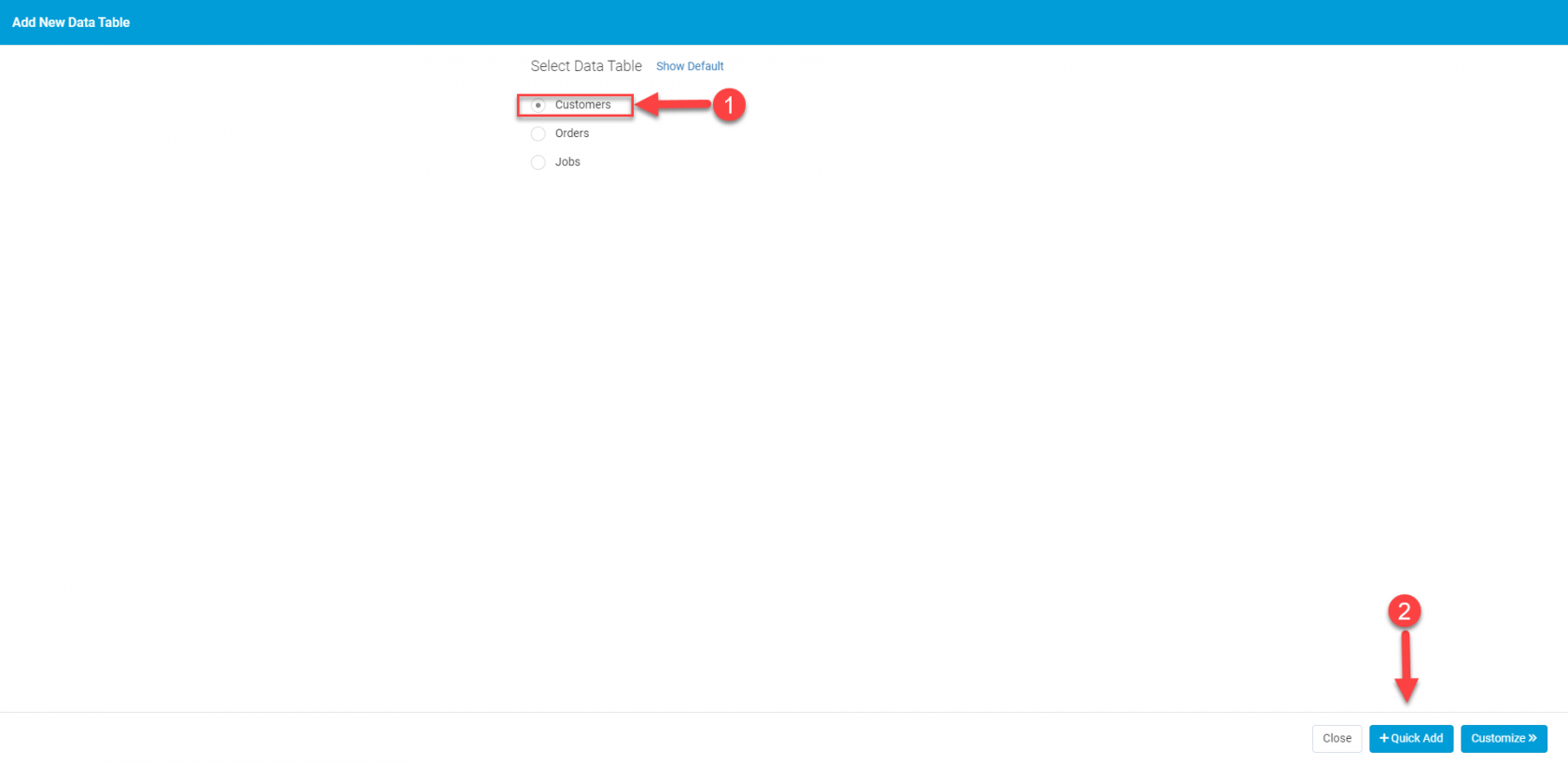
In the following screen, be sure to choose Yes for "Include inline form to add Customers?" and "Include link to Customers Details page"

Two new pages will be automatically created- the Add New Customer page as well as the Customer Details page. Open the Add Customers Page:

Lets click on the form to edit it.

Since in the first step of this form process we only want to ask for the customer's name, we'll remove all the fields except for the customers name.

Next we need to route our users to the Customer Details Page where they'll complete this signup process. To do that:
- Click on Form Rules
- Select Submit Rules
- Under Action, choose Redirect to an existing page
- In Page, select Customers > Detail Customers Page

Great! Now when users click to save the record they'll be routed to the details page of this new record being created. In the details page, we must now add a form to update this record so they can complete adding the record.
Open the Details Customers Page and either remove the details component (if you wish)

or simply add a new Form component

Then be sure to select Update this page's customers

Finally, press Quick Add.
When users create a new record they will be routed to a second page to complete this process, as can be seen here:

Please note this can be done with any details page. You can add an Edit form onto any details page and then route users directly to that page.
Was this page helpful?
Something wrong or missing on this page? Tell us.