
Show a date as a countdown
Rather than display a date/time field as a conventional date and time, you may choose to display the date/time field as a countdown to show how much time…
- Not yet re-checked
- Classic builder
Moved from our previous help site and not yet re-checked against the current product. Last edited Sep 20, 2024.
Rather than display a date/time field as a conventional date and time, you may choose to display the date/time field as a countdown to show how much time is left or has passed since a particular date/time.
For instance, instead of displaying your property listing expirations as traditional dates and times as such:
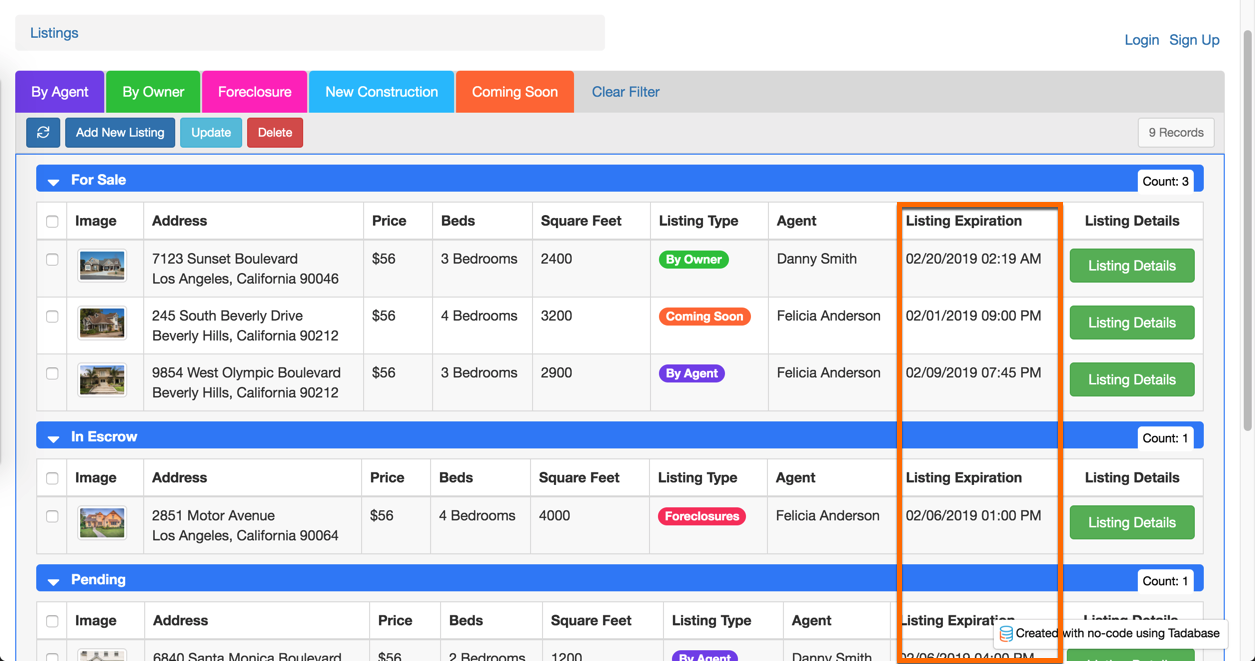
You can choose to display the expirations as countdowns which count down to the date/time from the current date/time:

Let's walk through how to accomplish this.
First, ensure that you have a date/time or date range field in your data table. In our example, the date/time field is named "Listing Expiration".

Next, within the Page Builder, find the page and component which displays this field. Double click on the component to edit it.

Next, edit the actual column for this date/time field by hovering over the column that holds this field and clicking the pencil icon.

Within the Edit Column window, select the Format tab, and change the Output Format setting to Stop Watch. Then click Update and Save.

You have now changed the date/time field in your component from a standard date to a countdown format.
You can add this feature to any component including tables, calendars, details, lists, etc. Simply open the component with the date/time field to edit and change the output format of the date/time field to stopwatch.
Note: When using a date range field (a date that has a start/end date), you will have the option to countdown/count up from the start date/time or end date/ time.
Was this page helpful?
Something wrong or missing on this page? Tell us.