
Caregiver Hiring & Credentialing Portal
Hire caregivers faster and never let a credential lapse — recruiters move applicants through interviews, offers, and background checks on one board, applicants upload documents and check status themselves, and compliance gets automated expiry reminders before a license expires, not after.
- Categories
- HR & Recruiting, Healthcare, Compliance
- Includes
- 5 roles, 10 tables, 23 workflows
Describe your version of Caregiver Hiring & Credentialing Portal — we’ll build it now.
Start from this template, or describe your own version and Tadabase AI builds that instead.
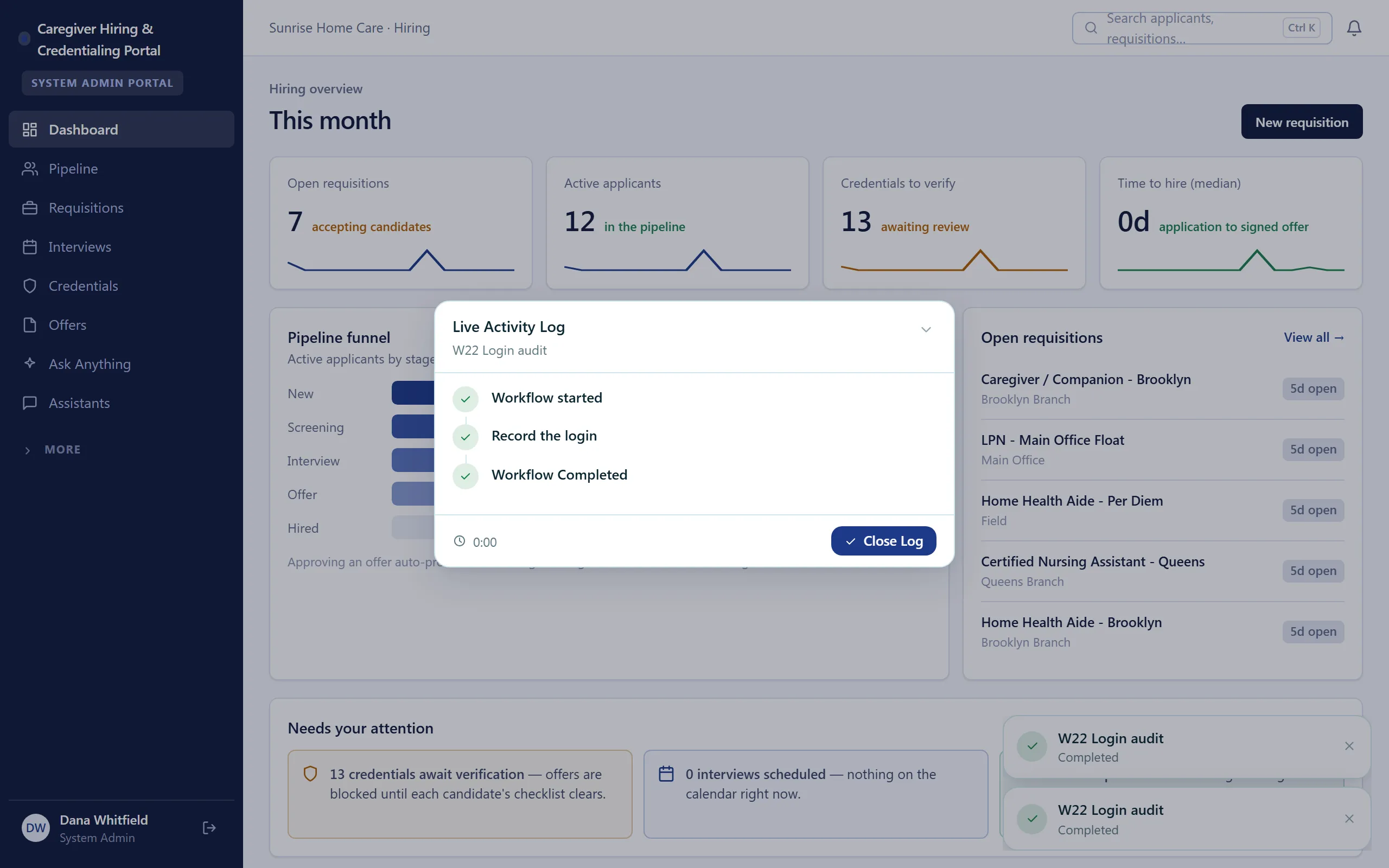
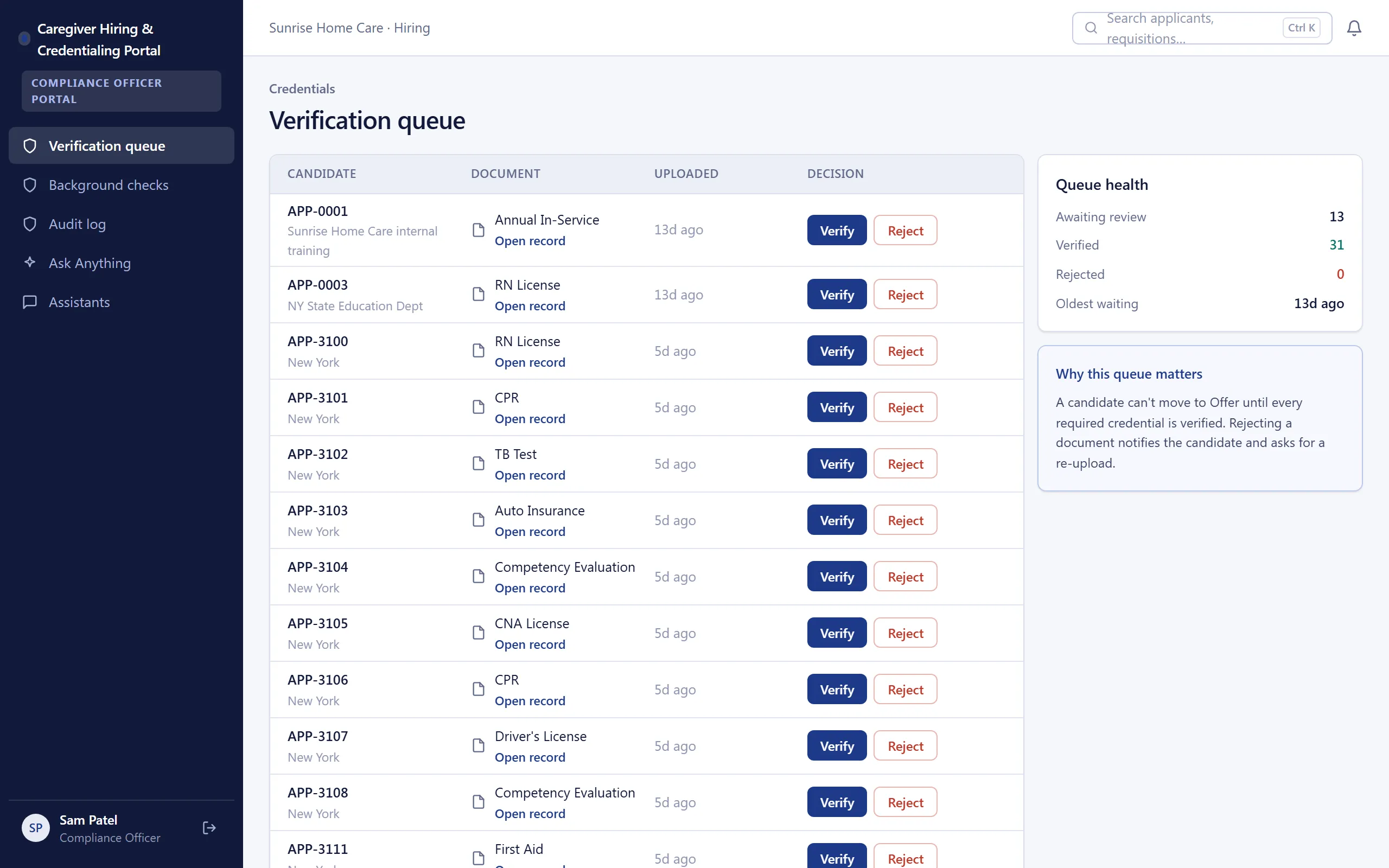
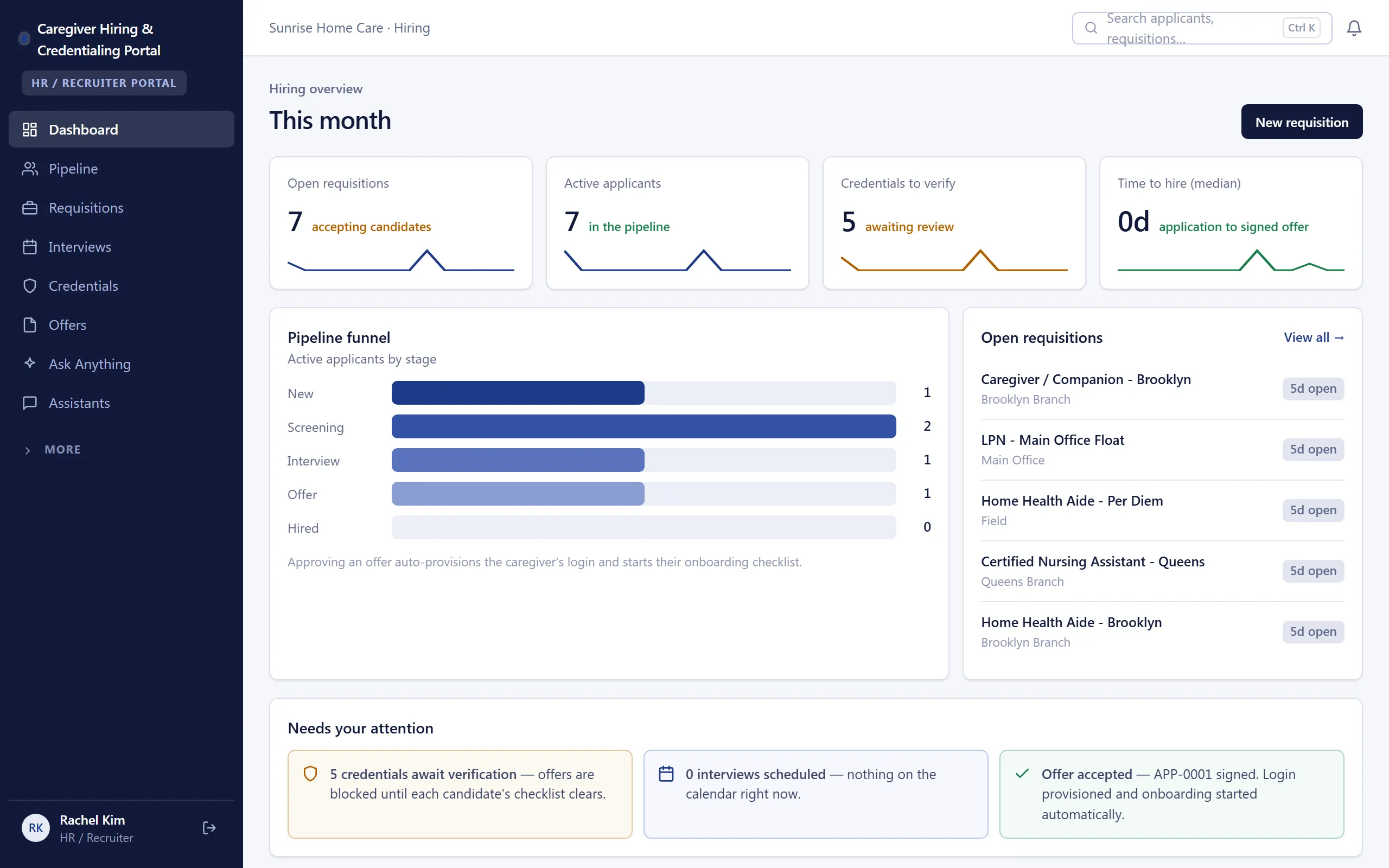
What’s inside.
Everything here installs with the template, running on the same backend as every Tadabase app.
- 5 user roles
- Applicant, HR / Recruiter, Compliance Officer, System Admin, Caregiver
- 10 data tables
- Positions, Applicants, Documents, Credentials, Background Checks, Interview Notes, Offers
- 23 workflows
- Credential-expiry ladder, offer send-and-sign, FCRA adverse action, caregiver login provisioning
- 14 email templates
- Application, interview, offer, credential-expiry and FCRA notices
- 6 AI agents
- Credential Parser, Compliance Watchtower, Screening Drafter, Recruiting, Credentialing and Application Assistants
- Sample data
- Demo users for every role + seeded applicants and credentials — optional at install
- Security
- Row-level security on every table
The data model, drawn.
10 tables and 18 relationships, with row-level security on all 10. Real tables with real fields, not a mock-up.
-
Agencies 5 fields, row-level security on
Referenced by other tables
-
Audit Log 9 fields, row-level security on
Links to Agencies (Agency)
-
Positions 10 fields, row-level security on
Links to Agencies (Agency)
-
Position Credential Requirements 4 fields, row-level security on
Links to Agencies (Agency), Positions (Position)
-
Applicants 24 fields, row-level security on
Links to Agencies (Agency), Positions (Position Applied For)
Links to itself (Applicant Portal User)
-
Documents 12 fields, row-level security on
Links to Agencies (Agency), Applicants (Applicant)
-
Credentials 16 fields, row-level security on
Links to Agencies (Agency), Applicants (Applicant)
-
Background Checks 16 fields, row-level security on
Links to Agencies (Agency), Applicants (Applicant)
-
Interview Notes 10 fields, row-level security on
Links to Agencies (Agency), Applicants (Applicant)
-
Offers 14 fields, row-level security on
Links to Agencies (Agency), Applicants (Applicant), Positions (Position)
Who does what.
Built for home-care agencies where hiring speed wins caregivers — and a lapsed credential can take one off the schedule.
Your recruiters can
- Move applicants through a visual pipeline — positions, interviews, offers, background checks
- See exactly which stage every candidate is stuck at
- Let status notifications tell applicants what's next — no chasing
Your compliance officer can
- Track every license and credential in one register with expiry dates
- Get automated expiry-reminder ladders before a credential lapses — not after
- Flag the right required documents per position, so the compliance board checks what actually matters
Your applicants and caregivers can
- Upload documents and check their own status from a self-service portal — instead of emailing HR
You can
- See the whole funnel — requisitions, pipeline, and credential health — on one dashboard
- Trace every action in a full audit trail
Row-level security scopes Admin, HR/Recruiter, Compliance Officer, and Caregiver to exactly their own records.
Related templates.
See all templates-
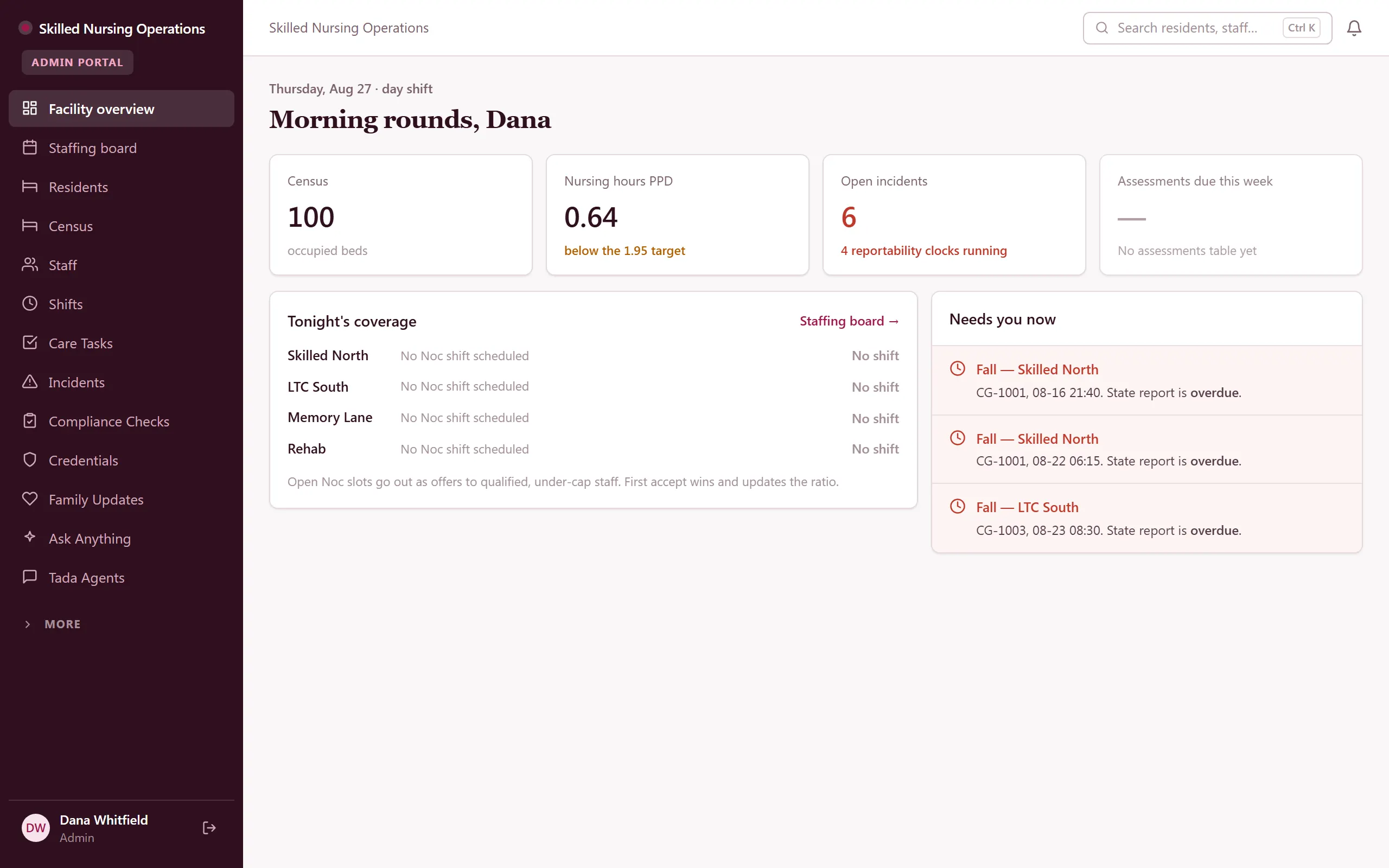
Skilled Nursing Operations
Skilled-nursing operations — census, staffing, shifts, care tasks, incidents, and compliance in one backend.
-
Home Care Agency OS
Field-verified home-care operations — scheduling, EVV, compliance, and a family portal.
-
ABA & Therapy Practice Management
Run an ABA practice end to end — scheduling, session notes, treatment plans, authorizations, and billing, with a family portal.
Make it yours.
Start from this template, or describe your version of it and Tadabase AI builds that instead.
- 14-day free trial, no card
- Unlimited app users
- Live on your own domain