
Fill form fields with an AI prompt
Add AI prompt buttons to a form: rewrite one field in place, or fill several fields at once from one prompt with a Trigger AI Prompt button.
- Verified Nov 17, 2026
- Classic builder
- Tadabase AI
On this page
A form can run AI prompts while someone fills it in. Attach prompts to a single field to rewrite that field's text (fix grammar, expand a note), or add a Trigger AI Prompt button that sends several values to one prompt and fills several fields with the answers.
You need at least one AI prompt in Automation > AI Prompts first. See Create an AI prompt.
Two ways to use a prompt in a form #
| Prompts on a field | Trigger AI Prompt button | |
|---|---|---|
| Where you set it up | The field's AI Prompts tab | Buttons/ |
| What the prompt receives | The field's current value, in one dynamic variable | Any number of variables, each filled from a form field, the logged-in user, a fixed value or a text box shown next to the button |
| What it fills | The same field, with one response | Any number of form fields (or page elements), each with one response |
| What the person sees | A dropdown button on the field's label with one item per prompt | One button in the form |
Attach prompts to a field #
- Open the form In the Page Builder, open the page and edit the Form component.
- Open the field Click the field in the form editor. Its settings open with the General tab selected.
- Open the AI Prompts tab Click AI Prompts. The tab appears only for Text, Long Text, Rich Text, Email, Phone, Number, Currency, Rating, Date, Time and Date/Time fields, and only when the app has at least one AI prompt.
- Add a prompt Click Setup New AI Prompt. A row is added with the first prompt in your app selected.
- Choose the prompt and name the item Under Choose AI Prompt, pick the prompt. Name fills in with the prompt's name; change it to the text you want people to see in the dropdown, such as
Fix grammar. - Map the field's value Under Dynamic Variable, choose the prompt variable that receives this field's value.
- Choose the answer Under Response, choose the response that is written back into this field. The list shows each response's name and type.
- Set the button text Button Title is the text on the dropdown button (default
AI Prompts). Button CSS Class is its style class (defaultbtn-ai-prompts). - Save Close the field settings and save the form.
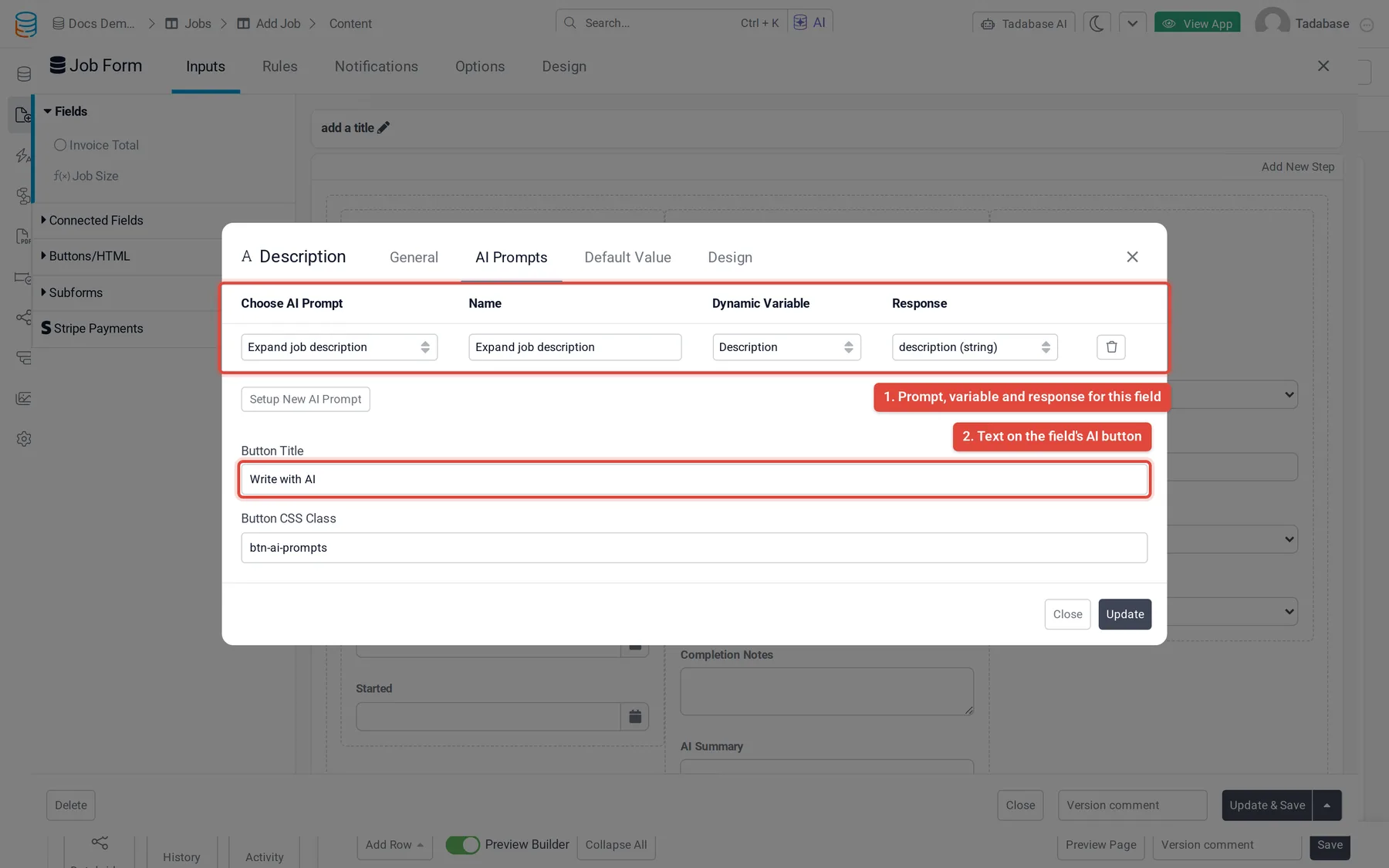
Add more rows to offer several prompts on the same field. To reorder them, drag a row by its arrows handle (shown when there are two or more rows). The trash button removes a row.
To group the items in the dropdown, click the + button (Add Group) on a row. A group row is inserted above it; type the group heading in its Name box. In the live app the group name is shown as a heading and cannot be clicked.
In the form editor, a field with prompts shows a small AI icon with the tooltip Has AI Prompts.
What people see on the field #
- The field's label shows a button with your Button Title and a dropdown arrow.
- The person types in the field, opens the dropdown and clicks one of the prompt names.
- The prompt runs with the field's current value (the form does not need to be saved first). A spinner shows on the button while it runs.
- When the answer comes back, it replaces the field's value. Nothing is saved until the person submits the form, so they can still edit or undo the text.
The prompt runs only when someone clicks a prompt name. It does not run when the form loads or when it is submitted.
Fill several fields with a Trigger AI Prompt button #
Use this when one prompt should read more than one value or fill more than one field, for example a prompt that turns a job description into a summary, a priority and a category.
- Add the button In the form editor, open Buttons/HTML in the list on the left and click Trigger AI Prompt. The option is shown only when the app has at least one AI prompt.
- Open its settings Click the new Trigger AI Prompt button in the form. On the General tab, set Button Title (the text on the button) and Button Class.
- Choose the prompt Open AI Prompt Settings and pick the prompt under Select AI Prompt.
- Fill the dynamic variables Under Define variables:, click Add Field for each variable. Pick the variable, then choose where its value comes from (see the table below).
- Map the answers Under Set Fields, pick a form field on the left and a response on the right. Click Add New for each further field you want filled.
- Save Close the settings and save the form.
| Value type | The variable gets |
|---|---|
| Custom Value | The fixed text you type. |
| Record Value | The current value of a field in the form, including what the person has typed but not saved yet. You can also pick Record Id or (Table ID). |
| Logged In User's Field | A field of the person signed in to the app, or (User ID). |
| Temporary Text Field | Whatever the person types into an extra text box shown next to the button. The box is not a form field and is not saved. The text you enter in the settings is shown as the box's placeholder. |
In Set Fields you can also choose (CSS Selector) instead of a form field and type a selector. The response is then written as HTML into the matching element on the page, which is useful for showing an answer without storing it.
What people see on the button #
- The form shows your button with a magic-wand icon. If you used Temporary Text Field variables, their text boxes appear next to it.
- When the person clicks the button, a spinner replaces the label and the prompt runs with the form's current values.
- Each mapped response is written into its form field. The person reviews the values and submits the form as usual.
Plans and limits #
- AI prompts are a plan feature. Without it, the field's AI Prompts tab is not shown.
- Every run counts toward your account's daily AI token limit. When the limit is used up, the prompt returns no answer and the fields are left as they were until the next day. See How AI prompts work.
If it does not work #
| What you see | Check |
|---|---|
| No AI Prompts tab on the field | The field type is one of the supported types, the field is not in a subform, and the app has at least one AI prompt. |
| The prompt runs but the field does not change | A Response (or a Set Fields row) is chosen, and the prompt's response with that name is not empty. Test the prompt on its own in the Test Playground. |
| The answer ignores what was typed | On a field, the correct variable is chosen under Dynamic Variable. On a Trigger AI Prompt button, each variable used in the prompt text has a row under Define variables:. |
Was this page helpful?
Something wrong or missing on this page? Tell us.