
How AI prompts work
What an AI prompt is, where you can run one in your app, which plans include it, and how the daily AI token limit works.
- Verified Nov 17, 2026
- Classic builder
On this page
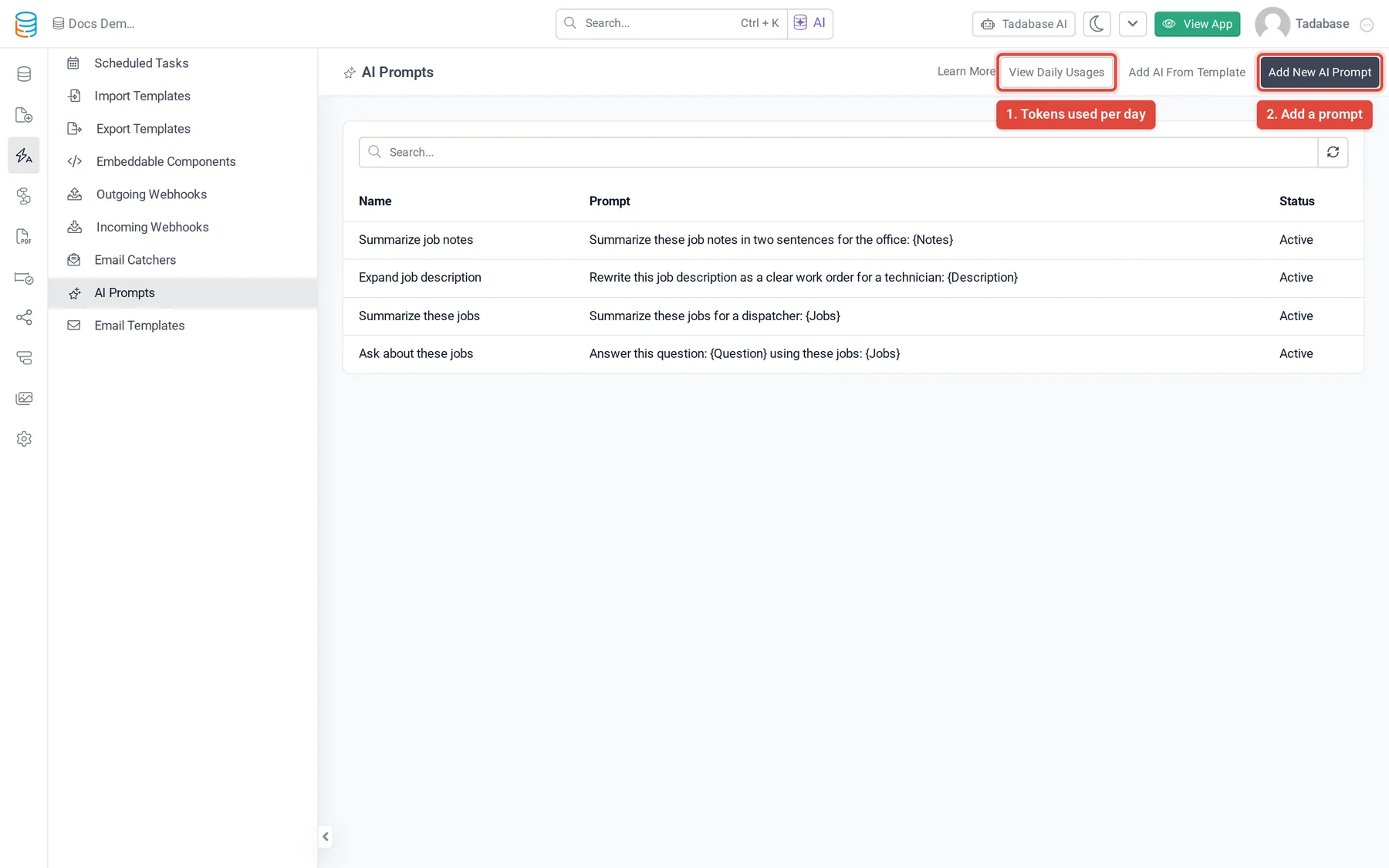
An AI prompt is a saved instruction that sends your app's data to an AI service and brings back a structured answer, such as a summary, a category or a score. You write the prompt once under Automation > AI Prompts, then run it from forms, page components and workflows.
What an AI prompt holds #
| Part | What it does |
|---|---|
| User Prompt | The main instruction. It can contain dynamic variables in curly brackets, such as {Notes}, that are filled with real values when the prompt runs. |
| System Prompt | A fixed instruction sent with every request, for tone, format or rules. |
| Dynamic Variables | The list of placeholders the prompt uses, each with an optional default value for when no value is supplied. |
| Response | The answers you expect back. Each response has a name and a type (String, Number or Boolean), so you can save it into a field. |
| Allow Attachment | Lets the prompt read a file (a PDF or an image) along with the text. Only shown when your plan includes attachments in AI prompts. |
| Status | Active or Inactive. |
For the full form, see Create an AI prompt.
Where you can run a prompt #
| Where | How |
|---|---|
| Form fields | In a form component, edit a field and open its AI Prompts tab. See Add AI to forms. |
| Table, List and Details components | Open the component's settings and use the AI Prompts tab. See Use AI prompts in data components. |
| AI Prompt page component | In the Page Builder, drag AI Prompt from the Data Components list onto a page. |
| Workflows | Add the AI Prompt action to a workflow to run a prompt with values from the workflow and use the response in later steps. See Utility actions. |
Plans and the daily token limit #
- AI prompts are a plan feature. If your plan does not include them, Automation > AI Prompts shows an upgrade message instead of the list, and saving or testing a prompt is refused with a plan message.
- Reading files (the Allow Attachment switch) is a separate plan feature. Without it, the switch is not shown on the prompt form.
- Your plan sets a number of AI tokens you can use per day. The count is shared by all apps on the account and starts again each day.
- Tadabase checks the count before each run. When the daily limit is used up, runs fail with the message
Daily AI Prompt Tokens Limit Reached, and the Test Playground shows: You have reached your daily AI usage limit. Please try again tomorrow.
To see how many tokens you used each day, click View Daily Usages on the AI Prompts screen. See Check AI prompt logs and fix errors.
What happens to your data #
- When a prompt runs, Tadabase sends the user prompt (with its variable values filled in), the system prompt, the response definition and any attached file to an outside AI service to generate the answer.
- Each run is recorded in the prompt's Logs tab with the date, the user prompt, the tokens used and whether it succeeded.
- Only send the data the prompt needs: put only the fields you need into dynamic variables.
Next steps #
Was this page helpful?
Something wrong or missing on this page? Tell us.