
Check AI prompt logs and fix errors
See every run of an AI prompt, how many tokens it used and why a run failed, and track your daily AI token usage.
- Verified Nov 17, 2026
- Classic builder
On this page
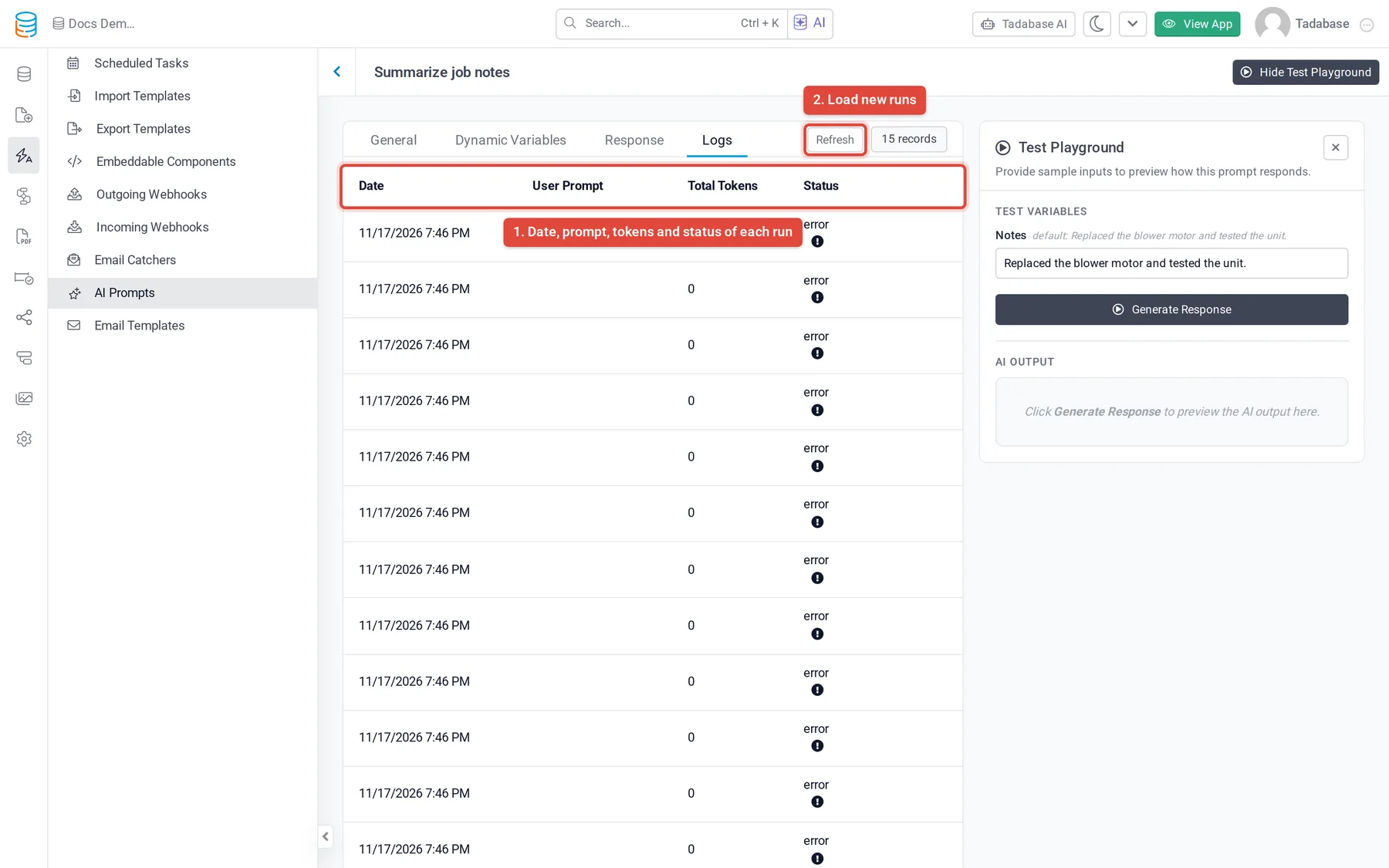
Every run of an AI prompt is recorded on that prompt's Logs tab, and the AI Prompts screen shows your token use per day. Use them to confirm a prompt ran, see how many tokens it used, and find out why a run failed.
Open a prompt's logs #
- Open the prompt Go to Automation > AI Prompts and click the prompt.
- Open Logs Click the Logs tab. It appears once the prompt has been saved.
- Load new runs Runs are written in the background, so a run that just finished can take a moment to appear. Click Refresh to load it.
Runs are listed newest first, a page at a time; use the page controls next to Refresh to go back further. The list has no search or filters.
| Column | What it shows |
|---|---|
| Date | When the prompt ran. |
| User Prompt | The user prompt that was sent. |
| Total Tokens | Tokens used by the run. A failed run shows 0. |
| Status | success or error. For an error, hover over the icon next to the status to read the error message. |
Runs from forms, components and workflows are logged, and so are Test Playground runs of a saved prompt. If the list is empty you see No AI prompt logs were found.
See your daily token usage #
On the AI Prompts screen, click View Daily Usages. The AI Usage Logs window lists the Date and Total Tokens for up to the last 50 days, with the overall total at the top.
- The numbers are for the whole account, not only this app: every app on the account shares the daily limit.
- The button shows once the app has at least one AI prompt.
- You need to be the account owner or have access to the app's settings. Otherwise the window shows You do not have permission to access this data.
Common errors #
| Message | Where you see it | What it means and what to do |
|---|---|---|
Daily AI Prompt Tokens Limit Reached | Logs tab (error tooltip) | The account used its daily AI token allowance. Runs work again the next day, or after you move to a plan with a higher limit. Check use with View Daily Usages. |
| You have reached your daily AI usage limit. Please try again tomorrow. | Test Playground | Same as above, for a test run. |
| A plan message instead of the AI Prompts list, or when you save or test | AI Prompts screen, Save, Test Playground | Your plan does not include AI prompts. Use the upgrade button on the screen or change plans. |
| No Allow Attachment switch on the prompt form | General tab | Your plan does not include file attachments in AI prompts. |
| We couldn't read the attached file. Check the link is a PDF or image under 50 MB. | Test Playground | The Attachment URL could not be read. Use a link to a PDF or an image under 50 MB. |
| The Response schema for this prompt is invalid. Please review the Response tab. | Test Playground | A response on the Response tab is set up in a way the AI service rejects. Check each response's Name, Type and Allowed Responses. |
| The AI service blocked this response for safety reasons. Try adjusting your prompt. | Test Playground | The AI service refused to answer. Reword the prompt or the test values. |
| The AI service is temporarily rate-limited. Please try again in a moment. | Test Playground | Too many requests reached the AI service at once. Wait and try again. |
| The AI service took too long to respond. Please try again. | Test Playground | The run timed out. Try again. |
| User prompt and system prompt are required to run a test | Test Playground | Fill in both User Prompt and System Prompt on the General tab. |
Was this page helpful?
Something wrong or missing on this page? Tell us.