
Matching on Several Keys
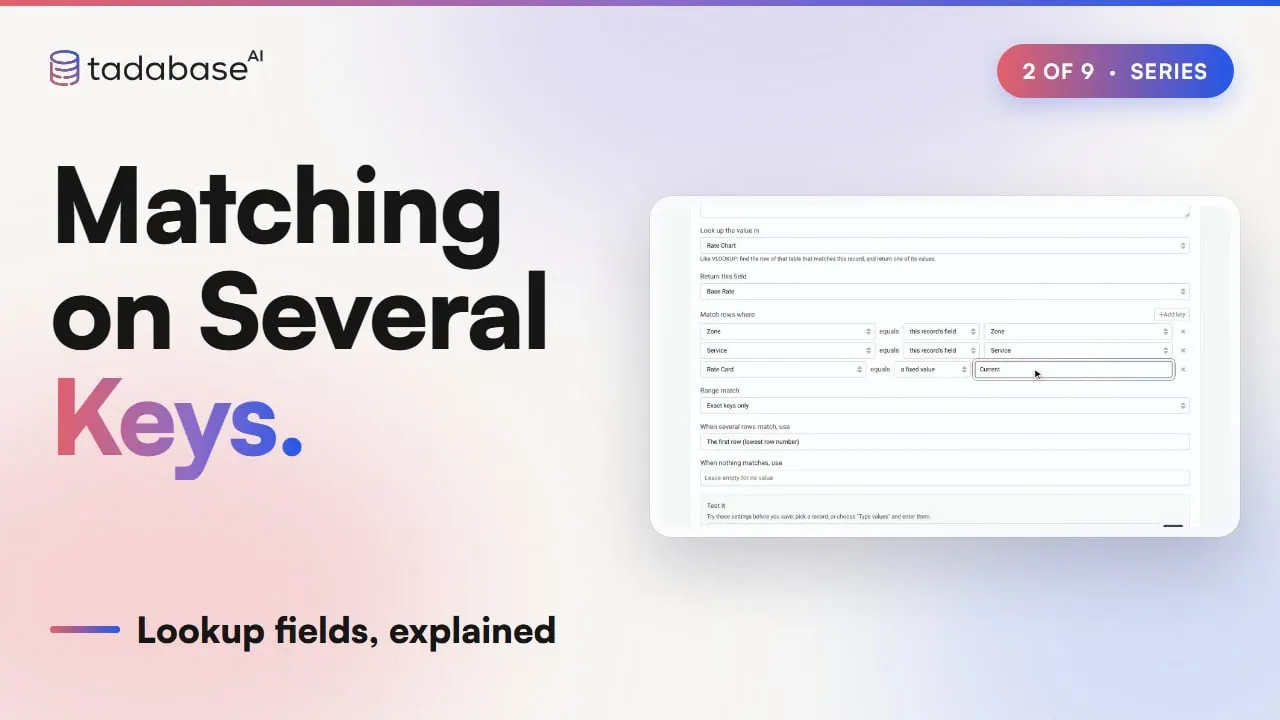
Most rate charts have more than one way in. The price depends on the zone and the service, and sometimes on which price list you're using. This video shows how a Lookup matches on several keys at once, and how a fixed value picks a scenario.
On this page
Chapters
Read the docs
Transcript
Show the full transcript
0:00 Intro
Most rate charts have more than one way in. The price depends on the zone and the service, and sometimes on which price list you're using. This video shows how a Lookup matches on several keys at once, and how a fixed value picks a scenario.
0:17 The idea
Back at the parcel counter, the wall chart is now a grid. Zones run down the side, one, two, three. Services run across the top, Standard and Express. This parcel is going to zone two by Express. The clerk's finger follows the zone two row, and her other finger follows the Express column. Where they meet, thirteen fifty. Now the shop is planning new prices. Next to the current chart, there's a second one marked Proposed. Same zones, same services, different numbers. So the clerk first decides which chart she's reading, then finds the row and the column on that one.
0:55 In your app
In a data table, both charts sit in one table, Rate Chart. Each row has a rate card, Current or Proposed, a zone, a service and a base rate. Parcel P one thousand two is zone two, Express. The Lookup matches on two keys: Zone equals this parcel's Zone, and Service equals this parcel's Service. Every key has to match, so most rows drop out. But two rows are left, one on each rate card. So add a third key, with a fixed value instead of a field. Rate Card equals Current, typed in once, the same for every parcel. Now only one row is left, and the Base Rate is thirteen fifty. Make a second Lookup with the same keys, but with the fixed value Proposed. It finds the other row, fourteen fifty. Now every parcel shows what it costs today, and what it would cost on the new prices. For this parcel, that's a dollar more. Across all five parcels on the current card: zone one Standard, six dollars. Zone two Express, thirteen fifty. Zone three Standard, nine. P one thousand four is Overnight, and the chart has no Overnight rows, so it stays empty. Video six shows what to put there instead. And zone one Express, eleven.
2:10 Setting it up
On the Parcels table, add a Lookup called Base Rate. Look up the value in Rate Chart. Return this field, Base Rate. Add key: Zone equals this record's field, Zone. Add key again: Service equals this record's Service. Add a third key: Rate Card, but this time switch it to a fixed value, and type Current. Save. Most fields can be a key. Text. Numbers. Choices from a list. Dates. Email addresses. Yes or no fields. A Lookup can match on up to eight keys, and each one has to match.
2:47 Rules
Three rules to keep track of. Rule one: every key has to match. P one thousand three is zone three, Standard. The row for zone three Express matches the zone but not the service, so it's out. Only the row where all three keys agree counts, nine dollars. Rule two: match like with like. If the chart's Zone column holds the number two and the parcel's Zone is the number two, they match. But if the chart says Zone two, in words, and the parcel holds the number two, they never match. Keep a key's field the same kind on both tables. Rule three: if several rows still match, the first row is used. Without the Rate Card key, zone two Express matches two rows. The Lookup takes the first one in the table, the Current row, thirteen fifty. That's often what you want, but you can choose. Video six shows the other options. So that's matching on several keys. A fixed value picks the chart. Each key narrows it down, and one row where every key agrees gives the value. Next up: brackets and tiers, where a value doesn't have to match exactly, it only has to fall in the right range.
Also on Vimeo · the whole series on Vimeo