
Workflows, Explained
Thirty-one short videos that explain workflows in Tadabase AI, from your first trigger to webhooks, email, PDFs, custom code and AI steps. Each one starts with an everyday example, then shows the same idea built for real in the AI Builder, using a demo clinic app, and ends with the rules to keep track of.
-
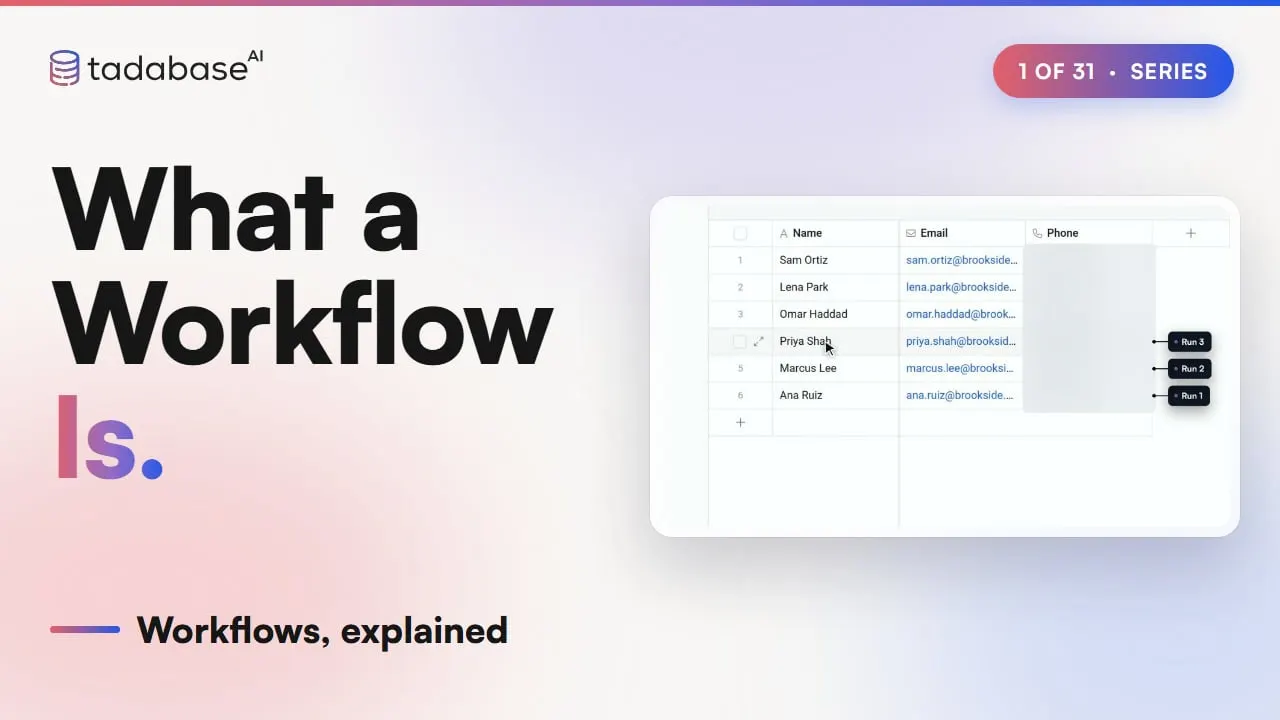 4:39 Watched Video 1 What a Workflow Is Imagine never typing up the same tasks for a new patient ever again. At most clinics, the front desk does exactly that every morning, for every single patient who comes in. A workflow in Tadabase AI does it for you, automatically, the moment something happens in your app. Every workflow is built from the same three pieces, and by the end of this video you'll know all three, and you'll see one built from scratch.
-
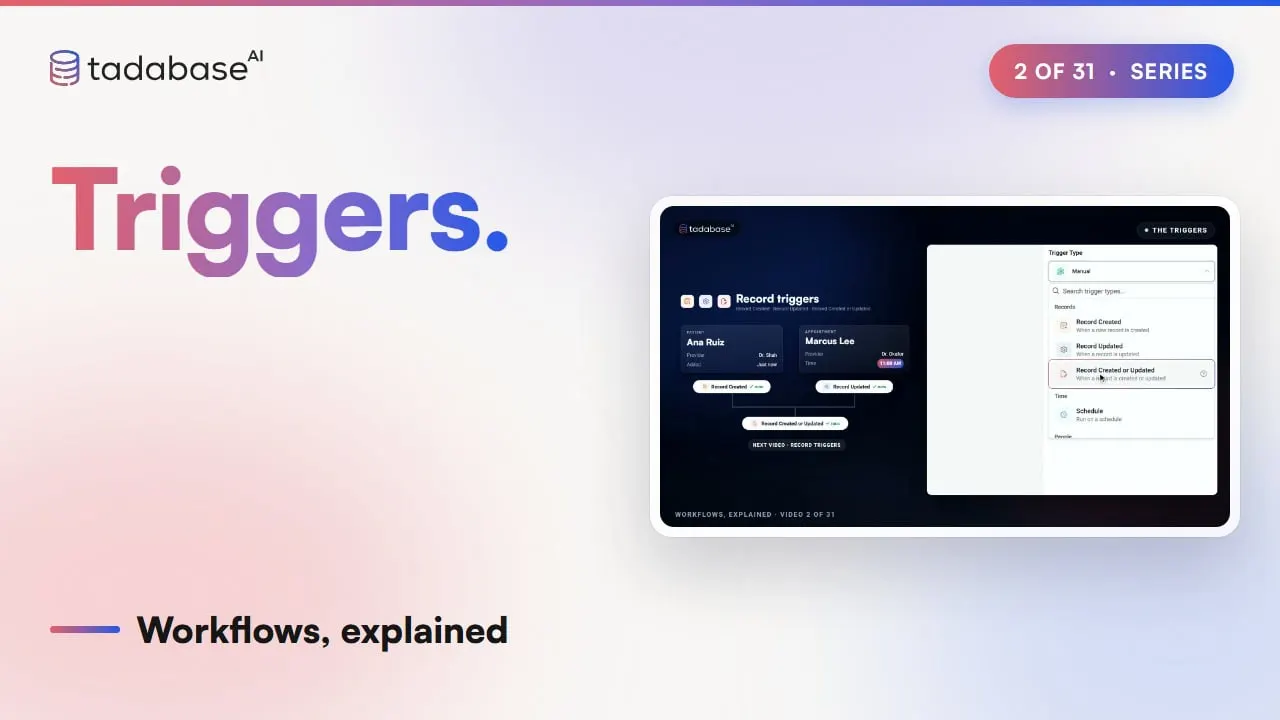 6:19 Watched Video 2 Triggers Say you set up appointment reminders to go out every morning, and the next day, nothing goes out. Or they fire every single time someone saves an appointment, so patients get three reminders in one afternoon. Either way, the problem is the same thing: what is starting the workflow. In Tadabase AI, that's called the trigger, and in this video we'll go through every trigger there is, what each one is for, and how to pick the right one for the job.
-
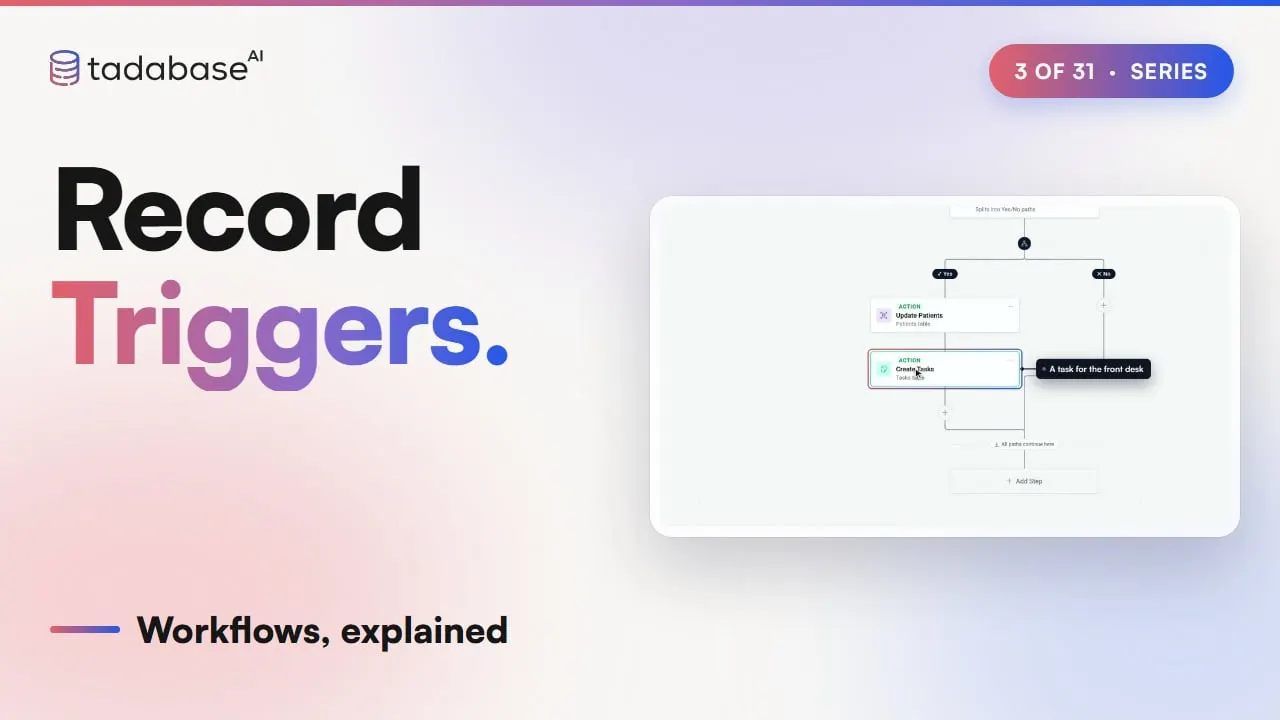 6:28 Watched Video 3 Record Triggers Your front desk marks a patient as a no-show, and a task pops up to call her and rebook. That's exactly what you wanted. Then someone fixes a typo in her appointment notes, and a second task shows up for the same missed visit. In Tadabase AI, the fix is all in how record triggers work, so in this video we'll go through all three of them, the one condition that stops duplicate tasks for good, and what actually happens inside a save.
-
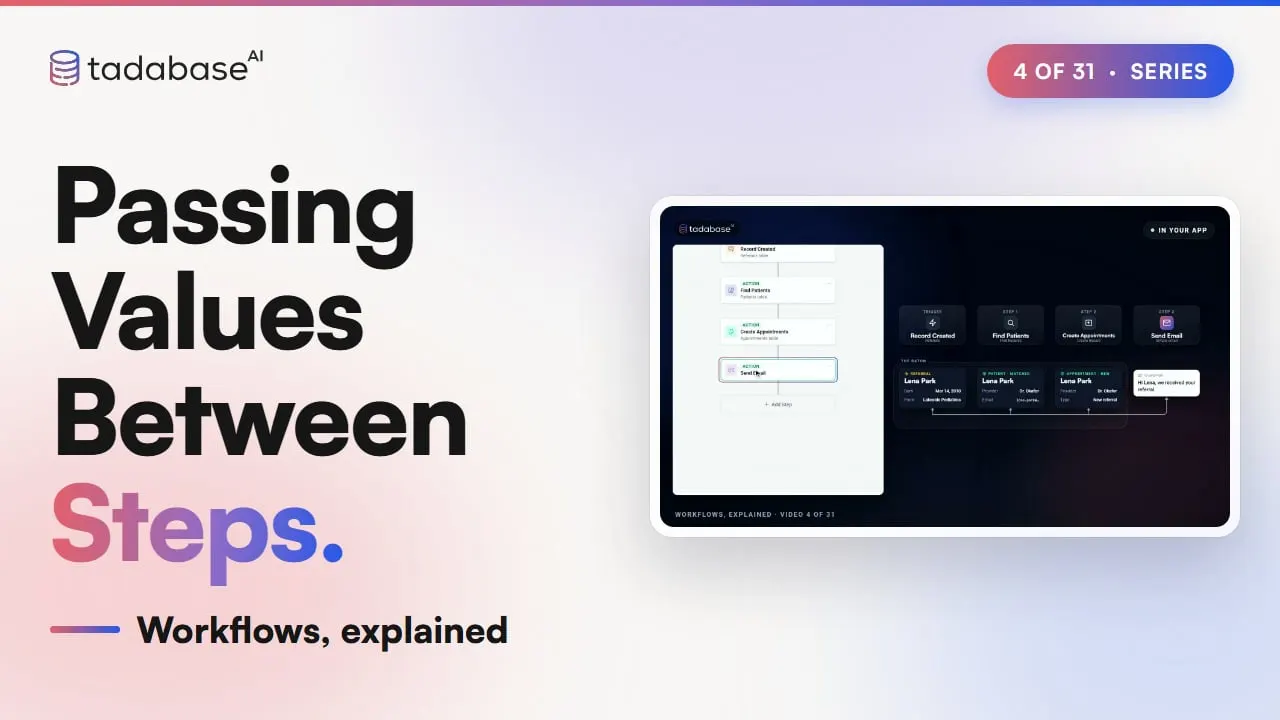 5:48 Watched Video 4 Passing Values Between Steps Picture a referral landing at a busy clinic. Someone has to look up which patient it's for, book her in with her own doctor, and then email her to let her know it's all taken care of. That's three separate jobs, and each one needs something the one before it figured out. In Tadabase AI, a workflow can do all three on its own, handing what it learns from one step to the next. In this video, you'll see exactly how that handoff works, how you choose what each step uses, and what to do when a field turns out to be blank.
-
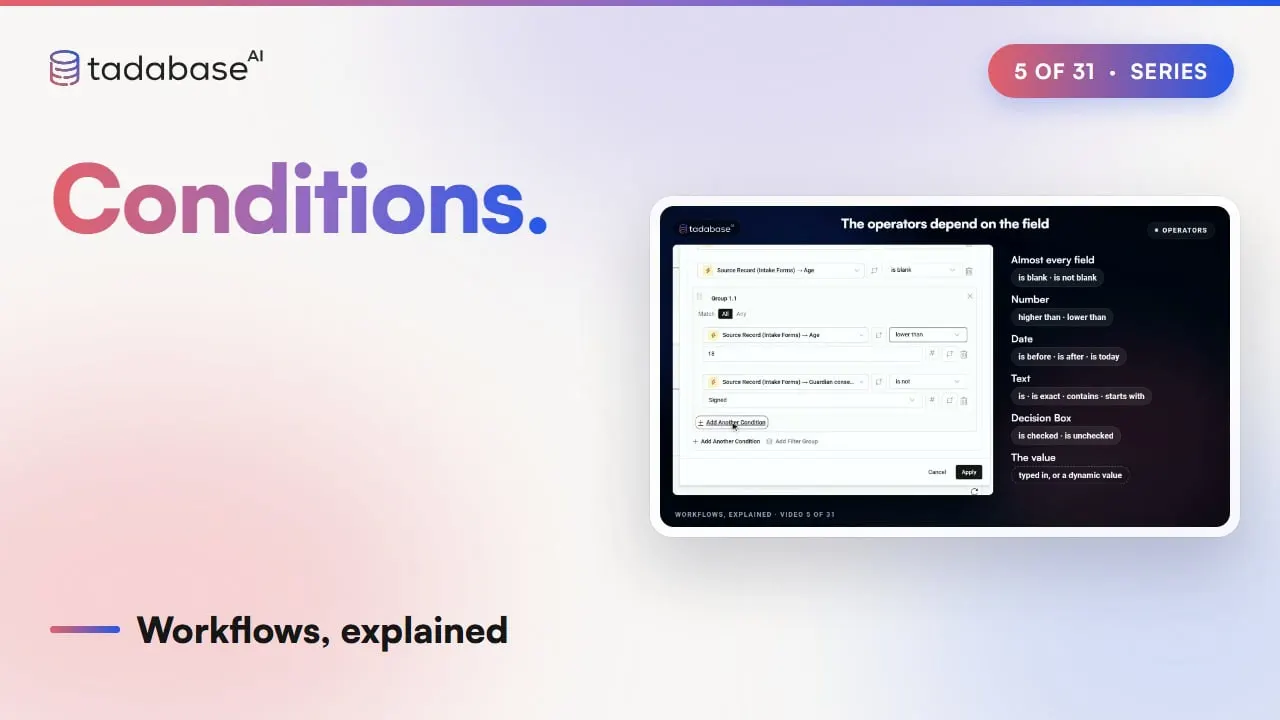 5:42 Watched Video 5 Conditions Every useful workflow eventually hits a fork in the road. At some point, something has to decide whether this record gets a phone call or a checkmark, an alert or a quiet pass, and that decision is called a condition. In Tadabase AI, a condition looks at every record the moment it arrives, checks it against your rules, and sends it down one of two paths, Yes or No. It is the step that makes a workflow feel like it's actually thinking, so let's build one together, and I'll show you the three mistakes that quietly send records down the wrong path.
-
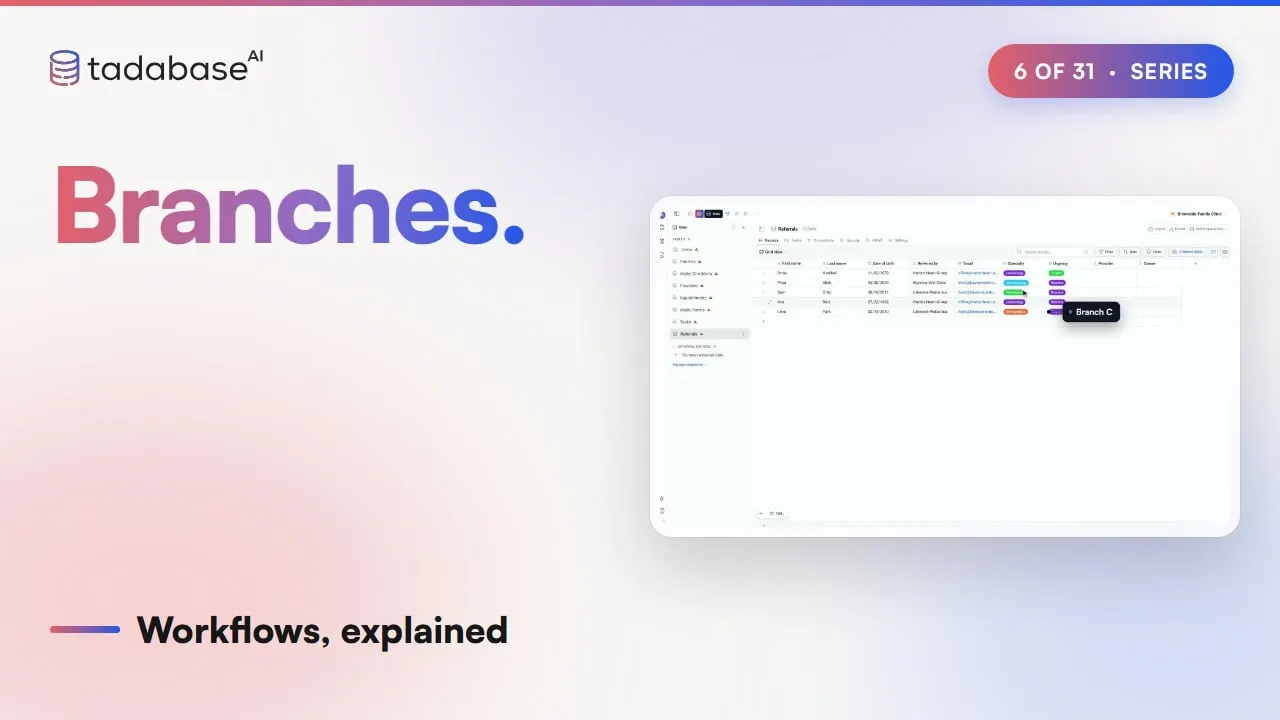 4:37 Watched Video 6 Branches Let's look at branches. A condition gives a record two paths, Yes and No. Branches give it as many paths as you need, A, B, C and more. In this video, we'll look at how branches pick a path, and how to set them up.
-
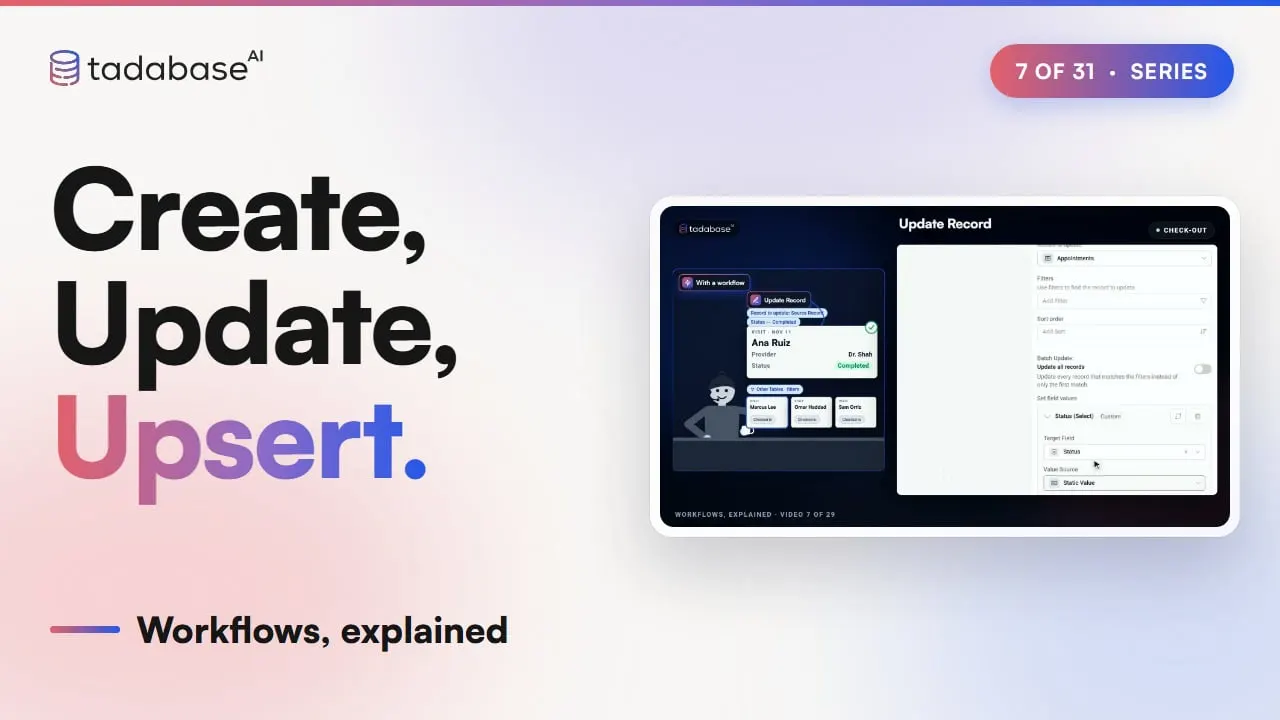 6:29 Watched Video 7 Create, Update, Upsert Let's look at the steps that write data: create, update, and upsert, which updates a record if it's already there and creates it if it isn't.
-
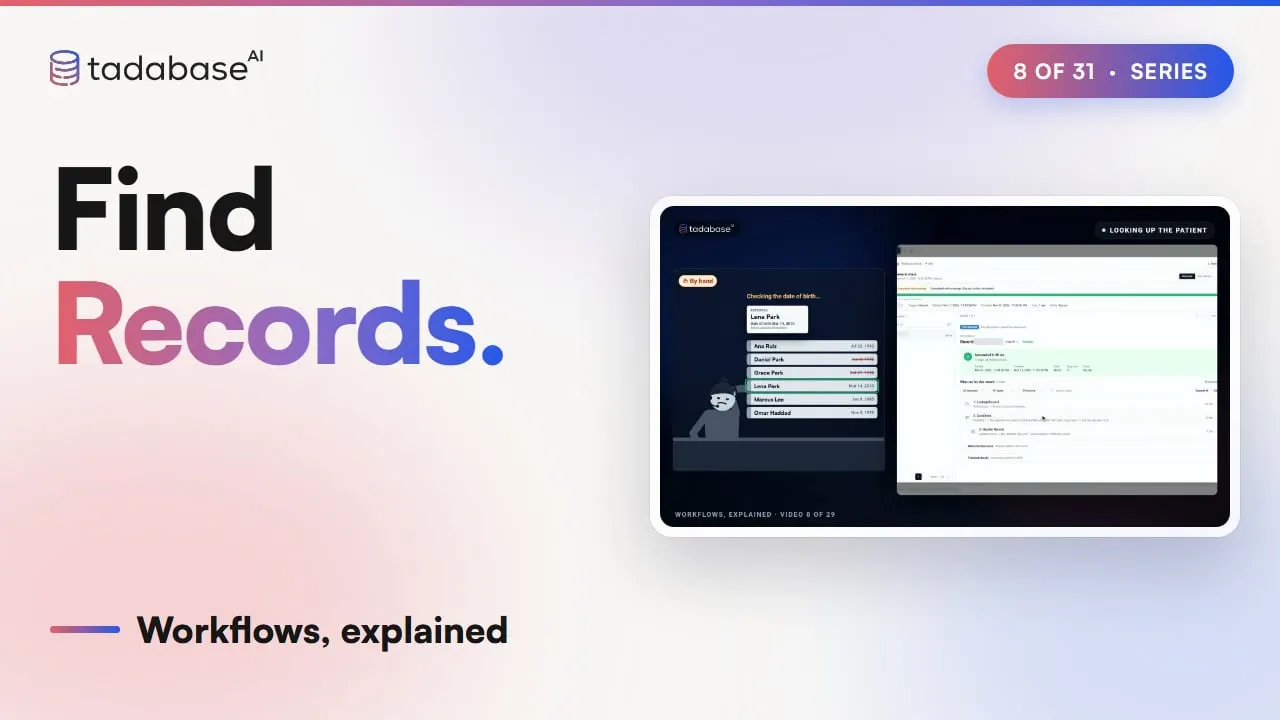 5:06 Watched Video 8 Find Records Let's look at Find Records, the step that looks up a record so the steps after it can use it.
-
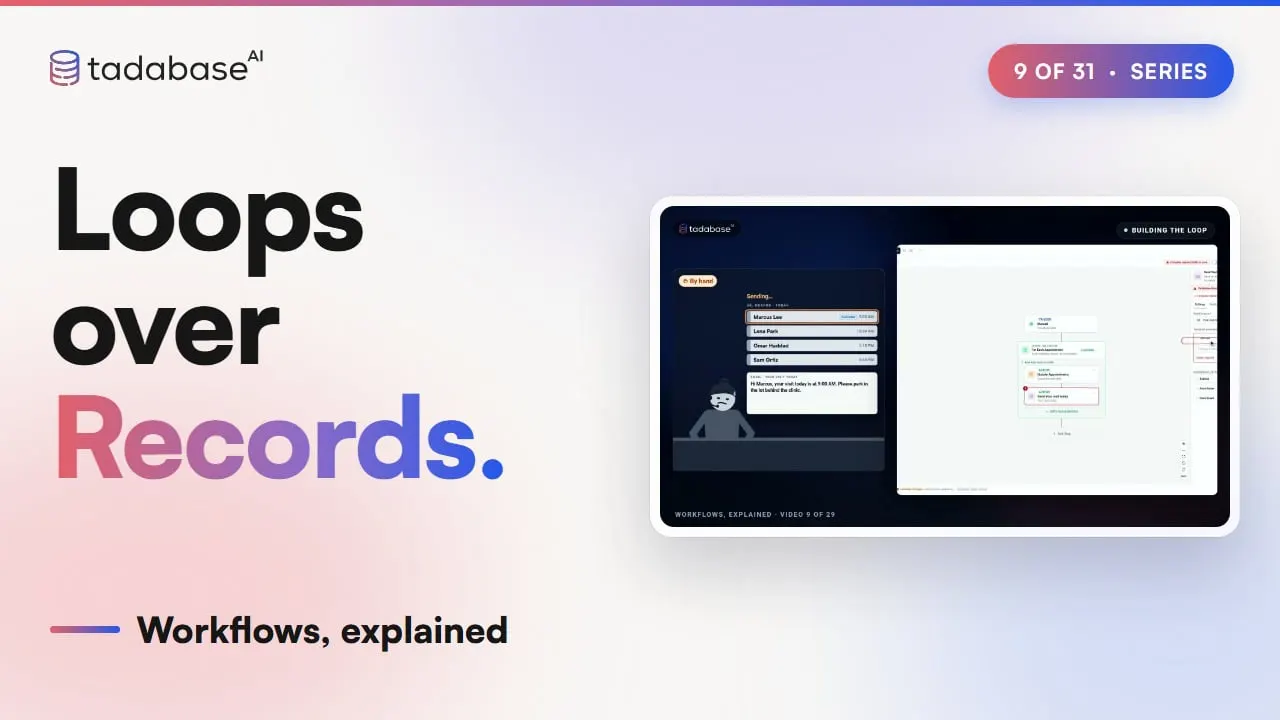 5:06 Watched Video 9 Loops over Records Sometimes the same job needs doing for every record on a list, like every appointment on today's schedule, and doing it one by one gets old fast. This video is all about loops over records, which do that job for every single record, one at a time, all on their own.
-
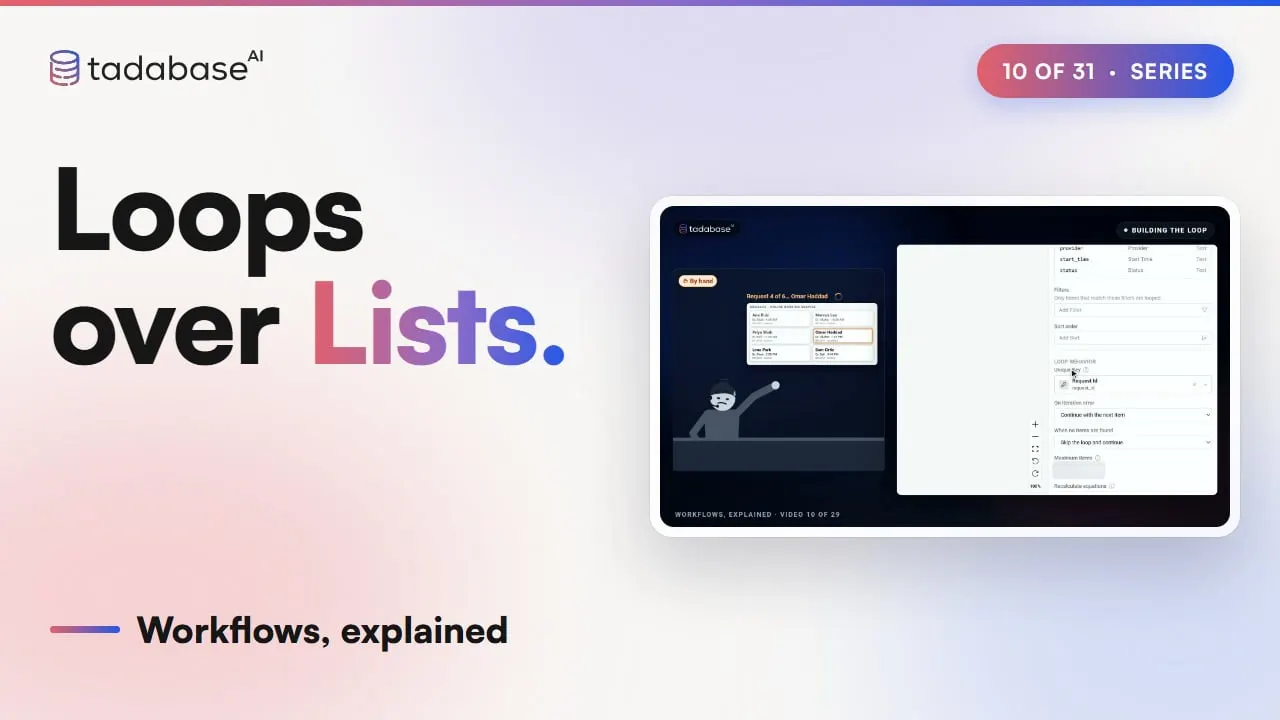 4:47 Watched Video 10 Loops over Lists Some things show up as a whole list at once, like a full day of online bookings packed into a single message. This video shows how a loop takes a list like that apart, one item at a time, and turns every item into its own record.
-
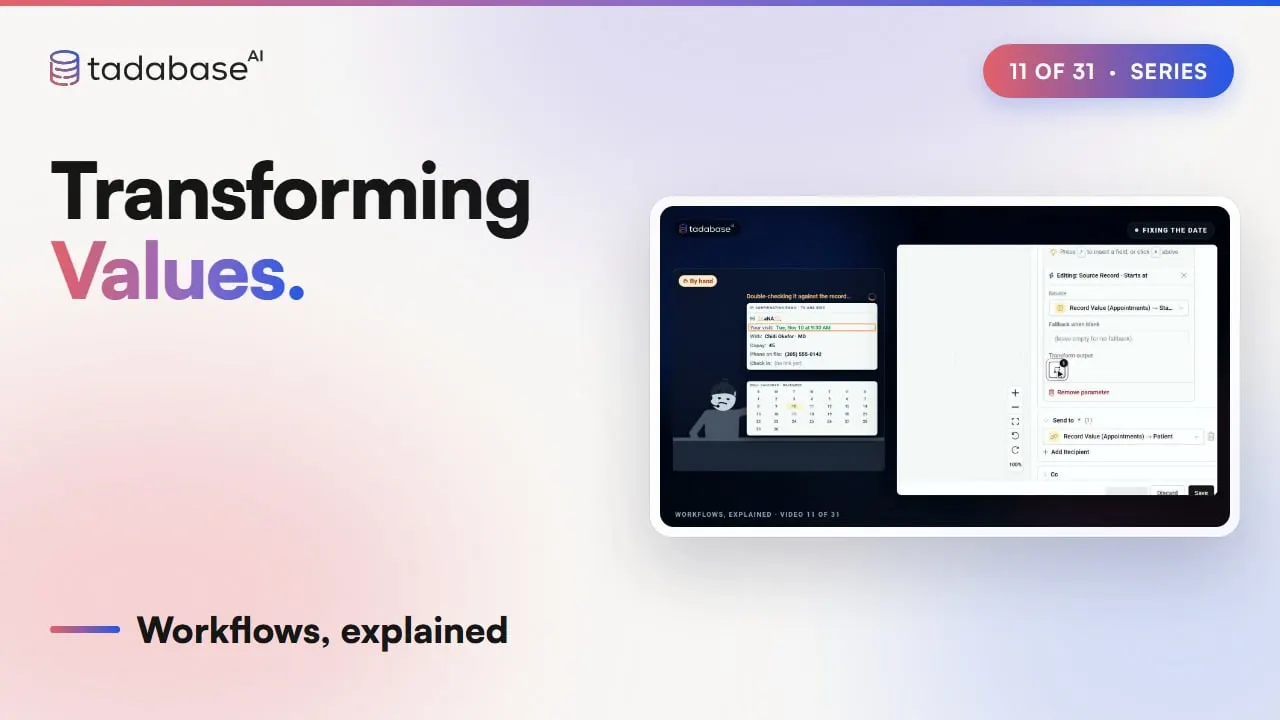 5:28 Watched Video 11 Transforming Values A raw value doesn't always read well, and nothing makes an email feel more robotic than a date written as a long string of numbers. This video shows how to transform a value on its way into a step, so every message your app sends reads like a person who wrote it.
-
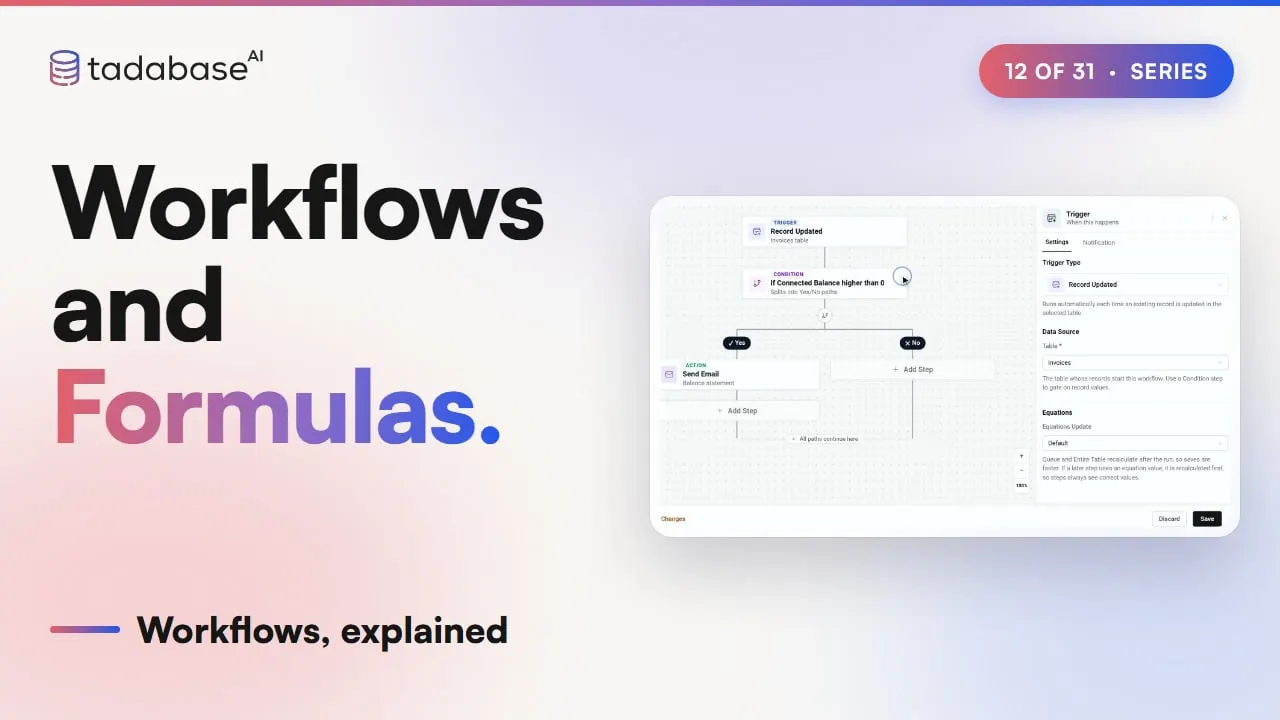 4:34 Watched Video 12 Workflows and Formulas Many fields in your app calculate themselves: a total, a balance, a count. Workflows read those values all the time. This video covers when a workflow sees the new value, and how to keep it that way.
-
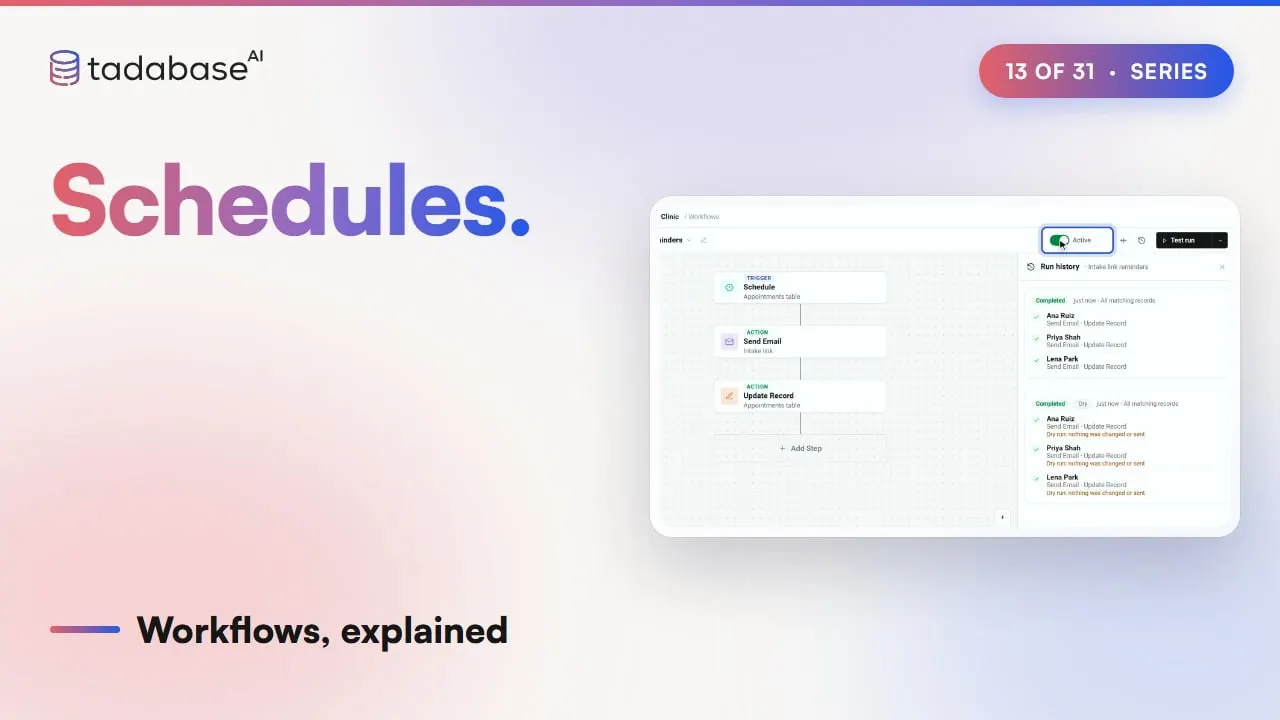 4:06 Watched Video 13 Schedules Some work starts with the clock, not with a change. Every weekday at seven, Brookside sends an intake link to the patients coming in today who haven't filled theirs in. This video shows how a Schedule does that.
-
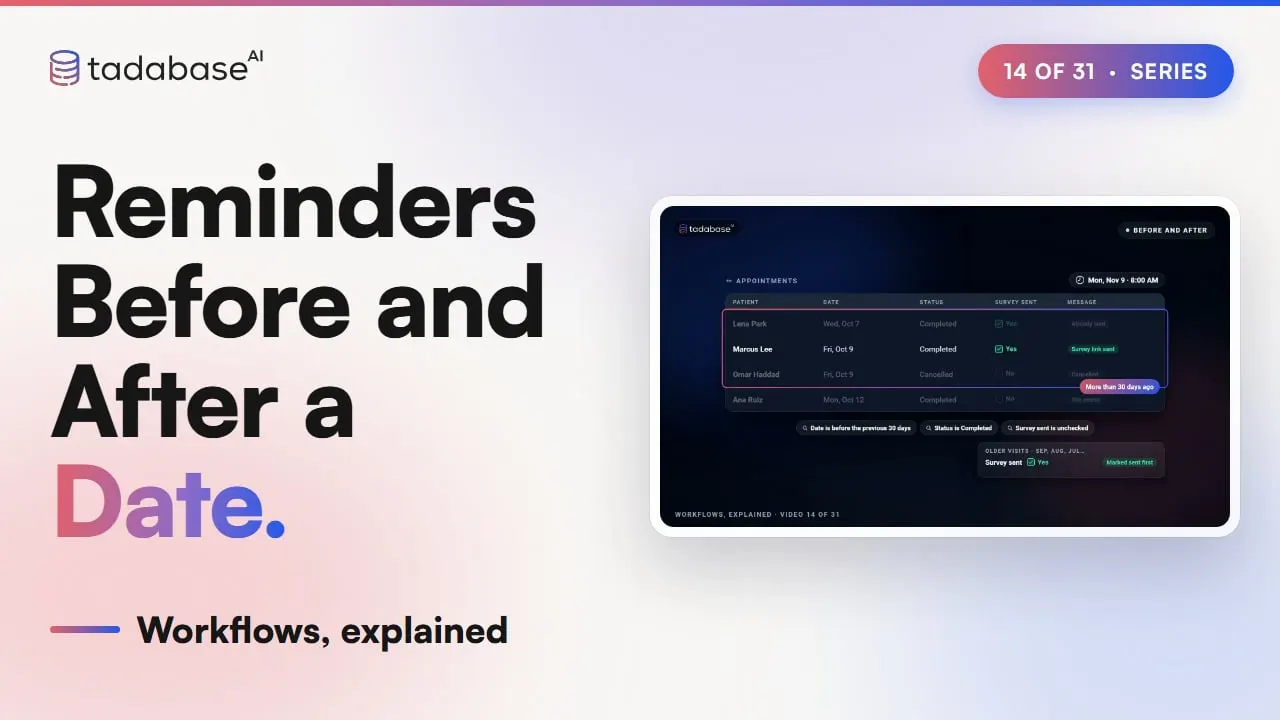 4:24 Watched Video 14 Reminders Before and After a Date A dentist reminds you two days before a cleaning, and checks in a month after. A workflow can do the same with any date in your app. This video shows how.
-
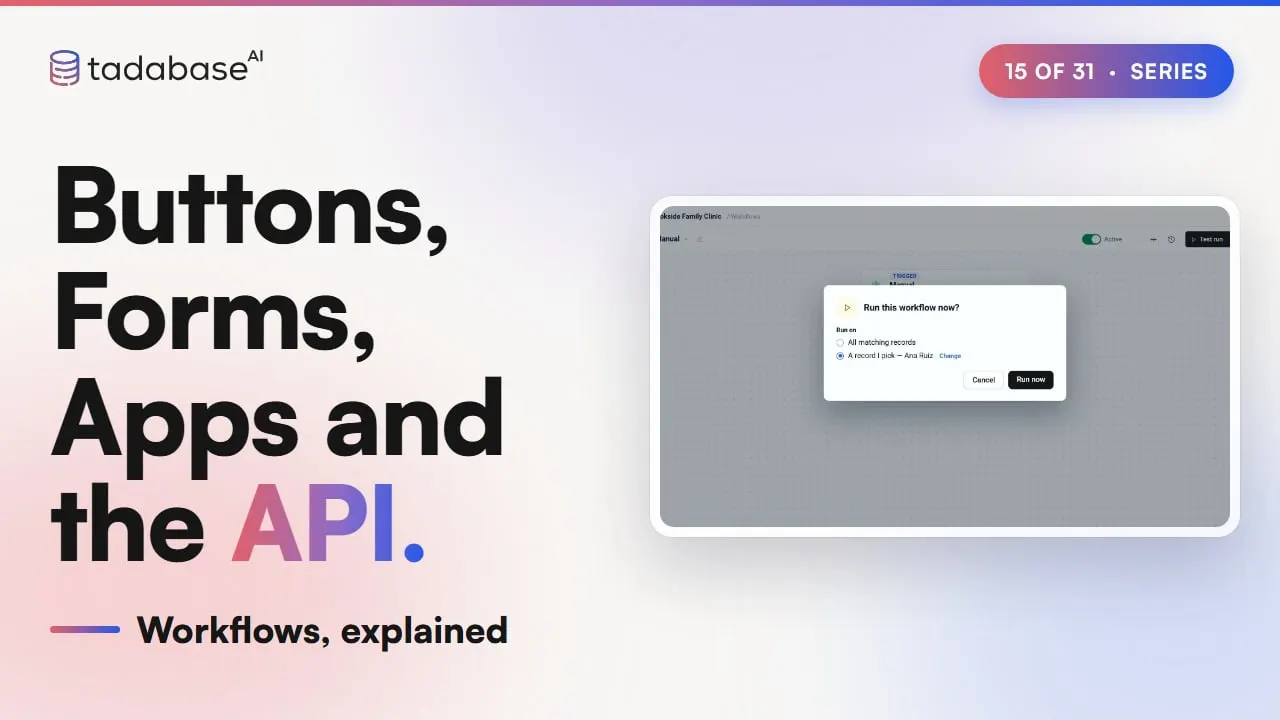 4:33 Watched Video 15 Buttons, Forms, Apps and the API Some workflows wait for someone to start them. This video shows the ways to start one on purpose: a button in your app, a page that calls it with values, and another system, through the API.
-
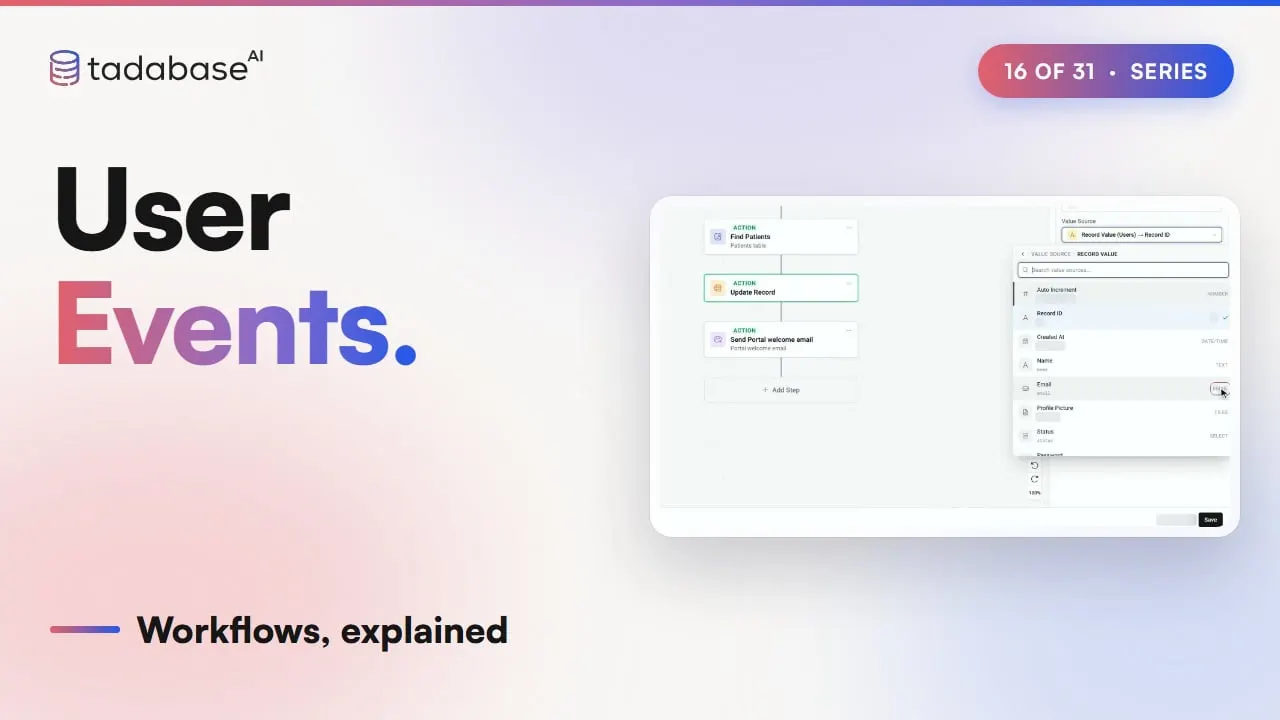 5:44 Watched Video 16 User Events Let's look at user events. A workflow can run when something happens to a user's account: they sign up, sign in, sign out, change their password, or connect an AI assistant. This video shows how to use them, and when not to.
-
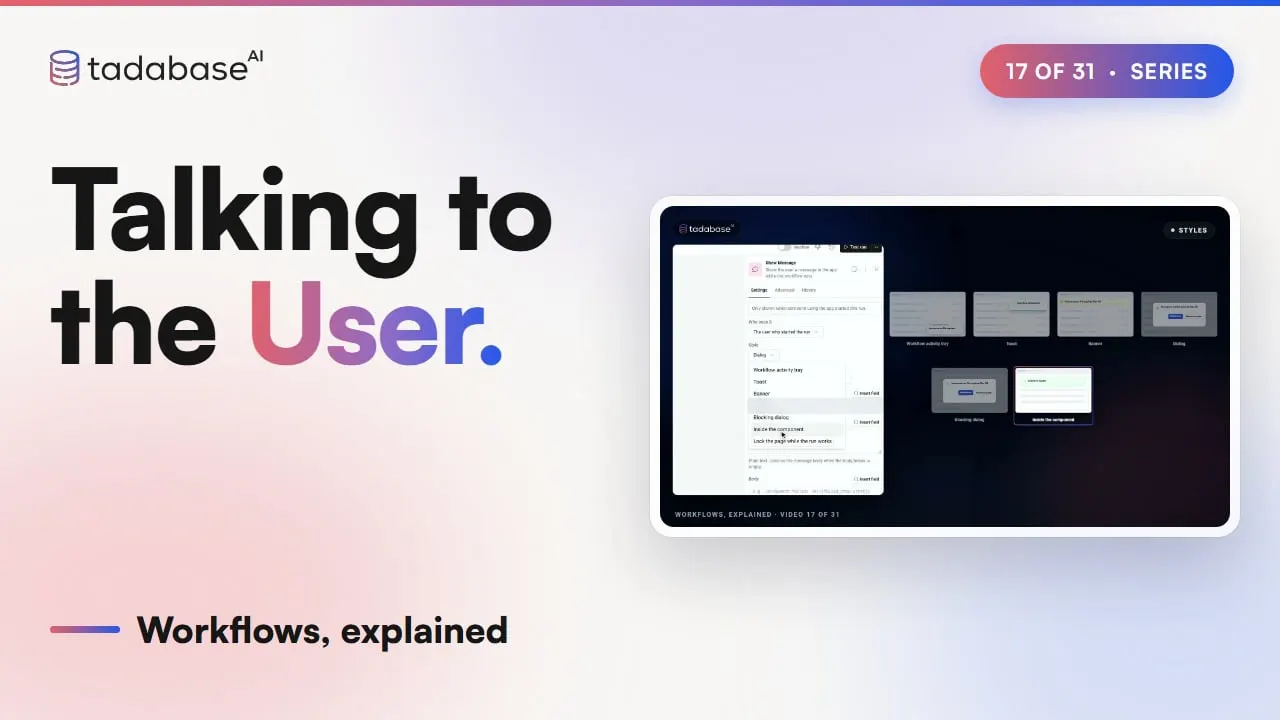 4:43 Watched Video 17 Talking to the User Let's look at Show Message. It lets a workflow talk to the person using the app: tell them something, or ask a question and wait for the answer.
-
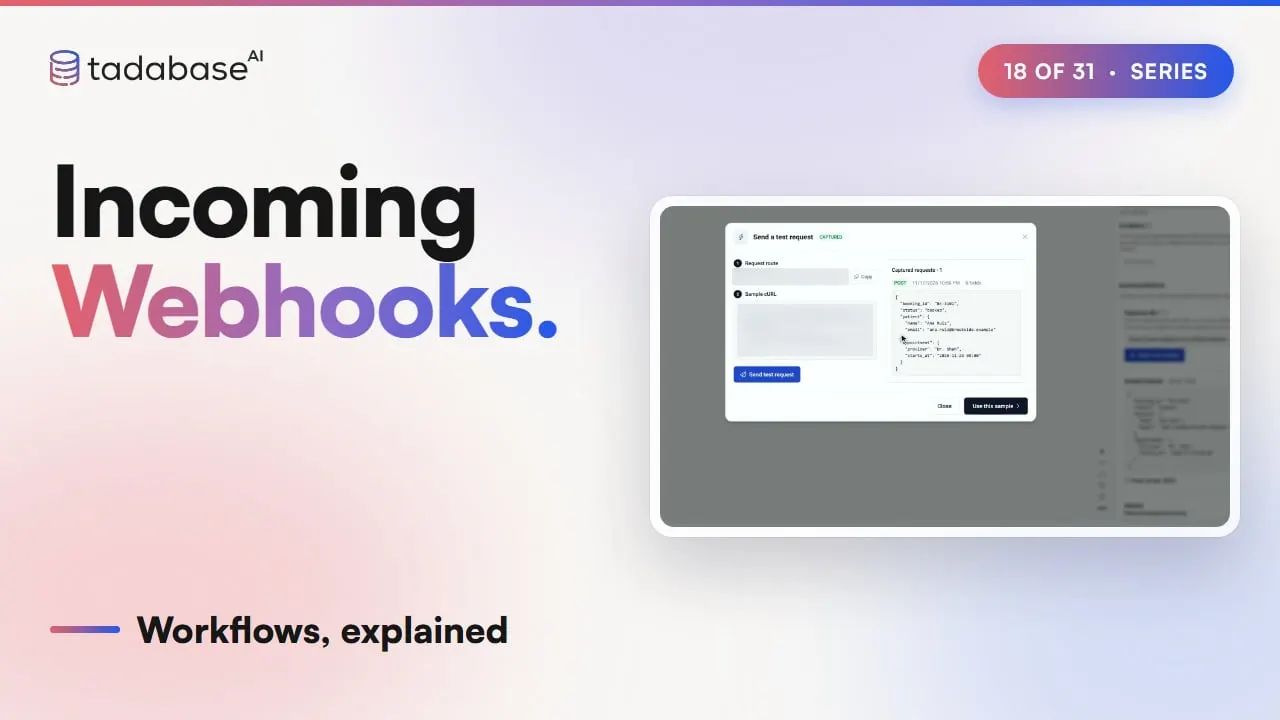 4:32 Watched Video 18 Incoming Webhooks Some data doesn't start in your app. A booking site, a payment service or a form tool can send it the moment something happens. This video shows how an incoming webhook turns that message into a record.
-
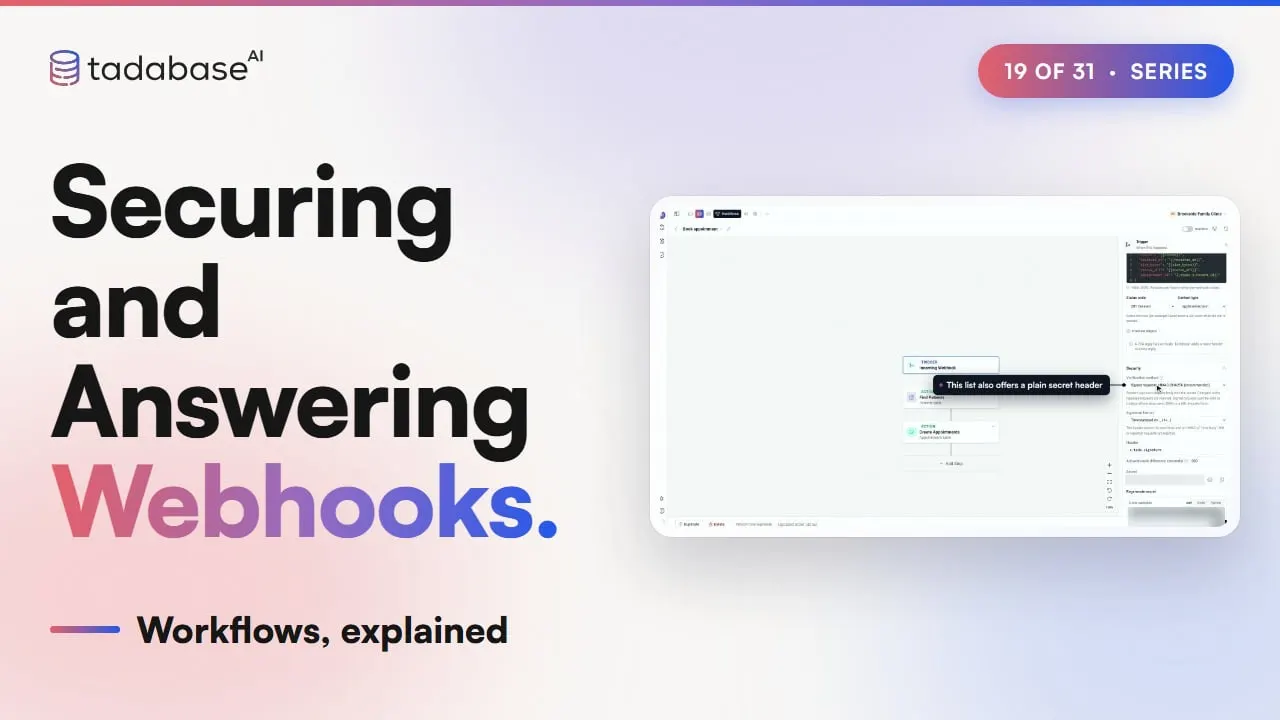 4:56 Watched Video 19 Securing and Answering Webhooks An incoming webhook gives a workflow its own web address. This video shows how to lock it, choose which requests get in, and answer the sender. Video eighteen covers the URL and the mapping.
-
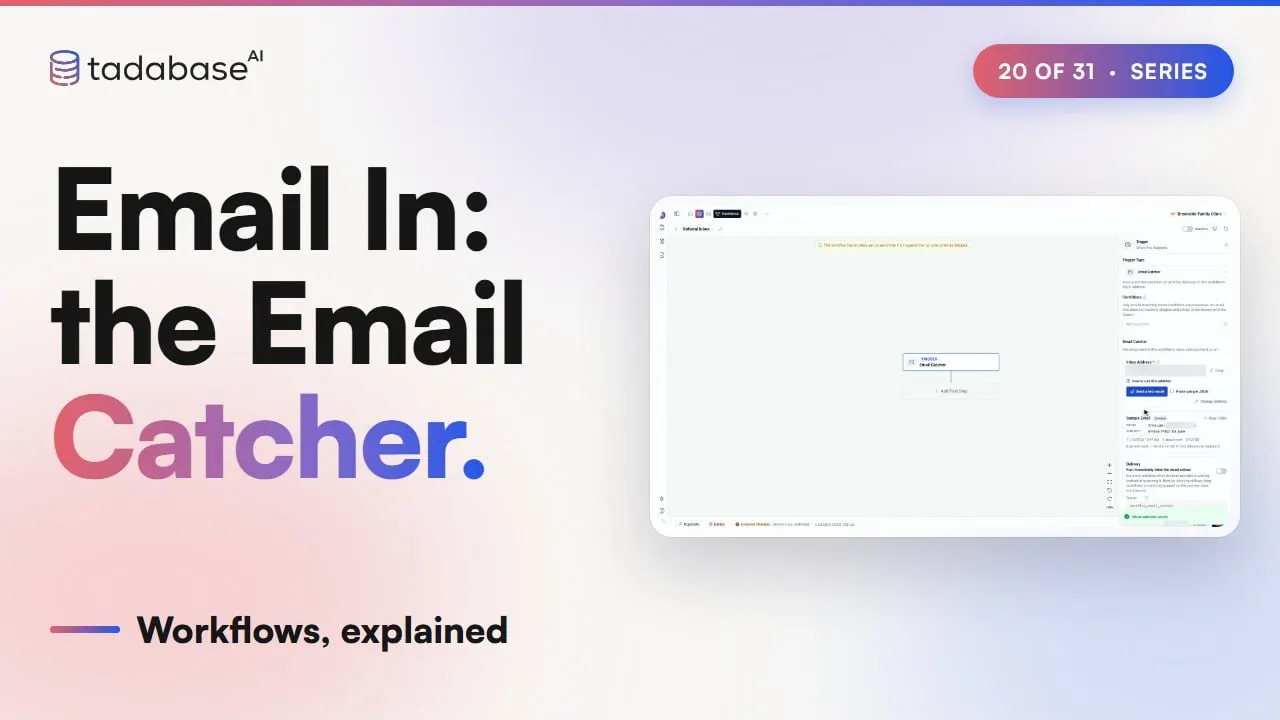 4:48 Watched Video 20 Email In: the Email Catcher Some work arrives by email. Partner practices send referrals, and vendors send invoices. This video shows how the Email Catcher turns each email into a record, attachments included.
-
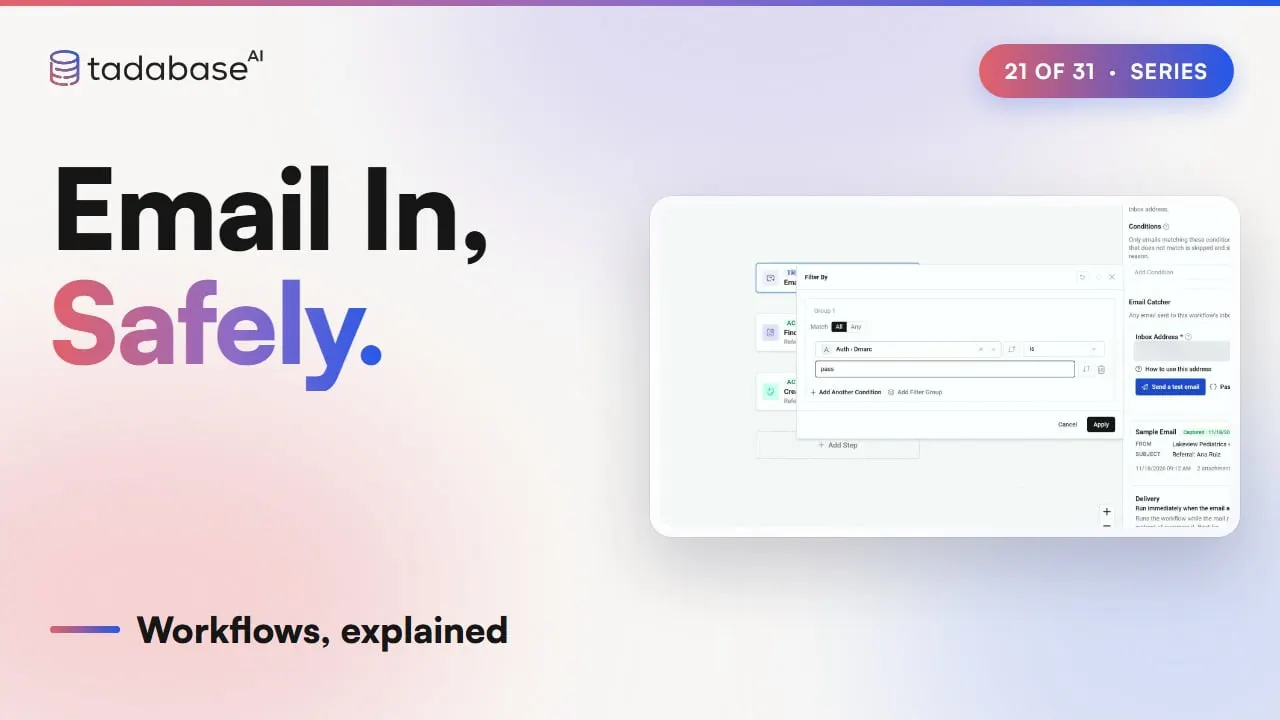 4:49 Watched Video 21 Email In, Safely Anyone who knows an Email Catcher address can write to it. This video shows which emails get to run your workflow.
-
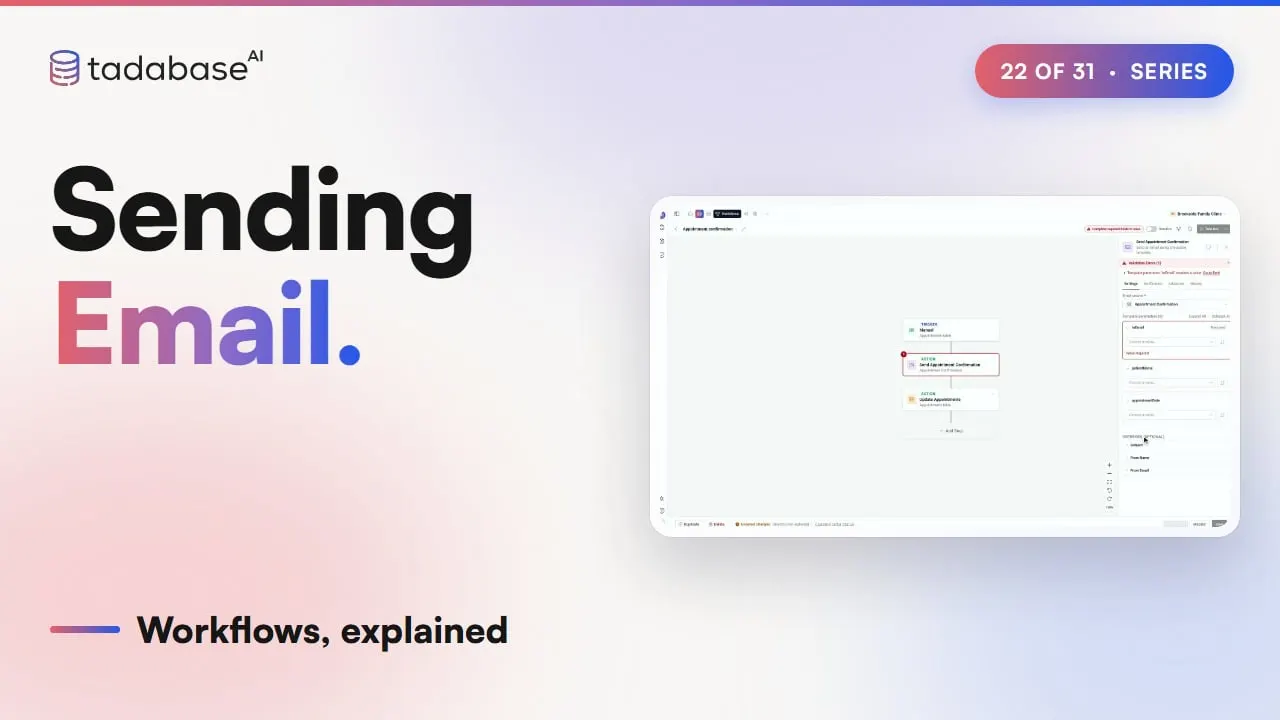 4:54 Watched Video 22 Sending Email Let's look at sending email from a workflow: the three kinds, who it goes to, attachments, testing, and what to check when one doesn't arrive.
-
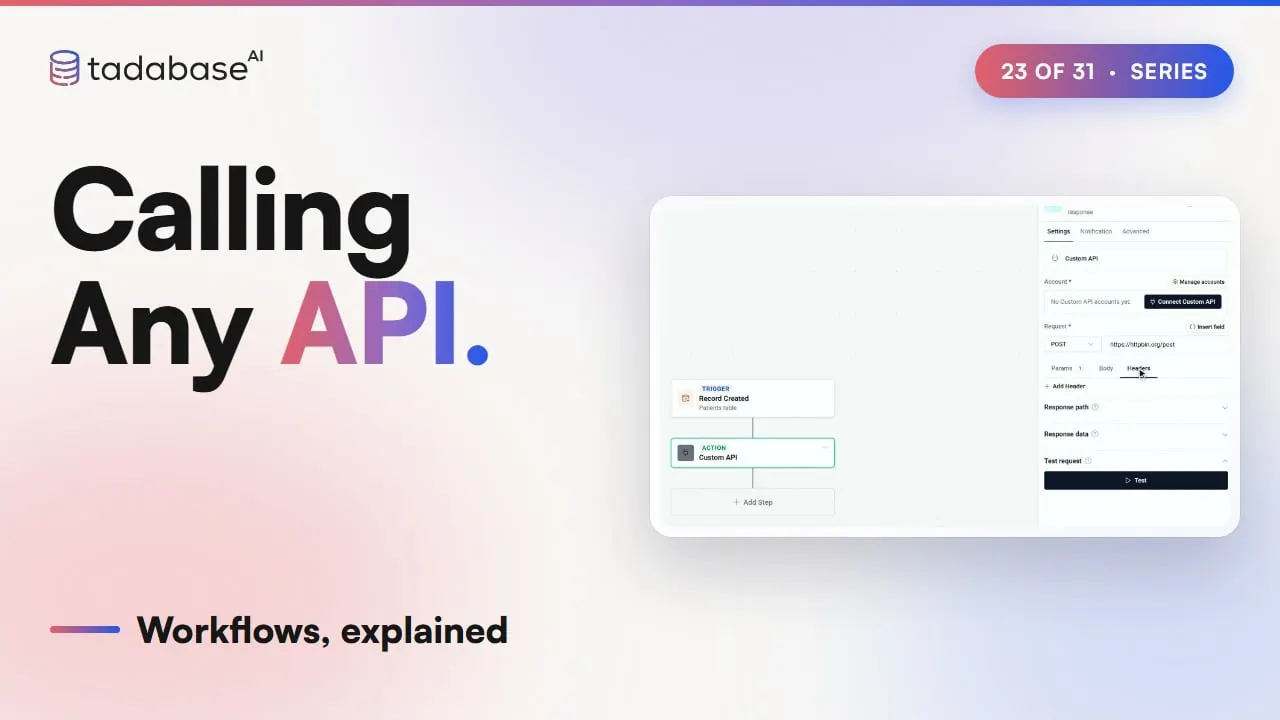 4:25 Watched Video 23 Calling Any API Sometimes a workflow needs to ask another service a question, and use the answer. This video shows how a workflow calls any API, and how it keeps both the answer and the key safe.
-
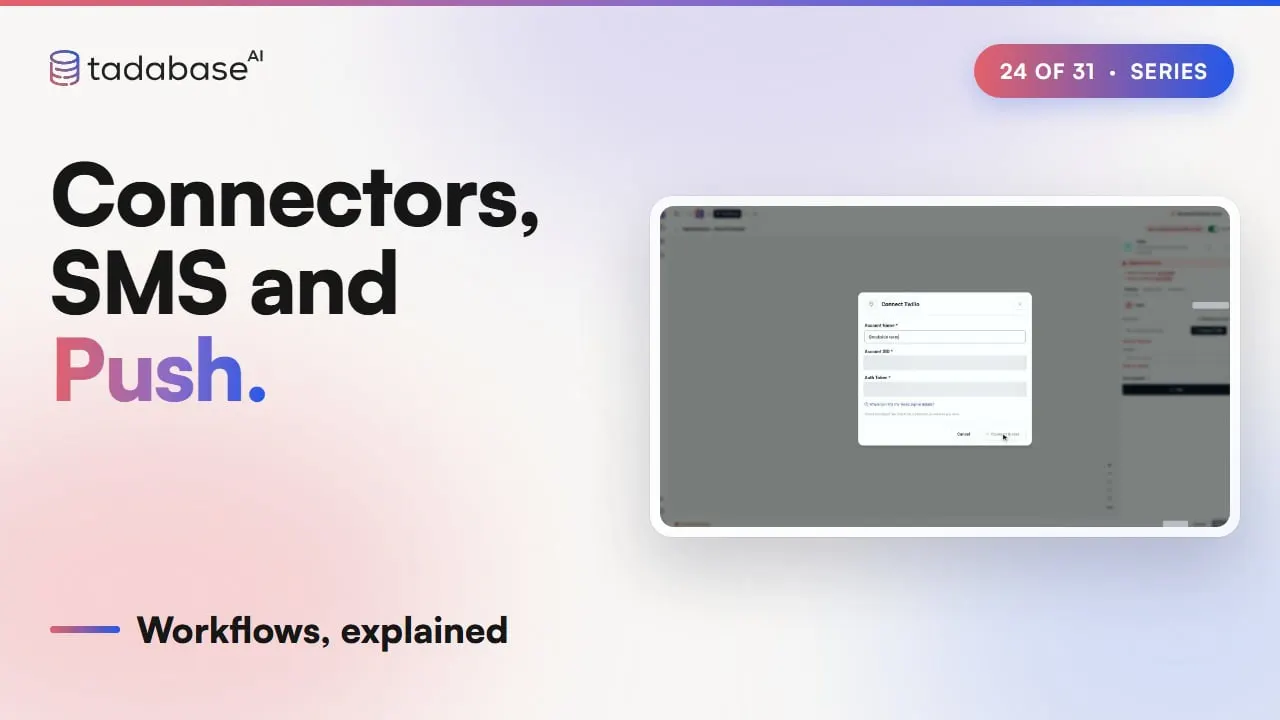 4:34 Watched Video 24 Connectors, SMS and Push Your clinic already uses other tools, like a texting service, Slack and a payment system. Connectors let a workflow use them. This video covers connecting an account once, sending texts with Twilio, using Slack and Stripe, and push notifications.
-
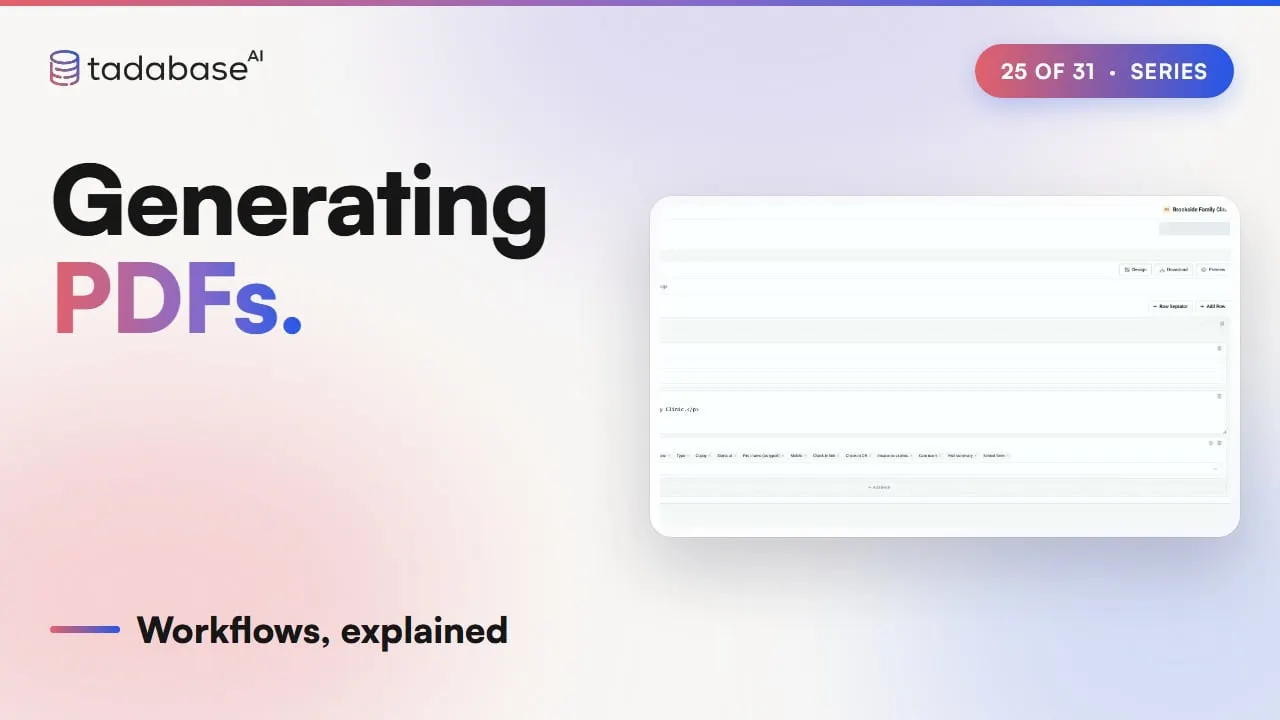 4:52 Watched Video 25 Generating PDFs Let's look at making PDFs from a workflow: the two kinds, designing the page, keeping the file, and getting it to people safely.
-
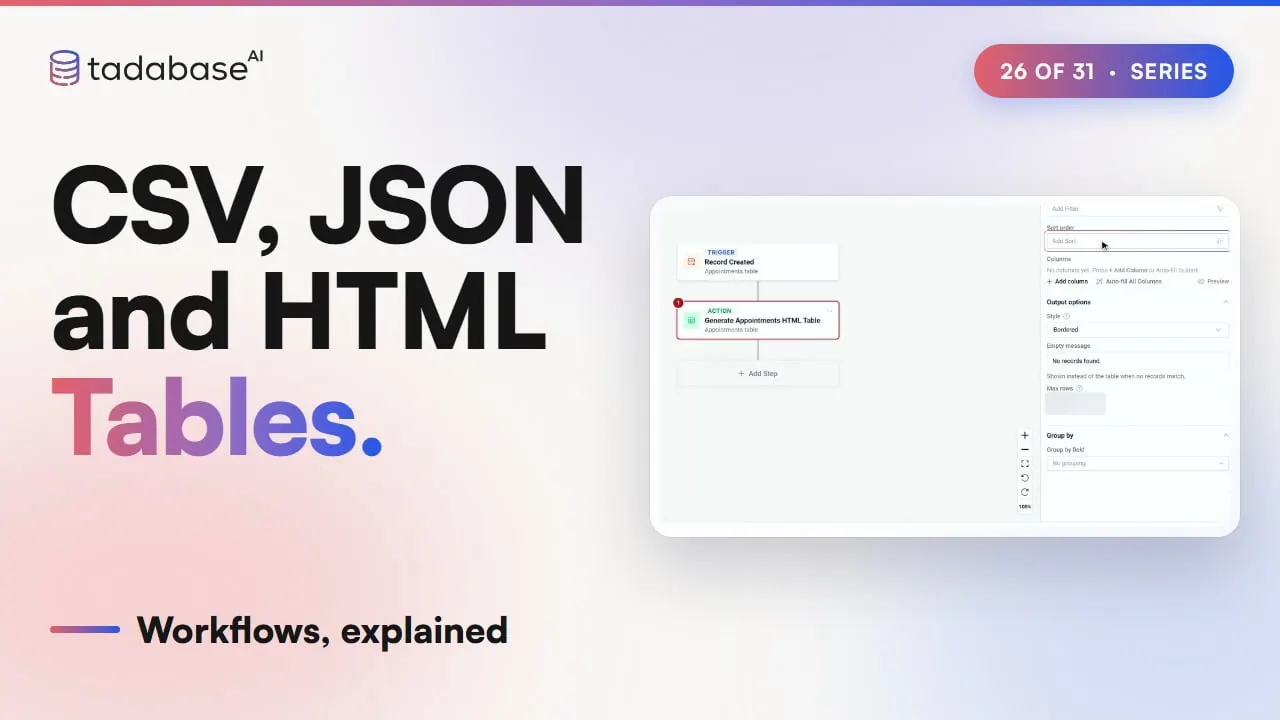 4:32 Watched Video 26 CSV, JSON and HTML Tables Every Monday morning, Brookside's practice manager wants last week's no-shows. This video turns that list into a table inside an email, a CSV file, and a JSON file.
-
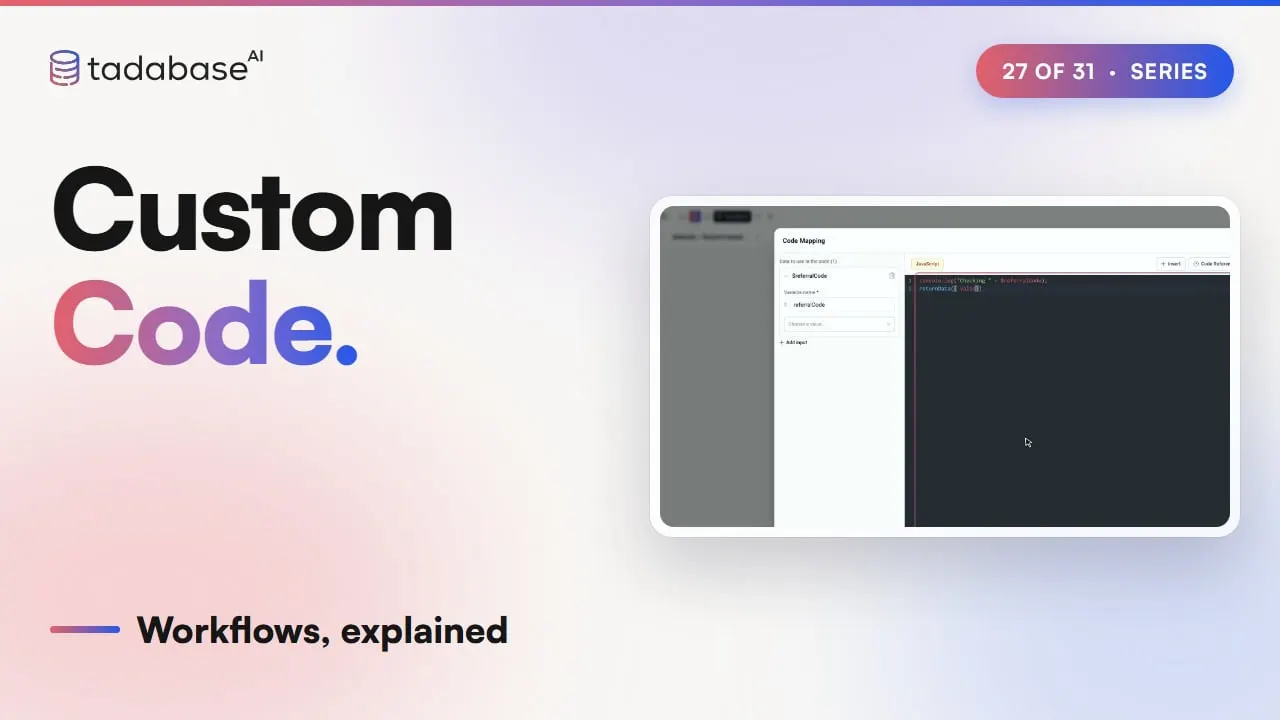 4:18 Watched Video 27 Custom Code Sometimes a workflow needs a small job that no built in step does. Custom code does that job, in a few lines of JavaScript or Python. This video shows how to hand it values, get an answer back, and keep your keys safe.
-
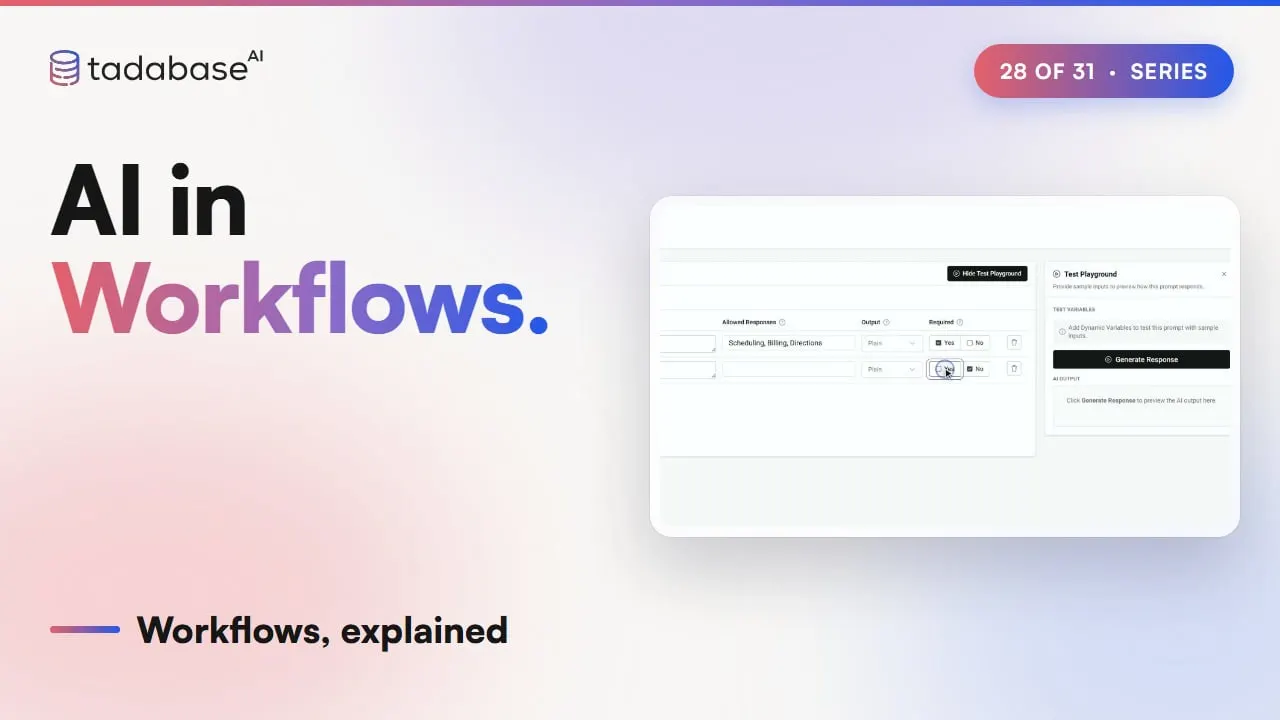 6:56 Watched Video 28 AI in Workflows Some work needs reading, not copying. A message comes in through the clinic's website, and someone has to read it, decide what it's about, and draft an answer. This video shows how a workflow hands that reading to AI, and keeps a person in charge.
-
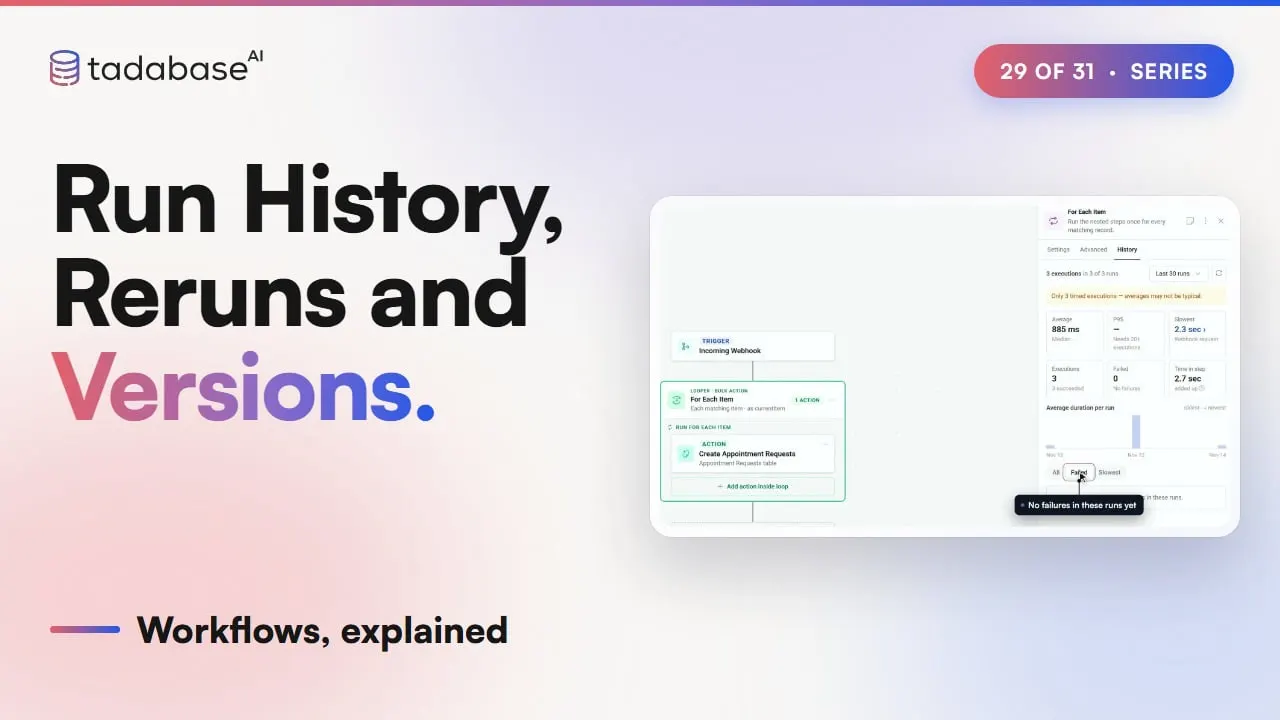 4:35 Watched Video 29 Run History, Reruns and Versions Every morning at eight, Brookside's reminder workflow texts each patient with a visit that day. This morning, three patients got nothing. This video shows how to find out why, fix it, run it again, and undo a change that went wrong.
-
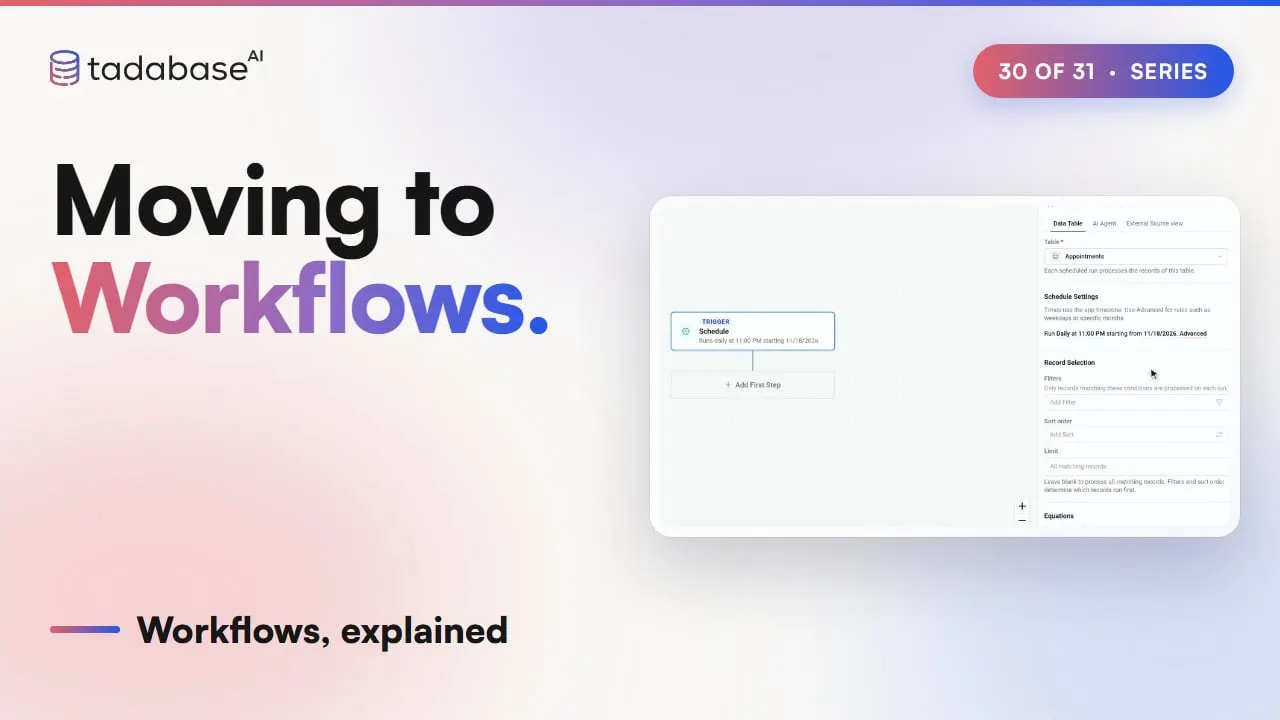 4:18 Watched Video 30 Moving to Workflows This one is for existing Tadabase customers. If you built automations in the classic builder, like scheduled tasks, webhooks or table rules, this video shows where each one goes in Workflows, and how to move one safely.
-
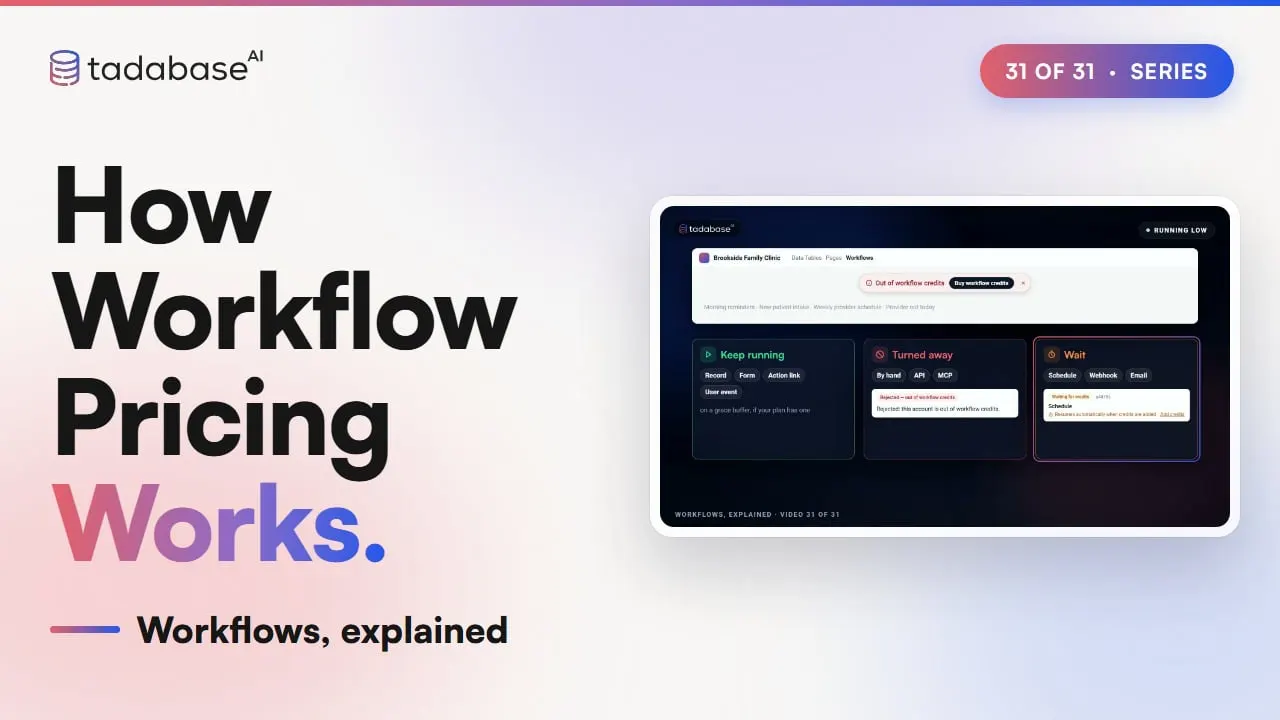 4:39 Watched Video 31 How Workflow Pricing Works This last video is about how workflow pricing works. Workflows run on workflow credits. Here's what uses them, what's free, where you see them, and how to use fewer.
More series
- Rollup Fields, Explained 6 videos
- All video series
Seen enough?Describe your app.
Tadabase AI builds it, hosts it and keeps it running. Real backend, real domain, real app.
- 14-day free trial, no card
- Unlimited app users
- Live on your own domain