
Talking to the User
Let's look at Show Message. It lets a workflow talk to the person using the app: tell them something, or ask a question and wait for the answer.
On this page
Chapters
Read the docs
Transcript
Show the full transcript
0:00 Intro
Let's look at Show Message. It lets a workflow talk to the person using the app: tell them something, or ask a question and wait for the answer.
0:11 The idea
Think of checking in at a doctor's office. You walk up to the desk. The nurse checks your file and asks one quick question: do you have your new insurance card? You answer, and what happens next depends on your answer. That desk does both jobs of Show Message. Telling: a note you read and close. Asking: a question with answer buttons. And while you decide, everything waits.
0:36 In your app
At Brookside Family Clinic, Dana at the front desk marks Ana Ruiz checked in. Ana's insurance expires this month, so a dialog opens on Dana's screen. She clicks Remind me later, and billing gets a task to ask Ana for her new card.
0:51 The editor
Here's the workflow in the AI Builder. Record Updated, on Appointments. A Condition checks the status and the insurance date. On Yes, Show Message asks the question. And a second Condition reads the answer and adds the task.
1:07 Styles
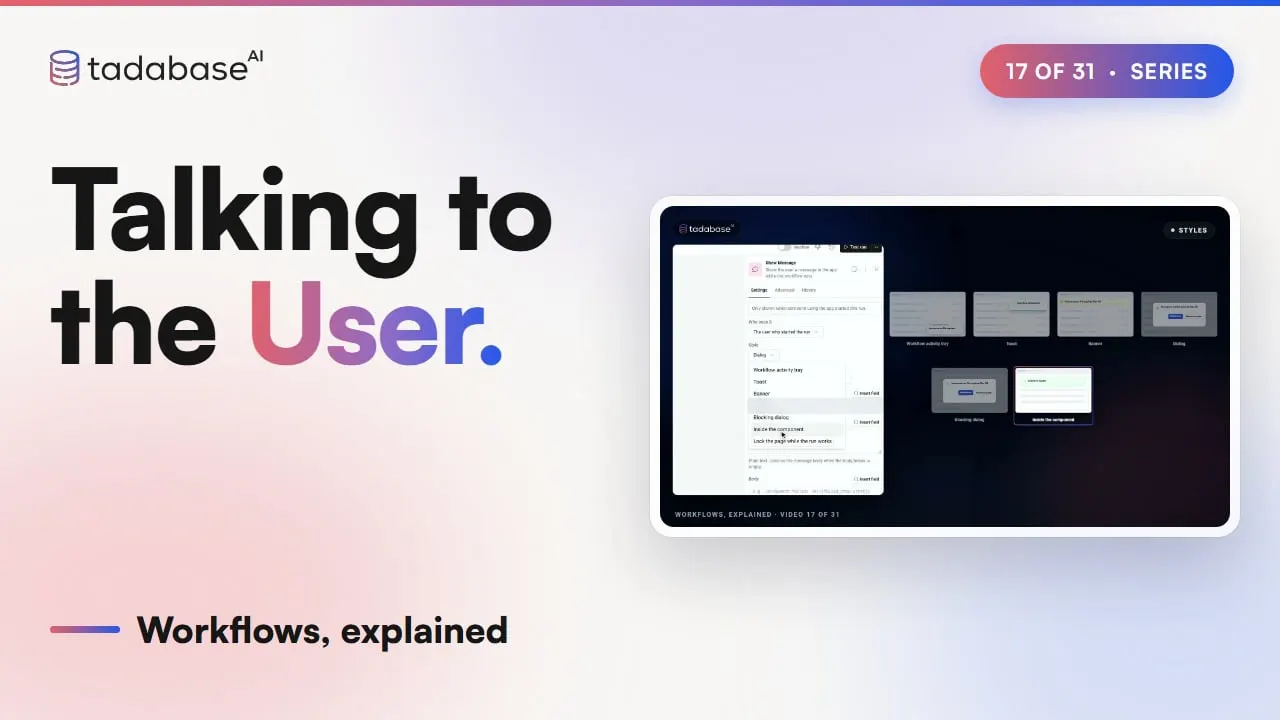
Style decides how it appears. By default, a line in the workflow activity tray. A toast in the corner, that hides itself. A banner across the top. A dialog in the middle. A blocking dialog, which closes only through its buttons. Inside the component that started the run. Or a page lock, with a spinner, while the run works. Tone sets the colour and icon: success, info, warning, error or neutral. Size is small, medium or large. And Insert field puts record values in the text, like Ana's expiry date.
1:44 Who sees it
Who sees it is normally the user who started the run. It can also be users with certain roles, like Billing, anyone viewing this record, or the users in a record field. They get a toast, a banner or a dialog, and Save for later keeps it for anyone who's away, until their next visit.
2:02 Buttons
A message can carry a few buttons. Each has a label and a style. Add what this button does picks the action: go to a page, open a link, refresh a table, or run another workflow. Then also adds a second action.
2:18 Setting it up
Setting it up takes a few choices. On the first Condition's Yes path, add a step: Action, then Show Message. Who sees it stays the user who started the run. Style, Dialog. Tone, Warning. Type the title, and insert the expiry date. Add two buttons, Update now and Remind me later. Then turn on Pause the workflow until the user answers. Each button is now an answer, in its own words. Wait up to sets how long the dialog waits. When time runs out, the run continues with the default answer, or stops. Save, and it's ready. After the message, add a Condition. From Step Data, pick the message's User Choice, is, Remind me later. On Yes, Create Record adds the billing task. And Update now also gets Go to a page, to open the insurance page.
3:10 Waiting runs
While the question is open, the run shows as Waiting in Run history. Open it to see the question and when it times out. If Dana stepped away, answer for her here, or cancel the run, so the later steps never run. Run history has its own video later on. The same step fits any business. A manager marks an order Ready to ship. A dialog asks, ship it today? And the answer decides whether a shipping label is made.
3:37 Rules
Three rules to keep track of. Rule one: a message needs someone in the app. Record changes, buttons and user events start from the app, so it shows. Schedules, webhooks and emails run in the background, so the editor flags the step, and nothing is shown. Rule two: a question pauses the run. Nothing after it runs until it's answered, or times out. In the app, only the user who started the run can answer. And it can't wait inside a loop, or in a run with many records. Rule three: every message needs a way out. A toast hides itself, or gets a close button. A blocking dialog closes only through its buttons, so it needs at least one. And a page lock lifts on its own when the run ends. That's Show Message. Tell the user something, in the style that fits. Ask a question with answer buttons. And the run waits, then follows the answer. What each plan includes is on the pricing page at tadabase.com. In the next video, we look at incoming webhooks.
Also on Vimeo · the whole series on Vimeo