
Moving to Workflows
This one is for existing Tadabase customers. If you built automations in the classic builder, like scheduled tasks, webhooks or table rules, this video shows where each one goes in Workflows, and how to move one safely.
On this page
Chapters
Read the docs
- Table rules, record rules and action links (replaced by workflows) Where older table rules, record rules and action links live, how to edit or turn them off, and which workflow trigger or button replaces each one.
- Scheduled tasks (replaced by scheduled workflows) Manage the older scheduled tasks in apps that still have them: edit, run, turn off, check history and limits, and move them to scheduled workflows.
Transcript
Show the full transcript
0:00 Intro
This one is for existing Tadabase customers. If you built automations in the classic builder, like scheduled tasks, webhooks or table rules, this video shows where each one goes in Workflows, and how to move one safely.
0:15 The idea
Think of a clinic moving into a new building while the old one stays open. Patients still use the old rooms. You set up one new room at a time, check that it works, and only then close the old room.
0:28 What's changing
Here's what changes, and what doesn't. In the classic builder, your scheduled tasks are still listed, and they keep running. A notice says they're moving to Workflows, and recommends a workflow for new ones. The same goes for outgoing webhooks, incoming webhooks and email catchers. An app that has none yet is pointed straight to Workflows.
0:48 The map
Here's the map. A scheduled task becomes a Schedule trigger. An outgoing webhook becomes a Trigger Webhook step. An incoming webhook becomes an Incoming Webhook trigger. And an email catcher becomes an Email Catcher trigger. Rules and buttons move too. A table rule becomes a record trigger, with a Condition for its conditions. A form's record rules become Record Created. That hears every new record, not only the form's, so add a Condition if only some count. An action link runs a Manual workflow. And pipes stay: a Trigger Pipe step calls them.
1:26 Moving a task
There's no converter, so you rebuild each one. Take the clinic's nightly task, Mark no-shows. Every night at eleven, on Appointments, where Status is Booked and the date is before today, it sets Status to No-show.
1:41 Setting it up
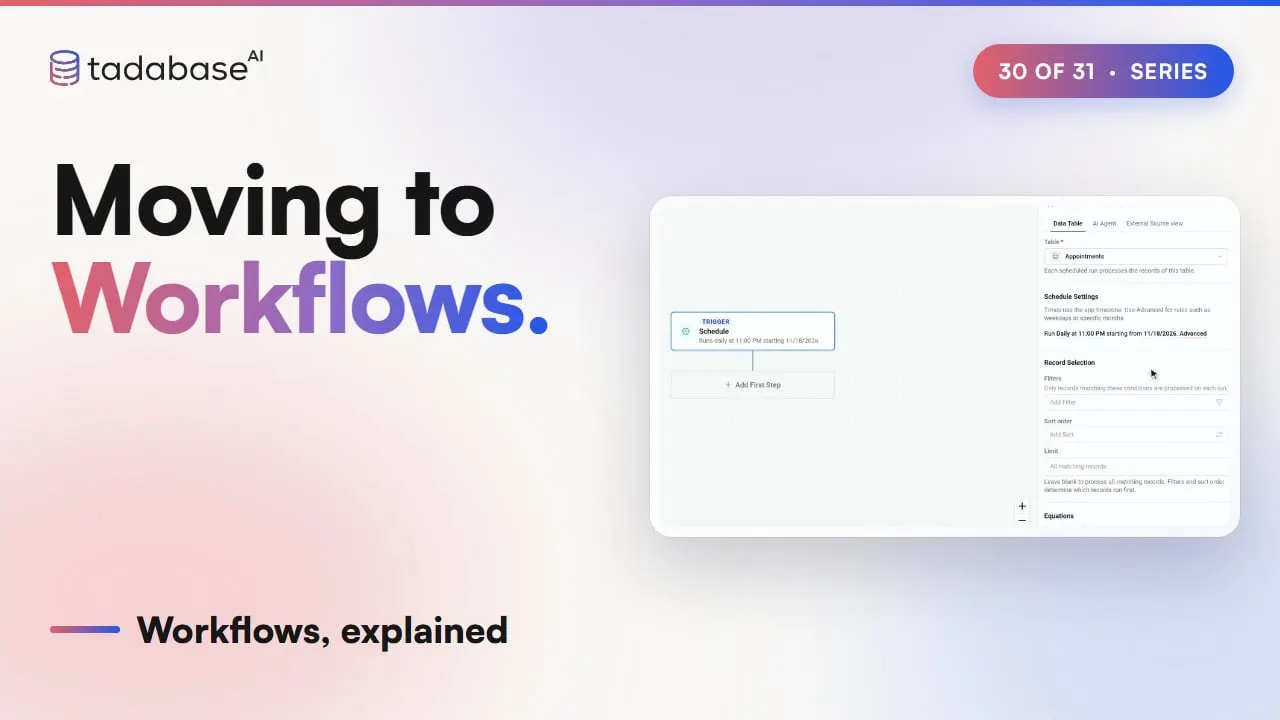
In the AI Builder, make a new workflow with a Schedule trigger on Appointments. Under Schedule Settings, pick Daily, and set eleven PM. Under Record Selection, add the same filter: Status is Booked, and Date is before today. Add an Update Record step that sets Status to No-show, and save. Click Test run, on all matching records. It walks every step without changing anything, and lists the appointments it would mark: Ana Ruiz and Omar Haddad, the same two the task would pick. When it matches, switch the old one off. Open the task in the classic builder, set its Status to Disabled, and save. Tonight only the workflow runs, and each run is in Run history.
2:29 Moving a webhook
A webhook moves the same way, plus one step. An Incoming Webhook workflow gets its own address. Send a test, map the fields, and save. Then, in the booking site's settings, replace the old address with the new one. The old webhook stops receiving anything. And turn on signed requests while you're there.
2:49 What you gain
What you gain, in one line each. Run history, with reruns, in video twenty-nine. Conditions and branches, in videos five and six. Signed webhooks, in video nineteen. Show Message, to talk to the person who clicked, in video seventeen. And Version history, if your plan includes it, also in video twenty-nine.
3:09 No match yet
A few classic options have no match yet. There's no Record Deleted trigger, though an outgoing webhook can send on Delete Record. There's no Delay step. And Trigger Webhook has no sending limit. If you rely on one of these, keep the classic one running.
3:26 Rules
Three rules to keep track of. Rule one: existing automations keep working. Your tasks, webhooks and rules run as before. Nothing moves until you move it. Rule two: rebuild, test, then switch the old one off. Build the workflow. Test run it. Then disable the old one. Rule three: run both only if they can't double up. Marking a no-show twice changes nothing. Sending a reminder twice means two emails. So for anything that sends, switch them over together. That's the move. Every classic automation has a place in Workflows. Rebuild it, test it, then switch the old one off. What each plan includes is on the pricing page at tadabase.com. In the next video, we look at how workflow pricing works.
Also on Vimeo · the whole series on Vimeo