
AI in Workflows
Some work needs reading, not copying. A message comes in through the clinic's website, and someone has to read it, decide what it's about, and draft an answer. This video shows how a workflow hands that reading to AI, and keeps a person in charge.
On this page
Chapters
Read the docs
Transcript
Show the full transcript
0:00 Intro
Some work needs reading, not copying. A message comes in through the clinic's website, and someone has to read it, decide what it's about, and draft an answer. This video shows how a workflow hands that reading to AI, and keeps a person in charge.
0:17 The idea
Think of an assistant sorting the mail. A letter arrives, and she reads it. She fills in a slip: what it's about, ticked from a short list, and a draft reply. Then the office manager checks the slip and signs it, before anything goes out. That's the three pieces of AI in a workflow. The letter is the values you hand the AI. The slip is its answer, in fields you defined. And the signature is a person reviewing it.
0:44 In your app
In your app it works the exact same way. Ana Ruiz uses the contact form to ask if she can move Tuesday's appointment to Thursday morning. An AI Prompt step reads her message. It fills in the category, Scheduling, and a suggested reply. And the message waits, not yet reviewed, until someone at the front desk checks it.
1:04 Setting it up
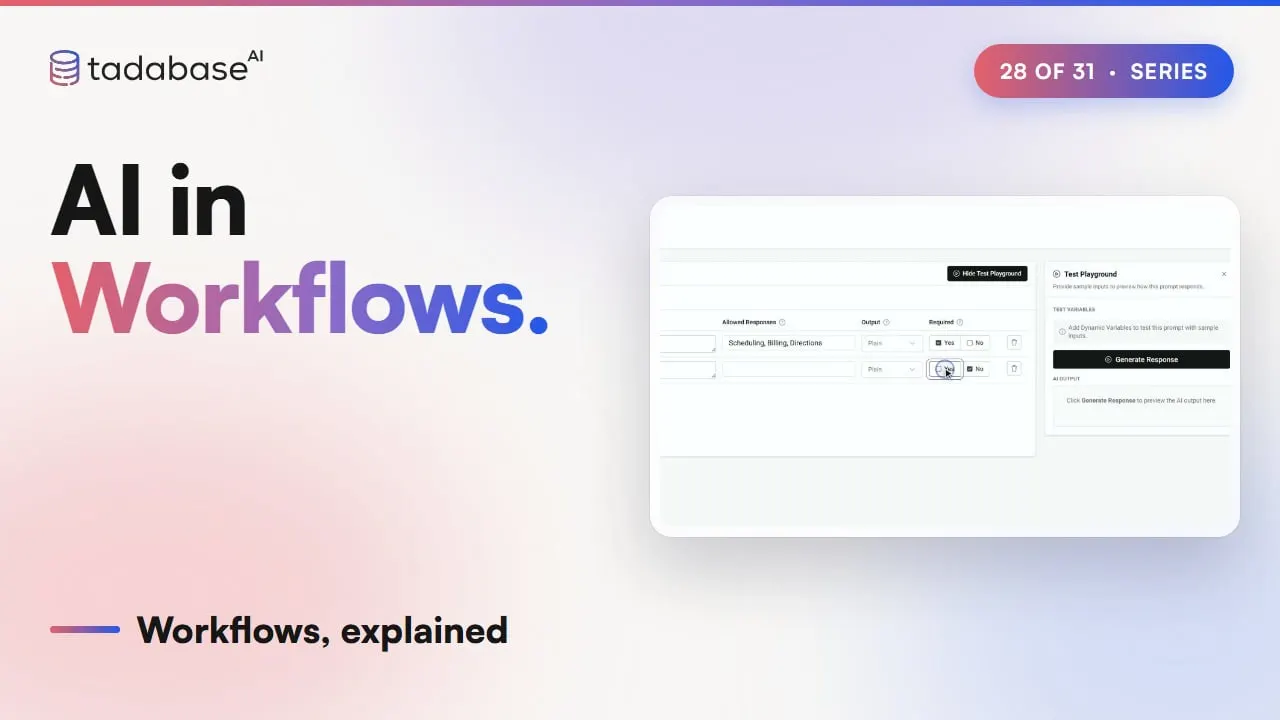
The AI part lives in an AI Prompt, under Templates. Click Add New AI Prompt, and name it Sort contact message. The User Prompt says what to do, with the message in curly brackets. Under Dynamic Variables, that slug, Message, is the value the workflow hands it. The Response tab shapes the answer. A field called category, with Allowed Responses Scheduling, Billing and Directions, so the AI has to pick one of them. A field called suggested reply. Mark both Required, and every answer comes back with both. Now the workflow. The trigger is Record Created, on Contact Messages. Next comes the AI Prompt step. Then Update Record writes the answer back onto the message. Add a step, choose Action, and find AI Prompt, under Utilities. Pick Sort contact message. Set values shows a card for its variable, Message. Point it at Source Record, Message. In Update Record, set Category from Step Data: the AI Prompt step, category. Set Suggested Reply from suggested reply. And set Reviewed to No. Save, and every new message arrives sorted, with a draft reply waiting.
2:27 A daily summary
The front desk also wants one summary at the end of the day. Make a Schedule workflow, and pick the AI Agent source tab. Choose the agent, Front desk assistant. Write the Instructions: count today's contact messages by category, and list the ones still waiting for review. Run it daily at five PM. Then add Send Email, and put AI Agent Response, the answer, in the content. At five, the agent reads the day's twelve messages. It counts them by category, and the front desk gets one email: seven scheduling, three billing, two directions, and two still to review. The same steps fit any business. A software company sorts support emails by topic and urgency, and a person checks the urgent ones before anyone replies.
3:16 Started by AI
So far, the workflow called the AI. It works the other way around too: AI can start a workflow. Marcus Lee has connected his AI assistant to the clinic's app, and asks it to move his appointment to Friday at ten. The assistant changes the appointment through that AI connection. To your app that's a record update, so the Record Updated workflow on Appointments runs, and Marcus gets his confirmation email. Record triggers have a setting for this. Under Data Source, below the table, is When the change is made by. Anyone is the default, so every change counts. An AI assistant only runs just for changes an AI assistant makes through a connection. Anyone except an AI assistant runs for people and other systems, and skips the AI. And a workflow's own changes never count as AI-made, even when an AI started it. Some AI events aren't about a record at all. In the trigger list, under AI connections, pick AI Connection, app-wide. Its events are about AI access to the whole app, like AI Access Paused, AI Access Turned Off, or an AI Security Signal. Pick AI Security Signal. Add Send Email, to tell the practice manager. There's no user or record here, so the email reads Event Data instead, like the AI Client and when it happened. Run history shows what started each run. Marcus's move is listed as Record Updated, like any other change. A run from the AI Connection trigger carries the event's name, AI Security Signal. User Events have AI events of their own, like AI Connected, covered in video sixteen. Record triggers are covered in depth in video three.
5:10 Rules
Four rules to keep track of. Rule one: use the structured fields. The raw answer is free text, worded differently every time. A field like category holds one of your allowed values, so a Condition, a filter or a count can rely on it. Rule two: a person reviews AI output before it counts. AI can get one wrong, like a billing question filed under scheduling. Someone at the front desk fixes the category and the reply, and only then sets Reviewed to Yes. Send the reply from a workflow that checks Reviewed is Yes, never straight from the AI step. Rule three: send the AI only what it needs. This prompt gets the message text, and nothing else from the record. Date of birth, insurance numbers and visit notes never go into an AI step. Keep patient health details out of AI prompts and agent instructions. Rule four: decide whether AI changes get the same follow-ups as a person's. Marcus gets a confirmation whoever moves his appointment, so that workflow stays on Anyone. If the front desk wants to double-check moves made by an AI assistant, that's a second workflow, set to An AI assistant only. Choose on purpose, for every record workflow that sends something. That's AI in a workflow. Hand it only the values it needs. Get the answer back in fields you defined. And have a person check it before it counts. And AI can start workflows too. An AI assistant's change runs your record triggers, as you choose. And the AI Connection trigger reacts to events about AI access. What each plan includes is on the pricing page at tadabase.com. In the next video, we look at run history, reruns and versions.
Also on Vimeo · the whole series on Vimeo