
Email In, Safely
Anyone who knows an Email Catcher address can write to it. This video shows which emails get to run your workflow.
On this page
Chapters
Read the docs
Transcript
Show the full transcript
0:00 Intro
Anyone who knows an Email Catcher address can write to it. This video shows which emails get to run your workflow.
0:10 The idea
Think of the P.O. box clerk again. Before sorting, some mail is set aside. A letter from a stranger. A junk flyer. An out-of-office postcard. A second copy of a letter that already came. Only the rest gets sorted.
0:26 In your app
The Email Catcher does the same. An email reaches the inbox. It meets a row of checks: a repeat, the workflow's own mail, the sender, spam, and automatic replies. Pass them all, and the workflow runs. Fail one, and the email is turned away.
0:44 Sender rules
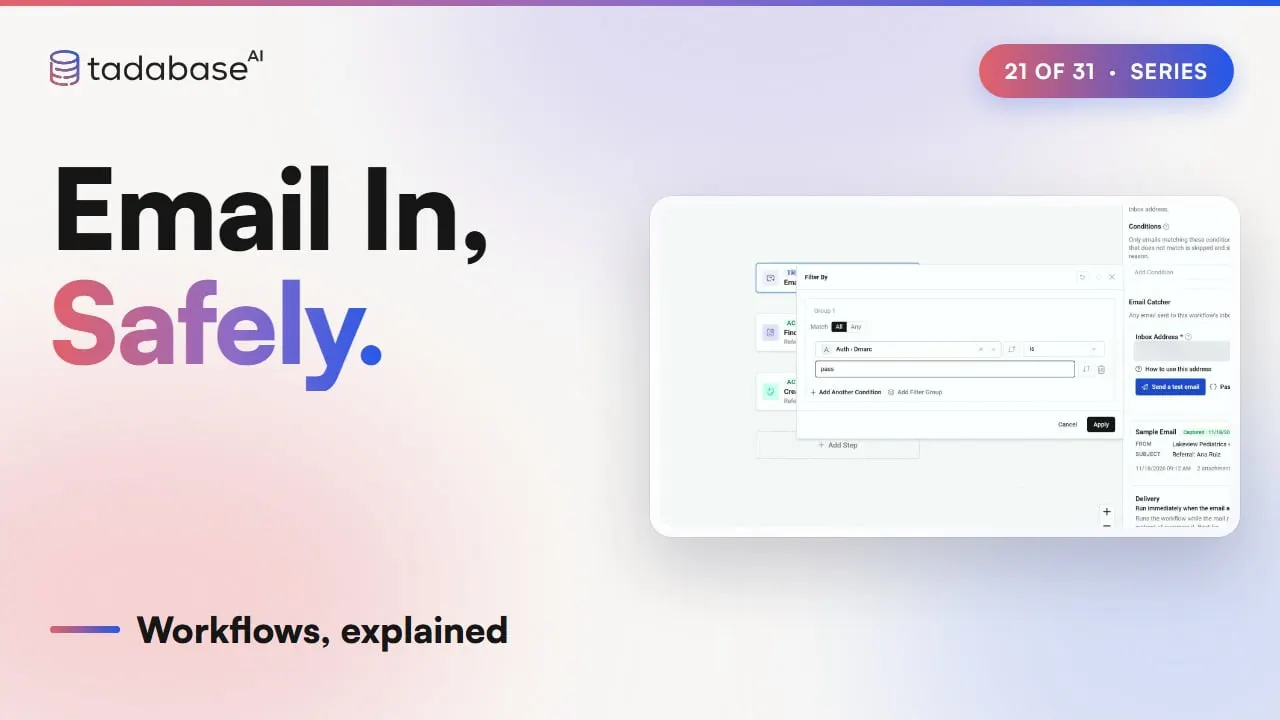
In the AI Builder, open the Email Catcher trigger and expand Sender Rules. Allowed senders. Blocked senders. Spam threshold. And Ignore auto-replies. Brookside wants referrals only from partner practices. Under Allowed senders, a full address lets in one person. An at sign and a domain lets in a whole practice. At, dot, domain adds its subdomains. Anyone else gets Sender not allowed. When an address is easy to guess, like invoices, the panel suggests Only allow senders on the list. Without it, an empty list lets everyone in. With it, an empty list lets nobody in. Blocked senders works the other way. Lakeview's newsletter comes from an allowed domain. Put its address under Blocked senders, and it's turned away. Blocked always wins. Next, spam. The mail provider gives every email a spam score. Set a Spam threshold, like five, and anything scoring five or more is turned away. So is one the provider marks as spam. Leave it blank, and spam scores are ignored. A From address can be faked. SPF, DKIM and DMARC check it. Their results arrive on every email, under Auth. Sender rules don't check them, so add a trigger condition: Auth, Dmarc is pass. A failing email is skipped, with the reason in run history.
2:19 Loops and repeats
Ignore auto-replies is on from the start. Out-of-office replies, bounce reports and bulk mail carry a marker that a machine sent them. They're skipped, so a vacation reply never becomes a referral. Now loops. Say the workflow's confirmation lands back in its own inbox. It would run again, send again, and never stop. But every email a workflow sends carries a hidden header naming it. So when it comes back, it's turned away as Loop detected. Providers sometimes deliver the same email twice. Every email has a Message-ID, like a serial number. The first delivery runs. The same Message-ID within a day is a duplicate, and doesn't run. An inactive workflow turns every email away. While you test, it listens, and keeps the email as a sample. Nothing runs until you turn it on.
3:10 Setting it up
To set up the referrals inbox, open the trigger, and expand Sender Rules. Type the partner domains under Allowed senders. Turn on Only allow senders on the list. Block the newsletter. Set the Spam threshold to five. Leave Ignore auto-replies on. Each rule saves as you leave its box. The same rules fit any business. An invoices inbox allows only its vendors' domains. And Ignore auto-replies keeps their bulk newsletters out.
3:41 Rules
Three rules to keep track of. Rule one: lock it to known senders. Any address can be guessed, and some, like invoices, are easy. Allowed senders, with the switch on, keeps strangers out. A DMARC condition catches a faked From address. Rule two: it won't loop on its own mail. The hidden header lists every workflow an email passed through. So if its email starts a second Email Catcher workflow, and that one emails back, the first still turns it away. Rule three: know where to look. A turned-away email never runs, so look in Activity on the trigger, under Last rejections. An email skipped by a condition is in run history, with the reason. That's Email In, Safely. Repeats and the workflow's own mail are turned away. Then only known senders, low spam scores and real people get through. And the workflow runs on those. What each plan includes is on the pricing page at tadabase.com. In the next video, we look at sending email.
Also on Vimeo · the whole series on Vimeo