
Find Records
Let's look at Find Records, the step that looks up a record so the steps after it can use it.
On this page
Chapters
Read the docs
Transcript
Show the full transcript
0:00 Intro
Let's look at Find Records, the step that looks up a record so the steps after it can use it.
0:07 The front desk
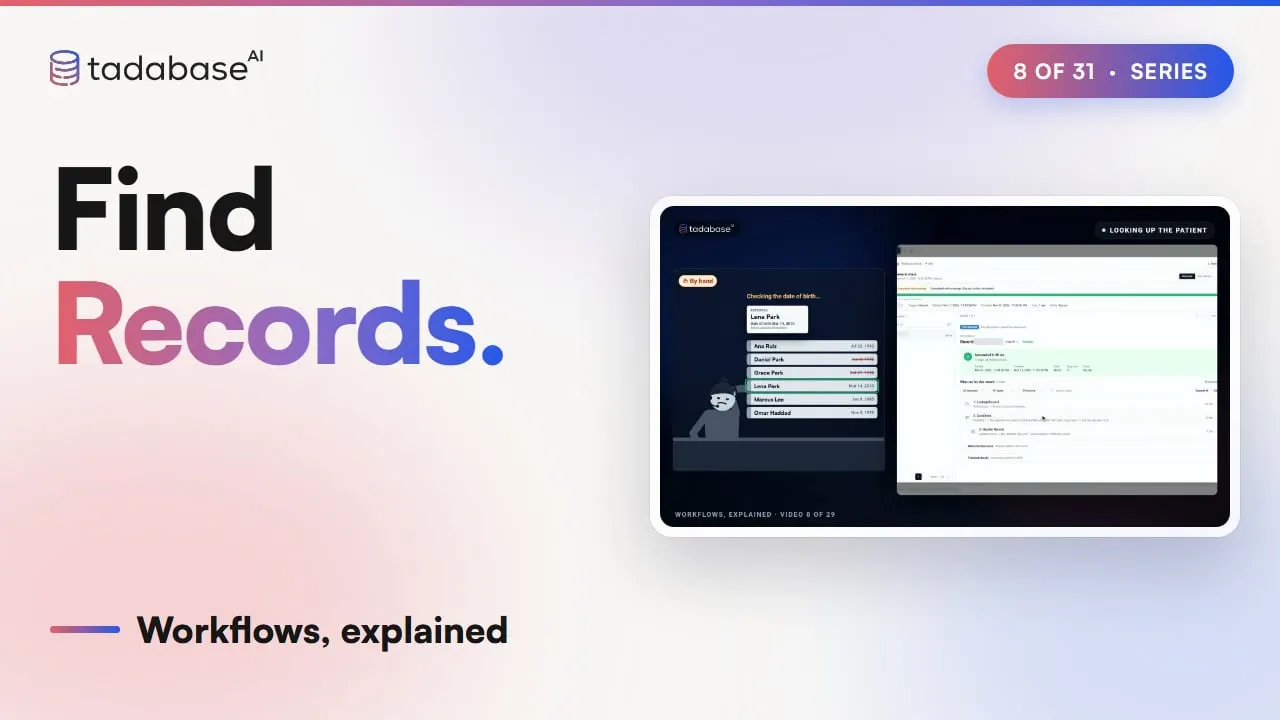
A referral comes in to the front desk at Brookside Family Clinic, for a patient named Lena Park. Before anyone can do anything with it, the receptionist has to figure out whether Lena is already a patient. She searches the patient list for Park, scrolls past two other people with that last name, and checks the date of birth to be sure it's the right Lena. Then she attaches the referral to Lena's file. The next referral is for Nina Ford. She searches, finds nothing, and tries again with a different spelling, and finally adds Nina as a new patient. In between, Dr. Okafor asks how many of her patients are on the list, so the receptionist counts them up by hand. And the whole time, more referrals keep coming in. That's a lot of searching for something that happens with every single referral. The offices sending them don't do anything differently; they send the referrals the way they always have. But every search takes time, it's easy to attach a referral to the wrong Park, and it's easy to add someone who was already there. Find Records does that searching for you. The moment a referral arrives, it looks up the patient and hands her record to the steps that come next, so the workflow knows whether she's new, and exactly who she is.
1:18 Looking up the patient
Looking up the patient is the heart of Find Records. This workflow starts whenever a new referral is created, so add a step, choose Action, and pick Find Records. It searches one table, so pick Patients. Then click Add Filter to tell it what to look for. Set Last name, is, then click the little bolt and pick the referral's last name, so it uses the name from the referral itself. Add another condition for date of birth the same way, and apply. Now when Lena's referral comes in, one patient matches, and her record is handed straight to the next steps, without anyone scrolling past the other Parks.
1:54 How many
Dr. Okafor's question is where Records to return comes in, right below the filters, because it decides how many records you get back. Search for Dr. Okafor's patients, and two match. If you return one, you get the first in sort order, and the sort is already set to newest first, so that's Lena Park. If you click All, you get both. Or you can keep it at one and tick Count all matches, and Run history shows how many there were, so nobody has to count them by hand.
2:23 Using what it found
Once Lena's record is found, the steps after it can use it through Step Data. In any value, open Step Data and then Find Records, and you'll see the matched record's fields. Pick Primary provider, and the step reads Dr. Okafor, straight from Lena's record. If it returns several records, Step Data only reads the first one. To do something with every one of them, you add a Loop step after it, which is the next video.
2:47 When nobody matches
Now for Nina's referral, the one that meant searching twice. When nobody matches, it isn't an error. The Find Records step is marked Skipped, with a warning that says No records matched the lookup filters. Its Records Found is zero, every value that would have come from it is blank, and the steps after it still run.
3:05 New, or already a patient
So right after Find Patients, add a Condition, pick Find Records, Records Found, and set it to is zero. And if it is zero, she's new, so on the Yes path, add Create Record to add her to Patients. If it isn't, she's already a patient, so on the No path, connect the referral to her record. Nina takes the Yes path, and Lena takes the No path, without anybody searching for either of them. Save, and it's live.
3:29 The front desk, now
So here's the front desk now. Lena's referral arrives, her record is found, and the referral lands right in her file. Nina's referral arrives, nobody matches, and she's added as a new patient. And when Dr. Okafor asks how many patients she has, the count is already there. The referring offices didn't change a thing, and the receptionist didn't have to search for anyone.
3:49 Rules
There are three rules to keep track of. Rule one: Step Data reads the first match. When two of Dr. Okafor's patients match and the sort is newest first, Step Data reads Lena. Change the sort to oldest first, and it reads Marcus instead. So make your filters find exactly one patient, or choose the sort on purpose. Rule two: no match means empty, so always check Records Found. Without that check, the welcome email still goes out for Nina, and the greeting comes out with no name. Put the Condition on Records Found in between, and every referral takes the path that fits it. Rule three: a blank search value finds nothing. Say a referral arrives without a date of birth. That filter has nothing to compare against, so instead of matching every patient, Find Records returns none, and tells you that a lookup filter value is empty or not valid, so no records match.
4:42 Recap
That's Find Records. Filters tell it what to look for, and a whole stack, or a count. And when nobody matches, Records Found is zero, so check it before you use the record. In the next video, we'll look at loops over records, which run your steps once for every record you find. You can learn more at tadabase.com.
Also on Vimeo · the whole series on Vimeo