
Run History, Reruns and Versions
Every morning at eight, Brookside's reminder workflow texts each patient with a visit that day. This morning, three patients got nothing. This video shows how to find out why, fix it, run it again, and undo a change that went wrong.
On this page
Chapters
Read the docs
- Check workflow runs, history and errors See every run of a workflow, open a run to read each step's values and errors, rerun failed records, watch active runs and export the history.
- Restore a workflow version and organize workflows Every save of a workflow is a version you can view, compare and restore. Turn workflows on or off, duplicate or delete them, and group them with tags.
Transcript
Show the full transcript
0:00 Intro
Every morning at eight, Brookside's reminder workflow texts each patient with a visit that day. This morning, three patients got nothing. This video shows how to find out why, fix it, run it again, and undo a change that went wrong.
0:17 The idea
Think of a plane's flight recorder. It writes down every moment of every flight. When something goes wrong, nobody has to guess. They play it back and find the exact moment it happened.
0:29 In your app
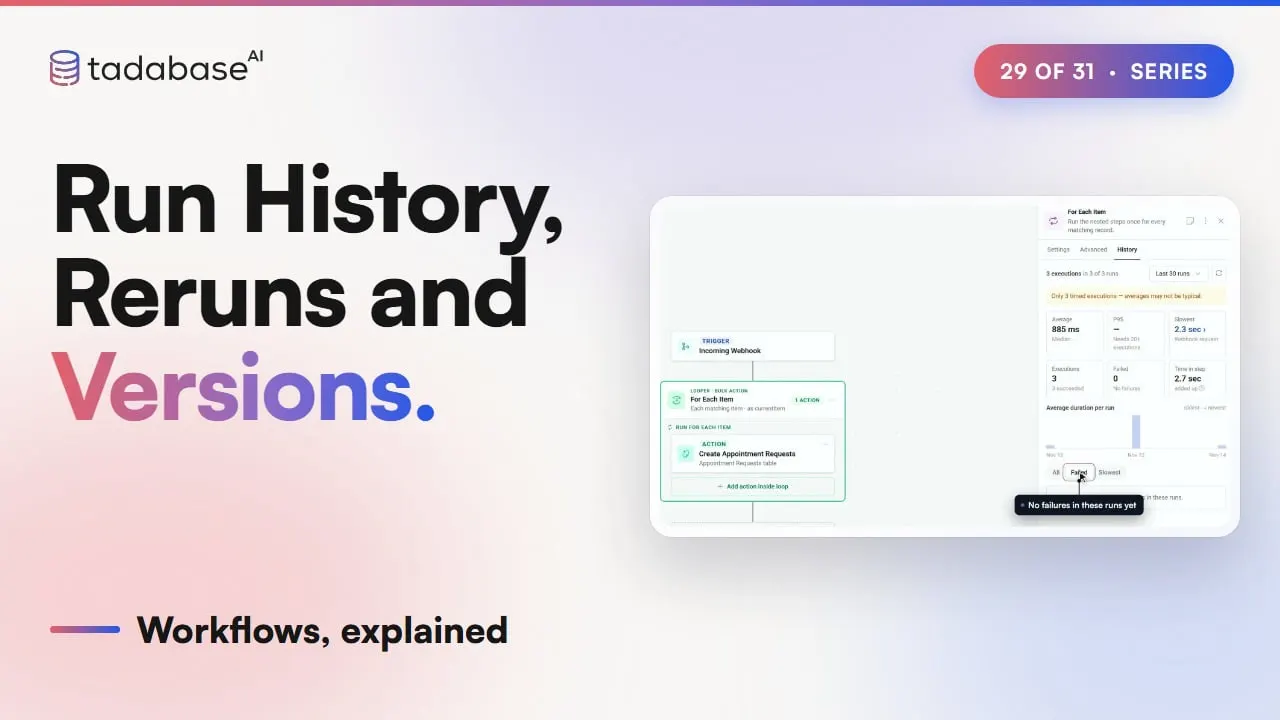
Run history is your workflow's flight recorder. Open it with the clock icon at the top of the editor. Every run is listed, newest first, with its status. Filter by status, like Failed or Completed with errors, or by date. While runs are going, Running shows how many, and Export saves the list as a CSV or JSON file. Open this morning's eight o'clock run. Thirty seven of forty records succeeded. The Records tab lists every appointment, and the Failed filter leaves three: Ana Ruiz, Omar Haddad and Sam Ortiz. Run details has the timing and what started the run. Click Ana. Her steps are listed in plain words. Text the reminder failed. Twilio answered bad request, and it said a To phone number is required. Her Mobile field is empty. To see one step across many runs, select it on the canvas and open its History tab. It shows how many times the step ran, how long it took, and how often it failed. Failed lists only the failures, each with its error.
1:40 Reruns
The fix is in the data, so staff add the three mobile numbers. Back in the run, open Rerun and choose Rerun three failed records. The preview says these three go through the workflow again, with today's data and the workflow as saved now, and warns that its record changes and calls to Twilio happen again. Run again, and the new run finishes: three of three succeeded. Rerun has a few choices. Rerun all runs every record again. Rerun failed takes only the failures. Tick records in the list for Rerun selected. A run with one record offers Rerun this record. One catch: when a record change starts the workflow, is changed from conditions won't match on a rerun. It works the same for any team. A billing team sees which invoice emails bounced, fixes the addresses, and reruns only those.
2:36 Versions
Workflows change too, so Version history keeps every save. The Versions panel lists them by day, with who saved each one and its note. Click an older one, and the canvas shows Viewing Version seven, read only. Turn on Highlight changes, and the steps that differ are tagged Changed. Restore this version puts the workflow back the way it was. Your current version stays in history. And if you change your mind, Undo, right after, takes you back.
3:08 All your workflows
To watch every workflow at once, open Usage, then the Workflows tab. It shows runs, runs with failures and the success rate. Each workflow gets its own row, and Steps that fail most points at the trouble, with a link straight into the builder.
3:26 Rules
Three rules to keep track of. Rule one: by default, a failed step doesn't stop the workflow. Ana's text failed, but the next step still marked her reminder as sent. To stop there, open the step's Advanced tab and turn on Abort workflow if this step fails. Now a failure halts the remaining steps. Rule two: cancel doesn't roll back. Cancel stops a run after the step that's running. Texts already sent stay sent, and records already changed stay changed. Cancel all stops every open run of the workflow, the same way. Rule three: restore a version instead of rebuilding. When a change breaks a workflow, don't fix it from memory. Open the version from before, check what's highlighted, and restore it. That's run history. Every run is recorded. The step log says what went wrong. Fix it, and rerun just the failures. And versions take you back. What each plan includes is on the pricing page at tadabase.com. In the next video: for existing Tadabase customers, moving to workflows.
Also on Vimeo · the whole series on Vimeo