
What a Workflow Is
Imagine never typing up the same tasks for a new patient ever again. At most clinics, the front desk does exactly that every morning, for every single patient who comes in. A workflow in Tadabase AI does it for you, automatically, the moment something happens in your app. Every workflow is built from the same three pieces, and by the end of this video you'll know all three, and you'll see one built from scratch.
On this page
Chapters
Read the docs
- What workflows are and when to use them Workflows run steps for you when something happens in your app: a record changes, a schedule comes round, a button is clicked or a webhook arrives.
- Create your first workflow Build a workflow that emails the customer when a job is created and then updates the job, turn it on and check that it ran.
Transcript
Show the full transcript
0:00 Intro
Imagine never typing up the same tasks for a new patient ever again. At most clinics, the front desk does exactly that every morning, for every single patient who comes in. A workflow in Tadabase AI does it for you, automatically, the moment something happens in your app. Every workflow is built from the same three pieces, and by the end of this video you'll know all three, and you'll see one built from scratch.
0:27 The idea
Think of a restaurant kitchen. An order comes in, and a ticket goes up on the rail. The grill cooks it. The next station plates it. And a server carries it out. Nobody has to decide to start cooking. The order coming in is what kicks it off. That kitchen has all three pieces of a workflow. The order coming in is the trigger. The stations are the steps, and they always go in the same order. And one ticket making it all the way through the kitchen? That's a run.
0:54 In your app
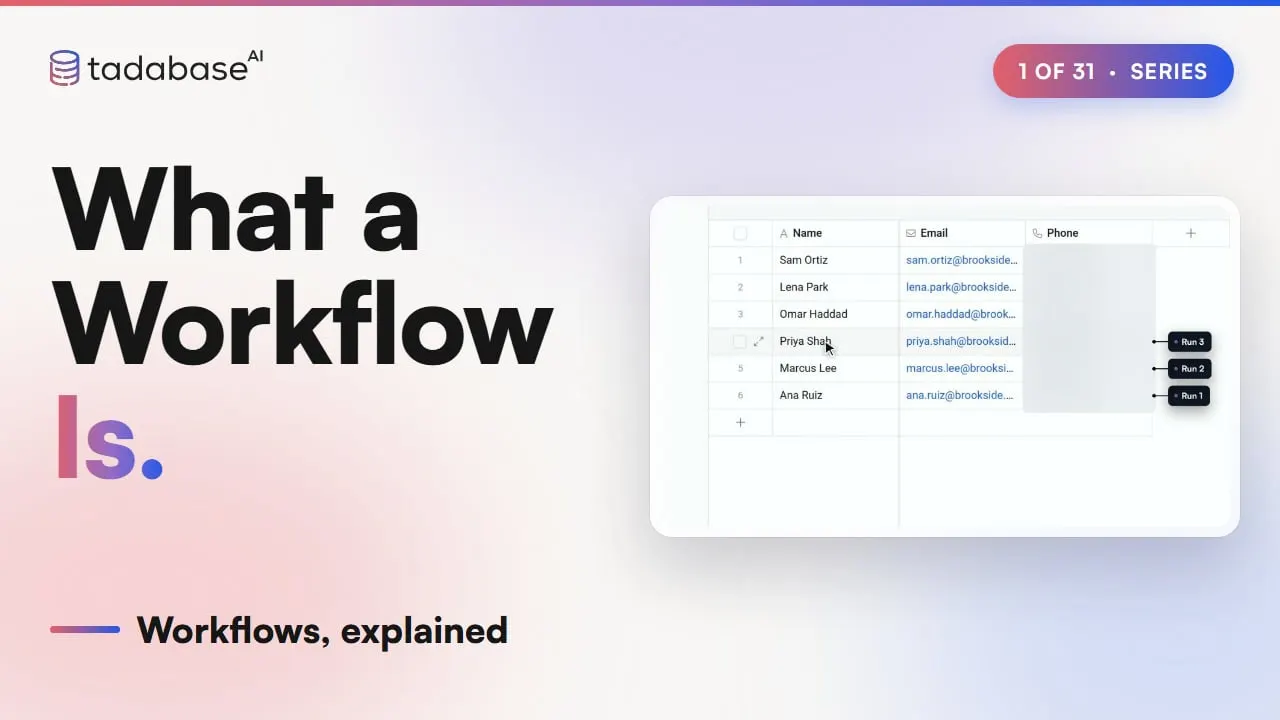
Your app works the exact same way. We'll use a clinic, Brookside Family Clinic, but you can build the same thing for a law firm, a warehouse or a school. When a new patient is added, the workflow creates her intake checklist, right in her patient file, and emails the front desk to say a new patient's been booked. Nobody clicks a thing. Every new patient gets their own run. Ana Ruiz is added, and she goes through. Then Marcus Lee. Then Priya Shah. Three patients, three runs, the same steps every single time, and you can see each one in Run history.
1:29 The editor
In Tadabase AI, you'll find workflows in the AI Builder, under Workflows. The trigger sits at the top of the screen. The steps hang underneath the trigger, in the order that they run. And below the last step, there's an Add Step button for the next one. Add Step gives you four kinds of step. An Action does something, like adding a checklist or sending an email. A Condition asks a yes-or-no question, and sends each answer down its own path. Branches send it down more than two paths. And a Loop does the same steps once for every patient on a list. Each of these are going to get their own video in this series.
2:03 Setting it up
Setting one up only takes a few choices. Click New workflow, and it starts you off with the trigger, already set to Record Created, which means "something new is added". Pick the list it watches: Patients. Add a step, choose Create Connected Record, and pick Intake Checklists. Add one more, choose Send Email, and write the note to the front desk. New workflows start switched on, so save, and the workflow is live. Before the workflow runs on real patients, test it. A test run walks you through every step on a patient you pick, and shows you what each step would do, without changing or sending anything. When the test looks right, click Run now to run it for real. The checklist shows up in Ana's file, and the email lands in the front desk's inbox. The same workflow fits any business. At a law firm, a new client is added, the onboarding checklist builds itself, and the paralegal gets an email.
3:18 Rules
Four rules to keep in mind. Rule one: a workflow that's switched off never runs. With the switch off, a new patient is added, and nothing happens. Switch it on, save, and the next patient goes through. Rule two: nothing counts until you save. Change a step, or flip the on switch, and the screen shows Unsaved Changes. Until you save, the workflow keeps doing what it did before. Save, and your change goes live. And Version history keeps every save, so you can always go back. Rule three: each workflow has one trigger. If you want the same steps to also run every morning on a schedule, make a second workflow with its own trigger. And to catch both new patients and changed ones, pick Record Created or Updated. That one trigger covers both. Rule four: test it before a workflow reaches real people. A test run doesn't change or send anything. So if an email is going to the wrong person, you catch it in the test, not after a real patient gets it. So that's a workflow. A trigger starts it, and the steps run in order. And every time a workflow starts, that's one run. You can see what each plan includes on the Tadabase AI pricing page. Next up: record triggers. We're going to take a look at what happens when you set a trigger to a record being created or updated.
Also on Vimeo · the whole series on Vimeo