
Triggers
Say you set up appointment reminders to go out every morning, and the next day, nothing goes out. Or they fire every single time someone saves an appointment, so patients get three reminders in one afternoon. Either way, the problem is the same thing: what is starting the workflow. In Tadabase AI, that's called the trigger, and in this video we'll go through every trigger there is, what each one is for, and how to pick the right one for the job.
On this page
Chapters
Read the docs
Transcript
Show the full transcript
0:00 Intro
Say you set up appointment reminders to go out every morning, and the next day, nothing goes out. Or they fire every single time someone saves an appointment, so patients get three reminders in one afternoon. Either way, the problem is the same thing: what is starting the workflow. In Tadabase AI, that's called the trigger, and in this video we'll go through every trigger there is, what each one is for, and how to pick the right one for the job.
0:28 The idea
Picture a clinic's front desk for a second. Work shows up there in all kinds of ways. A patient walks in. The clock says it's time to call tomorrow's patients. A doctor asks for something. The phone rings, or a letter arrives. The front desk handles all of it, and the only real difference is what started each job. Workflows work exactly the same way, and whatever starts one, it's called its trigger. A new or changed patient file is like the patient walking in. A schedule is the clock. A button someone clicks is the doctor asking for something. And information or an email coming in from outside is the phone call and the letter.
1:07 The picker
In Tadabase AI, open the AI Builder, click on a workflow's trigger, and open Trigger Type. You'll see the triggers sorted into five groups. Records are for when your data changes. Time is for schedules. People covers buttons and staff logins. Integrations are for things coming in from other systems. And AI connections are for changes to how AI tools can reach your app.
1:31 The triggers
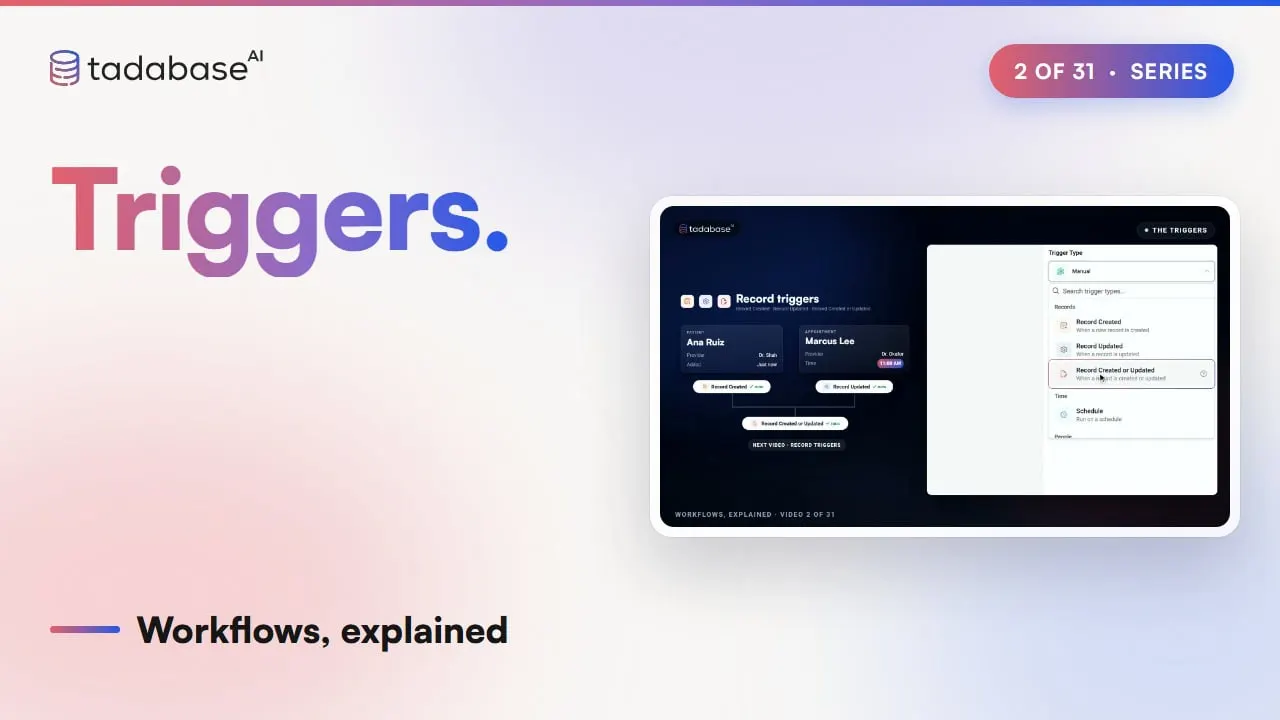
Record Created runs as soon as something new is added, like a new patient. Record Updated runs when something changes, like an appointment getting moved to eleven. And Record Created or Updated catches both. We'll go much deeper on those three in the next video. Schedule is your clock. You pick a list, how often it should run, and a time, say every day at seven in the morning. Each time it runs, it goes through the records you pick, like today's appointments, and sends every one of those patients a reminder. Manual waits for a person to decide. It puts the workflow on a button in your app, or another system can start it for you. So the front desk can click Send intake packet on Ana Ruiz's appointment, and it's taken care of. Or they can pick a handful of appointments and run it on all of them at once. User Event runs when something happens to someone's login, like when they sign up, log in, log out, or change their password. It's great for housekeeping, like saving the last time each staff member logged in right in their file. External Data Source is for records that live in another system, like the clinic's billing software, that you show right inside your app. When someone clicks a button on one of those records, the workflow runs for it. Incoming Webhook gives your workflow its very own web address. Another service sends information to it, like a booking from an online scheduler, and the workflow runs with that information. Lena Park's appointment shows up in your app without anyone typing it in. And Called from an App lets one of your apps ask the workflow a question, like which times a provider has open on a given day, and get the answer straight back. Email Catcher gives your workflow its own email address instead. Forward a referral to it, and the workflow runs on that email, with the sender and the subject line ready for you to use. The last group, AI connections, has just one trigger, called AI Connection, app-wide. It runs when something changes with how AI tools reach your app, like that access getting paused, or a security warning. So if Brookside's AI access raises a security warning, the workflow can email the practice manager the details right away. Record triggers can also check who made a change, which means that when an AI assistant books an appointment, that booking can start a workflow of its own. We'll get into that in the next video, and most of these triggers get their own video, with examples, later in the series.
3:55 Which trigger?
So how do you choose? If your data changed, use a record trigger. If it should happen at a set time, use Schedule. If a person should decide, use Manual. For anything to do with someone's login, use User Event. For a button on a record from another system, use External Data Source. If another service is sending you information, use Incoming Webhook. If it starts with an email, use Email Catcher. And if AI access changes, use AI Connection.
4:23 Setting it up
Changing a trigger only takes a few clicks. Say your appointment reminders have been going out by hand, with Manual. Open the workflow, click the trigger, open Trigger Type, and choose Schedule. The list stays as Appointments. Set it to run every day at seven in the morning, and under Record Selection, add a filter so it only picks appointments where the date is today. Save it, and from now on the reminders go out every morning on their own.
4:57 Rules
There are three rules worth keeping in mind. The first is that each workflow only gets one trigger, and you can't attach a second one. If you want the same steps to also run on a schedule, make a second workflow with its own trigger. And for records that are either new or changed, Record Created or Updated covers both. The second rule is that a record trigger doesn't filter anything on its own. It runs for every record that's saved in its list. If you only want it to act on some of them, add a Condition step, like checking that the provider is Dr. Okafor, and every other record stops right there. The third rule is that Manual never starts on its own. Records get saved and the clock keeps moving, but nothing happens until someone clicks its button. And a workflow that runs on a Schedule never shows up in the list of workflows you can put on a button. So that's the full tour. Records start a workflow when your data changes. Time starts it on a schedule. People start it with a click or a login. Integrations start it when something comes in from the outside. And AI connections start it when AI access changes. You can see what each plan includes on the Tadabase AI pricing page. In the next video, we'll look at record triggers up close: Record Created, Record Updated, and Record Created or Updated.
Also on Vimeo · the whole series on Vimeo