
Choose what starts a workflow
Every trigger a workflow can start from, which ones need a table, and full details on the record, User Event and External Data Source triggers.
- Verified Nov 17, 2026
- Classic builder
On this page
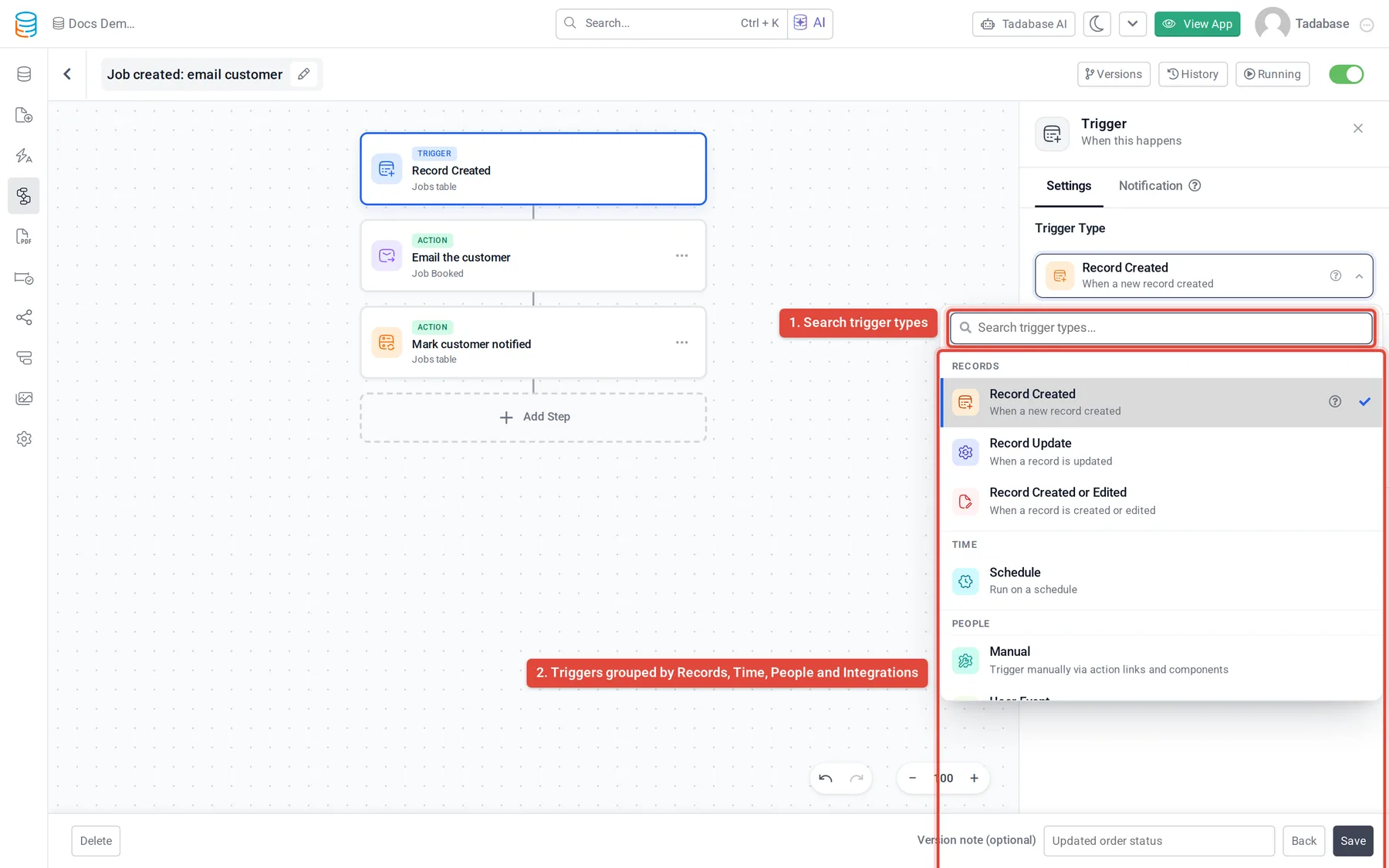
The trigger decides when a workflow runs. Every workflow has exactly one. You choose it on the Trigger card, under Trigger Type, and the list is grouped into Records, Time, People and Integrations.
Pick a trigger #
- Select the trigger card In the workflow editor, click the Trigger card at the top of the canvas.
- Open the list Under Trigger Type, click the list. Type in Search trigger types... to filter it. Hover the ? on a row to read what it does.
- Choose one Click a trigger. If it needs a table, a Data Source section appears with a Table setting.
Triggers at a glance #
| Group | Trigger | Runs when | Needs a table |
|---|---|---|---|
| Records | Record Created | A new record is created in the table. | Yes |
| Records | Record Updated | An existing record in the table is updated. | Yes |
| Records | Record Created or Updated | Either of the above. | Yes |
| Time | Schedule | The schedule you set comes round. See Run a workflow on a schedule. | Yes |
| People | Manual | Something starts it: a button in your app or the API. See Run a workflow from a button on a page. | Yes |
| People | User Event | A user logs in, logs out, registers or updates their password. | Set for you (your users table) |
| Integrations | External Data Source | A user clicks a Trigger Workflow button on a record in an External Data Source component. | No |
| Integrations | Incoming Webhook | Another system sends a request to the workflow's URL. See Start a workflow from an incoming webhook. | No |
| Integrations | Email Catcher | An email arrives at the workflow's address. See Start a workflow when an email arrives. | No |
A workflow can also be started by an app with values of its own. That trigger, Called from an App, is set up in the Tadabase AI builder: see Call a workflow from your app.
Record Created, Record Updated, Record Created or Updated #
These run for one record each time a record in the chosen table is saved: from a form, inline editing, an import, the API or another workflow. That record is the run's Source Record, and every step can read and update its fields.
- Record Created runs once, right after a new record is created.
- Record Updated runs each time an existing record is updated.
- Record Created or Updated runs in both cases, so one workflow can handle new and changed records.
Record triggers have no filter of their own. To run the steps only for some records, for example only when Status is "Approved", make the first step a condition and put your steps on its Yes path. See Conditions and branches.
User Event #
Runs when something happens to a user's account. When you choose it, Tadabase sets the table to your users table and selects User Logged In. Pick a different event under User Event › Event:
- User Logged In
- User Logged Out
- User Updated Password
- User Registered
The user is the run's Source Record, so steps can read and update their fields, for example to stamp a "Last Login" date or send a welcome email to a new user.
External Data Source #
Runs when a user clicks a Trigger Workflow button on a record shown in an External Data Source component (Airtable, HubSpot, Stripe and the other sources). The workflow runs against that one external record, so you can act on data that is not stored in Tadabase.
- Choose the trigger Pick External Data Source under Integrations. It has no table.
- Choose how it finds its records Pick A record of a saved view to use a saved view of an external source, or Advanced: account and resource to choose the account and resource yourself.
- Load a sample Fetch a sample record. Steps cannot be added until the trigger has a source, an object and a sample record, so the fields are known.
- Add the button On the page, add a Trigger Workflow button to the External Data Source component and choose this workflow.
Schedule, Manual, Incoming Webhook and Email Catcher #
- Schedule runs on a timetable and processes the records that match its filters. See Run a workflow on a schedule.
- Manual runs when a user clicks a button on a page, or when something calls it through the API. See Run a workflow from a button on a page.
- Incoming Webhook gives the workflow its own URL that other systems can send data to. See Start a workflow from an incoming webhook.
- Email Catcher gives the workflow its own email address. See Start a workflow when an email arrives.
Changing the trigger later #
You can change the trigger at any time. Your steps stay where they are, but check the ones that read from the Source Record: a step written for one record may not fit a trigger that brings different data, such as a webhook payload. Choosing Incoming Webhook, Email Catcher or External Data Source clears the table, because those triggers do not use one.
Was this page helpful?
Something wrong or missing on this page? Tell us.