
Add conditions and branches to a workflow
Split a workflow into Yes and No paths with a Condition step, or into several named paths with Branches, using Match All, Match Any and nested groups.
- Verified Nov 17, 2026
- Classic builder
On this page
Conditions let a workflow do different things for different records. A Condition step splits the workflow into a Yes path and a No path. A Branches step splits it into several paths, checked in order. In both, the paths join again afterwards: the steps below them run whichever path was taken.
Condition or Branches? #
| Condition | Branches | |
|---|---|---|
| Paths | Two: ✓ Yes and ✗ No. | As many as you add, lettered A, B, C. You can name each one. |
| Which path runs | Yes when the conditions are met, otherwise No. | The first branch whose conditions are met, or every branch that matches when Run every matching branch is on. |
| Use it for | One yes-or-no question, such as "Is the job urgent?" | Several cases, such as a different team for each priority. |
You can turn a Condition step into Branches later: open the step's ... menu and click Change to Branches.
Add a Condition step #
- Add the step In the workflow editor, click Add Step, then Add Condition.
- Open the rules In the side panel, on the Settings tab, click the conditions summary. The Filter By window opens.
- Add conditions Click Add New Filter Group. In each row, pick the field to check, an operator and the value to compare with. Click Add Another Condition for more rows.
- Choose Match All or Match Any In each group, choose Match All (every condition must be true) or Match Any (one is enough).
- Apply Click Apply.
- Add the steps for each path On the canvas, click Add Step under ✓ Yes and under ✗ No. Steps you add below All paths continue here run after either path.
Combine conditions with groups #
Use groups for logic such as "Priority is High, and either the customer is VIP or the job is overdue":
- Add Filter Group adds another group next to the first. With two or more groups, the Match All or Match Any at the top of the window sets how the groups combine.
- Add Child Filter Group adds a group inside a group, with its own Match All or Match Any. Groups nest one level deep.
For the example, make one group set to Match All with Priority is High, then add a child group set to Match Any with the two other conditions.
What you can check #
The field to check can come from Source Data (the record that started the workflow, and the records it connects to), Loop Item inside a loop, Step Data from earlier steps, the Logged-in User, or Code Data in two-factor and password reset workflows. The value to compare with can be a Custom Value, a Source Record Value, an Action Record Value, an Action Response Value or a Logged-in User Field. See Use values from records, earlier steps and app variables.
The operators depend on the type of field:
| Field type | Operators |
|---|---|
| Text | is, is exact, is not, contains, does not contain, starts with, ends with, is blank, is not blank, character length is greater than, character length is less than, is unique, is not unique |
| Number | is, is exact, is not, higher than, higher than or equal to, lower than, lower than or equal to, is blank, is not blank, is unique, is not unique |
| Date | is, is exact, is not, is today, is not today, is before, is after, is today or before, is today or after, is before today, is after today, is during the current, is during the previous, is during the next, is before the previous, is after the next, is this / last / next week, month, quarter or year (and their is not forms), is blank, is not blank |
| Date and time | As for dates, without is not today, plus is before current time and is after current time |
| Time | is, is exact, is not, is before, is after, is before current time, is after current time, is blank, is not blank |
| Select | is, is exact, is not, is blank, is not blank, is unique, is not unique |
| Multi-Select and Checkbox | is, is not, contains, does not contain, is blank, is not blank, is unique, is not unique |
| Connection | is, is exact, is not, is blank, is not blank, is unique, is not unique |
| Connection to Users | As for connections, plus is logged in user and is not logged in user |
| Files | is blank, is not blank, size is less than, size is greater than, file type is, file type is not |
is unique and is not unique check whether another record in the table has the same value.
Check the logged-in user's role #
To run steps only for some roles, pick Logged-in User, then the Role field, the operator is, and the role. This works for triggers that someone using the app starts, such as record triggers, Manual and User Event. Scheduled and webhook runs have no logged-in user.
Add a Branches step #
- Add the step Click Add Step, then Add Branches.
- Set each branch's conditions In the side panel, under Branches, click a branch to open it, then click its conditions summary. The Filter By window works as for a Condition step. On the canvas, a branch's ... menu has Set Conditions too.
- Name the branches In a branch row's ... menu, click Rename and type a name, such as Urgent. The name shows under the branch letter on the canvas and in the run history.
- Add or reorder branches Click + Add Branch to add one, or drag a branch by its handle to change the order. The same menu has Duplicate Branch and Remove Branch.
- Add the steps On the canvas, click Add Step under each branch.
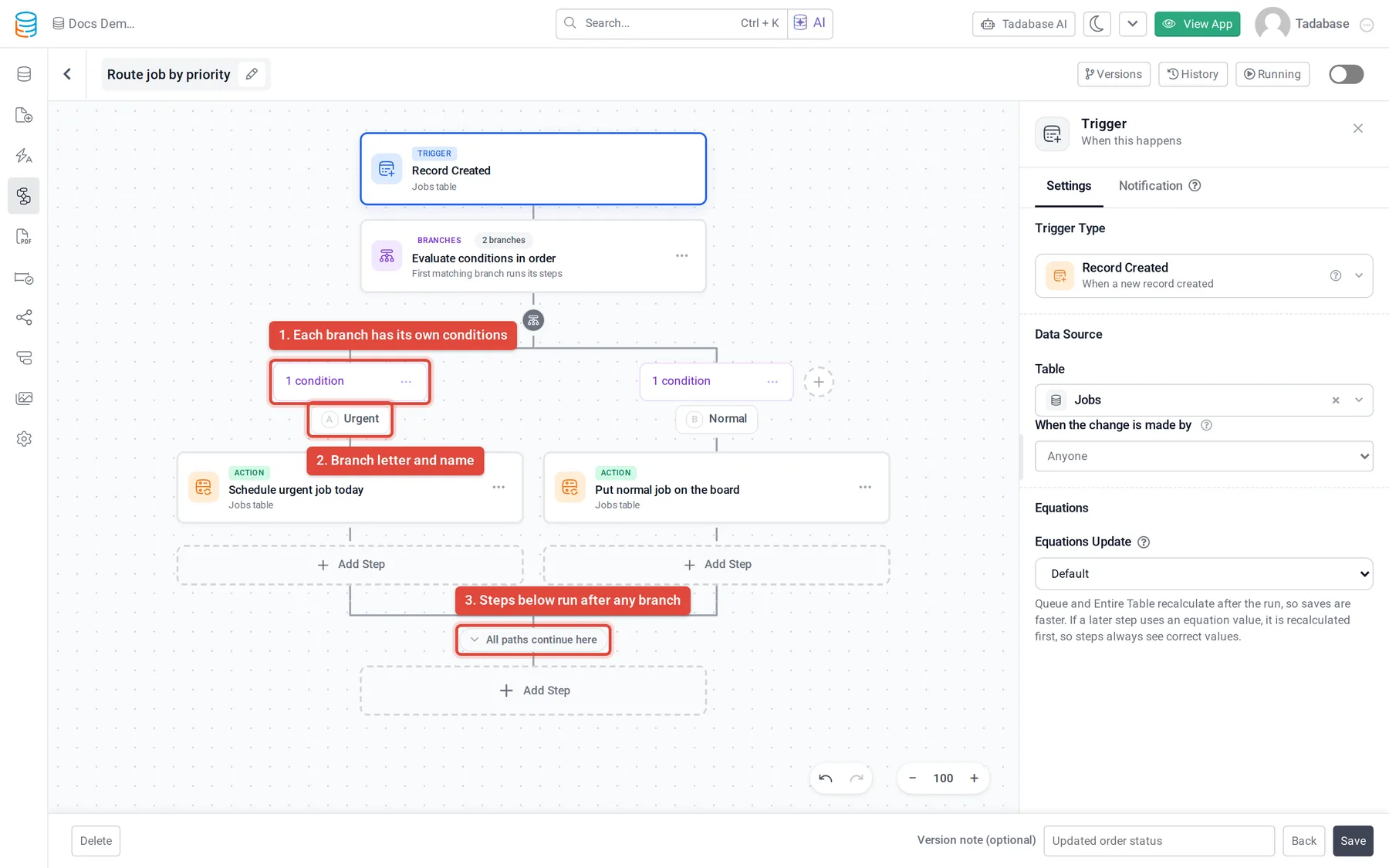
Branches are checked from left to right. With Run every matching branch off (the default), only the first branch that matches runs. Turn it on, under Evaluation, to run every branch that matches, one after another. All conditions are checked before any branch starts, so a change made by one branch never affects whether another branch runs.
Trigger filters or a Condition step? #
The trigger's filters decide whether the workflow runs at all. A Condition or Branches step decides which steps run inside a workflow that has already started. Use trigger filters when nothing should happen for other records, and conditions when some steps should always run. See Workflow triggers.
Check which path ran #
Open the run in the workflow's history and expand the Condition or Branches step. It lists each branch with whether its conditions were met, and says which path ran, or that no branch matched. See Workflow history and logs.
Condition and Branches steps can also show live progress while they run: see Real-time Notifications on the step's Notification tab.
Was this page helpful?
Something wrong or missing on this page? Tell us.