
Count, total and summarize with Aggregate
Use the Aggregate action to count, sum, average or list values from records or a JSON list, group the results, and use them in later workflow steps.
- Verified Nov 17, 2026
- Classic builder
On this page
The Aggregate action counts, totals and summarizes a set of records or a list of items, so a later step can save or send the numbers. Use it for things like the total of a customer's open invoices, the number of jobs per technician, or a list of emails to write into one field.
Set it up #
- Add the action In the workflow editor, click Add Step, then Add Action, and choose Aggregate.
- Choose what to calculate from Under Calculate from, pick a table, connected records, records from an earlier step (such as Find Records), or a list from the trigger or an earlier step, such as a webhook payload or a pipe response.
- Leave items out (optional) Under Only include, add conditions. Every calculation and the Group By table use only the items that match.
- Add a calculation Under Calculations, give the result a Name, choose what to Calculate, and pick the field under Of field. Click + Add Calculation for more; a step holds up to 25.
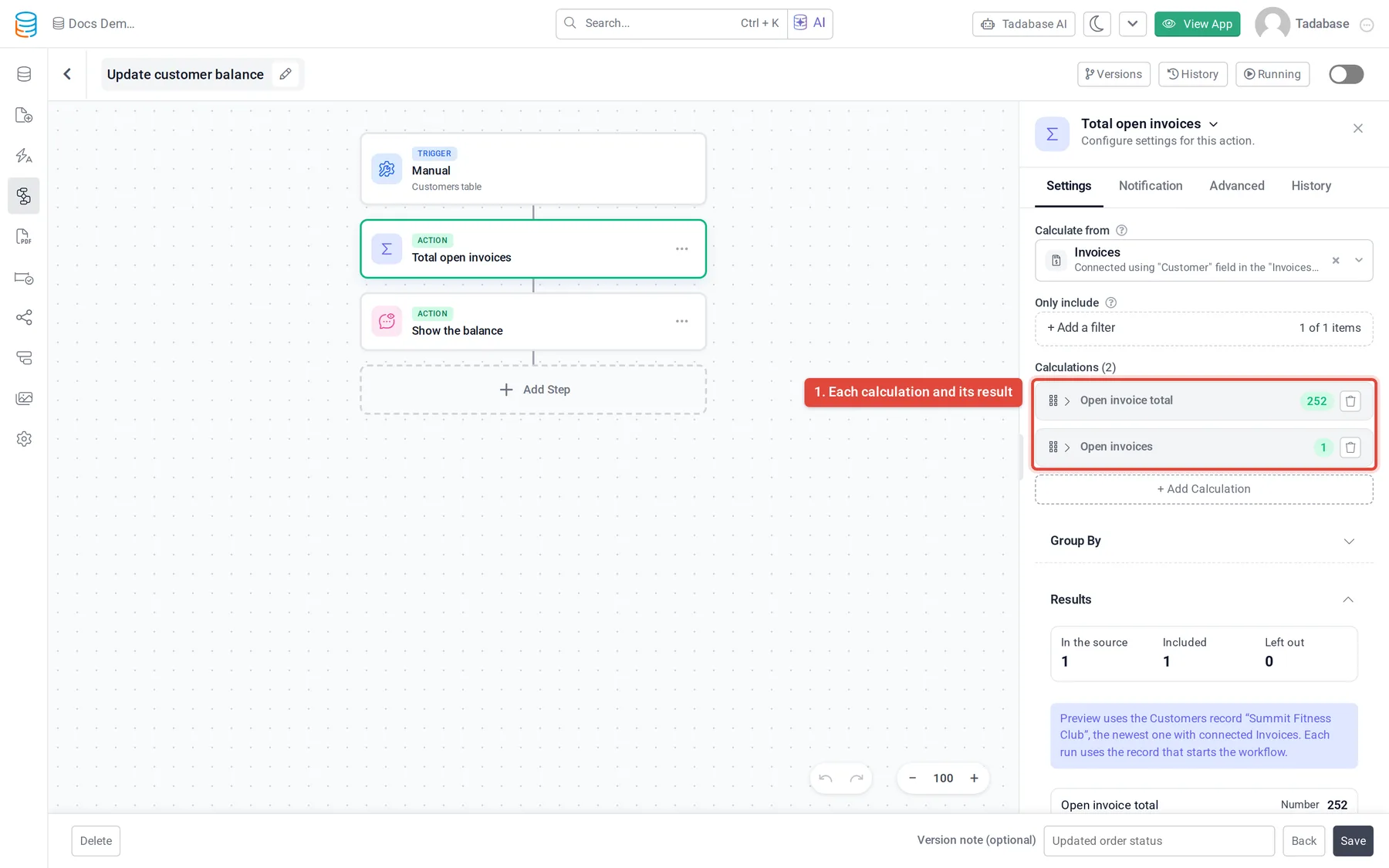
- Check the result Each calculation shows its Result for the current data and the name later steps use, under Later steps use. The Results section shows how many items were In the source, Included and Left out.
Calculations #
| Group | Calculate | Result |
|---|---|---|
| Count | Count items, Count unique values, Has any items | How many items, how many different values of a field, or whether there are any items at all. |
| Numbers | Sum, Average, Smallest, Largest, Median | A number calculated from a field. |
| Values | Value from the first item, Value from the last item | One value, in the order of the source. |
| Values | List of values, Join values as text | All the values of a field as a list, or as one text with a Separator. Tick Only unique values to drop repeats. |
| Results | Combine values | A formula: Start with a value, then add, subtract, multiply or divide other results, numbers or workflow values. Tick Show as a percent (× 100) for a percentage. |
For any calculation except Combine values you can add Only use items where, an extra condition for that result only. Under More options you can set Decimal places, tick Amounts are in cents, and change the Output name, the fixed name later steps use to read the result. If you change the output name, pick the result again in the later steps that use it.
Group the results #
There are two ways to break results down by a field, such as Status or Technician:
- Group by on a calculation also calculates that result for each value of a field. The overall result stays, and a table with one row per value is added. For a date field, choose Each value, Per day, Per week, Per month or Per year.
- The Group By section, + Add a Summary Table, turns the items into a summary table with one row for each value of one or more fields. Add Columns for the numbers you want, choose Sort rows by, and optionally Show only the top rows, up to 1,000.
Use the results in later steps #
In a later step, open Select value source, choose Step Data, then the Aggregate step, and pick a result by its name. Lists and summary tables can also be the source of a loop, for example to send one email per technician.
Some results show Calculated when the workflow runs instead of a value. That happens when a calculation uses a value that only exists during a run, such as the response of an earlier step.
Aggregate or custom code? #
You can also total a list in a Run Custom Code step. Use Aggregate when it can do the job: you see the result while you build the step, the results have names that later steps can pick, and there is no code to maintain. Keep custom code for logic Aggregate does not offer.
To reshape JSON rather than total it (rename keys, filter or sort a list), use Transform JSON.
Plans #
Aggregate is available wherever workflows are, with no extra plan limit.
Was this page helpful?
Something wrong or missing on this page? Tell us.