
Check workflow runs, history and errors
See every run of a workflow, open a run to read each step's values and errors, rerun failed records, watch active runs and export the history.
- Verified Nov 17, 2026
- Classic builder
On this page
Every time a workflow runs, Tadabase records the run, each record it processed and what every step did. History is where you check that a workflow did what you expected, and the first place to look when it did not.
Open a workflow's history #
- In the workflow editor, click History at the top.
- Or, in the Workflows list, open a workflow's actions menu (the three dots) and click History.
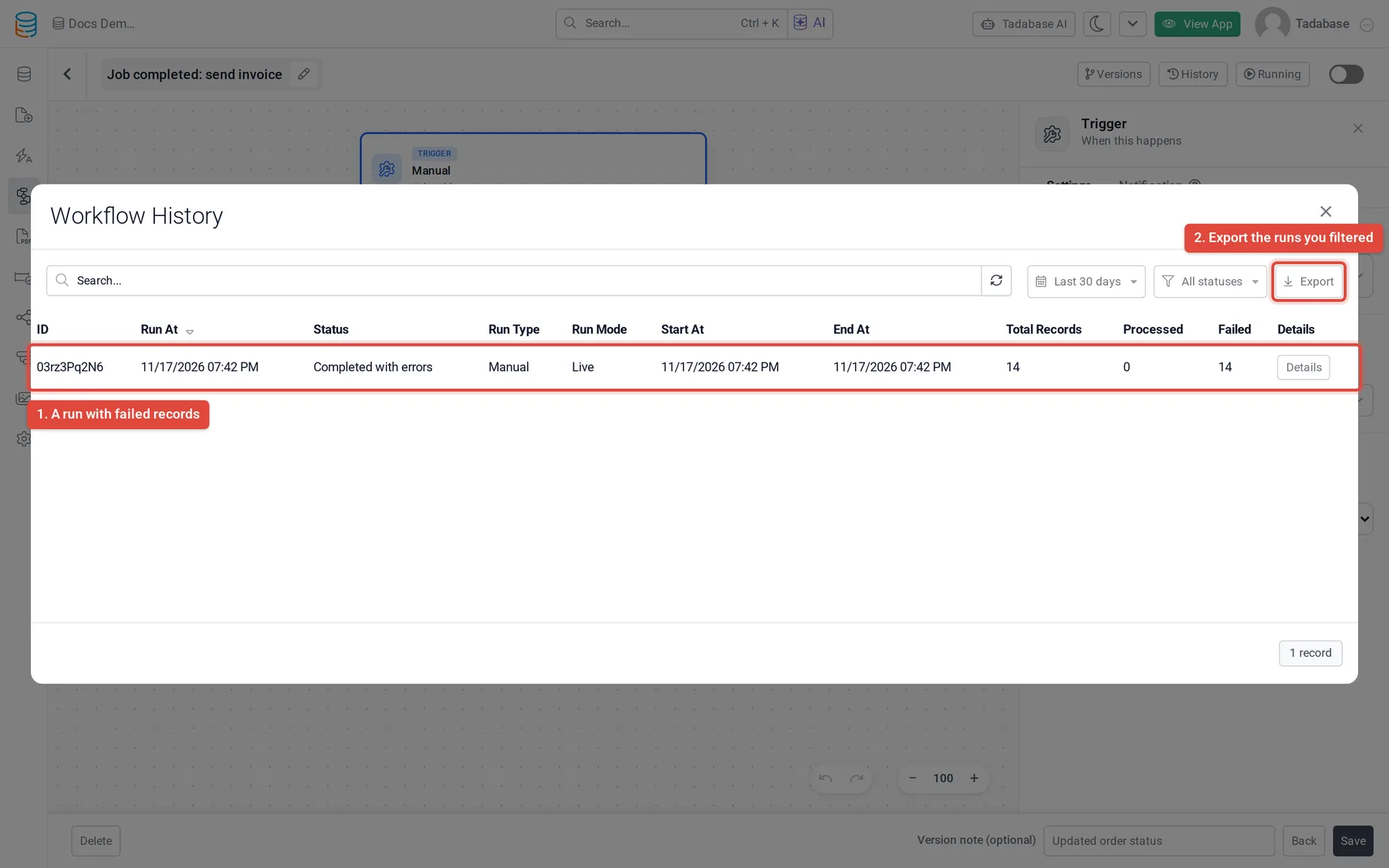
Workflow History lists the runs, newest first. Each row shows when the run was due (Run At), its Status, Run Type, Run Mode (Live or Dry run), start and end times, and the number of records: Total Records, Processed and Failed.
Find a run #
- Date: the list starts at Last 30 days. Choose Today, Yesterday, Last 5 days, Last 7 days, All dates, or set a Custom range and click Apply range.
- Status: show only one status, for example Failed.
- Search: type in the search box to narrow the list.
- Click Run At to reverse the order.
| Status | Meaning |
|---|---|
| Pending | Waiting to start. |
| Running | In progress. |
| Waiting for user | Paused at a step that asks someone a question. |
| Completed | Every record went through. Completed with warnings means a step left a warning. |
| Completed with errors | The run finished, but at least one record had a failed step. |
| Failed | The run stopped with an error. |
| Cancelled | Someone cancelled the run. |
| Interrupted | The run was stopped before it could finish. |
| Skipped | The run did not start, for example because the workflow has no steps or a scheduled run was still busy with the previous one. |
Open a run #
Click Details on a row. The run opens on the Records tab: a bar and counts for the whole run at the top, the records of the run on the left, and the selected record's steps on the right.
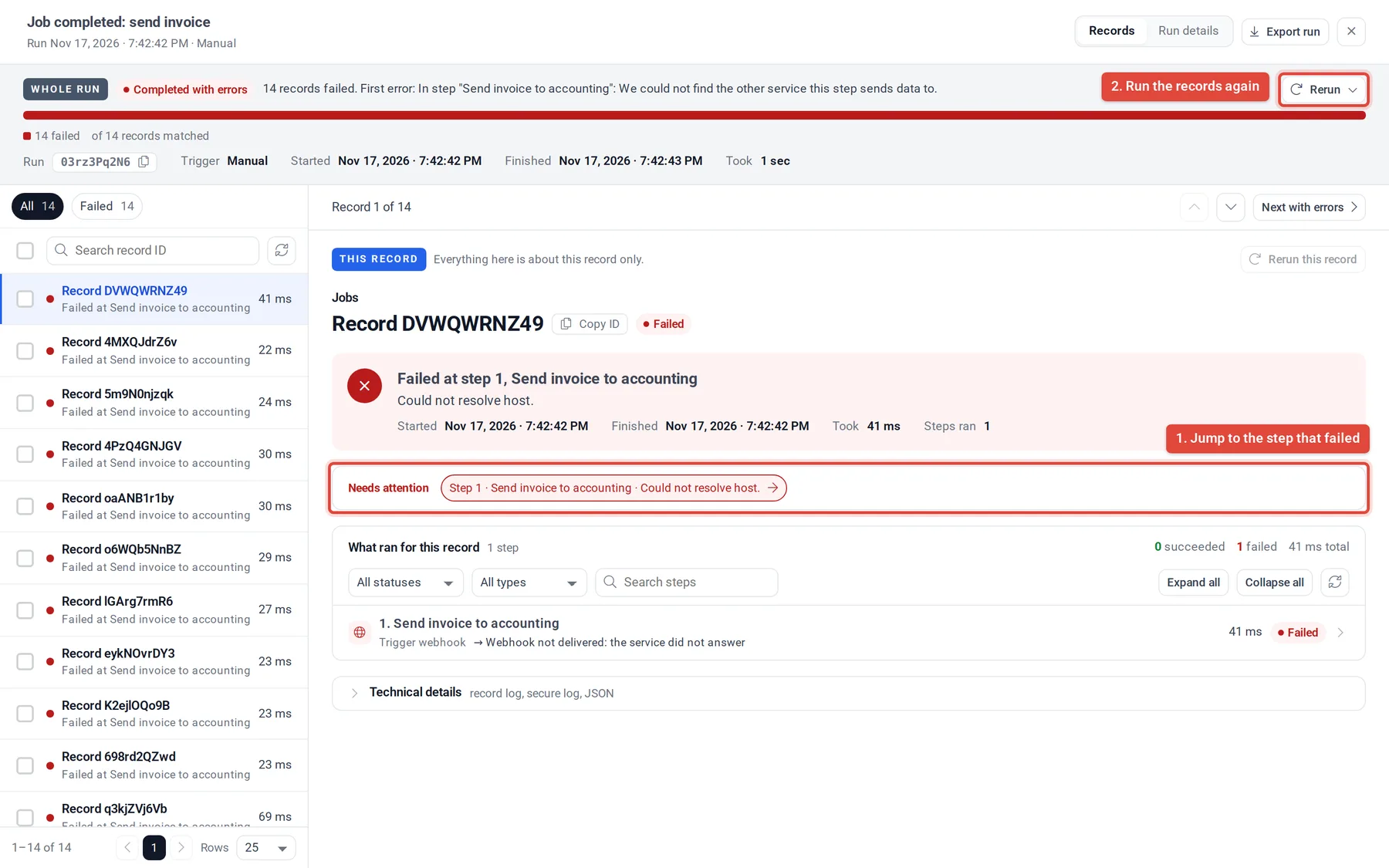
- Click a part of the bar, or a filter above the list, to show only the records with that result. Search the list by record ID.
- For the selected record, Needs attention links straight to each failed step. Next with errors jumps to the next record that had a failed step.
- Each step shows what it did: the Values used, its Result, the Records touched and, for changed records, the Changed fields with Before and After values.
- A condition shows Rules checked: each rule, the value it was compared with, the Value found on the record, and whether the condition was met. This is the quickest way to see why a step was skipped.
- A failed step shows This step failed with the error and, for most errors, Why and What to do. Click Show technical error for the raw message.
- In a loop, each item has its own square: green succeeded, red failed, amber skipped, grey not reached. Click Show only failed items to list the failures.
- Where the time went lists the slowest steps for the record.
The Run details tab describes the run as a whole: its outcome, timing, how many records the trigger matched, what started it (page, component, user or another workflow) and any retries. Click Export run to download this one run.
For runs started by an incoming webhook or the Email Catcher, What came in shows the request or email that started the run, with Copy and Download JSON.
What happens when a step fails #
By default the run carries on with the next step, and the record is counted as failed. To stop the run at a step that fails, open that step, go to its Advanced tab and turn on Abort workflow if this step fails. Show Message steps never stop a run.
If a run is cut off by a temporary problem on Tadabase's side, rather than by a failed step, it is started again automatically, up to three attempts. Run details then shows a Retries section, and a step that ran more than once shows Attempts.
Rerun failed records #
Once a run has finished, click Rerun in the run window and choose what to run again:
- Rerun all of the run's records.
- Rerun only the failed records.
- Rerun selected records: tick records in the list first, up to 5,000 at a time.
- Rerun this record: the button above a single record's steps.
- For a webhook or email run: Run this request again or Run this email again.
A confirmation lists what will run before anything starts. The rerun is a new run in History, linked to the original by Retry of and Retried as. The workflow must be turned on to rerun a live run.
Watch and cancel active runs #
In the workflow editor, click Running to open a panel with this workflow's active and queued runs. Each card shows the step in progress (click it to highlight the step on the canvas), a progress bar with the number of records done and failed, and how long the run has taken. Click Cancel to stop one run, or Cancel all. The panel refreshes by itself every few seconds; click the refresh icon to update it now.
The Workflows list shows the same information: a status next to a running workflow's name, and the Last Run column.
History of one step #
Select a step on the canvas and open its History tab to see how often it ran, how often it failed, and its average, P95 and slowest time. Use it to find the step that slows a workflow down.
Test with a dry run #
A workflow with the Schedule trigger has a Run button in the editor. Click the arrow next to it and choose Dry run to run it now without changing or sending anything:
- Find Records, Show Message, Transform JSON, Aggregate and getting records from an external source run for real, because they only read data.
- Every other step is simulated: no records are created, updated or deleted, no emails or webhooks are sent and no files are made. Run Custom Code steps do not run.
- The run appears in History with Run Mode set to Dry run, and each simulated step says Dry run: this step did not really change or send anything.
Export the history #
- Filter first In Workflow History, set the date and status filters. The export uses them.
- Click Export Click Export, then New export.
- Choose what to export Runs gives one row per run. Runs with step details gives one row per step of every record.
- Choose the file CSV opens in Excel or Google Sheets. JSON nests runs, records and steps for developers.
- Start it Click Start export. Small exports download at once; larger ones keep running if you close the window and appear in the Exports list when ready.
Dates in the file are in the app's time zone. Export files are kept for 24 hours.
How long history is kept #
Runs and their step details are kept for 30 days unless your plan sets a different period, then deleted. Export the runs you want to keep before then.
Was this page helpful?
Something wrong or missing on this page? Tell us.