
Workflow actions at a glance
Every action a workflow step can run, grouped the way the action picker groups them, plus the settings every action step shares.
- Verified Nov 17, 2026
- Classic builder
On this page
An action is a step that does something: changes a record, sends an email, makes a file or calls another system. When a workflow runs, it works through its steps from top to bottom. This page lists every action you can add and the settings all action steps share.
Add an action #
- Open the add menu In the workflow editor, click Add Step below the last step (or Add First Step in an empty workflow). You can also click the + between two steps or inside a branch or loop.
- Choose Add Action Under Choose Step Type, click Add Action (Perform an operation).
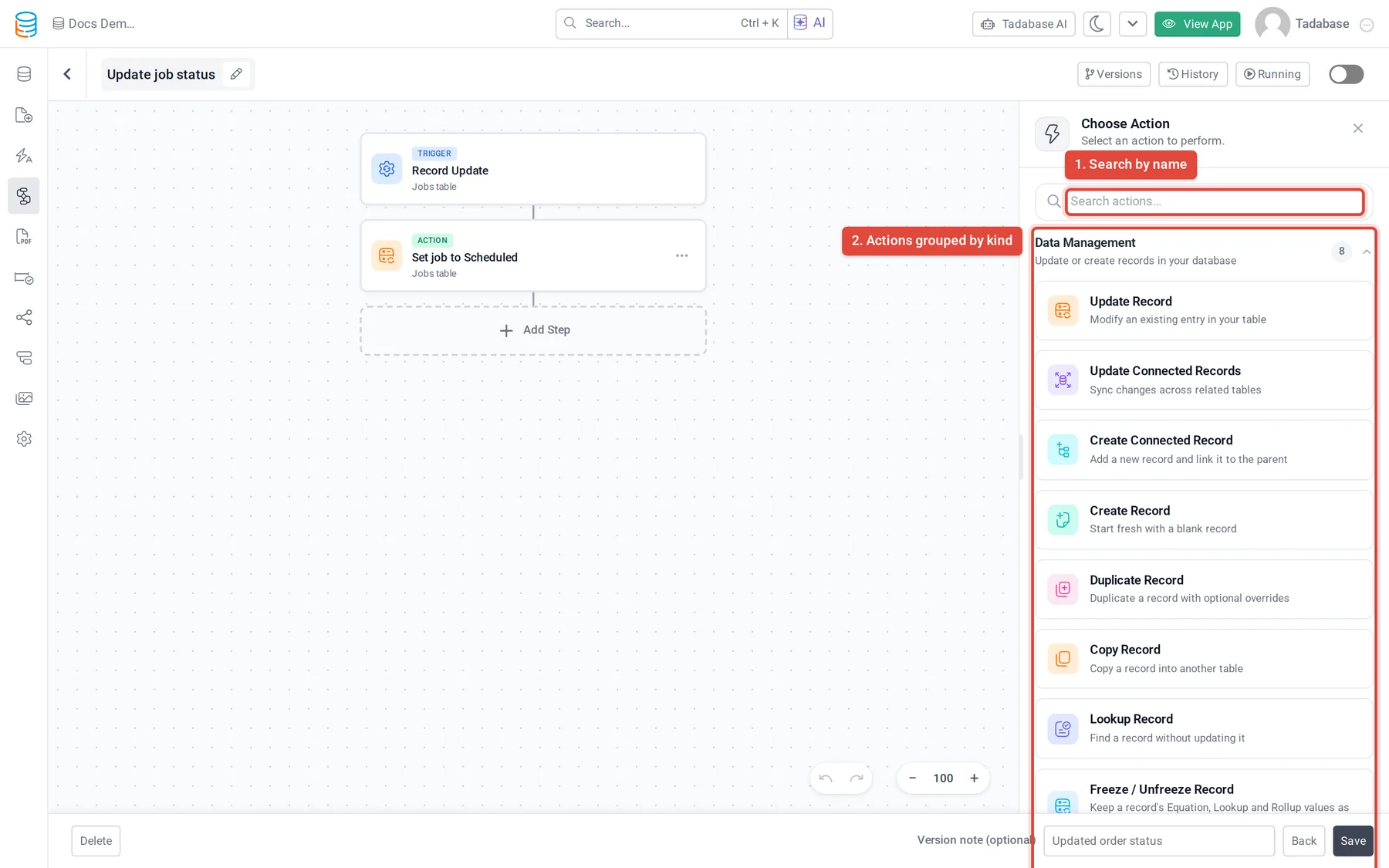
- Pick the action The actions are grouped by kind. Open a group, or type in Search actions..., then click the action. Its settings open in the panel on the right.
Data Management #
| Action | What it does |
|---|---|
| Update Record | Changes fields on a record: the workflow's record, a record found by an earlier step, or a record in another table you find with filters. |
| Update Connected Records | Changes fields on the records connected to the workflow's record, optionally only those that match filters. |
| Create Connected Record | Adds a new record in a connected table and links it to the workflow's record. |
| Create Record | Adds a new record to any table, with no link back. |
| Duplicate Record | Makes a copy of a record in the same table, with optional changed values and copied child records. |
| Copy Record | Copies a record into another table, matching fields by name and type. |
| Find Records | Finds up to 500 records by filters so later steps can use them. |
See Create, update and copy records in a workflow and Find records and use them in later steps.
Communication #
| Action | What it does |
|---|---|
| Send Email | Sends an email from one of your email templates, or a Simple Email you write in the step. |
| Trigger Webhook | Sends record data as JSON to one or more URLs. |
See Send an email from a workflow and Send record data to another system with Trigger Webhook.
Documents #
| Action | What it does |
|---|---|
| Create PDF Form | Fills one of your PDF Forms with values from the workflow. |
| Create PDF Page | Prints one of your PDF Pages for a record. |
| Export to CSV | Makes a CSV file from the records of a table. |
| Export to JSON | Makes a JSON file from records or from a JSON list. |
| Generate HTML Table | Builds an HTML table of records to put in an email or a rich text field. |
See Create a PDF from a workflow, Export records to a CSV or JSON file and Put a table of records in an email.
User Experience #
| Action | What it does |
|---|---|
| Show Message | Shows a toast, banner or pop-up to the person using the app. |
Utilities #
| Action | What it does |
|---|---|
| Trigger Pipe | Runs a pipe method and makes its response available to later steps. See Run a pipe from a workflow. |
| AI Prompt | Runs one of your AI prompts and makes its answers available to later steps. See Use an AI prompt in a workflow. |
| Run Custom Code | Runs your own code with workflow data. See Running custom JavaScript. |
| Transform JSON | Removes, renames and reshapes JSON for later steps. |
| Aggregate | Counts, totals and summarizes a list of items or records. |
Actions that depend on your plan #
Trigger Pipe, Send Email, Create PDF Page and Create PDF Form need pipes, email templates, PDF Pages or PDF Forms on your plan. When your plan does not include one, the action shows a lock icon in the picker. A step of that kind that is already in a workflow shows Feature Restricted: it keeps running, but you need to upgrade to edit it.
What every action step has #
Click a step in the editor to open it in the side panel. Every action step has the same frame around its own settings:
| Where | What it does |
|---|---|
| Step title menu: Rename | Changes the step's name. The editor suggests a name from the settings (for example the table it changes) until you rename it. |
| Step title menu: Add note | Adds a note to the step. A note icon shows on the step in the editor; hover over it to read the note. |
| Settings tab | The action's own settings: which record, which values, which template and so on. Most fields that take a value open a Value Source picker, where you choose a fixed value, a field of the record, the result of an earlier step and more. See Using workflow data. |
| Notification tab | Live progress messages people see while the step runs: When Action Starts, While Action is Processing and When Action Ends. Turn them on with Real-time Notifications. |
| Advanced tab: Enabled | Turn it off to keep the step in the workflow but skip it when the workflow runs. |
| Advanced tab: Abort workflow if this step fails | When on, the workflow stops at this step if it fails. When off (the default), the next steps still run. |
| History tab | What this step did in recent runs. See Workflow history and logs. |
If a step is not set up correctly, the panel lists the problems under Validation Errors and the step is marked in the editor.
Steps that are not actions #
The Choose Step Type menu has three more kinds of step. They control which actions run, rather than doing something themselves:
| Step | What it does |
|---|---|
| Add Condition | Splits the flow into a Yes path and a No path, based on rules you set. |
| Add Branches | Sends each record down the first path whose rules match, or down every matching path when you turn that option on. |
| Loop / Bulk Action | Runs the steps inside it once for each record or item in a list, such as the records a Find Records step found. |
Was this page helpful?
Something wrong or missing on this page? Tell us.