
Find records and use them in later steps
The Find Records action looks up to 500 records by filters and sort order, so later steps can update them, loop over them or use their values.
- Verified Nov 17, 2026
- Classic builder
On this page
The Find Records action searches a table with filters and hands the records it finds to the steps after it. Use it when a step needs a record that is not the workflow's own record or one connected to it, for example to find the technician assigned to a postcode.
Set it up #
- Add the action Add a step, click Add Action, then under Data Management choose Find Records.
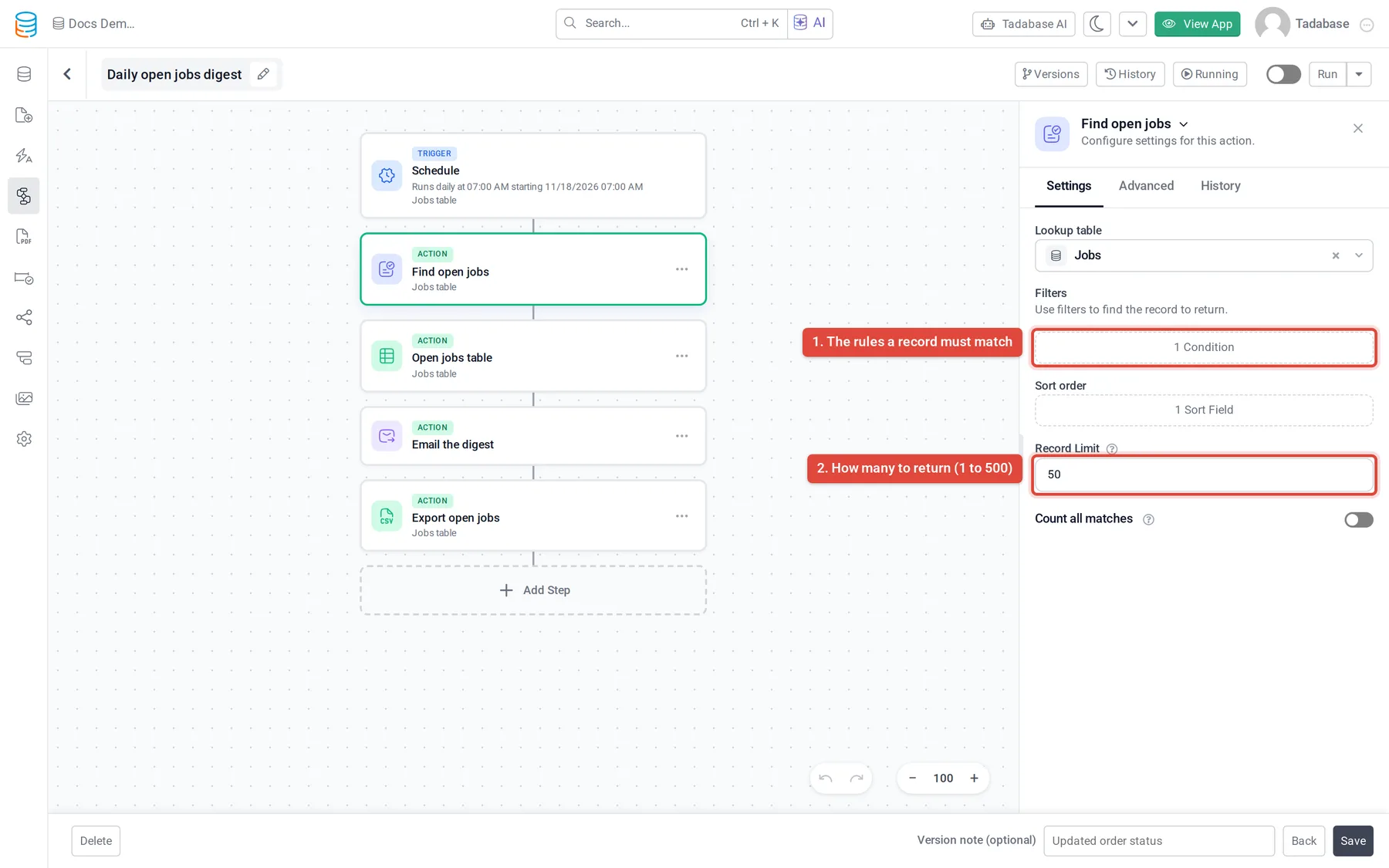
- Choose the table Under Lookup table, pick the table to search.
- Set the filters Click the box under Filters and add the rules a record must match. A filter's value can be fixed or come from the workflow's record or an earlier step.
- Set the sort order Click the box under Sort order and choose the field and direction. The order decides which record comes first.
- Choose how many In Record Limit, enter how many matching records to return, from 1 to 500. It starts at 1.
- Count every match (optional) Turn on Count all matches to count every matching record, up to 10,000, even when the limit returns fewer.
What the step returns #
- The first record it found, in your sort order. Later steps that take one record use this one.
- All records it found, up to the limit. A loop or a step that takes a list of records uses these.
- Records Found, the number of records returned. With Count all matches on, the step also counts the total number of matches.
- Status, which you can check in a condition.
If no record matches, the step is marked as skipped with the warning No records matched the lookup filters. The workflow carries on with the next step.
Use the results in later steps #
| To | Do this |
|---|---|
| Use a value of the found record | In the later step's Value Source, open Step Data, pick the Find Records step and choose the field. |
| Change the found record | Add Update Record and choose the Find Records step under Step Data in Record to update. See Create, update and copy records in a workflow. |
| Act on every record found | Add a Loop / Bulk Action step and choose the Find Records step in Records from. The steps inside the loop run once for each record, as currentItem. |
| Check whether anything was found | Add a condition on the Find Records step's Records Found. See Conditions and branches. |
| List the records in an email | Add Generate HTML Table with the Find Records step as its source. See Put a table of records in an email. |
Tips #
- Name the step after what it finds, such as "Find assigned technician". The name is what you pick in later steps.
- Keep the limit as low as the job needs. A limit of 1 with a sort order is the usual way to get "the latest" or "the cheapest" record.
- To change many records that match filters without looping, Update Record with Other Tables and Update all records may be simpler.
Was this page helpful?
Something wrong or missing on this page? Tell us.