
Show or hide form fields with display rules
Show, hide, require, disable or rename a form field, or limit its choices, as people fill in the form, based on the values they have entered.
- Verified Nov 17, 2026
- Classic builder
A form display rule changes a form while people fill it in: when the values entered so far match your conditions, it shows, hides, requires, disables or renames a field, or limits a field's choices. It changes only the form, never saved data.
This page is about rules on forms. Display rules on table, list and details components, which color, mark or hide a value, are a different feature: see Change colors and hide values with display rules.
Add a display rule #
- Open the form In the Page Builder, hover over the form and click the pencil (Edit).
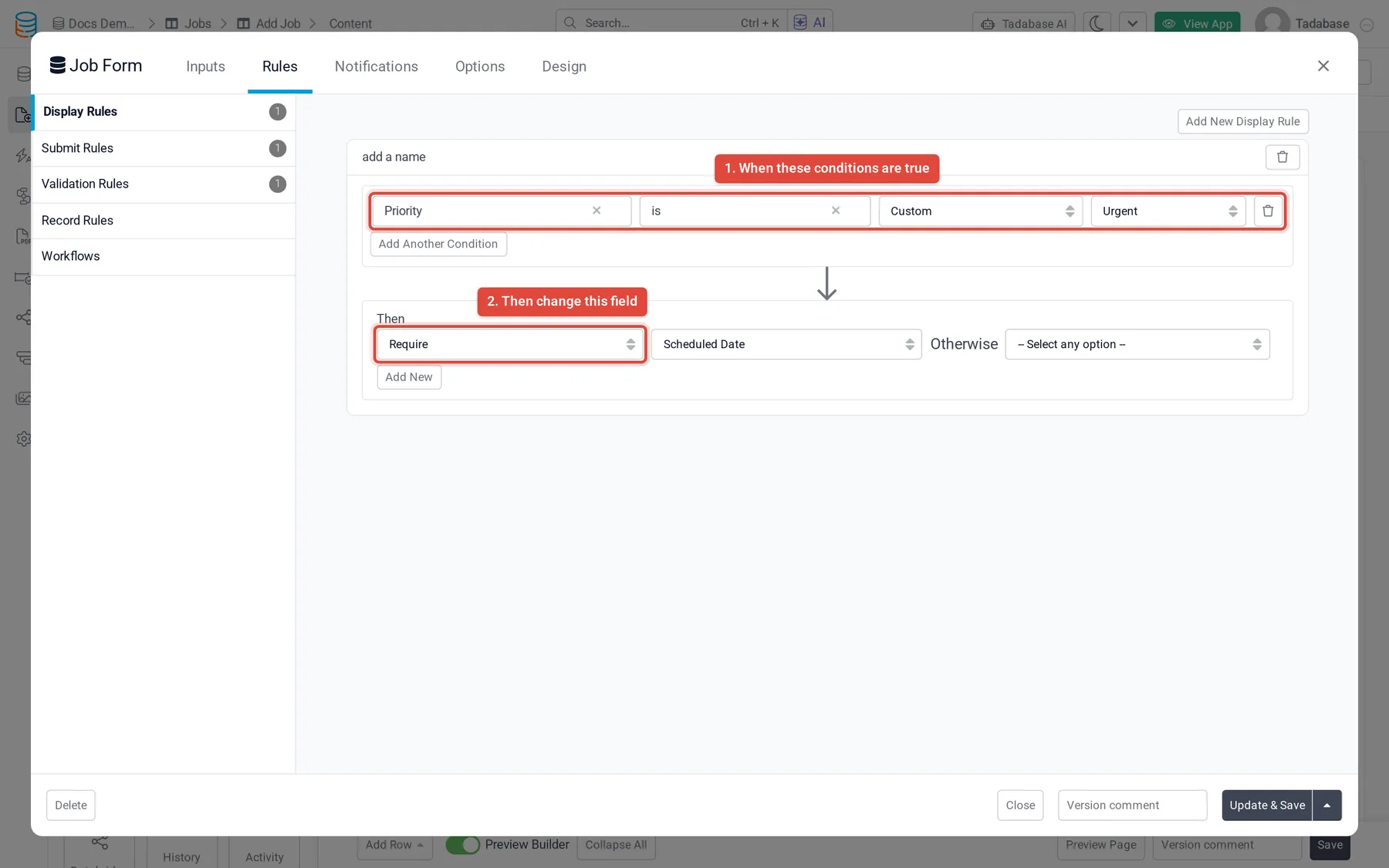
- Open Display Rules Click Rules. Display Rules is the first tab on the left and opens by default; it shows how many rules the form has.
- Add the rule Click Add New Display Rule. To find it again later, click add a name at the top of the rule and type a name.
- Set the conditions Pick a field, an operator and a value. Click Add Another Condition for more. With two or more conditions, choose Match All (every condition must be true) or Match Any (one is enough).
- Choose what happens Under Then, pick an action and the field it changes. For most actions also pick what happens Otherwise, when the conditions are not true: the opposite action or Do Nothing. Click Add New to change more fields with the same rule.
- Save Click Update & Save.
Example: on a job form, add a rule with Status is Completed, then Show the Completion Notes field, Otherwise Hide. The notes field appears only when someone sets the status to Completed.
Actions #
| Action | What it does | Otherwise |
|---|---|---|
| Show, Hide | Shows or hides the field. Pick (CSS Selector) instead of a field and enter a selector to show or hide any element on the form. | Hide or Show, or Do Nothing |
| Require, Do Not Require | Makes the field required or optional. | The opposite, or Do Nothing |
| Enable, Disable | Lets people change the field, or makes it read-only. | The opposite, or Do Nothing |
| Show Options, Hide Options | Shows or hides some of the choices of a drop-down, multi-select, radio or checkbox field. Pick the choices in Select options. | The opposite, or Do Nothing |
| Rename Label | Changes the field's label to the text you enter after To. | Not offered |
| Add CSS Classes, Remove CSS Classes | Adds or removes class names on the field, for your own styling. | Not offered |
When rules run and in what order #
Display rules run in the browser as soon as the form opens and again every time a value changes. They are checked from top to bottom, so when two rules change the same field, the lower rule wins. Drag a rule by its header to move it up or down.
Check it works #
Open the page in your live app and change the values your conditions test. The fields should change straight away. If nothing happens, check that the fields used in the conditions are on the form and that no lower rule undoes the change.
Display rules do not check values before saving. To stop a form from saving bad values, use validation rules.
Was this page helpful?
Something wrong or missing on this page? Tell us.