
Put a table of records in an email with Generate HTML Table
The Generate HTML Table action builds a styled table of records that you can place in an email or a rich text field, with a live preview.
- Verified Nov 17, 2026
- Classic builder
On this page
Generate HTML Table turns a set of records into a table that reads well in an email, for example a daily list of open jobs sent to dispatchers. Unlike a CSV attachment, the reader sees the table without opening a file.
Set it up #
- Add the action Add a step, click Add Action, then under Documents choose Generate HTML Table.
- Choose the records Under Records from, pick a table under All Tables, a connected table under Connected Data, the records an earlier step found or made under Step Data (such as a Find Records step), or a JSON list under Trigger Array Data or Step Array Data.
- Filter and sort (optional) For a table or a list of connected records, set Filters (only matching records are shown) and Sort order.
- Add the columns Click + Add Column for each column, or Auto-fill All Columns to add every field. In each card, pick the Field and type the Header label. Drag the cards to reorder them.
- Set the look Open Output Options and Group By (see below).
- Preview it Under Sample Preview Table, click Preview to see the table with sample data.
For a JSON list, paste one example item in Sample Item JSON so the editor knows which values each item has. Each column then also has a Type, detected from the sample, that decides how the value is shown.
Output options and grouping #
| Setting | What it does |
|---|---|
| Style | Bordered (the default), Striped or Minimal. Every style uses inline styles only, so it shows the same way in email programs. |
| Empty message | What the table shows when there are no records. The default is No records found. |
| Max rows | The most records the table shows. The default is 500 and the limit is 5,000. When more records match, the table stops at the limit and the step warns that the output was cut. |
| Group by field | Under Group By, splits the rows into groups by a field, each with its own header. |
| Show group count | Adds the number of records to each group header, for example "Active (12)". |
Preview the table #
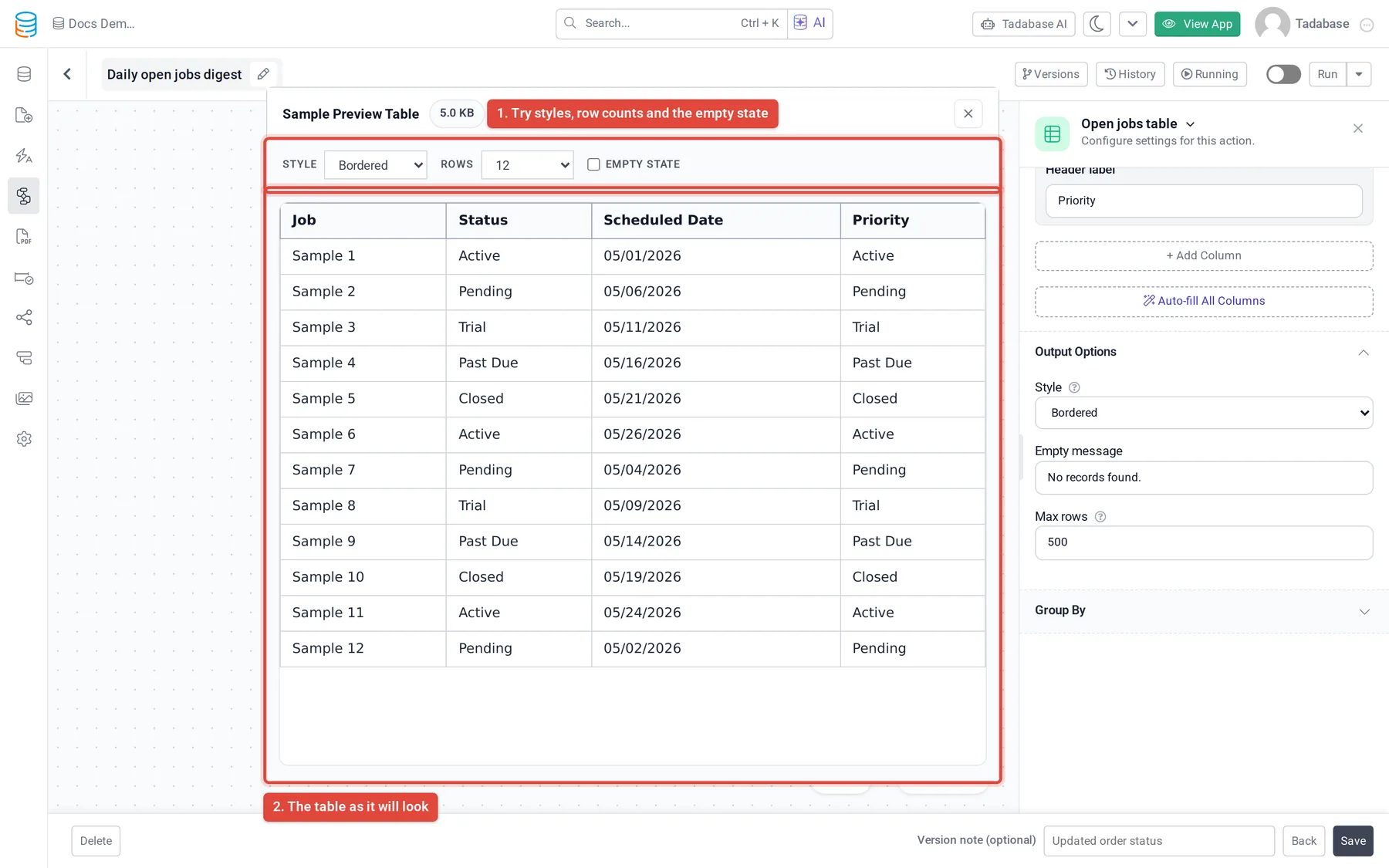
The Sample Preview Table window shows the table as it will look, with sample data. Change Style and Rows to try options, tick Empty state to see the empty message, and tick Group to see the grouping. The window shows the table's size and warns when it may be clipped by Gmail.
Put the table in an email or a field #
- Add a step after it Add Send Email (or Update Record for a rich text field) after the Generate HTML Table step.
- Insert the table Where the step asks for a value, such as the email's Content, open the value picker, then Step Data, and pick the Generate HTML Table step (described as Generated HTML Table).
Later steps can also check the step's Has Data and Record Count, for example to skip the email when there is nothing to report. See Conditions and branches.
Was this page helpful?
Something wrong or missing on this page? Tell us.