
Run custom JavaScript in a workflow
Use the Run Custom Code action to calculate, reshape or check values with your own JavaScript, test it with real data, and pass the results to later steps.
- Verified Nov 17, 2026
- Classic builder
On this page
- When to use it, and when not to
- Add a Run Custom Code step
- Inputs: the values your code receives
- What else the code can read
- Pass results to later steps
- Stop with an error
- Keep API keys out of your code
- Test your code
- Get help from the AI Code Builder
- Limits
- Starter template
- Common problems
- Writing the step in Python
- Snippet library
The Run Custom Code action runs your own JavaScript as a workflow step. Use it when no built-in action does the job: a calculation with several rules, text to clean up or format, a value to check before saving, or a call to another service. The code runs in a separate, locked-down runner, not on your app's server.
When to use it, and when not to #
A built-in action is easier to read and change later. Reach for code only when none of these fits:
| You want to | Use this instead |
|---|---|
| Count, total, average or find the highest value in a list of records | The Aggregate action |
| Rename, remove or reshape fields in JSON, such as a webhook payload | The Transform JSON action |
| Find records that match filters | The Find Records action. See Find records and use them in later steps. |
| Keep a calculated value on every record, everywhere in the app | An equation field. See Equation. |
Add a Run Custom Code step #
- Add the action In the workflow editor, click Add Step, then Add Action, and under Utilities choose Run Custom Code.
- Keep the language Language starts as JavaScript. You can switch to Python; see the last section of this page.
- Add the data your code needs Under Data to use in the code, click + Add Input. Type a Variable name, then choose where the value comes from. Add one input for each value.
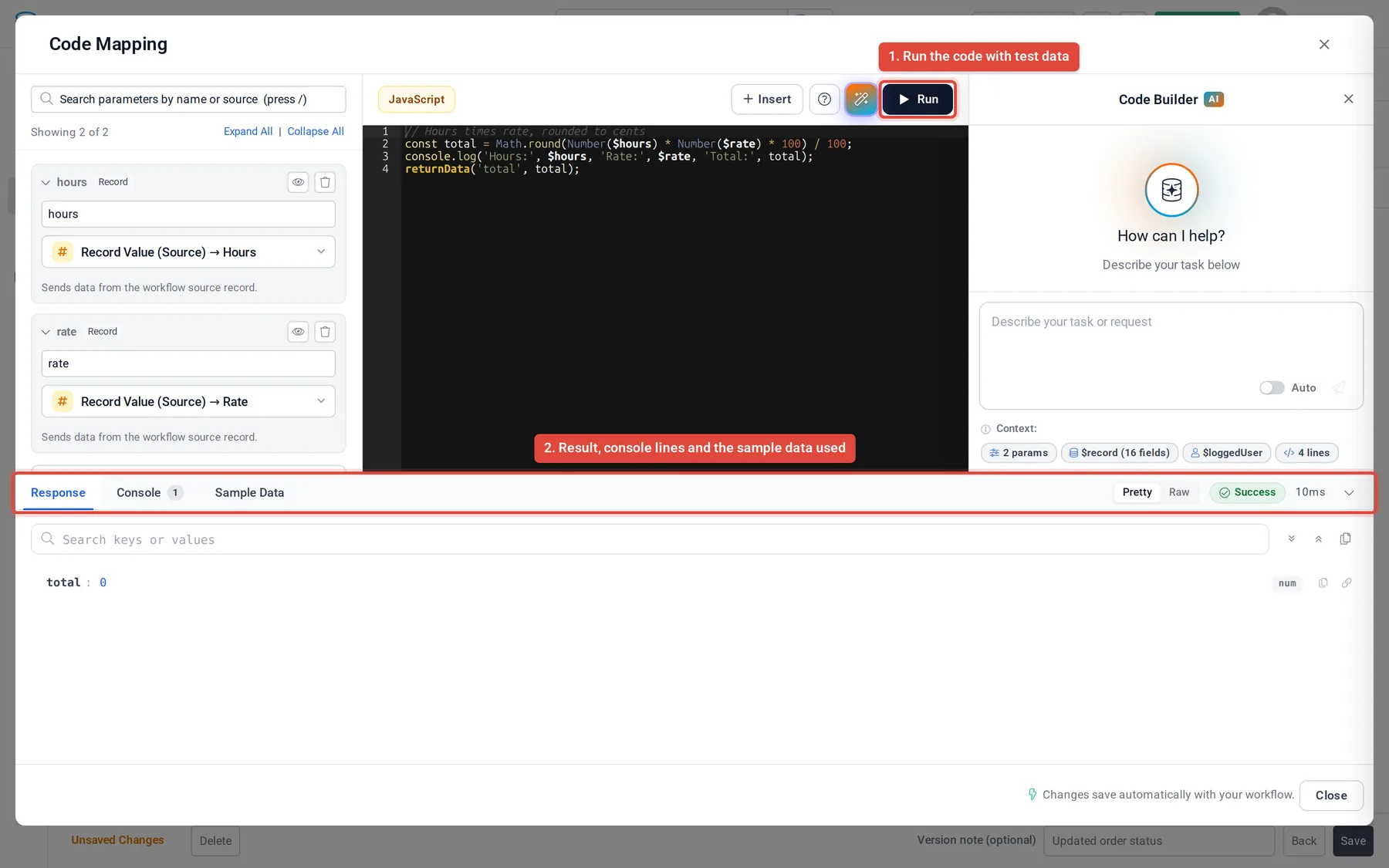
- Write the code Click the Code box (Click to write code). The Code Mapping window opens with the editor on the right and your inputs on the left.
- Run it Click Run (or press
Ctrl+Enter,Cmd+Enteron a Mac) and check the result under Response and Console. - Save the workflow Click Close, then Save. Code changes are kept with the workflow, but nothing is saved until you click Save.
Inputs: the values your code receives #
Each input becomes a variable in your code with a $ in front of its name: an input named qty is read as $qty. It is also available as params["qty"]. An input's value can come from any of these sources:
| Source | What it gives the code |
|---|---|
| Custom Value, Blank Value, Custom, Conditional | A value you type, an empty value, text built from several values, or a value chosen by rules. |
| Record Value (Source), Source Record (Full Object) | One field of the workflow's record, or the whole record. |
| Action Record Value, Action Record (Full Object), Action Response Value | A record or a result from an earlier step. Offered only when an earlier step has one. |
| Connected Value, Connected Record (Full Object) | Values from records connected to the workflow's record. |
| Logged-in User Field, Logged-in User (Full Object) | The person who started the run, when there is one. |
| Current Date, Current Time, Current Date & Time | The moment the step runs. |
Names must start with a letter, _ or $, and can then use letters, numbers, _ and $ (the pattern ^[A-Za-z_$][A-Za-z0-9_$]*$). record, loggedUser and currentItem (in any capitals) and names that start with __ are taken by the system.
| Name | Allowed? | Why |
|---|---|---|
customer_email | Yes | Letters and an underscore. |
email2 | Yes | Numbers are fine after the first character. |
2nd_email | No | Cannot start with a number. |
customer email | No | No spaces. |
customer-email | No | Only letters, numbers and underscores. |
record | No | Reserved by the system. |
The editor will not save a step with a name it cannot use. It shows the reason under the input and a Rename to … button that fixes the name for you.
What else the code can read #
| In the code | What it is |
|---|---|
$record | The workflow's record, by field slug: $record.field_slug. Empty when the workflow has no table. |
$currentItem | Inside a Loop / Bulk Action, the item the loop is on. $record stays the workflow's own record. |
$loggedUser or getLoggedInUser() | The logged-in user's record. Empty when nobody is logged in, for example in a scheduled run. |
getAppDetails() | Details of the app, such as its name and time zone. |
getAppVariable("slug") | The value of an app variable, or undefined if there is none. It takes no default value, so write getAppVariable("slug") || "fallback" when you need one. |
getAppSecret("NAME") | The value of an app secret. See the section on secrets below. |
Click ? (Code reference) in the editor toolbar for this list, the helper functions and the keyboard shortcuts. Click Insert to add a variable at the cursor, or press Ctrl+Space for suggestions, including the fields of a loaded sample record.
Pass results to later steps #
Call returnData("key", value) once for each value a later step needs:
const qty = Number($qty || 0);
const rate = Number($rate || 0);
const subtotal = qty * rate;

returnData("subtotal", subtotal);
returnData("total", Math.round(subtotal * 1.0875 * 100) / 100);
In a later step, open the value picker, choose Step Data, pick the Run Custom Code step and choose the key. The picker finds keys by reading your returnData calls, so write the key as quoted text: returnData("total", x) is offered, returnData(name, x) is not.
A return at the top level of the code also becomes the step's result, but its keys are not offered in the picker. If you forget to return anything, the editor shows a reminder under the code.
Stop with an error #
Call fail("message") to stop the step with your own error. The message appears in the run's history.
if (!$email) {
  fail("The customer has no email address.");
}
returnData("email", String($email).trim().toLowerCase());
When the step fails, from fail() or from an error in your code, the next steps still run. To stop the whole run instead, open the step's Advanced tab and turn on Abort workflow if this step fails.
Keep API keys out of your code #
Never type an API key or password into the code or into a Custom Value input: both are saved with the workflow and shown to everyone who can open it. Save the key as an app secret and read it with getAppSecret:
const key = getAppSecret("WEATHER_KEY");
if (!key) fail("Add the WEATHER_KEY app secret first.");- The secret's value is sent to the code runner only for this step, and only when the code calls
getAppSecretwith the name written as quoted text.getAppSecret(name)with a variable returnsundefined. - If the value shows up in a log line, an error or the result, it is masked: dots and the last four characters.
- App secrets are a plan feature. See Keep API keys and passwords in app secrets.
- App variables (
getAppVariable) are for values that are safe to show, such as a base URL or a tax rate.
Test your code #
In the Code Mapping window, click Run. The panel at the bottom shows Success or Error, how long the code took, and three tabs:
| Tab | Shows |
|---|---|
| Response | What the code returned, as a tree (Pretty) or as text (Raw). |
| Console | Every console.log, console.warn and console.error line, in order. |
| Sample Data | The test data the code ran with: Source Record, Loop Item (inside a loop), Logged-in User and Parameters. Click Choose Record or Choose User to run with a different record or user. |
Values that come from an earlier step's result stay blank in a test, because no earlier step has run. Check those in a real run's history; see Check workflow runs, history and errors.
Get help from the AI Code Builder #
Click the wand icon (AI Code Builder) in the editor toolbar to open a chat beside the code. Describe what the step should do; the assistant knows your inputs, the sample record and the current code, and you can put its code into the editor with one click. Read the code and click Run before you save. The chat counts toward your account's daily AI allowance and stops for the day when the allowance runs out.
Limits #
- Each run of the code gets 30 seconds, including any
fetchcalls. Code that takes longer stops with a time-out error. - The code cannot read your app's database or files directly. Give it what it needs through inputs, and write results back with a later step, such as Update Record.
- In a Dry run started from the workflow editor, Run Custom Code steps do not run; the history marks them as simulated.
- If the code runner cannot be reached, the step fails with
The code runner could not be reached or did not respond. Try again in a minute.
Starter template #
Add one input named name (a Custom Value or a Record Value (Source)), paste this into the editor and click Run:
// Inputs are $name. The workflow's record is $record.
// returnData("key", value) passes a value to later steps.

const who = $name || ($record && $record.first_name) || "friend";
const greeting = `Hello, ${who}!`;

console.log("Built greeting:", greeting);
returnData("greeting", greeting);
Common problems #
| What you see | Likely cause | Fix |
|---|---|---|
$foo is undefined | There is no input named foo, or its source was empty when the step ran. | Check the input's name and source. Use the eye icon on the input in Code Mapping to preview its value. |
$record is empty | The workflow has no table, or no sample record is loaded in the test. | In a test, open Sample Data, then Source Record, and click Choose Record. |
| A later step does not offer your key | The key in returnData is not quoted text, or the key comes from a top-level return. | Write returnData("total", value) with the key in quotes. |
| The step stops after 30 seconds | A slow loop or a slow service. | Do less in one step, or have the other service answer faster. |
getAppSecret returns undefined | The name is not quoted text, does not match the secret's Name, or the plan has no App Secrets. | Call getAppSecret("EXACT_NAME") and check Settings > App Secrets. |
| An ID looks like random letters | Record IDs reach the code encoded. | Pass the ID on unchanged. |
| The next steps ran even though the code failed | That is the default. | Turn on Abort workflow if this step fails on the step's Advanced tab. |
Writing the step in Python #
Set Language to Python to write Python 3 with the standard library. The helper names are the same (returnData, getAppVariable, getAppSecret, fail), but variables have no $: an input named qty is qty, and the record is record["field_slug"]. print() writes to the Console tab. If you switch language with code already in the editor, the code is kept but will not run until you rewrite it.
Snippet library #
Copy-and-adapt examples, grouped by task:
Was this page helpful?
Something wrong or missing on this page? Tell us.