
Restore a workflow version and organize workflows
Every save of a workflow is a version you can view, compare and restore. Turn workflows on or off, duplicate or delete them, and group them with tags.
- Verified Nov 17, 2026
- Classic builder
On this page
Each time you save a workflow, Tadabase keeps a copy of it as a version. Open Versions to see what changed and to go back to an earlier version when a change goes wrong. In the Workflows list, tags, filters and a few actions keep a growing set of workflows in order.
Open a workflow's versions #
In the workflow editor, click Versions at the top. The panel lists every saved version, newest first and grouped by day. Each row shows the version's note (or Version and its number), the version number, when it was saved and by whom. The version you are editing is marked Current.
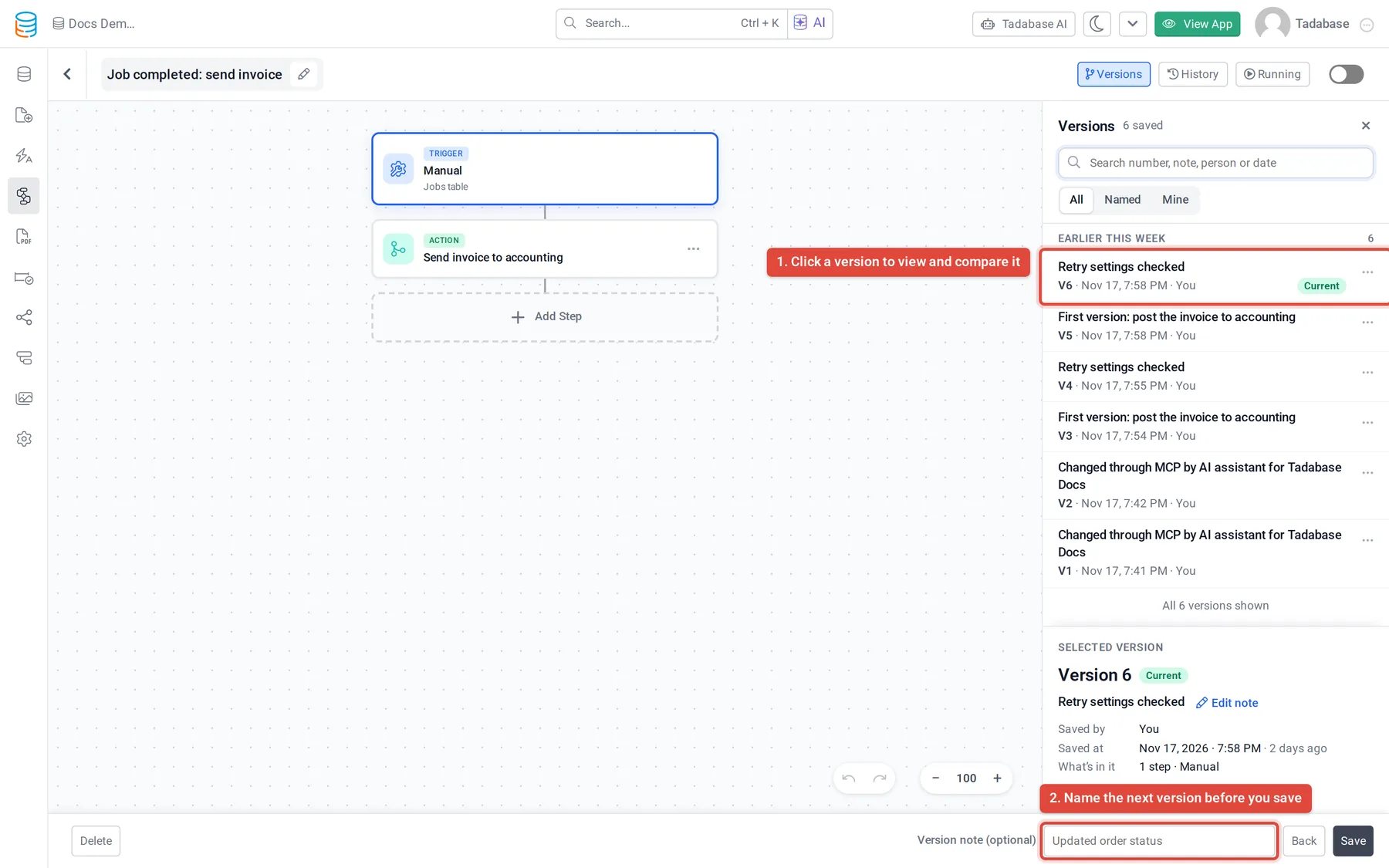
- Use All, Named (versions with a note) or Mine (versions you saved) to narrow the list.
- Search by version number, note, person or date, or use Jump to… to go to a day.
- A version holds the whole workflow: the trigger and its settings, every step and the workflow's settings. Saving without changing anything does not add a version, unless you type a note.
Name a version #
Before you click Save, type a short note in Version note (optional) next to the button, such as Send invoice only when the job is completed. The note becomes the version's name in the list.
To name a version later, open the … menu on its row and click Add a note (or Edit note).
View and compare a version #
- Click the version Click a row in Versions. The canvas shows that version with the banner Viewing Version and Read only. Editing is paused while you look; your unsaved changes are kept.
- See what changed The banner sums up the differences, compared with the current version. Turn on Highlight changes to mark the steps that differ with Changed.
- Look inside a step Click a step to see What changed in it. Click Open full settings to see all of its settings in that version.
- Go back Click Back to current to return to the version you were editing.
The Selected version card also lists any steps added since that version, and warns about anything that would block a restore.
Restore a version #
- View the version Click the version in Versions.
- Click Restore this version In the banner over the canvas, click Restore this version.
- Check and confirm Restore Version …? lists the number of steps compared with now and the trigger. Click Restore Version … to confirm.
- The workflow returns to how it was saved in that version. Your current version stays in the list, and the restore is saved as a new version named Restored from Version …, so you can undo it the same way.
- Whether the workflow is turned on or off does not change.
- Unsaved changes in the editor are discarded.
- If the workflow has runs in progress, their steps that have not started yet use the restored version.
- Builders who can only view versions see
You can view versions. Ask an app builder to restore.
Delete versions and how long they are kept #
To remove a version from the list, open its … menu and click Delete version. The workflow itself does not change. The current version cannot be deleted.
Versions without a note are deleted automatically after the version history period of your plan. The newest version and every version with a note are always kept, so add a note to any version you want to keep.
Turn a workflow on or off #
Use the Active / Inactive switch at the top of the editor, then save. An inactive workflow does not run, but keeps all its steps and versions. Use it to pause a workflow that misbehaves, or to keep a new workflow off while you test it. The Status column and filter in the Workflows list show which workflows are on.
Duplicate or delete a workflow #
- Duplicate: in the Workflows list, open the workflow's actions menu (the three dots) and click Duplicate. The copy is created as inactive.
- Delete: click Delete in the same menu, or at the bottom of the editor. Deleting an active workflow stops all its future runs. A deleted workflow cannot be restored from the builder.
- Delete several: tick the workflows in the list and click Delete Selected.
Organize workflows with tags #
- Create a tag In the Workflows list, click New Tag. Type a Tag name, pick a color and click Create Tag.
- Tag a workflow Open the workflow's actions menu and click Assign Tags... (or Edit Tags...). Tick the tags and click Save. A workflow can have several tags.
- Filter by tag Open Tags above the list and tick one or more tags, or click a tag in the Tags column.
- To rename a tag, change its color or delete it, open Tags and click the pencil next to the tag. Deleting a tag removes it from its workflows; the workflows themselves are not deleted.
- Detach All Tags in a workflow's actions menu removes every tag from that workflow.
Find a workflow in a long list #
- Type in Search... to match workflow names.
- Filter by table (All Tables), by trigger (All Triggers), by Status and by Tags. Clear Filters removes them all.
- Choose which columns to show, such as Trigger, Data Table, Last Run or Next Run At, from the columns menu above the list.
Was this page helpful?
Something wrong or missing on this page? Tell us.