
Send an email from a workflow
Use the Send Email action to send an email template or a Simple Email you write in the step, with recipients, values and attachments from the workflow.
- Verified Nov 17, 2026
- Classic builder
On this page
The Send Email action sends an email each time the workflow reaches it, for example a confirmation to a customer when a job is booked. You can send one of your email templates, or write a Simple Email right in the step.
To send record data to another system instead of a person, use Trigger Webhook.
Choose what to send #
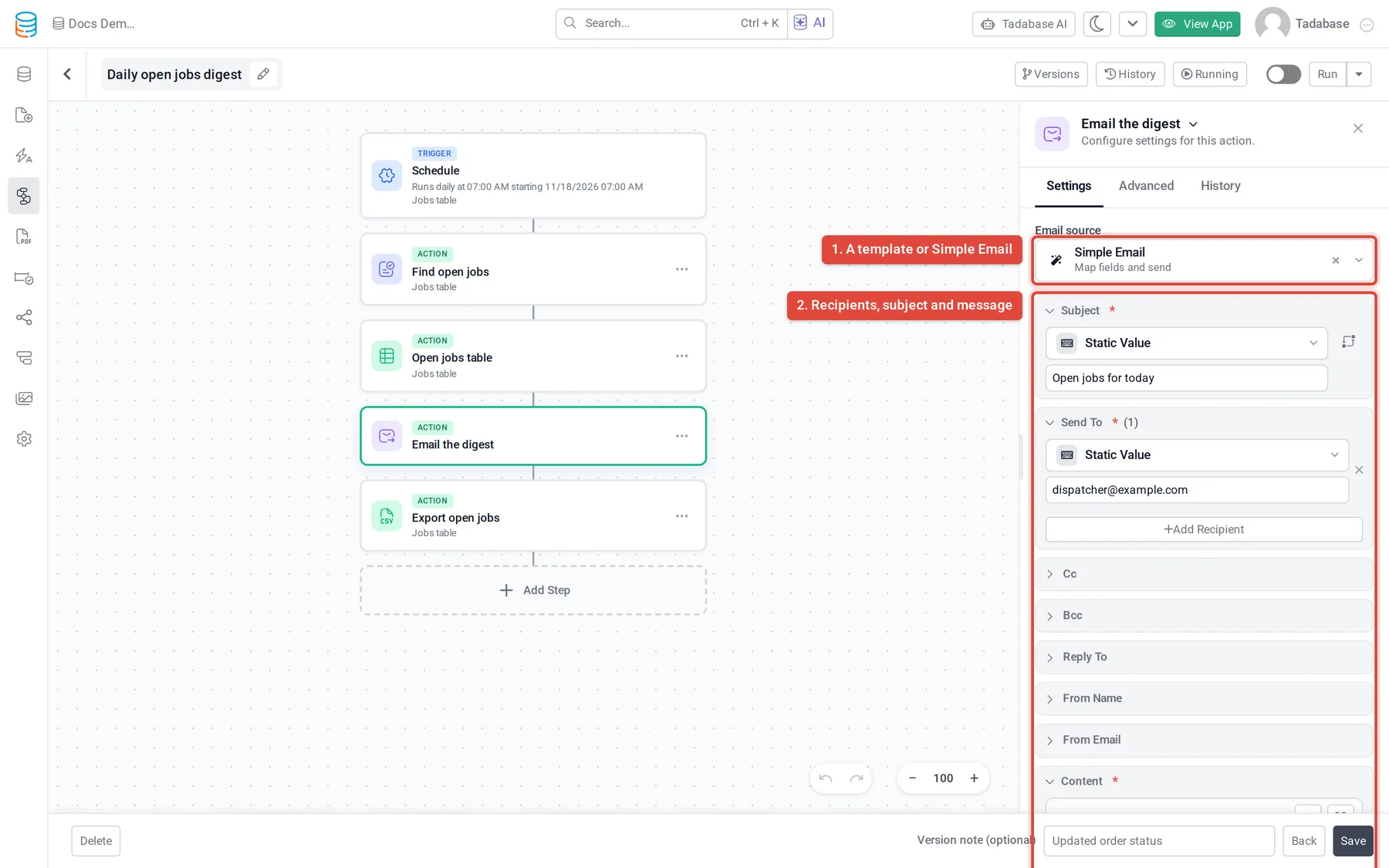
Add a step, click Add Action, then under Communication choose Send Email. Under Email source, pick one of two kinds:
| Email source | Use it when |
|---|---|
| An email template (listed by name) | The same email is sent from several places, or someone else maintains the wording. Change the template once and every workflow that uses it changes too. See Create and reuse email templates. |
| Simple Email (Map fields and send) | The email belongs to this workflow only. You set the recipients and write the message in the step. |
Write a Simple Email #
Each part of a Simple Email is a card. Fields marked with a star are required.
| Card | What to put |
|---|---|
| Subject * | The subject line. Type it, or take it from a field or an earlier step. |
| Send To * | One or more recipients. Click Add Recipient for each. A recipient can be a typed address, an email field of the record, the logged-in user's email or a value from an earlier step. |
| Cc, Bcc, Reply To | Optional. Click Add Cc, Add Bcc or Add Reply To for each address. |
| From Name, From Email | Optional. The sender's name and address the recipient sees. |
| Content * | The message. Type it, and press / or click + to insert a field at the cursor. Click a value you inserted to change its source or give it a Fallback when blank. |
| Email Layout | Optional, when your plan has email layouts. Wraps the message in one of your layouts. See Brand your emails with an email layout. |
| Attachments | Optional. Click Add Attachment and pick a file (see below). |
Send an email template #
- Pick the template Under Email source, pick the template by name. The template already holds the recipients, subject and message.
- Fill the parameters If the template has parameters, Template Parameters lists them. Give each one a value. A parameter without a value shows Value required.
- Override if needed (optional) Under Overrides (optional), set a different Subject, From Name or From Email for this step only.
An Attachments section appears when your app allows attachments in email templates and the chosen template allows them.
Attach files #
Select attachment... lists the files the step can send:
- File and image fields of the workflow's record, and fields that hold a file's web address.
- Inside a loop, the same kinds of fields of the record the loop is on.
- A file made by an earlier step: Create PDF Form, Create PDF Page, Export to CSV or Export to JSON. See Create a PDF from a workflow.
If nothing can be attached, the section says No attachment sources are available.
Delivery and limits #
- Emails go out through your app's email settings, either Tadabase's mail service or your own SMTP server. See Ways to send email from your app.
- Each email counts toward your plan's email allowance. When it is used up, the step fails with
Email limit reached. - If every To, Cc and Bcc recipient is blank for a record, nothing is sent and the step says so in its history.
- A step marked as sent means the mail server accepted the email. Whether it reaches the inbox depends on the email provider and the recipient's server.
Check that it worked #
Open the step's History tab, or the workflow's run history, to see each email's recipients, subject, attachments and result. See Workflow history and logs. Your app's email logs list sent emails too.
Later steps can branch on the email's Sent and Delivery State values, for example to try another address when sending fails. See Conditions and branches.
Was this page helpful?
Something wrong or missing on this page? Tell us.