
Check whether an email was sent
Use the Email Logs tab in Email Settings to see every email your app tried to send, its status, the error when it failed, and what triggered it.
- Verified Nov 17, 2026
- Classic builder
On this page
Your app keeps a log of every email it tries to send, whether it goes through Tadabase's mail server or your own SMTP server. Open it when someone says they never got an email: it shows whether the email left, and why not if it did not.
Open the email log #
- Open Email Settings In the builder, open Settings and choose Email Settings.
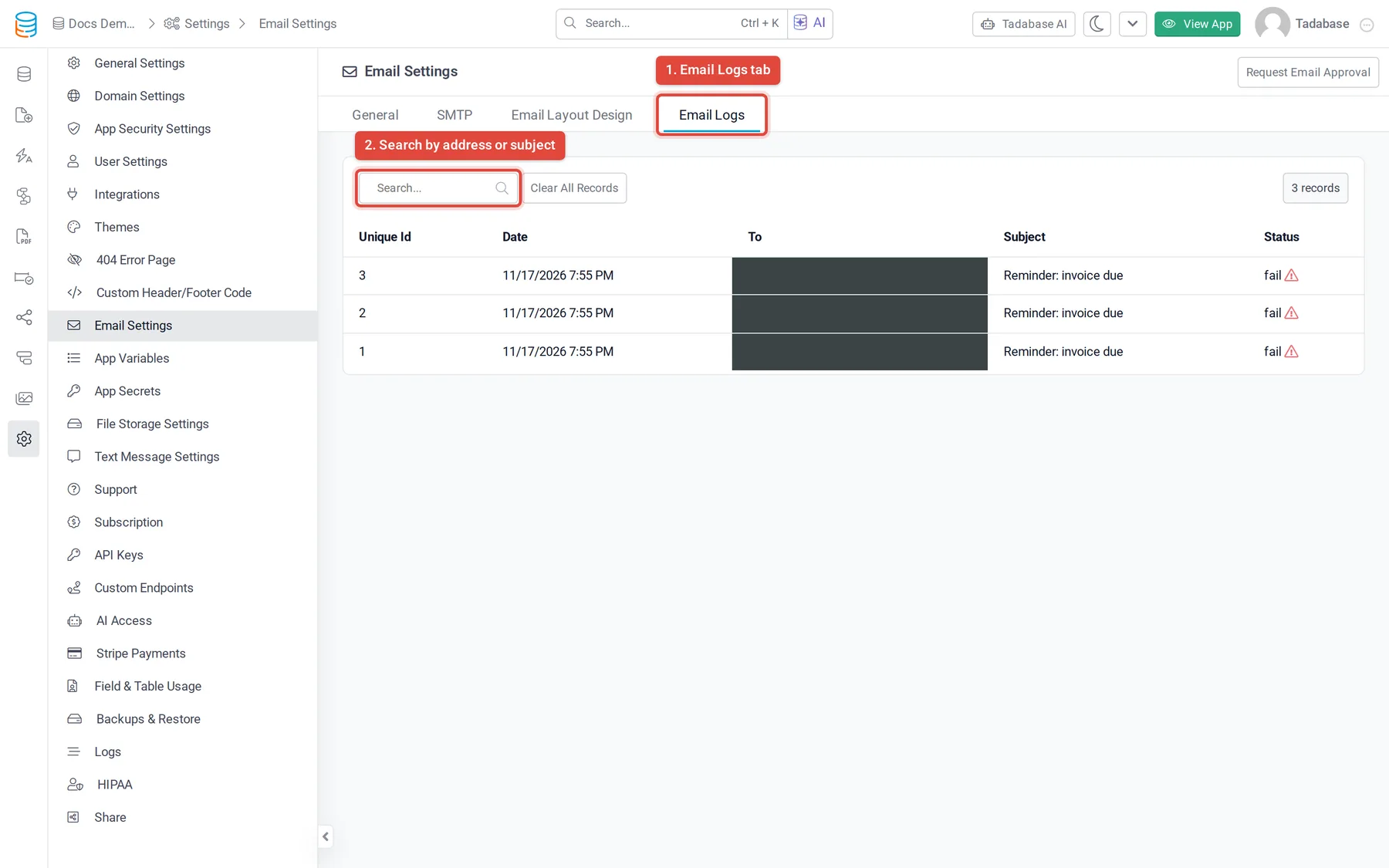
- Go to the log Click the Email Logs tab. The newest emails are at the top.
- Find the email Type an address or part of the subject in Search... and press Enter. Click a column heading to sort by it.
- Open the details Click a row. The Email Details window shows the sender, the recipients and the email itself.
Email logs are a plan feature. If your plan does not include them, the tab does not load any entries.
What the list shows #
| Column | What it shows |
|---|---|
| Unique Id | The email's number in this app's log. |
| Date | When the app tried to send it. |
| To | Every recipient address. |
| Subject | The subject line. |
| Status | The result of the send (see below). |
What the status means #
| Status | Meaning |
|---|---|
sent | The mail server accepted the email. It does not prove it reached the inbox: if a recipient cannot find it, ask them to check spam, or check your own SMTP provider's logs. |
fail or failed | The mail server refused the email or could not be reached. Hover the warning icon next to fail, or open the row and look at Error on the Metas tab, for the reason, such as a wrong SMTP user name or a host that could not be reached. |
initiate | Sending started but no result was recorded yet. Open the tab again after a minute; a row that stays this way did not finish. |
blocked | Tadabase did not send the email because email sending is blocked for the app or its owner's account, the app's sender email is not verified, or a trial account reached its email limit. |
See where an email came from #
The Email Details window has three tabs. HTML shows the email as the recipient sees it and Raw shows its source. Metas shows what sent it, when Tadabase knows:
- Page, Component and Field: the page, component and field the email was sent from. The page name links to it in the Page Builder.
- App Page URL: the address of the page in your live app.
- Status and Error: the result, and the error message for a failed email.
- App User: the logged-in user whose action sent the email, linked to their record.
- User IP and Browser: where that action came from.
- Data Table and Record: the table and record the email was about, linked to the record.
- Email Unique Id: the same number as in the list.
The log includes emails sent by workflows, by forms and pages, and system emails such as password resets, two-factor codes and magic links. In system emails the one-time code or link is masked before it is stored, so the log never holds a working code.
Clear the log #
Clear All Records deletes every entry in the email log after you confirm. This cannot be undone. It does not affect emails that were already sent.
Related #
- Set the sender name and address: Set your app's default sender name and email.
- Send through your own mail server: Use your own SMTP server.
- Show email logs to users of your app: Show logs inside your live app.
Was this page helpful?
Something wrong or missing on this page? Tell us.