
See logins, failed logins and active sessions
Find the login log, failed logins, blocked users and active sessions of your app's users under User Settings, and what each tab tells you.
- Verified Nov 17, 2026
- Classic builder
On this page
Every log about your app users' sign-ins lives in Settings > User Settings. Use it to check when someone logged in, why a login failed, who is locked out and who is logged in right now.
To switch the logs on and choose what they record, see Track logins and end active user sessions.
Where each log is #
In the builder, open Settings and choose User Settings. Each log is a tab along the top:
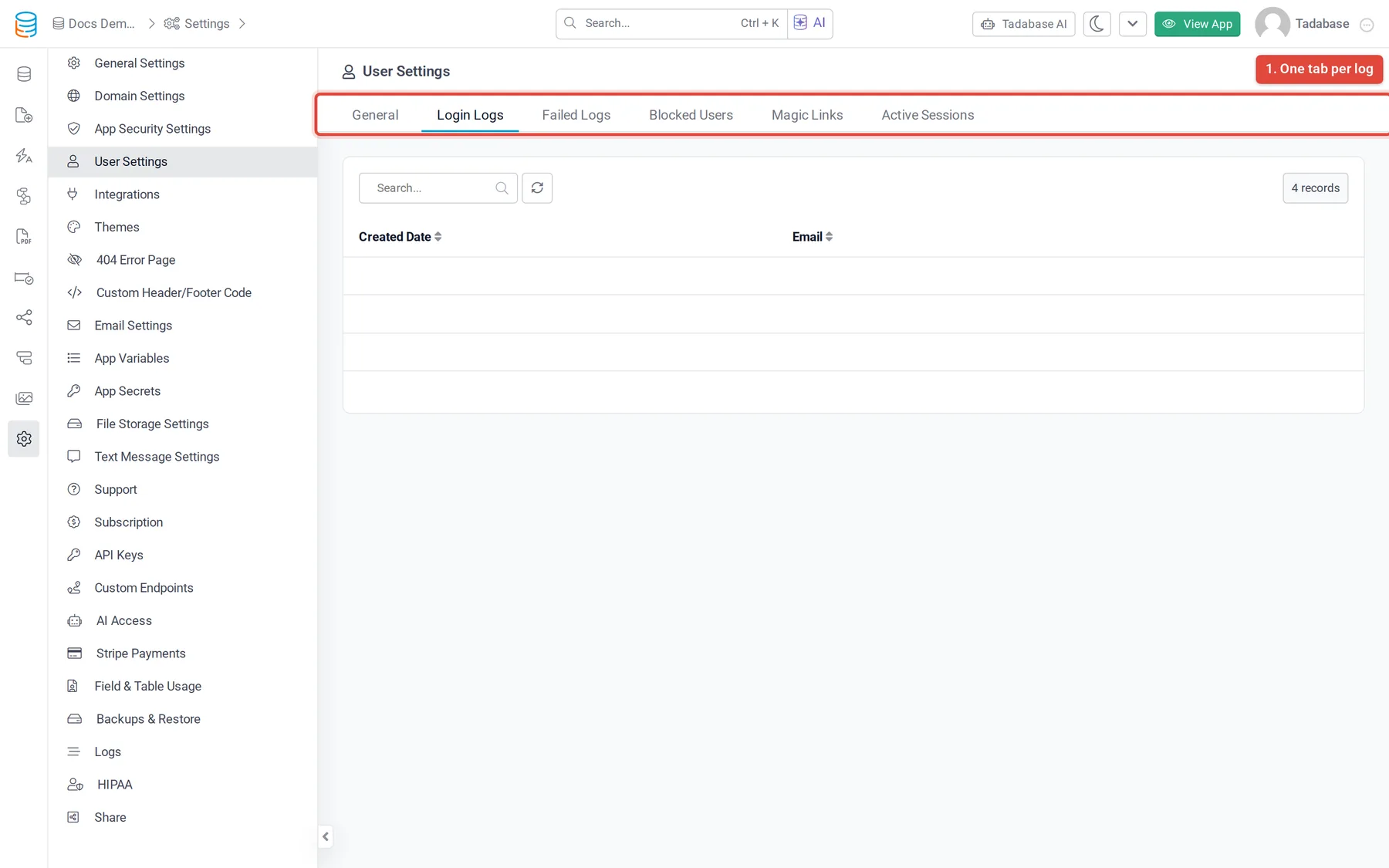
| Tab | What it lists | Needs |
|---|---|---|
| Login Logs | One row per successful login, newest first. Search with Search... and sort by any column. | Log Successful User Logins turned on in the General tab |
| Failed Logs | Each failed login attempt with Created Date, Email, IP, City, State, Country, Platform, Browser and Device. | Log Failed Login Attempts turned on |
| Blocked Users | Email addresses (Blocked Accounts) and IP addresses (Blocked IPs) locked out after too many failed attempts, with Blocked From Time, Blocked Until Time and Status. | Log Failed Login Attempts turned on |
| Active Sessions | Sessions started in the last 13 hours that have not ended, with Session Start, Last Active, Email, Name and Status. | A plan that includes active sessions |
| Magic Links | Your magic link templates, the links that are still active, and the Access Logs of links people used. | Magic links turned on for the app |
The logs only hold what happened after the option was turned on. Each option is a plan feature: when your plan does not include one, its switch is locked and shows an upgrade icon.
Get more detail in the login log #
By default a login log row says who logged in and when. Three options under Log Successful User Logins in the General tab add more columns from then on:
| Option | Adds |
|---|---|
| Log IP Address | The IP address the user logged in from. |
| Log Host Information | The browser and its version, the platform, the device type, the screen width and height, and the page URL of the login. |
| Log User Location | The address, city, state, country and coordinates the browser shared. |
If browser or IP columns are empty for recent logins, check that Log Host Information or Log IP Address is on and saved.
Unblock a user or end a session #
- Unblock someone: in Blocked Users, pick Blocked Accounts or Blocked IPs and click Unblock on the row. A block also ends on its own at the Blocked Until Time.
- End a session: in Active Sessions, click Terminate on a row with the
Activestatus and confirm. The user has to log in again.
The full steps, and how the failed-login limit is counted, are in Track logins and end active user sessions.
Magic link logs #
When magic links are on, the Magic Links tab has its own Active Links and Access Logs lists, so you can see which links were sent and which were used. See Let users log in with a magic link.
Show these logs inside your app #
To let an admin see logins without opening the builder, add a Log Table component with User Login Logs, User Failed Login Logs, Blocked User Account Logs or Access Token Logs to a page. See Show logs inside your live app.
Was this page helpful?
Something wrong or missing on this page? Tell us.