
Let users log in with a magic link
Turn on magic links, create a magic link template, and let users log in from a link sent by email, with limits on expiry, use count and IP address.
- Verified Nov 17, 2026
- Classic builder
On this page
A magic link logs a user in when they click it, with no password. Users can ask for one from your Login component, or you can put one in an email you send them. Each link expires, can be used a set number of times, and is logged.
Turn on magic links #
- Open User Settings In the builder, open Settings > User Settings, General tab.
- Enable Magic Links Scroll to Magic Links and turn on Enable Magic Links, then save. A Magic Links tab appears at the top of User Settings.
Create a magic link template #
A magic link template sets the rules every link made from it follows. You need at least one before you can send links.
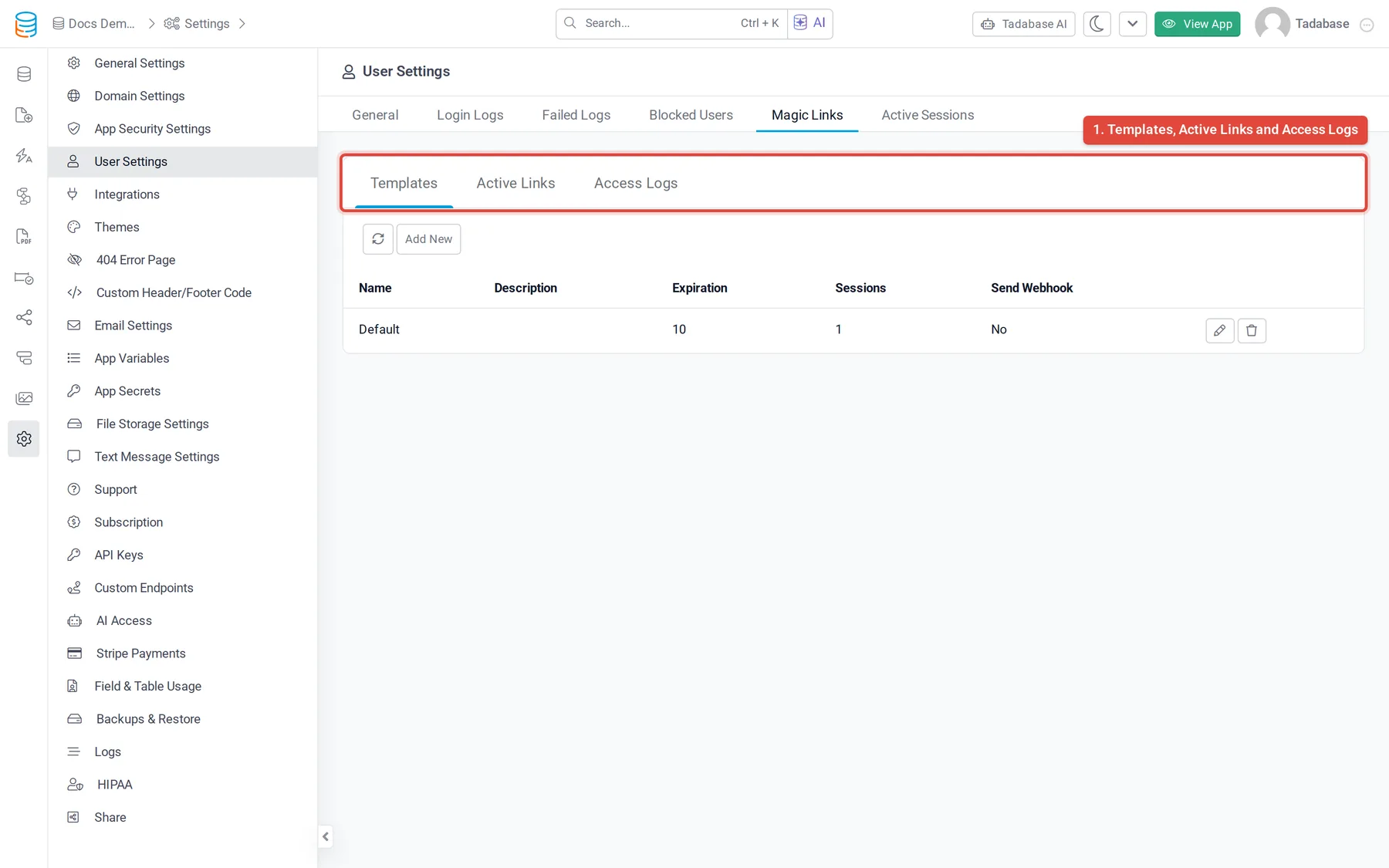
- Open the Magic Links tab In User Settings, open Magic Links, then Templates, and click Add New.
- Fill in the template Enter a Magic Link Name and set the options in the table below.
- Save Click Save. The switch at the top of the form turns the template Active or Inactive; links from an inactive template stop working.
| Option | What it does |
|---|---|
| Link Expiration Time (Minutes) | How long each link stays valid after it is created. |
| Maximum Link Usage | How many successful logins one link allows. Set it to 1 for a link that works once. |
| Magic Link Landing Page | The page the link opens. It must contain a Login component. |
| Redirect User Upon Successful Login | Where the user goes after logging in: No (the app's home page), Login Component Settings (the redirect rules of the Login component on the landing page), To a Page in the App or To a URL. A redirect set on the link in an email takes priority. |
| Send Webhook | Sends a webhook to the Webhook URL each time someone uses a link. |
| Allowed IP Addresses/ | Only these IP addresses or ranges, separated by commas, can use the link (for example 203.0.113.0/). |
| Skip 2fa | If your app uses two-factor authentication, a user who logs in with the link is not asked for a code. HIPAA-protected apps always ask for the code. |
Let users ask for a link from the Login component #
Once magic links are on and a template exists, the Login component gets a Magic Link Form: the user enters their email and receives a link.
- Edit the Login component Open the page with your Login component and edit the component.
- Choose the template Open the Magic Link Form section and pick a template under Magic Link Template.
- Write the email On the Magic Link Template email tab, choose Use Template to send one of your email templates, or Custom to write the subject and body here. In a custom body,
{magicLink}is the link and{name}is the user's name. - Show the form first (optional) In the component's options, set Default Form to Magic Link to open the magic link form instead of the password form.
The user sees "The magic link has been sent to your email." The Login component's role and status rules still apply: a user they exclude gets "You don't have permission to continue." instead.
Send a magic link in an email #
- Open an email template Open the email template you want to send from your app's Email Templates.
- Add the magic link On the template's Magic Link tab, click Add Magic Link. Choose the template under Select Magic Link, set Link Type to Full HTML (a ready-made link) or URL (the bare address), and pick Redirect Upon Login, or leave Use Magic Link Template Settings.
- Send it Send the template from a workflow's Send Email step. Each email gets its own link for the user it is sent about.
The Magic Link tab only appears on email templates when magic links are turned on.
What happens when the link is clicked #
- A valid link logs the user in and sends them to the redirect you chose.
- If two-factor authentication is on and Skip 2fa is off, the user is asked for the emailed code first.
- An expired link shows "This magic link has expired and can no longer be used."
- A link that has reached Maximum Link Usage shows "This magic link has reached its usage limit and can no longer be used."
- A link from an inactive template shows "This magic link configuration is no longer active."
- A link opened from an address outside Allowed IP Addresses/CIDR Blocks is refused.
- If your app is set to Single sign-on only, users cannot request links from the Login component; links you send still work.
Check who used a link #
In User Settings > Magic Links:
- Active Links lists every link created: the user, the template, the record it was sent about, allowed sessions, successes, failures, expiry and status. Click Disable to stop an active link working.
- Access Logs lists every attempt to use a link, with the user, status, IP address and time.
Was this page helpful?
Something wrong or missing on this page? Tell us.