
Control which records each user can see
Turn on row level security for a table and add policies that decide which records, fields and actions each role or user gets.
- Verified Nov 17, 2026
- Classic builder
- Available on: Business Starter, Business Growth, Business Pro, Business Elite
On this page
Row level security (RLS) filters the records of a table for each user. You write security policies, such as "Technicians can read and update the jobs connected to them", and Tadabase applies them every time someone reads or changes that table, so a page, a form or an API call can't show records the user isn't allowed to see.
How it works #
- RLS is set per table. Tables where it is off are not filtered.
- Once it is on, a user only gets the records that a matching policy allows. A user that no policy matches sees no records from that table.
- A policy says who it applies to (a role, some users, every logged-in user, or everyone), what they may do (read, create, update, delete), which records, and which fields stay visible.
- When several policies match the same user, only the ones with the highest Priority count. Policies tied at that priority combine, so the user gets the records any of them allows.
- Users with a Bypass Role skip every policy and see all records.
- The builder and workflows, including scheduled ones, are never filtered.
Turn on row level security for a table #
- Open the table In the Data Builder, choose the table and open its Security tab. The Row Level Security sub-tab opens.
- Switch it on Turn on Enable row level security.
- Choose where the rules apply Under Where these rules apply, pick API, Vibe & AI, Classic app & REST or Everywhere. See the table below. To protect the pages of a classic app, choose Classic app & REST or Everywhere.
- Pick bypass roles Optionally, add roles under Bypass Roles, for example Admin. Users with these roles see every record.
- Save Click Save Settings. Then add at least one policy, or nobody but bypass roles will see records from this table.
| Where these rules apply | Filtered | Not filtered |
|---|---|---|
| API, Vibe & AI (the default) | Domain API, Vibe apps, AI (MCP) requests and Custom Endpoints | Classic app pages and the REST API (api/) |
| Classic app & REST | Classic app pages and REST API calls made with a user token, as that user | REST calls made with only the API key (they act as the app owner). Domain API, Vibe apps and AI can't reach this table at all. |
| Everywhere | Classic app pages, REST calls with a user token, Domain API, Vibe apps, AI and Custom Endpoints | REST calls made with only the API key (they act as the app owner) |
If you turn row level security off later, the table's policies are kept but not applied, and a warning above the list says so. They apply again as soon as you switch it back on.
Add a security policy #
Under Security Policies, click Add Policy. A wizard opens with eight steps; use Next and Previous to move between them, or click a step on the left.
| Step | What you choose |
|---|---|
| Who can use this access? | Specific Roles (pick them under Target Roles), Specific Users (users that match conditions on the Users table), Any Logged in Users, or Anyone (Public), which includes visitors who are not logged in. |
| Which operations are allowed? | Read, Create, Update, Delete, or Full permission for all four. |
| Which records can they access? | All, or Add Conditions to limit the records. Shortcuts: All Records; on tables connected to the Users table, "Connected using ... field" options for records connected to the logged-in user; on the Users table, Allow Only Me so each user gets only their own user record. |
| Which fields should be shown or hidden? | All Fields, Restrict the following (hide the fields you pick) or Only allow the following (show only the fields you pick). Hidden values can show as Starred, Circle, Blurred or Blank. |
| Which workflows can be triggered? | All Workflows, Restrict the following (block the ones you pick) or Only allow the following. |
| Which import templates can be triggered? | All Import Templates, Restrict the following or Only allow the following. |
| Which export templates can be triggered? | All Export Templates, Restrict the following or Only allow the following. |
| Policy Details | Policy Name (required), Description and Priority. A plain-English Policy Description sums up what you chose. |
Click Create Policy. The policy appears in the list with its target, operations, priority and status.
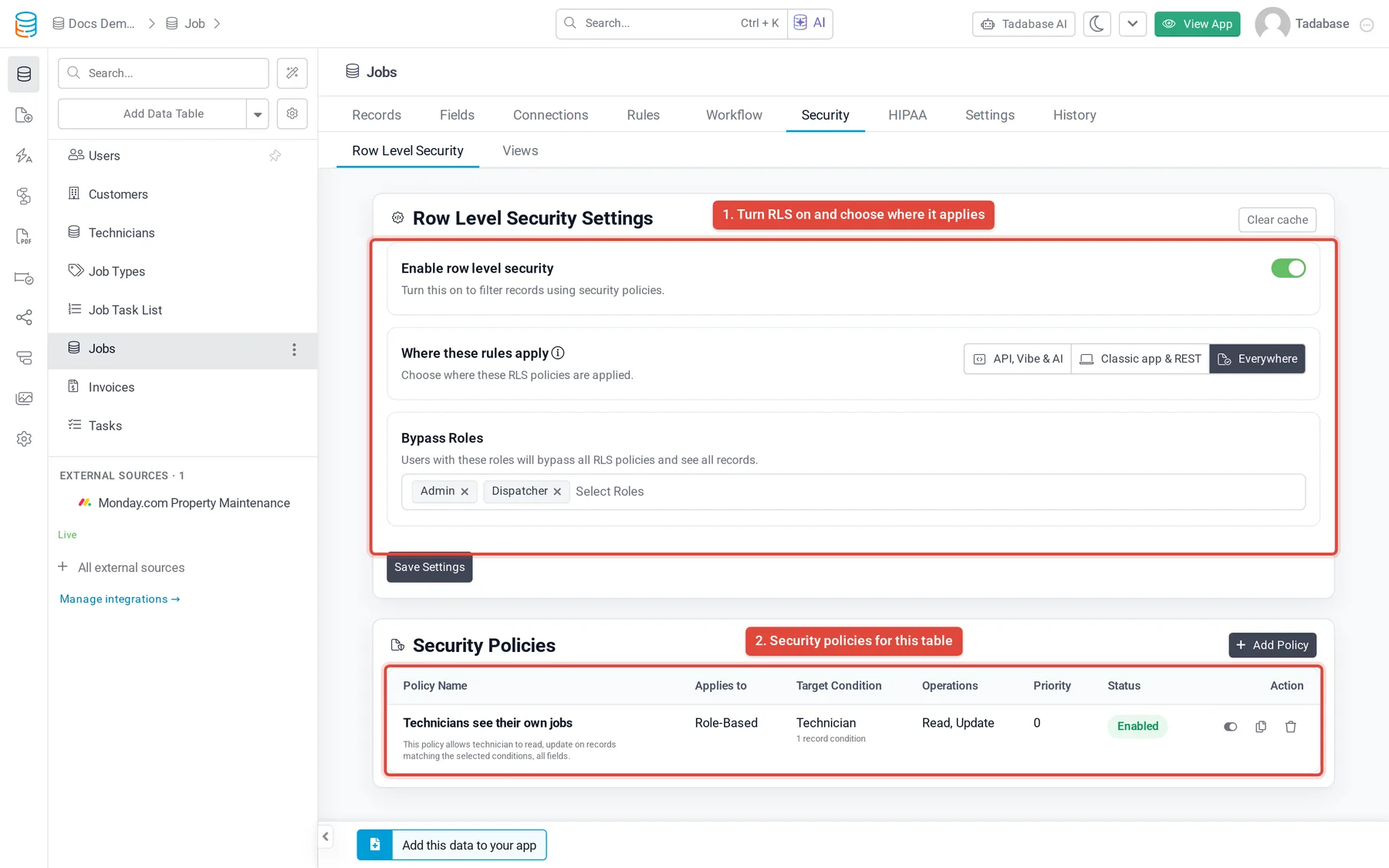
Example: technicians see only their jobs #
- Who Specific Roles, with Technician under Target Roles.
- Operations Read and Update.
- Records The "Connected using ... field" option for the Jobs field that links each job to its technician's user record.
- Details Name it "Technicians: own jobs" and click Create Policy.
Add a second policy for the Dispatcher role with Full permission and All records, or add Dispatcher as a Bypass Role.
Change, pause or remove a policy #
- Click a policy to edit it. The switch at the top of the editor turns it on or off.
- In the list, the Action column has buttons to Enable or Disable, Duplicate and Delete a policy.
- Clear cache at the top of the tab makes the Domain API return fresh data for this table on its next read. Use it if an API client still sees old results after you change policies.
API settings on the Users table #
On the Users table, the Security tab has an extra API sub-tab:
- Allow RLS Permission for API Access: when on, row level security policies are applied when tables are accessed through an API domain.
- Who can use this API?: Specific Users, Any Logged in Users, Anyone (Public) or Specific Roles (under Allowed Roles).
- Users Logs Permission: click Manage Logs Access to choose who can read each log type over the API (for example login, active session, record and delete logs). Each type can be Full Access, Restrict to roles or Block roles, and can be limited to a user's own entries.
Click Save Settings when you are done.
Check what a user can see #
- Open the overview In the builder's Data Builder menu, choose Row Level Security Overview. It lists every table with its RLS status and policies.
- View as a user Click View Permissions As. Choose Public (Unauthenticated) or search for a user.
- Read the result You see that user's effective permissions across all tables. Fix any policy that gives too much or too little.
For a final check, sign in to the live app as a test user with the role and open the pages that show the table.
Common problems #
| Problem | What to check |
|---|---|
| Users see no records at all | No policy matches them. Add a policy for their role, check that it is Enabled, and check that its operations include Read. |
| The classic app still shows every record | Where these rules apply is set to API, Vibe & AI. Choose Classic app & REST or Everywhere. |
| A policy seems to be ignored | Another matching policy has a higher Priority, so only that one counts. Give both the same priority if they should combine. |
| An integration using the REST API key sees everything | REST calls made with only the API key act as the app owner and are not filtered. Use a user token, or the Domain API, for filtered access. |
Was this page helpful?
Something wrong or missing on this page? Tell us.