
Require two-factor authentication for app users
Make app users enter a 6-digit code from their email after their password, customize the code email, and help a user who cannot get the code.
- Verified Nov 17, 2026
- Classic builder
- Available on: Business Starter, Business Growth, Business Pro, Business Elite
On this page
With two-factor authentication (2FA) on, a user who logs in to your app with their email and password must also enter a 6-digit code that Tadabase emails to them. Someone who learns a user's password still cannot log in without access to that user's inbox.
Before you start #
- 2FA is included on the Business Starter, Business Growth, Business Pro and Business Elite plans. On other plans the switch is locked and shows an upgrade icon.
- The setting covers the whole app: once it is on, every user who logs in with email and password gets a code. There is no setting for individual roles or users.
- Codes go to the email address in the user's record, so each user needs a working email address.
- This page is about the users of your app. To protect your own Tadabase builder account, see Tadabase builder security.
Turn on two-factor authentication #
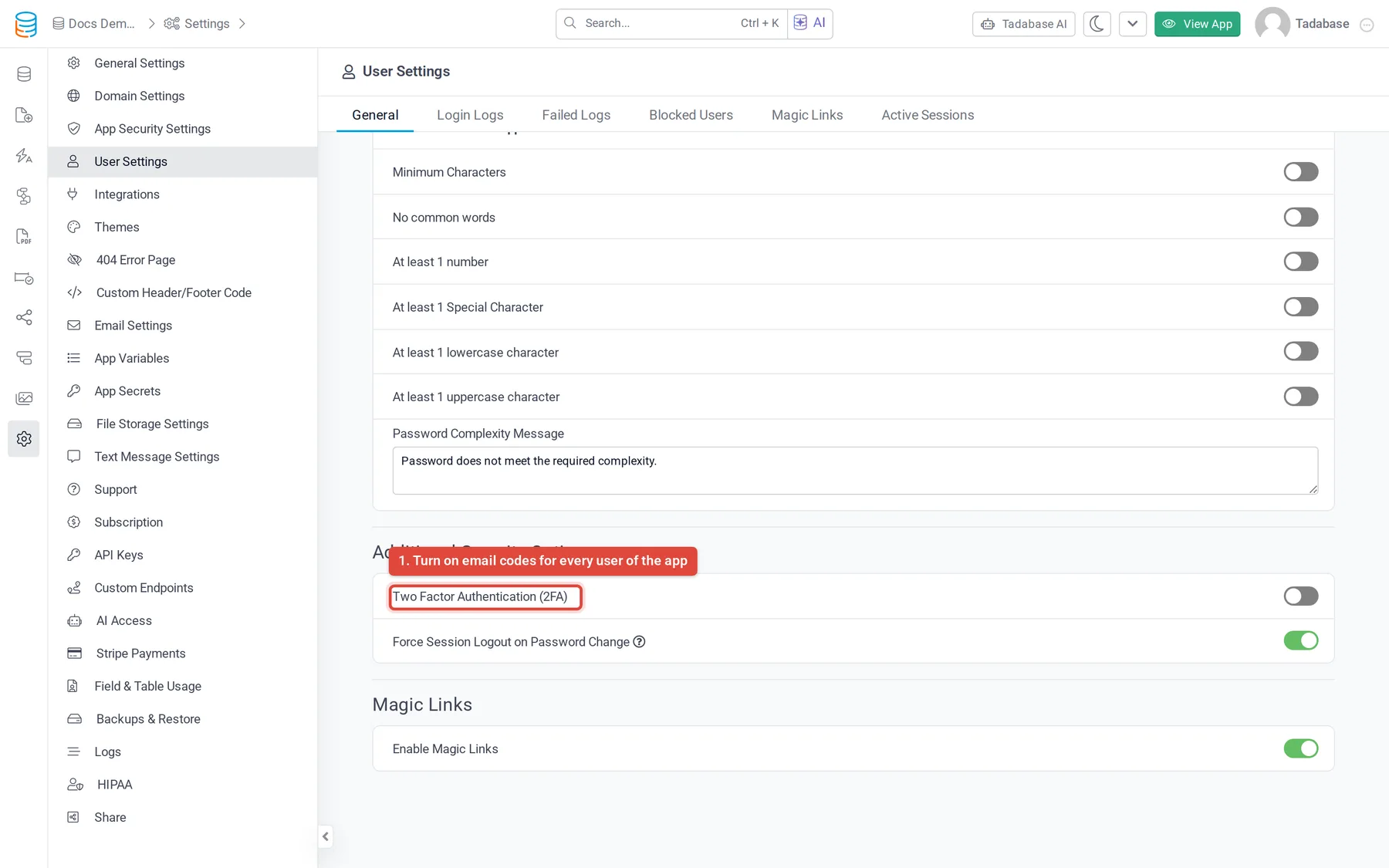
- Open User Settings In the builder, open Settings and choose User Settings. The General tab opens.
- Switch on 2FA In Additional Security Options, set Two Factor Authentication (2FA) to Enabled.
- Test it Log in to your live app as a test user. After the password, the login form asks for the code, and the code arrives by email.
What users see when they log in #
- They enter their email and password If the password is right, the Login component switches to its Two Factor Authentication Form instead of logging them in.
- They get the code by email Tadabase emails a 6-digit code to the user's address. By default the subject is
6 Digit Authentication Code on {appName}, with your app's name in place of{appName}. - They enter the code The user types the code into 6 Digit Authentication Code and clicks Continue. If the code is right, they are logged in.
| Rule | Detail |
|---|---|
| How long a code works | 10 minutes from when it was first sent. After that the user sees The code entered has expired. |
| How many times | Once. After a successful login the code stops working, and the next login sends a new one. |
| Wrong code | The user sees Invalid code and can try again while the code is still valid. |
| Getting the email again | There is no resend button. The user clicks Back to login and logs in again. While the first code is still valid, the same code is emailed again, at most once every 2 minutes. After 10 minutes, logging in sends a new code. |
If you keep login logs, a 2FA login is recorded only after the user enters the right code. See Track logins and end active user sessions.
Change the code email and the code form #
Each Login component has its own 2FA email. Open the page with the Login component in the page builder, open the component's settings, and go to the Email Template tab, then 2FA Template.
| Template Type | What to do |
|---|---|
| Custom (default) | Edit Subject and Email Template. You can use {name} (the user's name), {appName} and {code}. Keep {code} in the template: it is where the code goes. |
| Use Template | Pick one of your app's email templates of the 2FA type in Select Template. |
To change the labels and text of the code screen, go to the Forms tab of the same component and open Two Factor Authentication Form. See Login component for the other forms.
Logins that do not ask for a code #
- Single sign-on. Users who log in with an SSO provider such as Google or Microsoft are not asked for a code; the provider handles their sign-in. See Single sign-on (SSO).
- Magic links with Skip 2fa on. A magic link asks for a code when 2FA is on, unless the magic link has Skip 2fa switched on (apps with HIPAA protection always ask). A code requested from a magic link works for 60 minutes. See Magic links.
When a user does not get the code #
- Check the user's email address Open the user's record in the Users table and make sure the email is correct. If it is not a valid address, the login form shows
Invalid Email addressand no code is sent. - Check that the email was sent Look for the code email in your app's email logs. The code itself is hidden in the log.
- Ask the user to look again Ask them to check spam and quarantine folders, wait a minute, and then log in again to get the email again.
- Let them in another way if you need to Send them a magic link with Skip 2fa switched on, or switch Two Factor Authentication (2FA) off for a short time. Switching it off applies to every user, so switch it back on afterwards.
Run a workflow when a user logs in #
To act on logins, for example to notify an admin or update the user's record, use a workflow with the User Event trigger. See Workflow triggers.
Was this page helpful?
Something wrong or missing on this page? Tell us.