
Choose how users sign up and log in
Turn on email and password, magic links or single sign-on for your app's users, limit who can sign up, and add the Login and Signup components.
- Verified Nov 17, 2026
- Classic builder
On this page
Your app's users can sign up and log in with an email and password, with a magic link, or with a single sign-on (SSO) provider such as Google or Microsoft. You choose which methods are allowed in User Settings, and the Login and Signup components on your pages show the methods you turned on.
The login methods #
| Method | Where you turn it on | Set it up |
|---|---|---|
| Email and password | Login/ | This page |
| Magic link (log in from a link sent by email) | Magic Links > Enable Magic Links | Let users log in with a magic link |
| Login/ | Let users log in with Google | |
| Microsoft (Azure) | Login/ | Let users log in with Microsoft Azure |
| Okta | Login/ | Let users log in with Okta |
| Facebook, Twitter, Auth0 | Login/ | Let users log in with single sign-on |
| Two-factor code by email (added on top of a password) | Additional Security Options > Two Factor Authentication (2FA) | Two-factor authentication |
Turn login methods on or off #
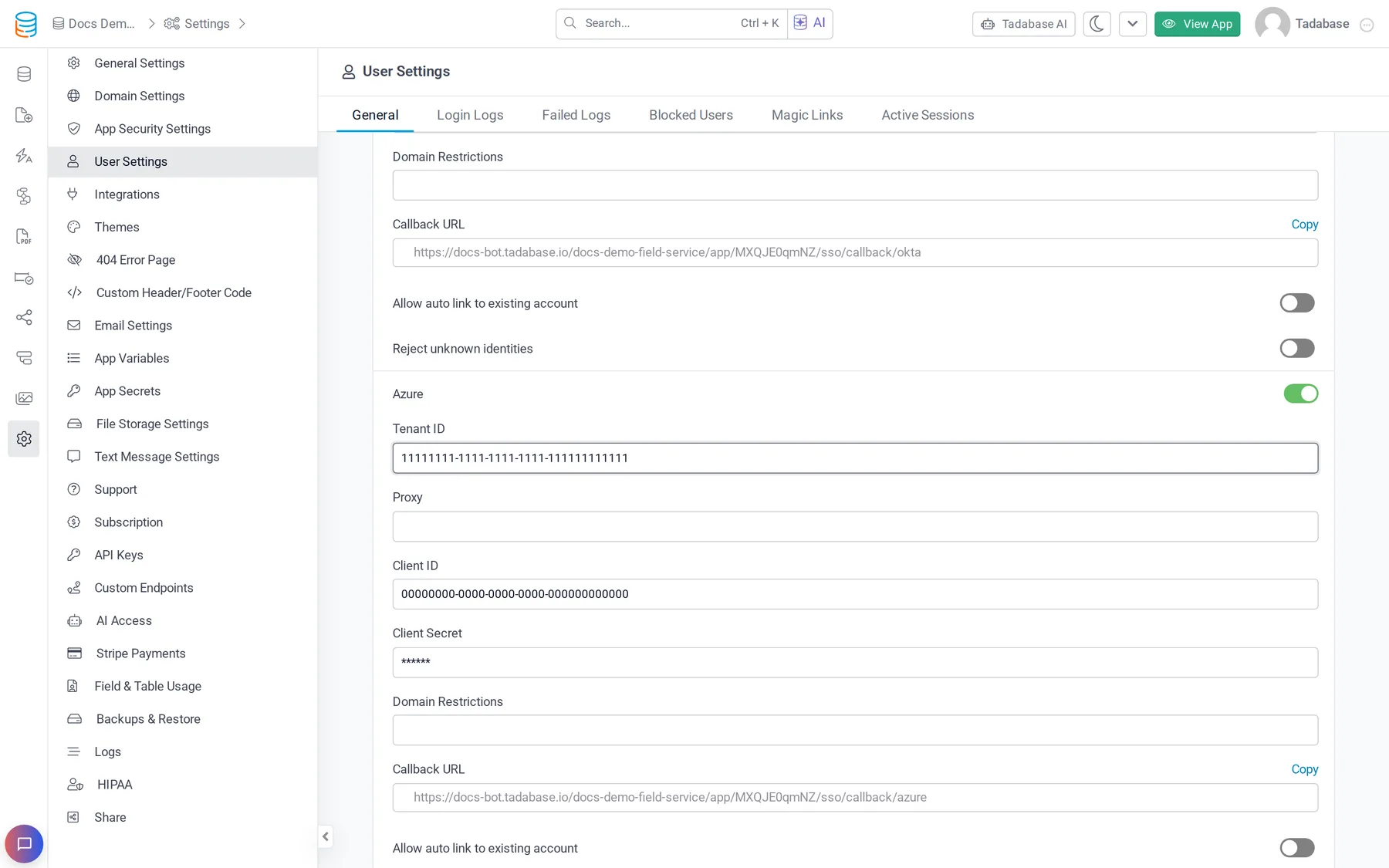
- Open User Settings In the builder, open Settings and choose User Settings. The General tab opens.
- Find Login/Signup Methods Each method that is on has its own card with an Enable/Disable switch. Methods that are off are shown as icons under the cards.
- Turn a method on Click the method's icon (the envelope for Email, or a provider logo). Its card opens so you can fill in its settings.
- Turn a method off Set the switch on the method's card to Disable. The card closes and the icon returns to the row underneath.
- Save Save your changes. Then add the matching buttons to your Login and Signup components (see below).
Limit who can sign up #
There is no separate switch that closes sign-ups for the whole app. Use these settings instead:
| Setting | What it does |
|---|---|
| Domain Restrictions on the Email card | Only email addresses from the domains you list (for example yourcompany.com, partner.com) can sign up or log in with a password. This setting is a plan feature. |
| Domain Restrictions on a provider's card | Only accounts from the listed domains can sign in with that provider. |
| Email set to Disable | Hides the email and password form in every Login and Signup component. Users can only use the methods that are still on. |
| Reject unknown identities (Okta, Auth0, Azure) | A directory user who has no account in your app is refused instead of being offered sign-up. |
| Single sign-on only (shown when Okta, Auth0 or Azure is on) | Turns off password sign-in, password reset, self-serve magic links and sign-up for everyone except the emails you list under Break-glass administrators. Tadabase enforces it on the server, including the API. |
| No Signup component | If none of your pages has a Signup component, nobody can register from the live app. You add users yourself in the Users table. |
Add the Login and Signup components #
Users log in through a Login component and register through a Signup component that you place on a page. Each component has its own settings, such as which roles may log in through it and where to send the user afterwards. See Login component and Signup component.
- Every SSO provider you turn on adds a Login With provider (SSO) button to the Login component's field list, and a Signup With provider (SSO) button to the Signup component's Buttons/HTML list.
- When Email is off, the Login component shows a Single Sign On (SSO) Form section and the Signup component shows a Single Sign On (SSO) section. Put the SSO buttons there: the editor warns that the email form will not appear in your live app.
- When magic links are on and at least one magic link template exists, the Login component gets a Magic Link Form. See Let users log in with a magic link.
What a visitor sees on a secured page #
When a page is restricted under Who can view this page, a visitor who is not allowed in does not get a login form. Tadabase shows what you choose in the page's Select an action for non-authorized users setting:
- Display default error message: "You don't have permission to access this page."
- Display a custom message: your own text.
- Redirect to another page: send the visitor to a page you pick, for example a page with your Login component.
Other settings on the same screen #
- Password rules (Password Lifecycle and Password Complexity) and active sessions: User security.
- User Login Logs and failed logins: User logs.
- Two Factor Authentication (2FA): Two-factor authentication.
- Logging in to your app's API with a user's credentials: Authentication methods.
Was this page helpful?
Something wrong or missing on this page? Tell us.