
Log users out automatically after inactivity
Turn on App Auto Logout to sign app users out after 1 minute to 8 hours away from your app, and set the message they see on the login page.
- Verified Nov 17, 2026
- Classic builder
On this page
App Auto Logout signs people out of your live app when they have been away from it for a set time, so an unattended computer does not stay signed in. Use it for apps that hold personal, financial or health data.
Turn on App Auto Logout #
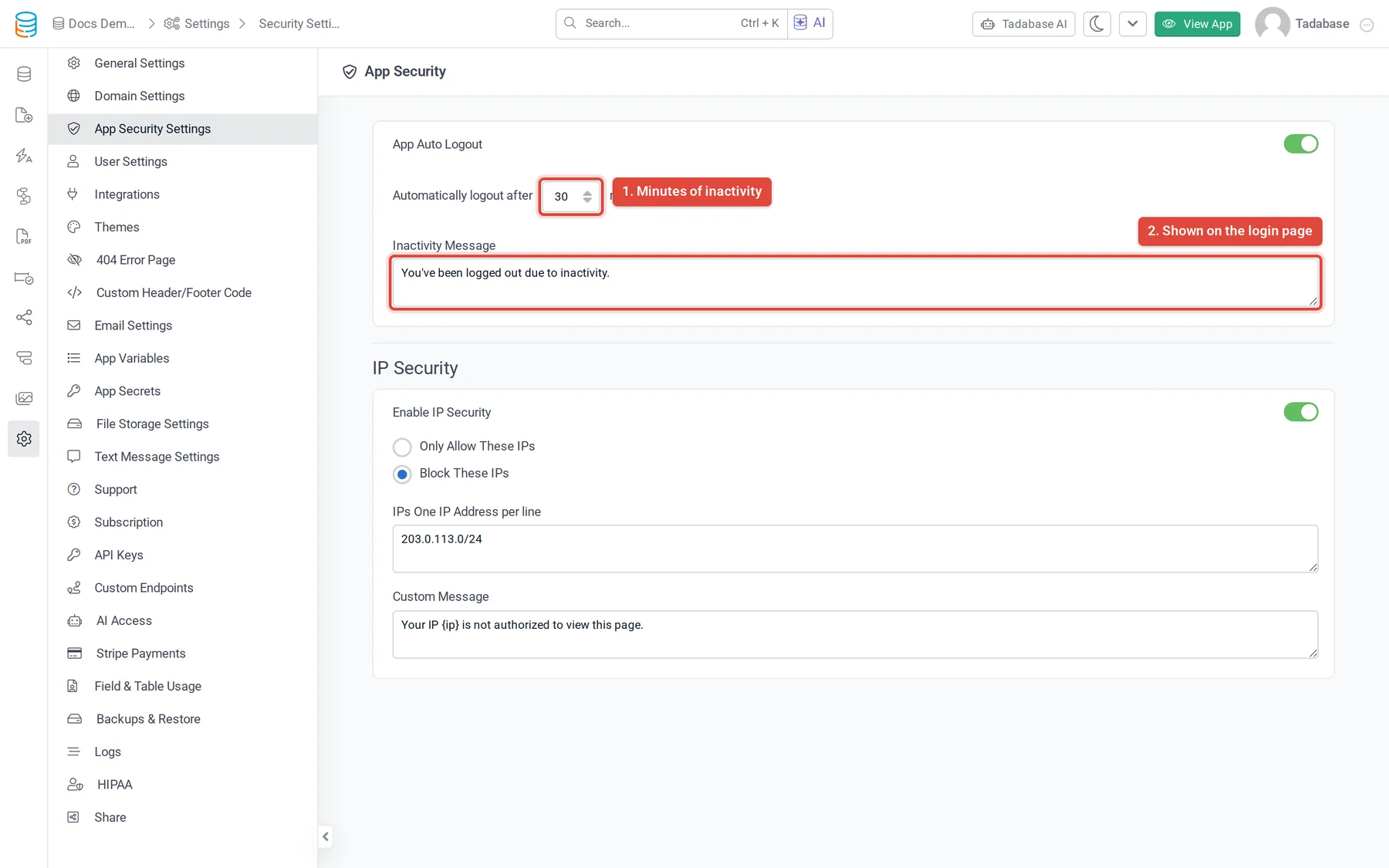
- Open the security settings In the builder, open Settings and choose App Security Settings. The page is titled App Security.
- Switch it on Turn on App Auto Logout. If the switch is locked and shows an upgrade icon, your plan does not include it.
- Choose the time In Automatically logout after ... minutes of inactivity, pick how long a person can be away before they are signed out. It starts at 30 minutes.
- Write the message Edit Inactivity Message. It is shown on the login page after someone is signed out. The default is "You've been logged out due to inactivity."
- Save Save the settings. The change applies the next time users load the app.
Time options #
| Option | Signs the user out after |
|---|---|
1, 5, 10, 15, 30, 60 | That many minutes |
4 Hours | 240 minutes |
8 Hours | 480 minutes |
What counts as inactivity #
- The timer starts when the app's browser tab is no longer in view, for example when the person switches to another tab or minimizes the browser.
- If the person comes back to the app's tab before the time is up, the timer stops and starts again the next time they leave. Opening another tab of the same app has the same effect.
- When the time runs out, the person is signed out and sent to the login page, which shows your Inactivity Message.
- It applies to every signed-in user of the app, whatever their role. Visitors who are not signed in are not affected.
Check that it works #
- Use a short time Set the time to
1minute and save. - Sign in to the live app Sign in as a test user, then switch to another browser tab for more than a minute.
- Come back Return to the app's tab. You should be on the login page with your Inactivity Message. Set the time back to the value you want.
Other security settings #
- To allow or block visitors by IP address, see Allow or block app access by IP address. It is on the same settings page.
- To stop records from being added or changed in the live app, use Read Only in Settings > General Settings.
- To serve your app on your own domain with HTTPS, see Using custom domains.
Was this page helpful?
Something wrong or missing on this page? Tell us.