
Allow or block app access by IP address
Use IP Security to let only listed IP addresses or ranges open your live app, or to block them, and set the message blocked visitors see.
- Verified Nov 17, 2026
- Classic builder
- Available on: Business Pro, Business Elite
On this page
IP Security decides which networks can open your live app. Allow only your office or VPN addresses, or block addresses you don't want in. Everyone else sees a short message instead of the app.
Set up IP Security #
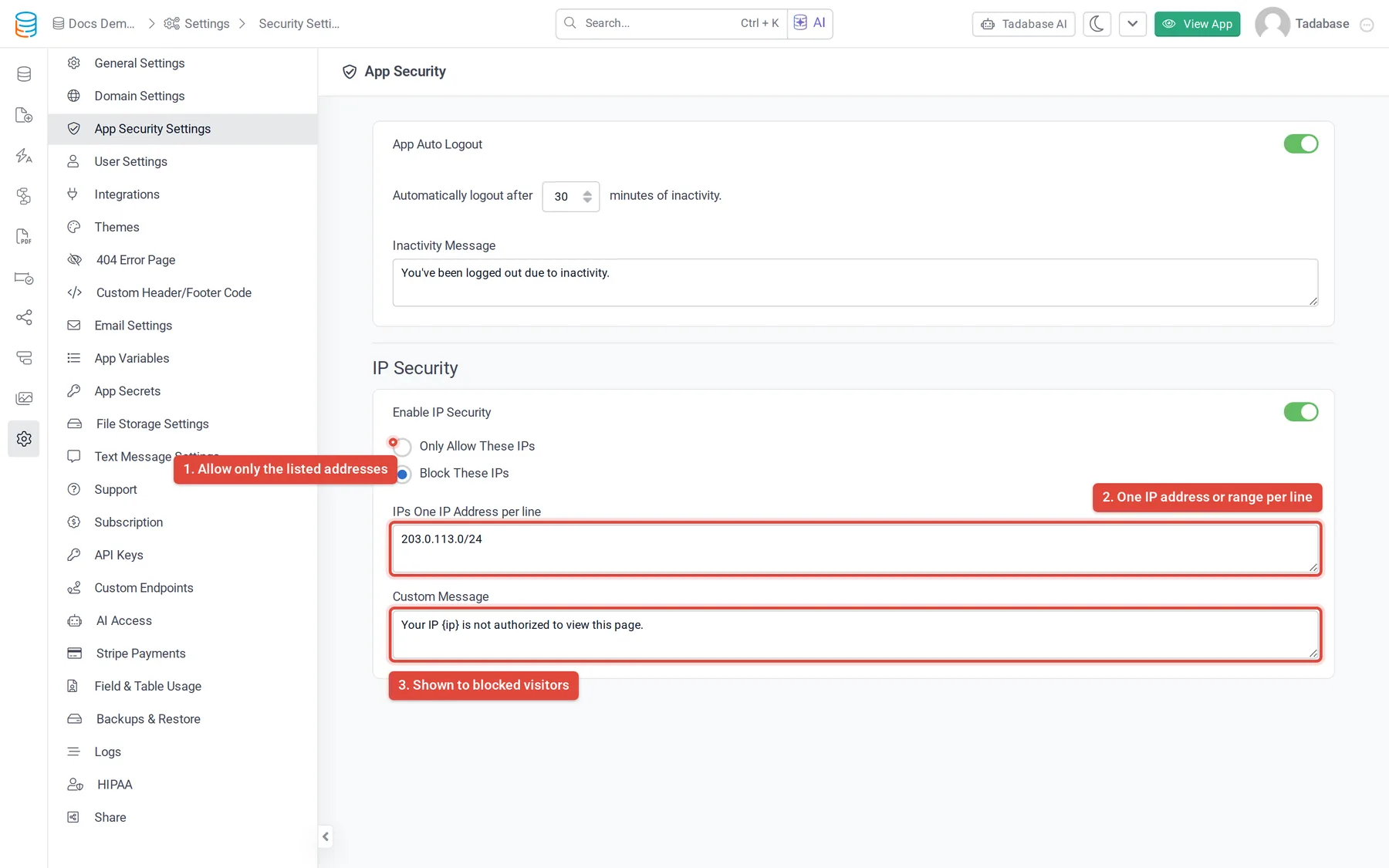
- Open the security settings In the builder, open Settings and choose App Security Settings. IP Security is the second section of the page.
- Switch it on Turn on Enable IP Security. If the switch is locked and shows an upgrade icon, your plan does not include it.
- Choose the mode Pick Only Allow These IPs to let in only the addresses you list, or Block These IPs to keep the listed addresses out. Block These IPs is selected by default.
- List the addresses In IPs, enter one IP address per line. See the formats below.
- Write the message In Custom Message, write what a blocked visitor sees. Add
{ip}to show them their own address, for exampleYour IP {ip} is not authorized to view this page. - Save Save the settings. The rule applies to the next page anyone loads.
What you can put in the list #
| Entry | Example | Matches |
|---|---|---|
| A single address | 203.0.113.25 | That address only |
| An IPv4 range in CIDR form | 203.0.113.0/ | Every address from 203.0.113.0 to 203.0.113.255 |
- Wildcards such as
203.0.113.*and ranges written with a dash are not understood: such a line matches nothing. - IPv6 addresses only match when written out exactly as the visitor's address. Ranges work for IPv4 only, so don't enter IPv6 ranges.
- Spaces at the start or end of a line are ignored.
- Use public addresses: the address your network shows to websites, not a local one such as
192.168.1.10. - If the list is empty, IP Security does not block anyone, in either mode.
What it protects #
- It applies to your live app on its Tadabase address and on a custom domain. A blocked visitor gets a plain page with your Custom Message and nothing else: no pages, layouts or components load.
- It applies to everyone who opens the live app, signed in or not, whatever their role.
- It does not apply to the builder. You can always sign in to the builder and change or turn off IP Security.
Avoid locking people out #
If someone is blocked by mistake, ask them for the address shown in the message (add {ip} to the message so they can see it), add it to IPs in the builder, and save. If you locked everyone out, sign in to the builder and turn off Enable IP Security.
Plans #
IP Security is part of the Business Pro and Business Elite plans.
To sign people out after a period away from the app, see Log users out automatically after inactivity.
Was this page helpful?
Something wrong or missing on this page? Tell us.