
Set password rules for app users
Require stronger passwords for app users, make passwords expire after a set number of days, and stop users from reusing their recent passwords.
- Verified Nov 17, 2026
- Classic builder
On this page
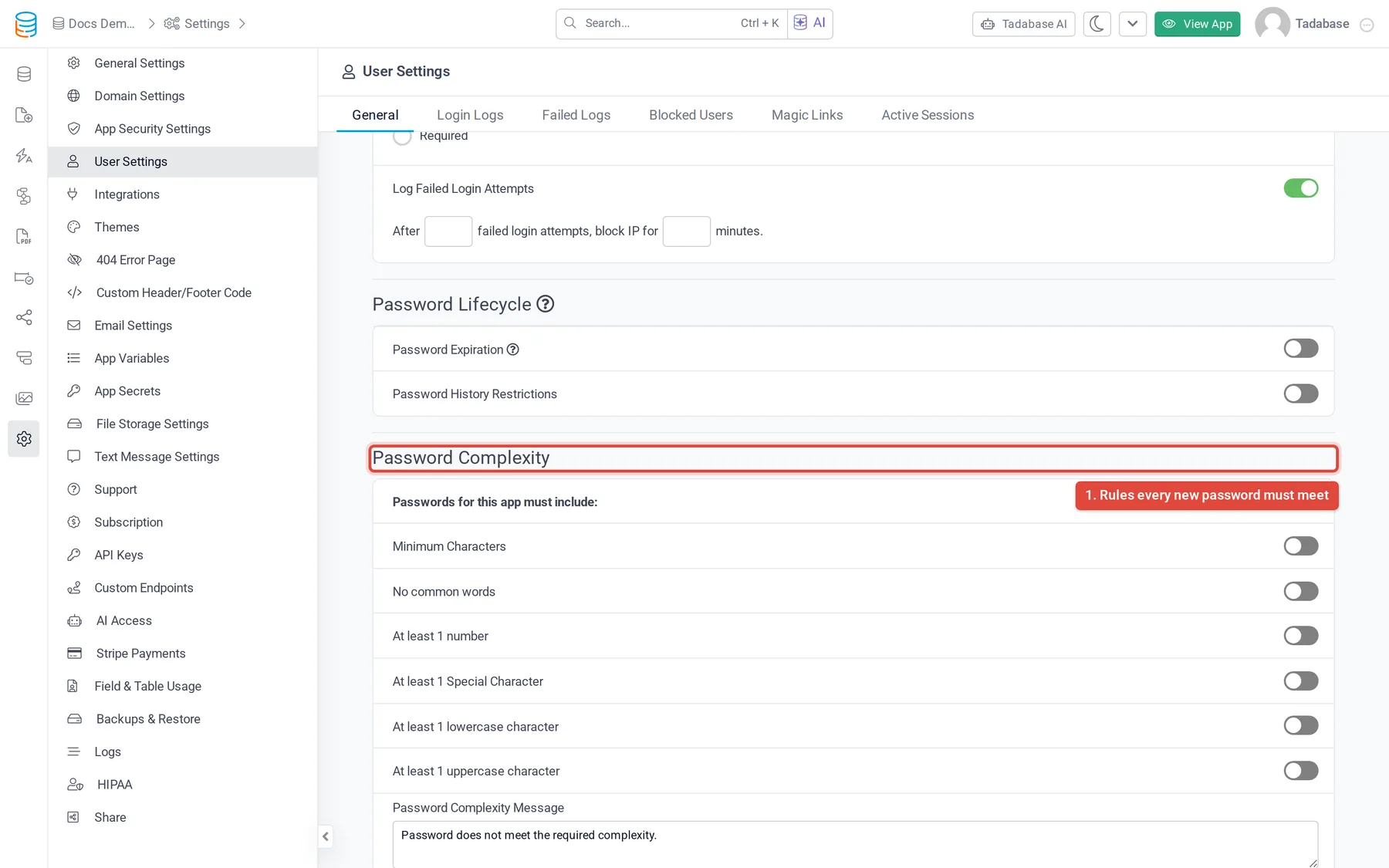
Password rules decide what counts as an acceptable password for the users of your app, how long a password lasts, and whether old passwords can be used again. You set them for the whole app in Settings > User Settings, on the General tab.
Set password complexity rules #
- Open User Settings In the builder, open Settings and choose User Settings. The General tab opens.
- Find Password Complexity Scroll to the Password Complexity section. It lists the rules under Passwords for this app must include:.
- Turn on the rules you want Switch on each rule. For Minimum Characters, enter the length in the field that appears (the default is
8). - Write the message Edit Password Complexity Message. Users see it above the list of rules their password failed. The default is
Password does not meet the required complexity.
| Rule | What the password needs |
|---|---|
| Minimum Characters | At least the number of characters you enter. |
| No common words | Must not be one of a built-in list of the most common passwords, such as password, 123456 or qwerty. The check ignores letter case. |
| At least 1 number | At least one digit, 0 to 9. |
| At least 1 Special Character | At least one character that is not a letter or a digit, such as !, # or a space. |
| At least 1 lowercase character | At least one lowercase letter, a to z. |
| At least 1 uppercase character | At least one uppercase letter, A to Z. |
When the rules are checked #
Tadabase checks a password against your rules when it is set:
- When someone signs up through a Signup component.
- When a user changes their password in a Profile component.
If the password breaks a rule, it is not saved. The user sees your Password Complexity Message followed by one line for each rule it failed, for example Password must have at least 8 characters. or Password requires a number.
Passwords longer than 255 characters are always rejected.
Make passwords expire #
The Password Lifecycle section, on the same General tab, makes users choose a new password after a number of days.
- Turn on Password Expiration In Password Lifecycle, switch on Password Expiration.
- Set the number of days Enter how long a password lasts in Number of Days. The default is
90. - Warn users before it expires (optional) Switch on Expiration Warning Notification. In Show expiration warning, enter how many days before expiry the warning starts (default
7). Edit Warning message;{day}is replaced with the number of days left.
When a user whose password has expired logs in, the Login component shows its Password Expiration Form and emails the user a verification code. The user enters the code and a new password, then logs in with the new password. During the warning period, the Login component shows the Password Warning Form with your message, a Reset Password button and a Continue Login button.
You can change the wording of both forms in the Login component's settings, on the Forms tab. See Login component.
Stop users reusing recent passwords #
- Turn on Password History Restrictions In Password Lifecycle, switch on Password History Restrictions.
- Choose how many passwords to remember In Prevent reuse of last, enter how many previous passwords cannot be used again. The default is
3. - Write the message Edit Reuse warning message. Users see it when they pick a password they used recently. The default is
Please choose a new password that hasn’t been used recently.
The history is checked, and the old password stored, when a user resets a forgotten password and when they set a new password after it expired.
When both Password Expiration and Password History Restrictions are on, User Settings shows a User Password History tab. It lists each password change with Changed At, User Name and User Email. Use Delete on a row to remove that stored password from the history. The tab never shows the passwords themselves.
Log users out of other sessions when they change their password #
Force Session Logout on Password Change, in the Additional Security Options section, is Enabled by default. When a user changes their password in a Profile component, their other sessions are logged out, so a session someone else opened with the old password stops working. Switch it to Disabled to leave the other sessions open.
Resetting a forgotten password always logs out the user's active sessions.
Plans #
Password Complexity and Password Lifecycle are not included on every plan. If your plan does not include them, the settings are greyed out and show an upgrade icon. Compare plans on the pricing page.
Looking for something else? #
This page used to cover more of User Settings. Those topics now have their own pages:
- Session tracking and login logs: Track logins and end active user sessions.
- Two-factor codes at login: Require two-factor authentication for app users.
- Turning off signups and the default login form: Email and password logins.
Was this page helpful?
Something wrong or missing on this page? Tell us.