
Track logins and end active user sessions
Log app user logins and failed attempts, block repeated failed logins automatically, and see who is logged in now so you can end a session.
- Verified Nov 17, 2026
- Classic builder
On this page
User Settings can keep a log of every login and logout in your app, record failed login attempts and block the email or IP address behind them, and show who is logged in right now so you can end a session. Use these when you need an audit trail of access to your app, or when you suspect an account is being misused.
Turn on login logs #
- Open User Settings In the builder, open Settings and choose User Settings. The General tab opens.
- Switch on logging In the User Login Logs section, set Log Successful User Logins to Enabled. Each login and logout from now on is recorded.
- Choose what else to record More options appear once logging is on. Turn on the ones you need (see the table below).
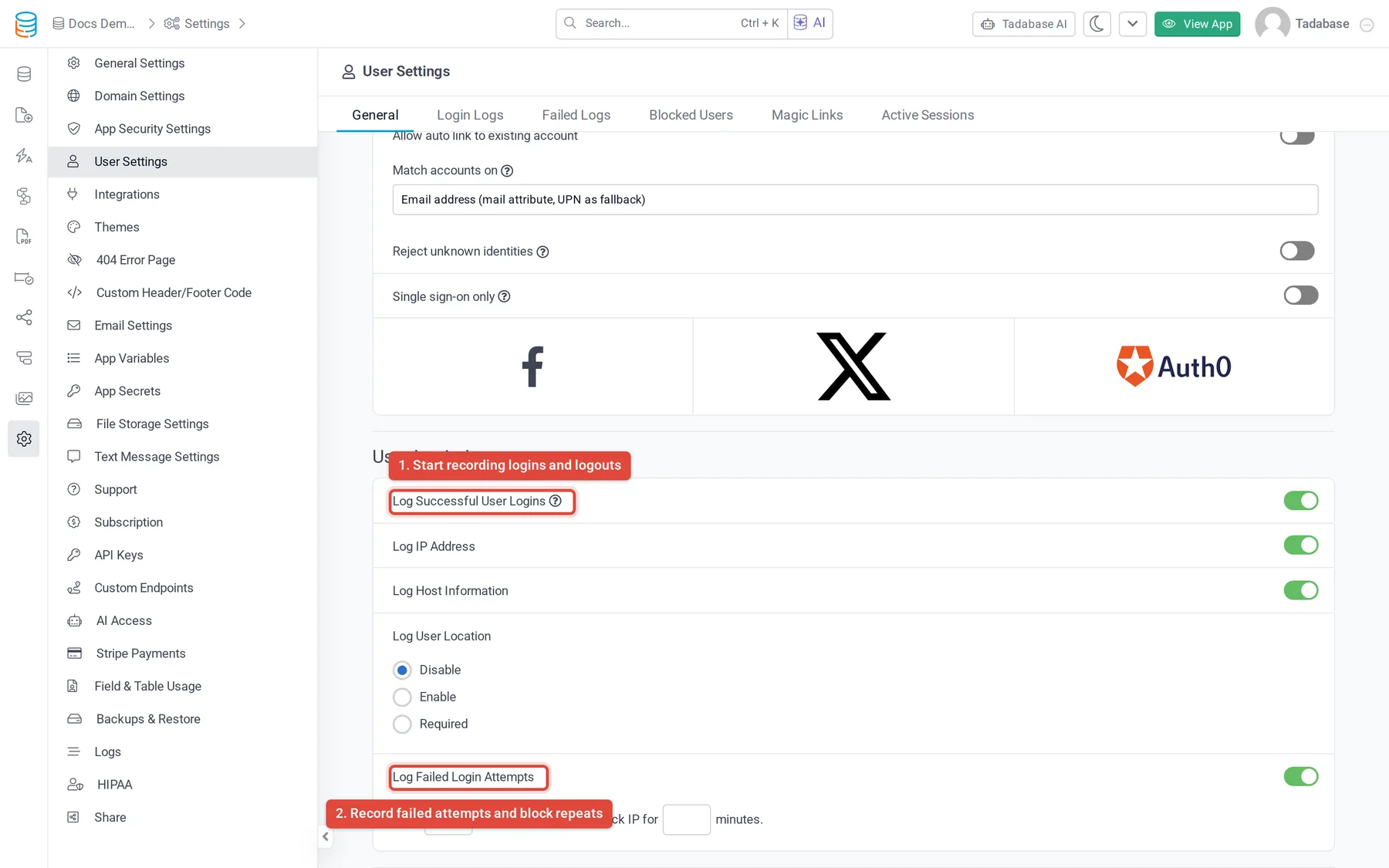
| Option | What it adds to each log entry |
|---|---|
| Log IP Address | The IP address the user logged in from. |
| Log Host Information | The browser, platform and device the user logged in from. |
| Log User Location | The user's location, taken from their browser. Disable turns it off. Enable records the location when the browser shares it. Required refuses the login when the browser does not share a location and shows the text you write in Error Message. |
Nothing is recorded for logins that happened before you turned an option on.
View login logs #
Open Settings > User Settings and click the Login Logs tab. Each row is one login or logout, with the user and the time, plus the IP, host and location columns you chose to record. Click a column heading to sort, use the refresh button to load new entries, and use Delete to remove a row.
If your app uses two-factor authentication, a login is recorded only after the user enters the right code.
Record failed logins and block repeated attempts #
- Switch on failed-login logging In the User Login Logs section of the General tab, switch on Log Failed Login Attempts.
- Set the limit Fill in the two boxes in the line that appears, which reads After (number) failed login attempts, block IP for (number) minutes. Both default to
3, and both must be more than 0 for blocking to work.
Failed attempts are counted per email address and per IP address over the last number of minutes you set. When either count reaches the limit, that email address is added to Blocked Accounts and that IP address to Blocked IPs, both for the same number of minutes. While blocked, a login attempt is refused with a message such as You're blocked for next 3 minutes., counting down the minutes left.
The Failed Logs tab lists every failed attempt with Created Date, Email, IP, City, State, Country, Platform, Browser and Device. The password the user typed is not stored.
Unblock a user or an IP address #
- Open Blocked Users In Settings > User Settings, click the Blocked Users tab.
- Pick the list Click Blocked Accounts for email addresses or Blocked IPs for IP addresses. Each row shows Blocked From Time, Blocked Until Time and Status.
- Unblock Click Unblock on the row. The user can try to log in again straight away.
Blocks also end on their own at the Blocked Until Time.
See who is logged in and end a session #
Every time a user logs in, Tadabase starts a session for them. Open Settings > User Settings and click the Active Sessions tab to see the sessions started in the last 13 hours.
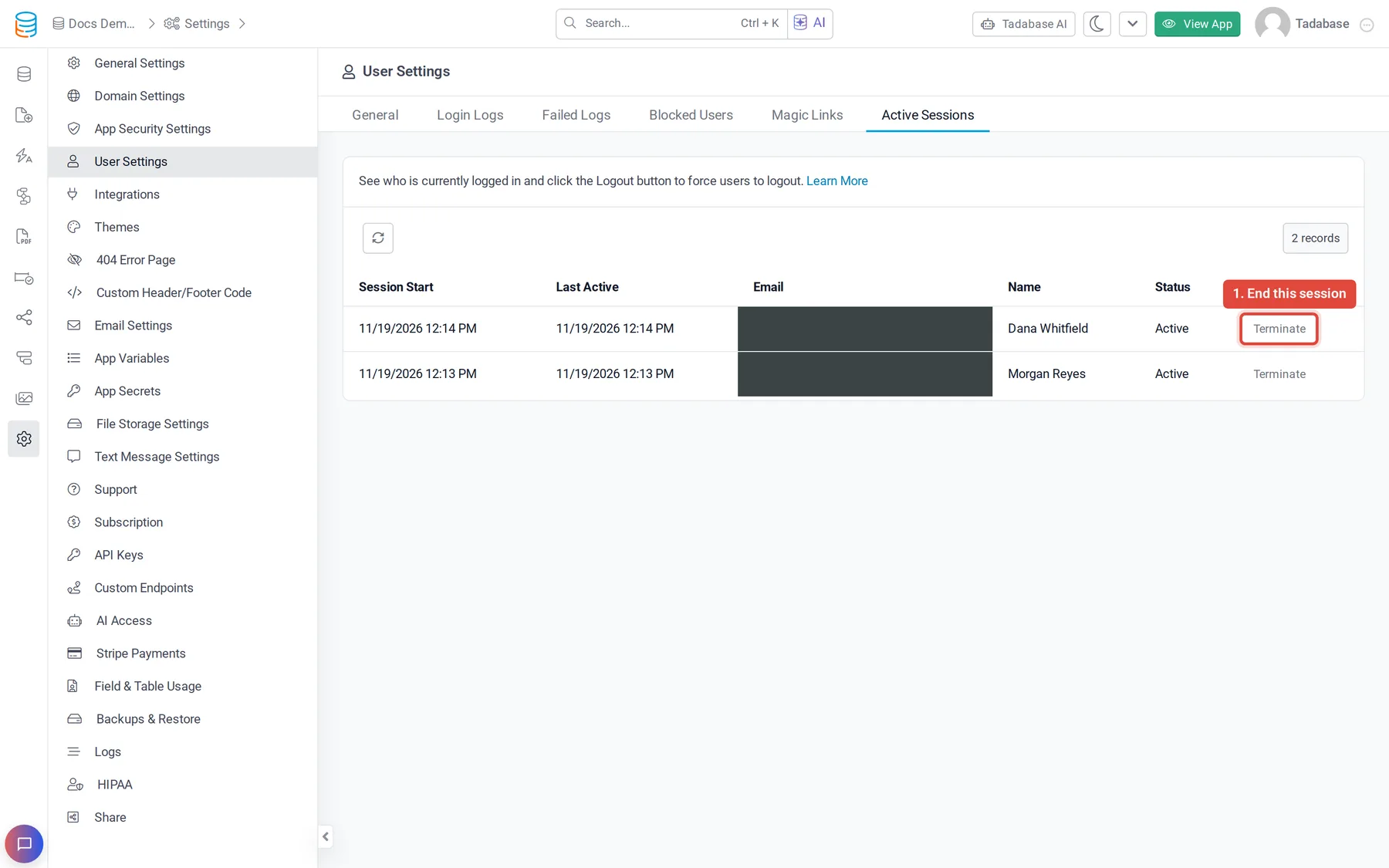
| Column | What it shows |
|---|---|
| Session Start | When the user logged in. |
| Last Active | The last time the session was used. |
| Email and Name | The user the session belongs to. |
| Status | Active while the session can be used. Logged Out after the user logged out, Terminated after you ended it. |
To end a session, click Terminate on its row. The session stops working, and the user has to log in again. Only sessions with the Active status can be terminated. Use the refresh button to update the list.
To log users out of their other sessions automatically when they change their password, see Force Session Logout on Password Change in Set password rules for app users.
Plans #
Login logs, each of the extra logging options, failed-login blocking and Active Sessions are separate plan features. If your plan does not include one, its switch is locked and shows an upgrade icon, and the tab shows an upgrade message. Compare plans on the pricing page.
For an overview of every user log in one place, see User logs.
Was this page helpful?
Something wrong or missing on this page? Tell us.