
Add and manage app users
Who can log in to your live app, the built-in fields of the Users table, and how to add and edit users from the builder, forms and the Profile component.
- Verified Nov 17, 2026
- Classic builder
An app user is anyone who logs in to your live app: a customer, an employee, a contractor. Only records in the built-in Users table can log in, so add a person there when they need their own login.
The Users table #
Every app has a Users table in the Data Builder. It works like any other table (you can add your own fields, such as a photo, a phone number or a start date), and it also holds the login details for each person.
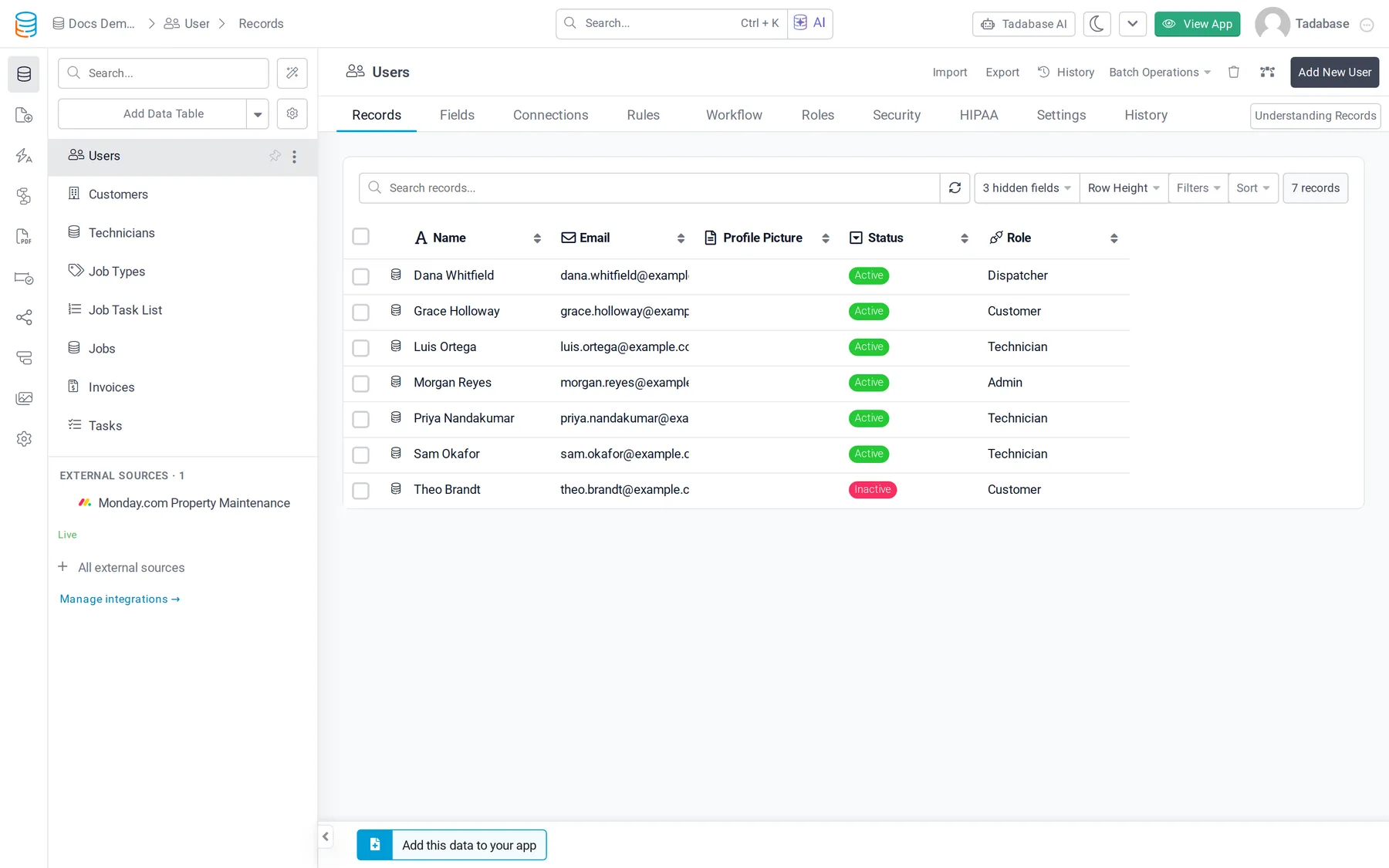
The table comes with these built-in fields. You can rename them, but you can't delete them: the field settings of a built-in field have no Delete button.
| Field | What it does |
|---|---|
| Name | A text field with the user's name. |
| The address the user logs in with. It must be unique: two users can't share an email. | |
| Password | The user's login password. |
| Status | A dropdown with the options Active, Inactive and Not Verified. New users get Active unless you choose another value. |
| Role | A connection to the app's roles. A user can have more than one role. See Create user roles and assign users to them. |
Add users #
There are three ways to create a user record. Pick the one that matches who creates the account.
| Method | Use it when |
|---|---|
| The builder | You create the accounts yourself, for example for your team. |
| A Signup component | People create their own account on a page of your live app. See Signup. |
| A Form component on the Users table | Someone already logged in (an admin or a manager) creates accounts for others from the live app. See Form component. |
- Open the Users table In the Data Builder, open the Users table and go to the Records tab.
- Add a record Click the Add New button above the records.
- Fill in the login details Enter at least the Name, Email and Password, set the Status, and choose one or more roles in Role.
- Save Save the record. The user can now log in through any Login component that allows their status and role.
The Signup component is a form built for new accounts: it adds the record to the Users table and can log the user in straight after signing up (Auto Login After Sign-Up). A regular Form component on the Users table creates the record without logging anyone in.
Edit users #
- In the builder: on the Records tab of the Users table, click the edit icon (Edit record) on the user's row, change the values and save.
- With a Form component: an edit form on the Users table lets an admin change other users' records from the live app.
- With a Profile component: logged-in users edit their own record. You choose which Users fields the component shows, so users can change their phone number, say, but not their role or status. See Profile.
Logins, password rules and login logs #
How users log in (email, single sign-on, magic links), password rules and the record of who logged in when are app-wide settings under Settings > User Settings. See Choose how users sign up and log in and Track logins and end active user sessions.
Was this page helpful?
Something wrong or missing on this page? Tell us.