
Use your own domain for your app
Serve your app on a domain you own, such as app.example.com: add a CNAME record, enter the domain in Domain Settings and validate it.
- Verified Nov 17, 2026
- Classic builder
- Available on: Business Starter, Business Growth, Business Pro, Business Elite
On this page
Every app has an address on tadabase.io. To serve it on a domain you own, such as app.example.com, point the domain at Tadabase with a CNAME record and enter it under Settings > Domain Settings. Tadabase issues the SSL certificate for you.
Before you start #
- Custom domains are part of the Business plans. If your plan does not include them, the Custom Domain Name field is disabled and shows an upgrade icon.
- Use a subdomain, such as
app.example.comorportal.example.com. DNS does not allow a CNAME record on a root domain (example.com), so a root domain cannot be pointed at Tadabase this way. www.example.comandexample.comare different domains. Enter exactly the one people will type.
Set up your domain #
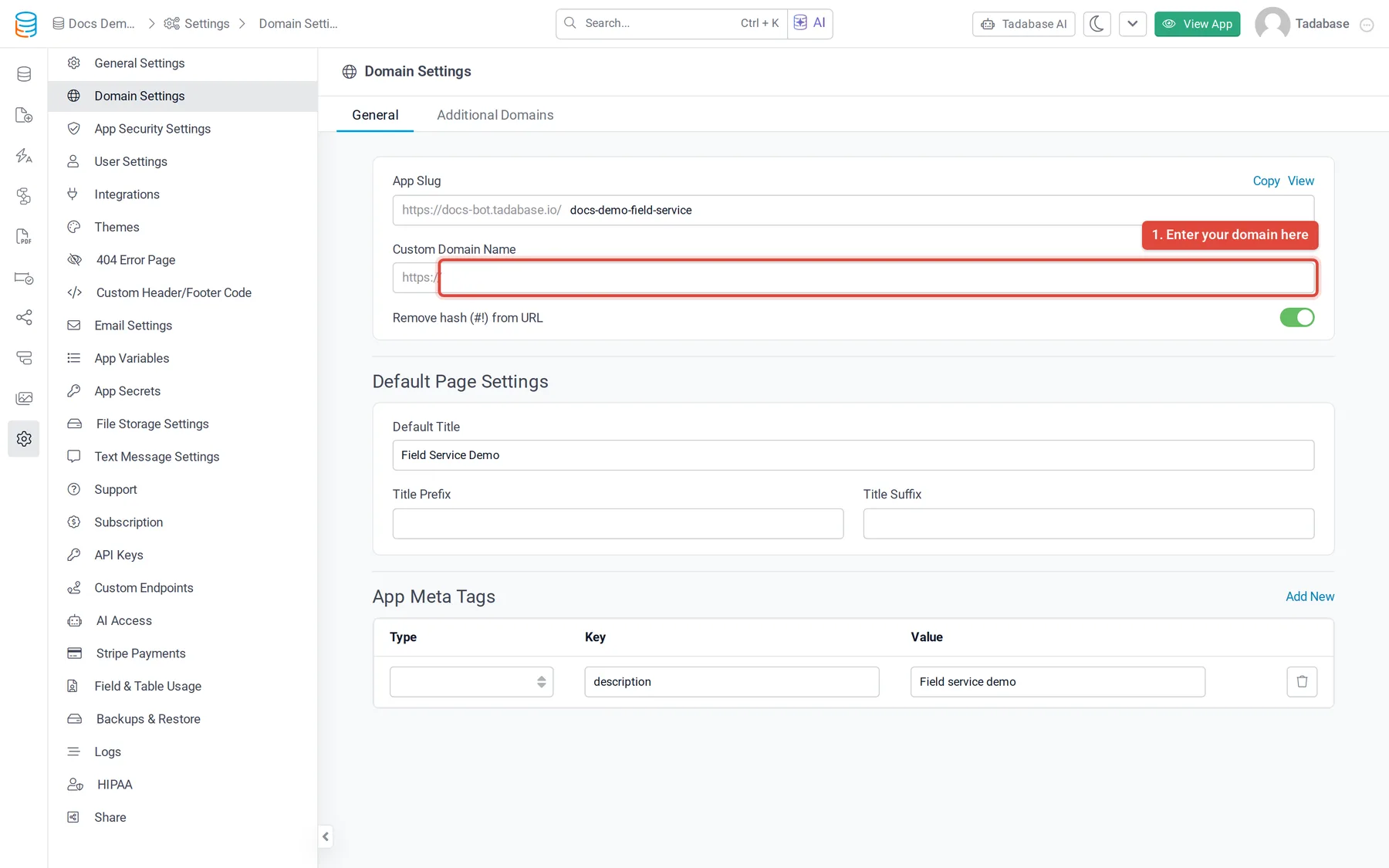
- Open Domain Settings In the builder, open Settings and click Domain Settings. The General tab shows your App Slug (the tadabase.io address) and the Custom Domain Name field.
- Enter your domain Type the domain in Custom Domain Name, without
https://and without any/. A red message appears under the field: Please add a CNAME record pointing your domain to a Tadabase address. Copy that address: it is the CNAME target for your app's region. - Add the CNAME record At the company that hosts your domain's DNS, create a CNAME record. For the host (or name), enter only the subdomain part: for
app.example.com, enterapp. For the value (or target), paste the address you copied. - Validate Back in Domain Settings, click Validate. When Tadabase finds your CNAME record, the button changes to Verified. If the record has not spread yet, wait a while and click Validate again.
- Save Click Save on the Unsaved Changes bar at the bottom of the screen, then open your domain in a browser. The SSL certificate is issued automatically the first time the domain is opened, so the first visit can take a few seconds longer.
Which CNAME target to use #
The target depends on the data region your app is stored in. The message under Custom Domain Name always shows the right one for your app, so copy it from there when you can.
| App's data region | CNAME target |
|---|---|
| United States (default) | The address shown under Custom Domain Name |
| Europe (Frankfurt) | eu-apps.tadabase.io |
| Canada (Montreal) | ca-apps.tadabase.io |
| Australia (Sydney) | au-apps.tadabase.io |
To see which region your app is in, read Data center regions.
Add more domains to the same app #
The Additional Domains tab of Domain Settings serves the same app on more domains, each with its own home page and its own extra code. Your plan sets how many custom domains you can use: 2 on Business Starter, 3 on Business Growth, 4 on Business Pro and 5 on Business Elite. The tab shows how many you are using.
- Open the tab In Domain Settings, click Additional Domains, then Add New.
- Enter the domain Type it in Domain, add its CNAME record as described above, and click Validate.
- Choose the mode and home page Leave Domain Mode on App only (browser, no API) for a domain people open in a browser. Pick the Home Page this domain opens on.
- Add domain-only code (optional) Additional Header Code, Additional Footer Code and Additional Resources load only on this domain. App Variable Overrides give an app variable a different value on this domain.
- Save Click Save. To change or remove a domain later, use the pencil or trash button in its row.
If the tab says To add additional domains, please purchase the domain add-on by contacting the support team., your plan has no additional domains left; contact support.
If the domain does not work #
| What you see | What to check |
|---|---|
| Validate keeps failing | DNS changes can take from a few minutes to a day to spread. Look up your CNAME with a public tool such as DNSChecker and confirm it points at the target shown in Domain Settings. |
| The CNAME looks right but does not validate | Make sure the host is only the subdomain (app, not app.example.com.example.com). If your DNS is on Cloudflare, set the record to DNS only (grey cloud): a proxied record hides the CNAME, so Tadabase cannot see it and cannot issue the certificate. |
| The domain opens but shows a certificate error | Open the domain again after a minute: the certificate is issued on the first visit. If your domain has CAA records that limit which certificate authorities may issue certificates for it, the certificate can be refused; remove the restriction or contact support. |
| Domain name cannot contain a forward slash | Enter only the domain, for example app.example.com, with no path. |
| Maps or address autocomplete do not load on the domain | Contact support so they can add your domain to the allowed list for the Map component and address autocomplete. |
Tadabase does not serve an app under a path of another site (such as example.com/portal). Use a subdomain instead.
Was this page helpful?
Something wrong or missing on this page? Tell us.