
Back up and restore your app
See your app's backups, take one now, roll the whole app back with Restore, or look at old data with Staged Restore, all from the Backups & Restore page in Settings.
- Verified Nov 17, 2026
- Classic builder
On this page
Tadabase backs up your app on a schedule set by your plan, and you can take a backup yourself before a big change. Everything about backups is on one page: Settings > Backups & Restore. From there you can roll the whole app back to a backup with Restore, or open an old backup without losing today's data with Staged Restore.
The Backups & Restore page #
In the builder, open Settings and click Backups & Restore. The top of the page shows three facts about your app:
| Box | What it tells you |
|---|---|
| Last good backup | When the newest complete backup was taken, or None yet. |
| Automatic backups | How often your plan backs the app up, for example Daily, when your app has changed or Every 12 hours, when your app has changed. It says Not included in your plan when your plan has no automatic backups. |
| Backups are kept for | How many days each backup is kept before it is deleted. |
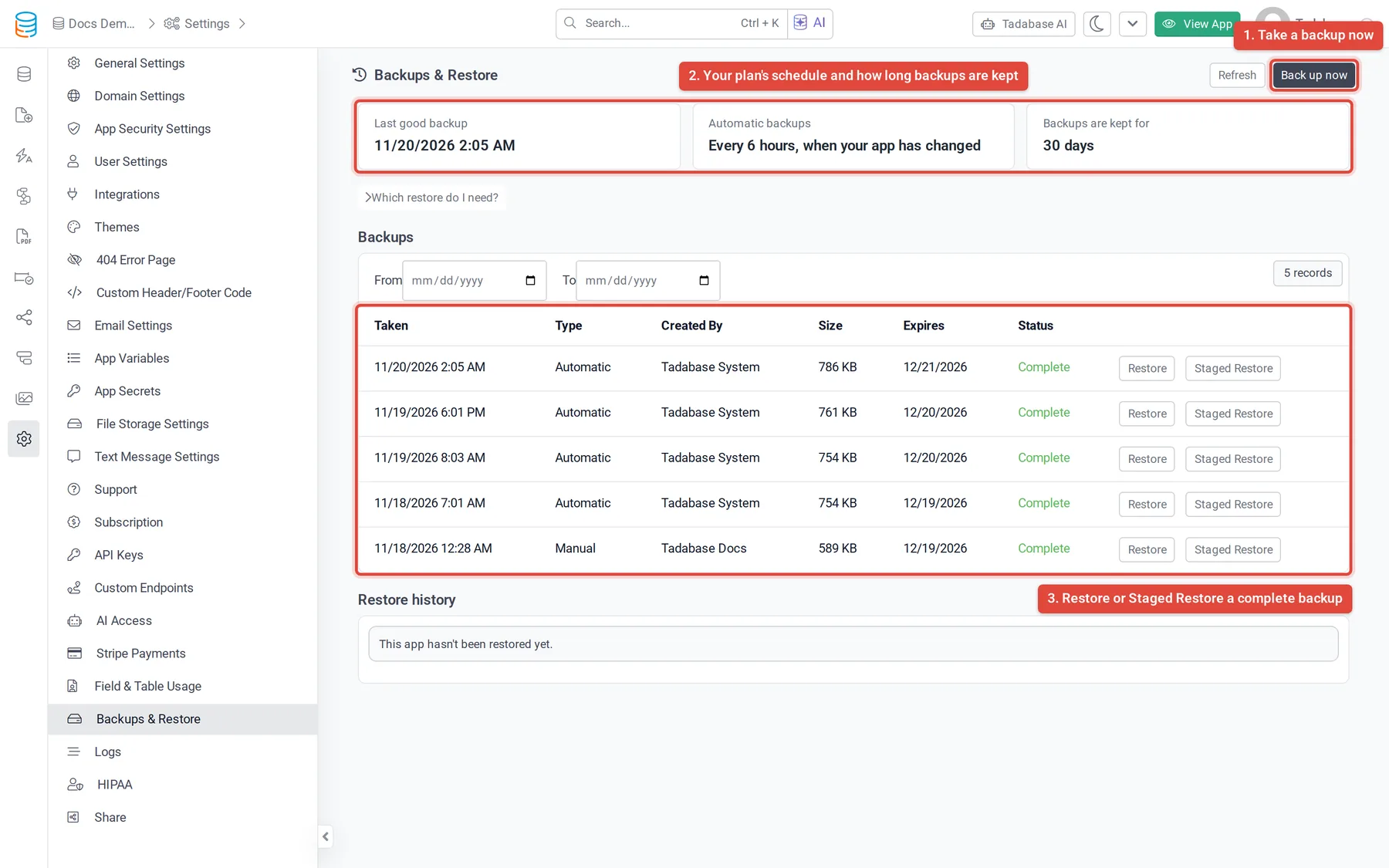
Below them, the Backups table lists your backups, newest first. Use From and To to show the backups taken between two dates, and Refresh to reload the list.
| Column | What it shows |
|---|---|
| Taken | When the backup started. |
| Type | Automatic (taken on your plan's schedule), Manual (someone clicked Back up now), Before restore (the safety backup taken just before a restore) or Support (taken by the Tadabase support team). |
| Created By | Who started it. An Active badge marks the backup a Staged Restore is using. |
| Size | The size of the backup once it is complete. |
| Expires | The date a complete backup will be deleted. |
| Status | Queued, In progress, Complete or Failed. A failed backup did not finish and can't be restored; your app was not affected. |
Each Complete backup has a Restore button and a Staged Restore button. Not sure which one you need? Click Which restore do I need? on the page for a short comparison.
How often backups run and how long they are kept #
Automatic backups run at your plan's interval, and only when your app has changed since the last backup. The Automatic backups and Backups are kept for boxes always show the values for your own plan. On the current Tadabase plans they are:
| Plan | Automatic backups | Kept for |
|---|---|---|
| Business Starter | Every 12 hours | 7 days |
| Business Growth | Every 5 hours | 14 days |
| Business Pro | Every 3 hours | 45 days |
| Business Elite | Every 3 hours | 60 days |
Older and custom plans have their own values; check the boxes on the page. The Expires column shows exactly when each backup will be deleted.
Take a backup now #
Take a backup yourself before a large import, a bulk update or a big redesign, so you have a known-good point to go back to.
- Open the page Go to Settings > Backups & Restore.
- Start the backup Click Back up now. The button changes to Backing up... and a new Manual row appears in the table with the status Queued, then In progress.
- Wait for Complete The page updates by itself every few seconds while the backup runs. When the status is Complete, the backup can be restored. You also get an email when it finishes.
- Only one backup of an app runs at a time, and you can't start one while a restore is running.
- There is a limit on manual backups per app in a 24-hour period. If you reach it, the page tells you to try again later.
- If your plan doesn't include manual backups, Back up now shows an upgrade message instead of starting a backup.
Restore your app from a backup #
Restore replaces your whole app with the backup: records, tables, fields, pages and workflows. Use it to roll the app back for good.
- Pick the backup In the Backups table, find the backup you want to go back to (its status must be Complete) and click Restore.
- Read the confirmation The Restore this backup? window shows when the backup was taken, its type and size, and what will be replaced.
- Type the app name Type your app's name exactly as shown to confirm.
- Start the restore Click Restore this backup. A banner at the top of the page shows the progress, starting with Taking a safety backup first.
What happens during a restore:
- Tadabase first takes a fresh safety backup of the app as it is now. It appears in the table with the type Before restore.
- If the restore fails, your app is put back automatically from that safety backup.
- Your uploaded files, domain, billing and collaborators are not changed by a restore.
- If a Staged Restore is active, it ends before the restore starts.
- You get an email when the restore finishes.
Look at an old backup with Staged Restore #
Staged Restore loads a backup into a separate temporary copy so you can look at or download old data, without replacing your app for good. It works in two parts:
- Preparing the copy does not change your app. Everyone keeps working as usual.
- Activating it switches your live app, and everyone using it, to the backup's data until it ends. Your current data is kept safe and comes back when it ends. Anything people add or change while it is active is discarded.
- Prepare the copy In the Backups table, click Staged Restore next to a Complete backup, then click Start Staged Restore. Tick Activate automatically when ready if you want the app to switch over as soon as the copy is prepared.
- Wait until it is ready A Staged Restore banner at the top of the page shows the progress. When it says Ready. Your app has not changed., the copy is prepared. You also get an email.
- Activate it Click Activate Staged Restore, read the warning, then click Activate Now. When the banner says Active, your app is showing the backup's data.
- Look at the old data Open your app and look at, or download, the old data you need.
- End it Click Deactivate in the banner. Your current data comes back.
- An active Staged Restore turns off by itself after a set number of hours. The confirmation window tells you how long.
- Before it is active, you can stop it with Cancel in the banner. The temporary copy is discarded and your live app is not changed.
- An app can have only one Staged Restore at a time, and you can't start one while a restore is running.
- To keep the backup's data for good, use Restore instead. Starting a restore ends any Staged Restore.
Restore history #
The Restore history table at the bottom of the page lists the app's most recent restores. It says This app hasn't been restored yet. when there are none.
| Column | What it shows |
|---|---|
| Requested | When the restore was started. |
| Kind | Restore or Staged Restore. |
| Created By | Who started it. |
| Finished | When it finished. |
| Status | Restored when it worked. Failed. Your app was put back or Failed. Your app was not changed when it didn't. While a restore runs, this shows its current step. |
Who can back up and restore #
- The app owner can always see, take and restore backups.
- A collaborator with access to the app's settings can see the page. To take backups or restore, the owner must also turn on Back up and restore this app for that person in Share. See Sharing your app builder.
- Collaborators who can see the page but not run it see the message Only the app owner, or someone the owner has allowed in Share, can back up or restore it.
Emails you get #
Emails go to the app owner and, when someone else started the action, to that person too:
- When a backup started with Back up now finishes. Automatic backups don't send an email.
- When a restore finishes, or if it fails.
- When a Staged Restore starts, when it is ready to activate, and when it is active.
Was this page helpful?
Something wrong or missing on this page? Tell us.