
Create, copy and delete apps
Create a new app from scratch or from a template, copy an app with or without its records, protect it from deletion, and delete an app you no longer need.
- Verified Nov 17, 2026
- Classic builder
On this page
All your apps are listed in My Apps, the first screen after you sign in. From there you create new apps, copy them and delete them. How many apps you can have depends on your plan (see Plans).
Create an app #
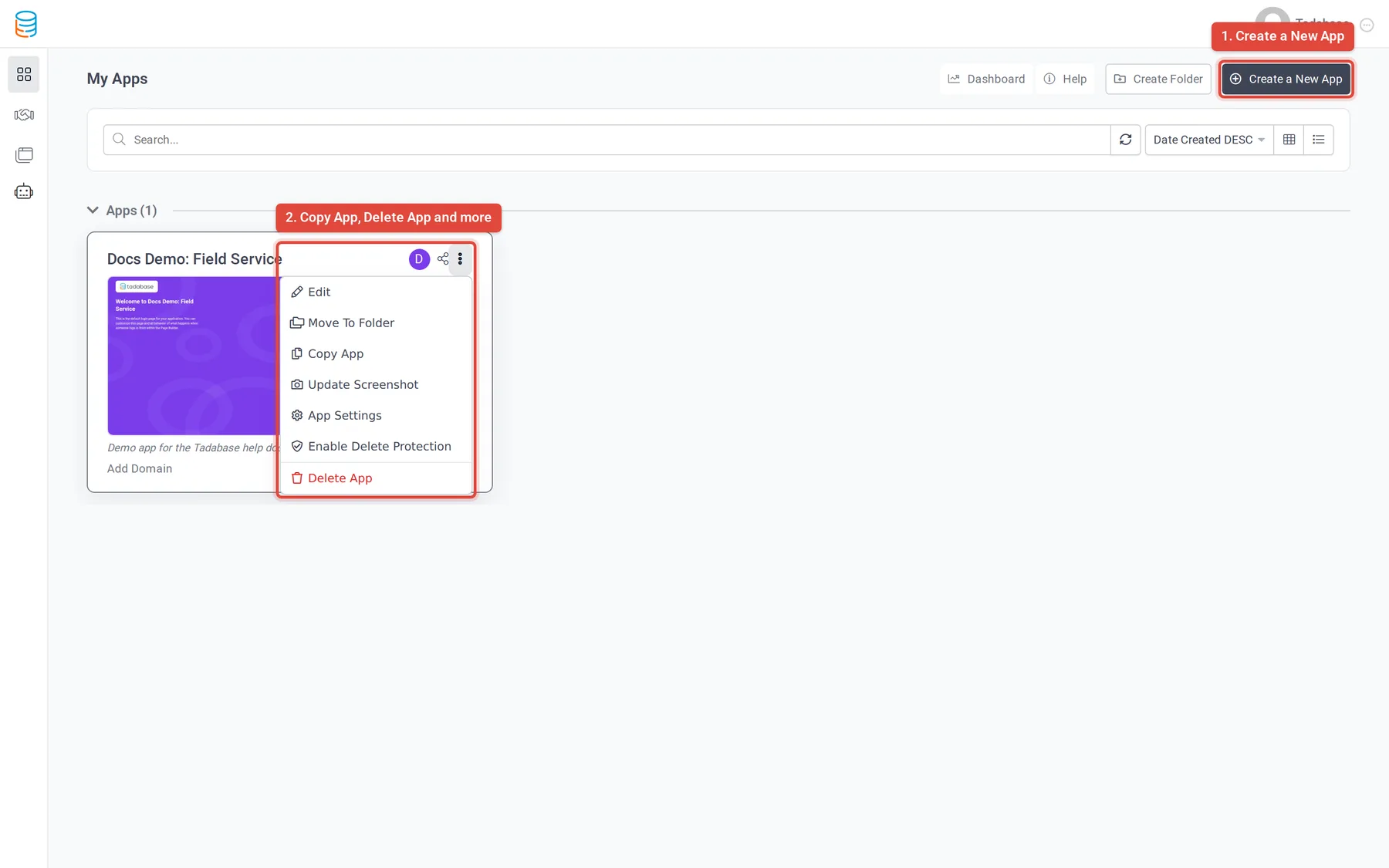
- Start In My Apps, click Create a New App. The screen asks How do you want to start?
- Choose Start from Scratch Under Start from Scratch, click Get Started.
- Name it Enter the App Name and App Description. Both are required.
- Create Click Create. Tadabase creates an empty app and opens it in the builder.
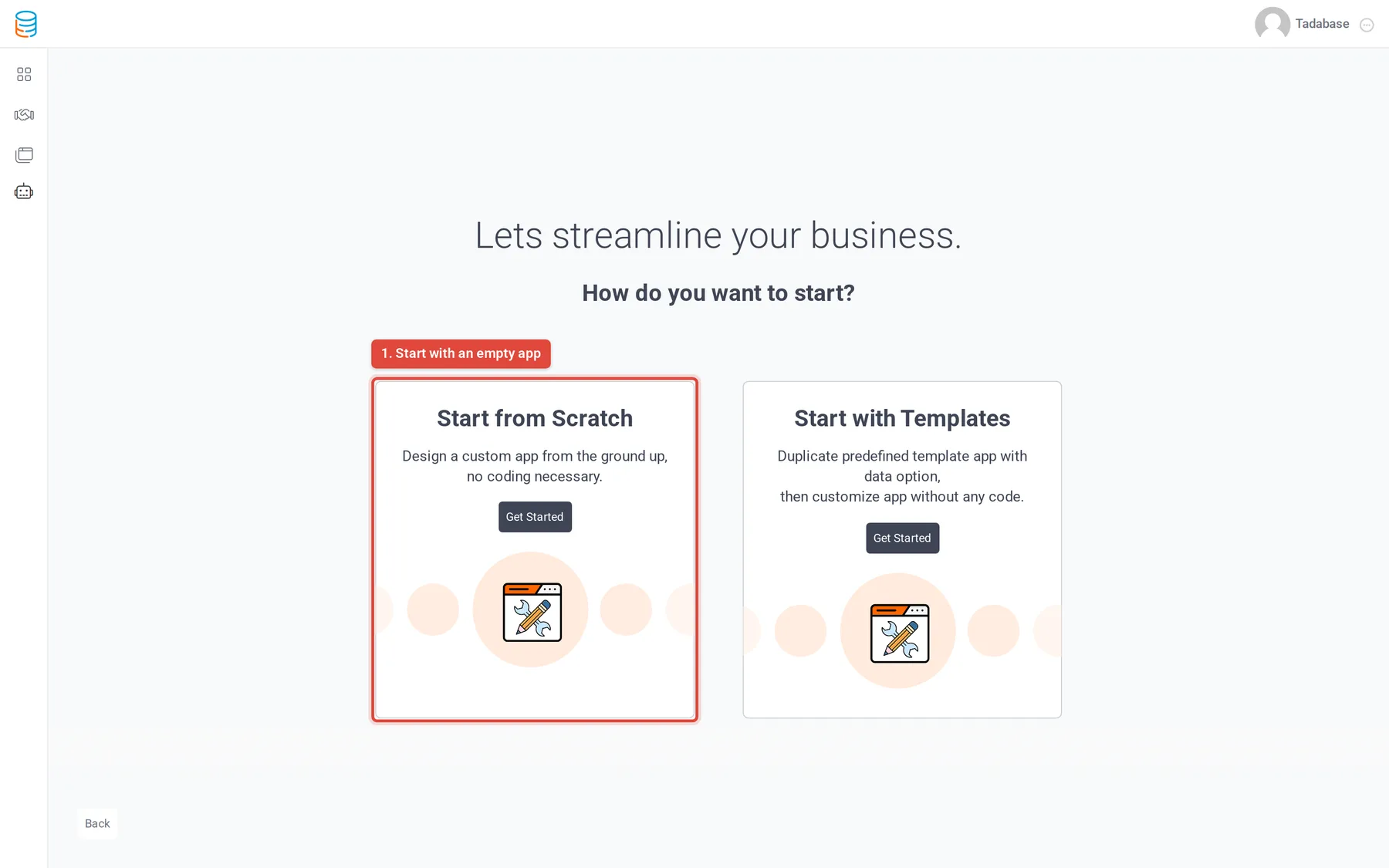
The same screen offers Start with Templates, which opens the template gallery (see below). Accounts with AI app building also see AI Builder, which builds an app from a description you write.
Start from a template #
- Open the gallery Click the Templates icon in the left bar of My Apps. Narrow the list with Filter By: Industries or Use Cases.
- Look before you install Click Preview on a template to see it.
- Install Click Install, enter a Name for your copy and choose Import template data? to include the template's sample records or not.
- Finish Click Save & Install. The new app appears in My Apps.
Copy an app #
- Open the app's menu In My Apps, point at the app's card and open its menu (the three dots).
- Copy Click Copy App.
- Name the copy Enter the New app name. You can rename it later.
- Choose about records Turn Include records on to copy your data, your users and their passwords. Off copies tables and pages without any data.
- Start the copy Click Copy app. The card shows Copying... with the progress until the copy is ready.
What the copy does not take with it:
- Automations and workflows are copied paused, so the new app cannot send email or call other services until you turn them on.
- API keys, passwords and your custom domain are not copied.
- When records are included, files stay in the original app's storage and the copy reads them from there. Deleting the original app removes those files from the copy too.
Delete an app #
- Open the app's menu In My Apps, open the app card's menu and click Delete App.
- Say why and confirm Fill in Why are you deleting this app? and type
Deletein the confirmation box. - Enter the emailed code If a code is needed, click Continue. Tadabase emails a 6-digit code to your account address; enter it under Verification code. If it does not arrive, click Resend code once the timer allows.
- Delete Click Delete App.
Only the app's owner can delete it. People you shared the builder with cannot.
Protect an app from deletion #
Open the app card's menu and click Enable Delete Protection, then confirm. While it is on, the app cannot be deleted; trying shows Delete protection is enabled for this app. To delete the app later, choose Disable Delete Protection first. Only the owner can change it.
Organize your app list #
- Create Folder adds a folder; Move To Folder in an app card's menu puts the app in it.
- Apps stored outside the United States show their data region on the card, such as Europe (Frankfurt). Pointing at it says whether the app opens in its own regional builder. See Tadabase data center regions.
- Apps other accounts share with you are in Shared Apps in the left bar. See Share your builder and give support access.
Was this page helpful?
Something wrong or missing on this page? Tell us.