
Customize the page shown when a page is not found
Choose what people see when they open an address in your app that does not exist: your own message, or another page of the app.
- Verified Nov 17, 2026
- Classic builder
When someone opens an address in your live app that does not match any page, for example a mistyped link or a page you deleted, the app shows a "Page not found" screen. You can change its message, or send people to one of your pages instead.
Open the setting #
In the builder, click Settings in the left menu, then 404 Error Page. The screen is titled Error Settings and has two choices.
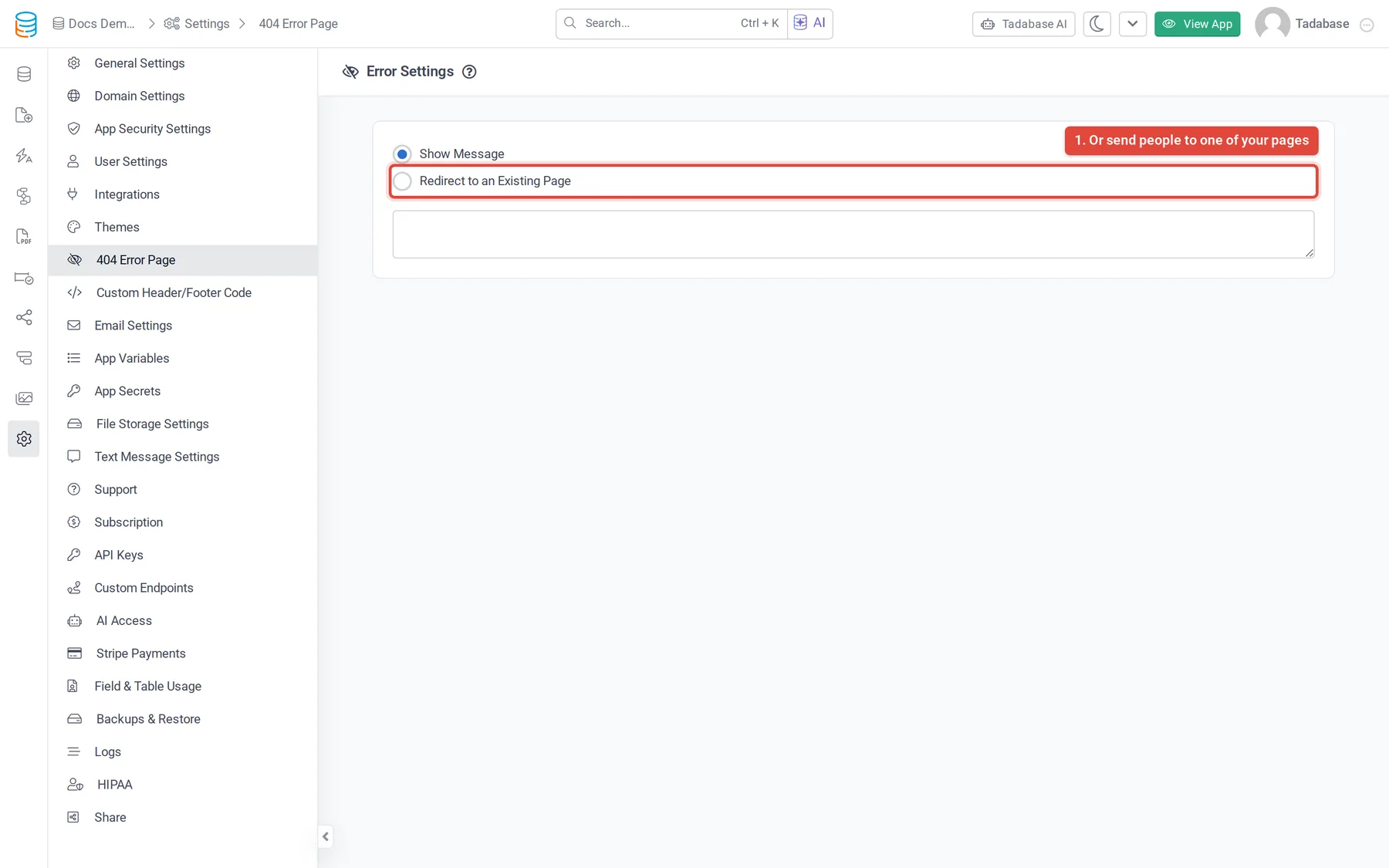
Show your own message #
- Choose Show Message Select Show Message. A text box appears.
- Write the message Type what people should read, for example where to find what they were looking for. The text is shown as plain text.
- Save Click Save in the Unsaved Changes bar at the bottom of the screen.
The not-found screen shows 404, Page not found., your message and a Return Home button. If the box is empty, the message is "We can not find the page you're looking for."
Send people to another page #
- Choose Redirect to an Existing Page Select Redirect to an Existing Page. A Page list appears.
- Pick the page Choose the page to open instead, for example your home page or a help page.
- Save Click Save in the Unsaved Changes bar.
Any address that matches no page now opens the page you chose. The app's main address with nothing after it still opens your default page.
Check that it works #
Open your live app in a private (incognito) window and add a page name that does not exist to the end of its address. You should see your message, or land on the page you chose.
Was this page helpful?
Something wrong or missing on this page? Tell us.