
Manage your subscription, payment card and invoices
Choose a plan after your trial, upgrade or downgrade, cancel, update your payment card and download invoices from Manage Subscriptions.
- Verified Nov 17, 2026
- Classic builder
On this page
Your plan belongs to your account, not to one app: one subscription covers every app you own, and the plan's limits count across all of them. You manage it from Manage Subscriptions in the user menu.
Open Manage Subscriptions #
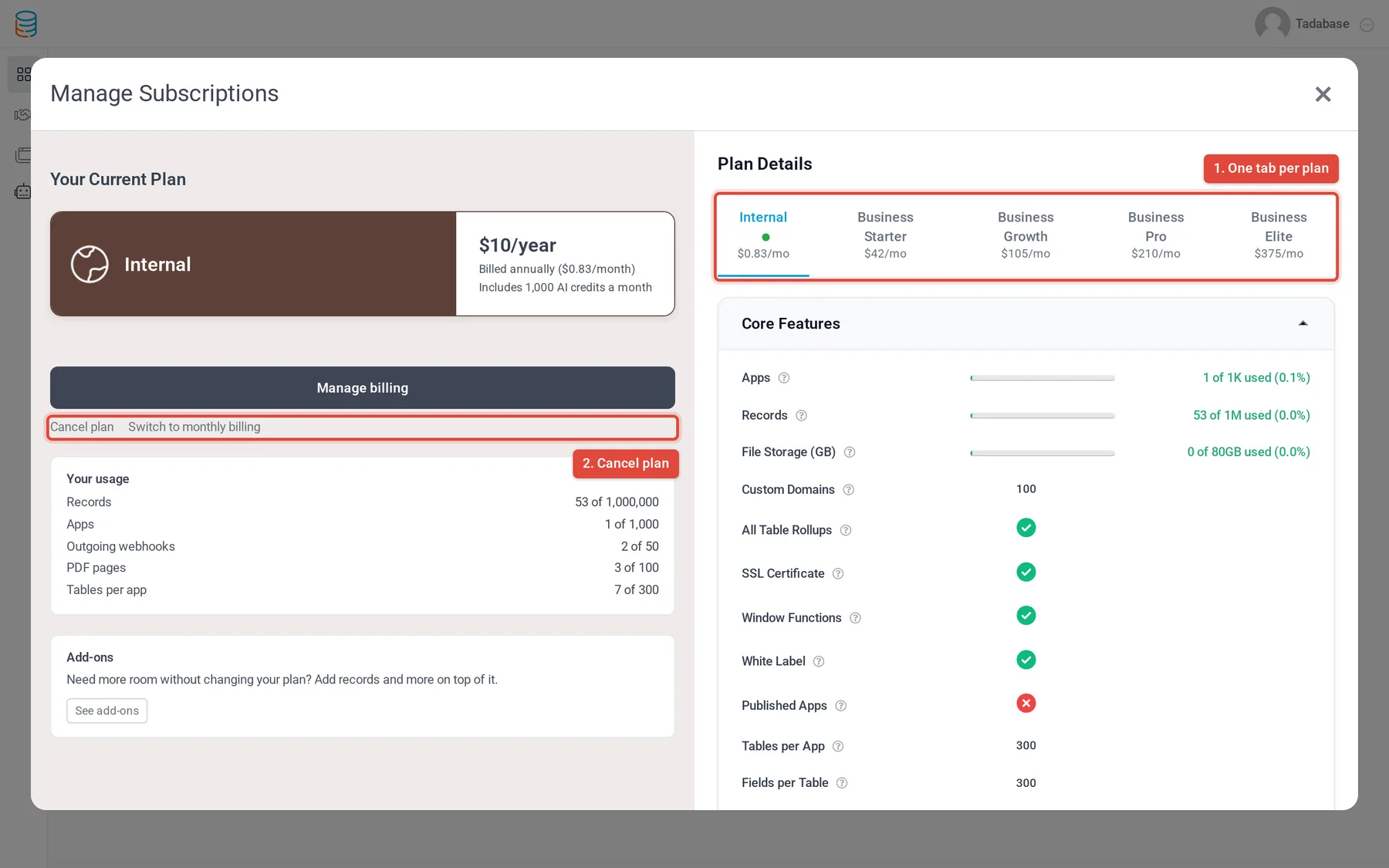
Click your name in the top right corner of the builder, then Manage Subscriptions. The window shows your current plan on the left and Plan Details on the right: one tab per plan, with every feature and limit, and how much of each you use now.
For what each plan includes and what happens at a limit, see Plans and what happens at your plan limits.
Choose a plan after your trial #
- Open Manage Subscriptions While you have no paid plan, the window shows the plans you can buy. Click here under the plans opens the full feature comparison.
- Pick a plan Click the plan you want. Checkout runs on Stripe's secure payment form.
- Pay Enter your card details and confirm. Your plan applies to all your apps as soon as the payment goes through.
Upgrade or downgrade #
- Pick the plan In Manage Subscriptions, click the plan's tab under Plan Details. Use Yearly and Monthly to switch the prices shown. If you do not see a smaller plan, click See all plans.
- Compare Open a section of the plan details to compare your Current Plan with the plan you picked, line by line.
- Start the change For a bigger plan, click Upgrade to and the plan's name. For a smaller plan, click Downgrade Plan or the Move to link under the plan details.
- Confirm Review the change on the next screen and confirm it.
Cancel your plan #
- Open your current plan In Manage Subscriptions, make sure your current plan is selected.
- Cancel Click Cancel plan under the plan and confirm on the next screen.
Once a cancellation is scheduled, the same place shows Your plan ends on and the date, with a Details link.
Cancelling your plan does not delete your account. To close the account itself, see Delete your account.
Update your card and download invoices #
- Open billing In Manage Subscriptions, with your current plan selected, click Manage billing.
- Use the billing page Your Stripe billing page opens in a new tab. Update your payment card, see and download your invoices, and edit your billing details there.
The name, phone and address on your invoices can also be set in the builder: click your name, Edit Profile, then the Billing Info tab (Billing Name, Phone, Billing Address).
If a payment fails #
When a renewal payment fails, Stripe retries the card and the builder shows a banner. Your apps keep running for up to 21 days while the payment is retried. Update your card with Manage billing to settle it.
Refunds #
Duplicate and mistaken charges are refunded in full. A renewal is refunded if you ask within 14 days and the account hasn't been used since. Otherwise there is no refund, and your plan runs to the end of the period you paid for. To ask for a refund, contact support@tadabase.io.
If your apps are billed one at a time #
Some accounts pay for each app separately instead of one account plan. On those accounts the user menu shows My Subscriptions instead of Manage Subscriptions, and each app has its own billing screen: open the app and go to Settings > Billing.
| Tab | What you can do |
|---|---|
| General | See Your Current Plan, then Change Plan, Update Card, see the Next Invoice, or Cancel Plan. A cancelled plan shows Subscribe Again. |
| Invoices | A list of the app's invoices (Plan, Date, Amount, Status), each with a view and a download button. |
Was this page helpful?
Something wrong or missing on this page? Tell us.