
See who uploaded and downloaded files
List every file uploaded to your app and every download of a secure file, with who, when, which record and field, and the IP address.
- Verified Nov 17, 2026
- Classic builder
Tadabase logs each file uploaded to your app, and each time someone downloads a secure file. Use these logs to find a file, see who uploaded it to which record, and see who accessed protected files.
Open the file logs #
- Open Logs In the builder, click Settings, then Logs.
- Click File Logs Click File Logs. It has two tabs: Upload Logs and Secure Download Logs.
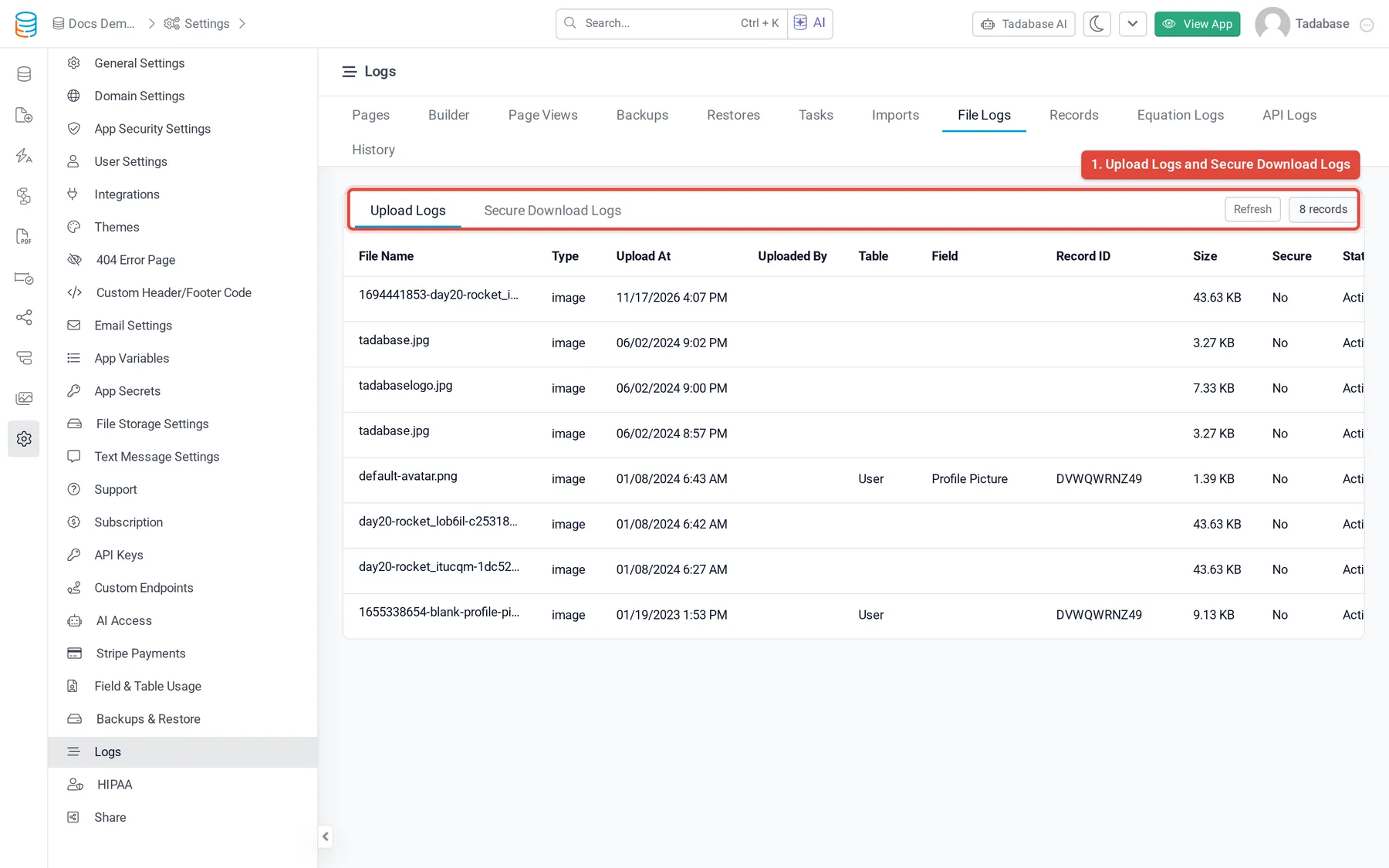
File Logs shows when your plan includes file logs.
Upload Logs #
One row per uploaded file, newest first.
| Column | What it shows |
|---|---|
| File Name | The file's name. |
| Type | The file type. |
| Upload At | When it was uploaded. |
| Uploaded By | The app user who uploaded it, when one was logged in. Click the pencil to open their user record. |
| Table, Field, Record ID | Where the file is stored. Each has a pencil to open it in the Data Builder. |
| Size | The file size. |
| Secure | Yes with a lock for a secure file, otherwise No. |
| Status | Active, or Deleted with the name of the person who deleted it. |
At the end of each row, Download downloads the file. For a secure file, Logs opens the list of its downloads. The trash icon deletes the file and marks the entry Deleted; the log entry stays.
Record ID can be empty. A file is logged the moment it is uploaded, so a file uploaded in a form that was never submitted has no record.
Secure Download Logs #
Downloads are logged only for secure files, the files in fields with Secured turned on. Opening a secure file creates a temporary link that works for 10 minutes, and each link created is logged as one download. Downloads of files that are not secure are not logged.
| Column | What it shows |
|---|---|
| File Name | The file that was downloaded. |
| Source | Where the download was requested from. |
| Download At | When it was downloaded. |
| Accessed By | The app user who downloaded it, when one was logged in. |
| Table, Field, Record ID | Where the file is stored. |
| IP | The IP address it was downloaded from. |
To see the downloads of one file only, find it in Upload Logs and click Logs on its row. To set up secure files, see Choose where uploaded files are stored.
How long entries are kept #
Secure download logs are kept for 30 days on free and trial apps and for 90 to 365 days on paid plans, depending on the plan. See Find your app's logs. To show file logs on a page of your app, see Adding logs to the app side.
Was this page helpful?
Something wrong or missing on this page? Tell us.